Network Outputs
AllWhat it's for — Network Outputs is where you add, configure, and test every protocol connection from CueSync to your lighting consoles, media servers, and show-control systems. It also shows live input source health (PRO DJ LINK on DJ and Production, Ableton Link, MIDI and, on editions with timecode, Timecode) and a live monitor of connection events and latency.
The screen, region by region
The screen is divided into three tabs: Inputs, Outputs, and Monitor.
Header bar
A compact row at the top shows two summary pills:
- In: X/N — how many of your active input sources (PRO DJ LINK on DJ and Production, Ableton Link, MIDI and, on editions with timecode, Timecode) are currently delivering data. A source you have switched off is named as inactive rather than counted. A timecode clock that is freewheeling after its signal dropped does not count as delivering. Hover the pill for a breakdown of which sources are active and which are idle.
- Out: X/Y — how many active outputs are healthy out of how many are active. Hover for a breakdown of healthy, unreachable, offline, not-configured and inactive counts. The pill is amber while any active output is still on the template's placeholder host, and reads Out: none until you add one.
To the right is a preset selector — a drop-down for saving and loading your full output configuration as a named network preset, useful when you move between venues. Once you have changed the rig after loading a preset, its name reads modified, and the menu offers Update '…' with current outputs. Next to it is a gear icon that opens Settings.
Quick actions bar
Three buttons appear below the header:
- Test All — runs a connection test on every configured output simultaneously and updates each output's status badge. It is greyed out until you have an output to test.
- Restart Failed — reconnects any output that is currently in an error or disconnected state, without touching healthy outputs. It is greyed out when nothing has failed; hover it for what to do instead.
- Diagnostics — jumps to the Monitor tab and brings the Diagnostics panel into view.
Inputs tab
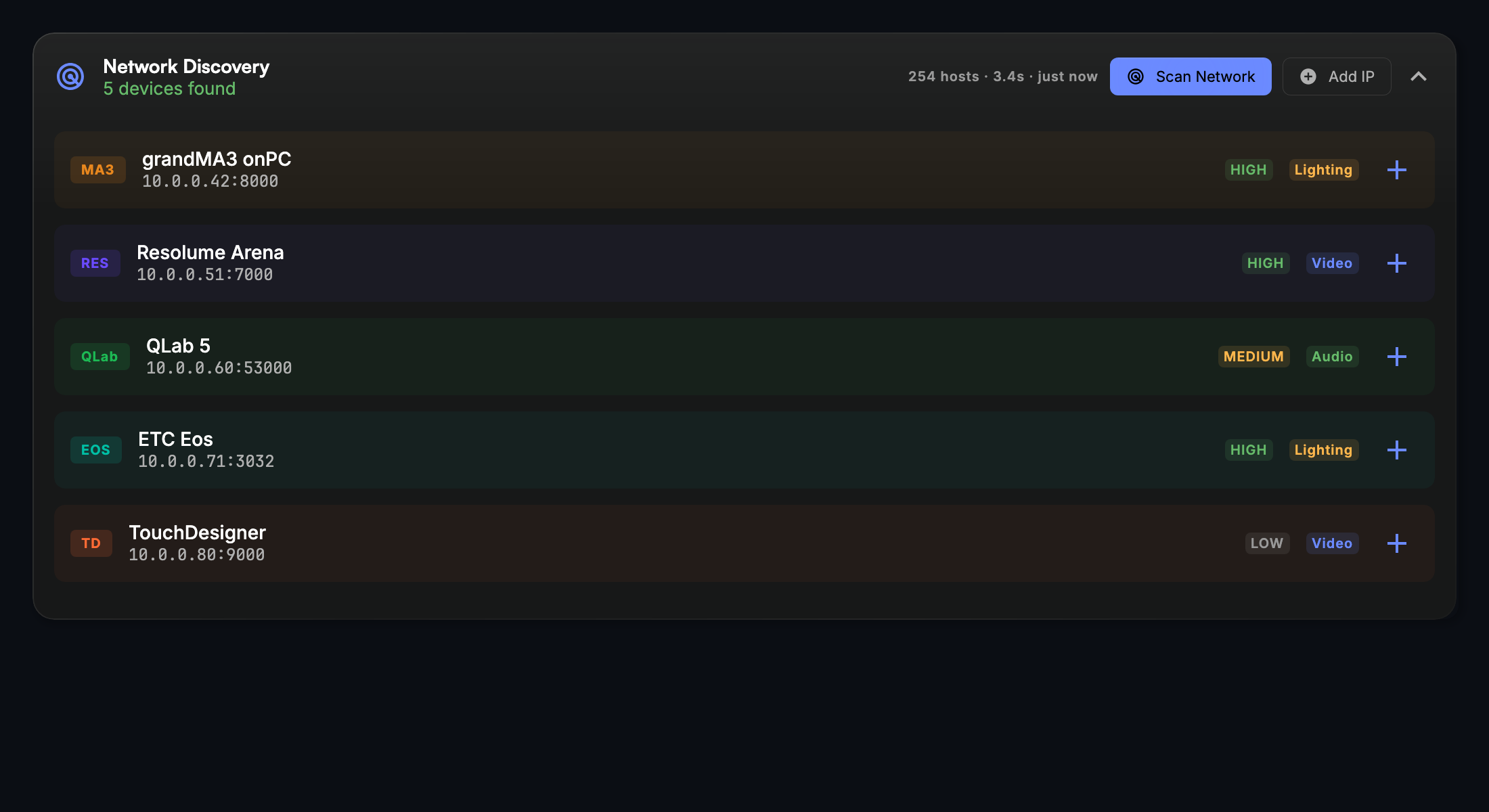
Network Discovery sits at the top. Scan Network sweeps your subnet for known devices and lists what it finds with a confidence badge (hover it for the evidence); Probe IP checks one address or hostname you type — press Enter or Probe, and Cancel stops one that is taking too long. Each result has a + to add it as an output, or In Outputs when it already is one. A low-confidence result on a shared port (such as 8000) offers Add as buttons so you can choose the right protocol. A current grandMA3 takes UDP only and cannot answer a scan, so probing its address ends with an Add as GrandMA3 (UDP) · port 8000 button instead. On a link-local network (no DHCP) the sweep is skipped, and the notice says so calmly — CDJs and Art-Net nodes still announce themselves.
- While a show is live, Scan Network asks first — Scan the network mid-show?, because a scan contacts every device on the network and can interrupt a console or a node that is running the show. It scans only if you choose Scan. A set running from an Ableton Link, OS2L or tap-tempo clock counts as live, like a deck set.
- A PixLite is found by its web page. A PixLite that never answers ArtPoll (one set to sACN, for example) is identified by its own web page and listed with its model and firmware (PixLite E16-S Mk3). A node that answers both ways is one row, not two.
- A grandMA3 is found by "MA Webremote". A desk whose web page announces itself that way is listed as a grandMA3 (commanded over UDP OSC, port 8000), and macOS's AirPlay receiver is no longer listed as Resolume.
- A scan says when it could not look. If every network the scan swept was a single address — an adapter given an address with no netmask — the notice says the scan checked only this computer and names the cure: add the address again with its netmask (for example 255.255.255.0) and scan again. If another app on this computer holds UDP 6454 (a console's onPC or a visualiser), the notice says Art-Net nodes were not looked for; close that app and scan again.
Below it, a card for each input source (on a wide or 4K window the page widens to use the space and the cards flow up to four across):
- PRO DJ LINK (DJ and Production) — whether CueSync has joined the network and how many Pioneer players it can see. Disconnecting it while a show is live asks first, because every deck-driven cue stops following the decks.
- Ableton Link — whether the Link metronome is enabled, the session tempo and how many peers are present on the network. If the Link connection drops, the card says Connection lost · reconnecting instead of "no peers".
- MIDI — connected MIDI input devices, or how many are detected but not yet connected.
- Timecode (editions with timecode) — whether an external clock (LTC, MTC, TCNet, Art-Net) is locked. If the signal drops and the clock is running on its own, the card reads Freewheeling · signal lost. For a source whose silence you have declared to mean a stop (Silence means stopped, Art-Net by default), the card reads a neutral Stopped instead: the clock is held and no cues fire.
Outputs tab
A list of all your configured outputs. Each row shows the output name, protocol category, host address, and current status. Status can be:
- Healthy (green dot) — connected and sending successfully. The card's tint and protocol chip keep the protocol's own colour; the dot is the status.
- Unreachable (amber) — the host address resolves but CueSync cannot reach it on the configured port. CueSync continues retrying with backoff; the rest of your rig keeps firing.
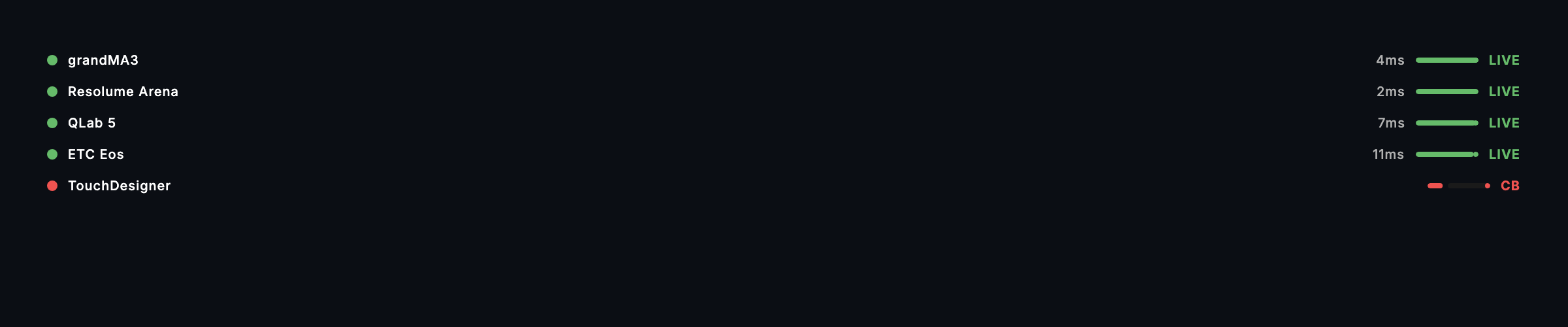
- Offline / circuit breaker open (red) — CueSync has stopped sending to this output after repeated failures. Cues that target this output will report failure in the notification bar. After a cooldown CueSync automatically probes the output and reconnects if it has recovered; if it does not come back on its own, click Restart Failed to retry immediately.
Outputs are grouped by type: lighting consoles, media servers, and audio/show-control systems. You can filter the list by type using the segment control at the top of the tab.
Adding an output — Click the + button to open the output configuration editor. Choose the output category (lighting, video, or audio/show control), then pick a protocol. Enter the host address and port — defaults are pre-filled for each protocol. Save to add the output and begin connecting. Available protocol categories:
- Lighting consoles and controllers — GrandMA 3, GrandMA 2, Avolites Titan, ETC Eos, ChamSys MagicQ, and DMX-over-network output (Art-Net and sACN/E1.31).
- Video and real-time media servers — Resolume, disguise, TouchDesigner, Unreal Engine 5, VIOSO, Pixera, Pangolin BEYOND.
Unreal Engine 5 is the one output that needs a companion install: add the CueSync for Unreal plugin to your UE project, then point a UE5 output at the machine running your project. Keep the plugin up to date to use clock-accurate scheduling (see Schedule on the console's clock below).
- Audio and show control — QLab (TCP and UDP), MIDI Show Control.
- Custom — Custom OSC lets you define your own address patterns.
Activating and editing an output — A single click on a row switches it between Active and Inactive (asking first if it is connected, or still connecting, and a show is live); double-click it, or use the pencil button that appears when you hover or Tab to it, to open its editor.
Import and Export — Export copies every output's address and settings (never a login or token) as JSON; Import pastes it back, on this or another machine, and shows where each output points before you confirm. An imported output with the same name updates that output's address and keeps its other settings. A refused entry is reported, not counted. Import is available on an empty rig too.
A show saved on another computer opens with its network outputs held. When you open a show — File ▸ Open, a double-click, drag-and-drop, Recents, a bundle or tour pack, an imported template or a restored backup — CueSync checks whether this computer saved it. If another computer did, or CueSync cannot tell, every output that reaches a network address stays off (sACN multicast included) and a notice lists them: the first several, then "and N more", each with the address it would dial. Press Connect to turn them all on, or switch each one on from Outputs; closing the notice leaves them off. MIDI Show Control outputs are not held, because they name a MIDI port on this computer rather than a network address. Your own shows open as before, including the ones already in your Recents. If the show has no unsaved changes when you press Connect, CueSync remembers that answer on this computer for that exact file, so a relaunch or an unattended start reopens it connected; a newer copy of the file asks again, a bundle or tour pack you import always asks, and a show you never connected here stays held behind the notice every time it opens. Saving a show whose outputs are still held does not make it yours. Loading a network preset replaces the held outputs with the preset's and ends the hold.
A console that reappears at a new address is not followed by itself. When a saved output's console is announced again at a different address, a notice names the new address and the saved one: "Nothing has changed: it still points at …. Re-point it only if you moved it." Re-point moves the output; closing the notice keeps the saved address. A console that comes back at its saved address reconnects on its own. The question belongs to its output: it comes down when another show loads, a network preset replaces the outputs, or the output is deleted.
A saved login is sent only to the address it was saved for. A grandMA2 console login, a QLab passcode or an Unreal pairing token that is not yet tied to an address is not sent anywhere until you agree once: the output connects without it, and a notice asks "Send the console login to …?", "Send the passcode to …?" or "Send the pairing token to …?". Your OK remembers that address. After you approve a Re-point, a login you typed for the old address is asked about at the new one the same way. A password you retype for an output is tied to that output's address. A login that arrives inside a show file fills an empty slot only and never replaces the one you stored for that output; when the stored one is for another address, a notice says so and points to the output's settings.
These questions are notices, never dialogs, so Space stays GO while one is on screen. Do Not Disturb holds a question and shows it when Do Not Disturb ends instead of dropping it; status messages and timed toasts below error level are still dropped while it is on, and the notification history marks a held question "held until DnD ends".
Editing an output — Click any row to open its editor. You can update the name, host, port, and timing offsets (pre-fire offset and latency compensation). Click Test Connection in the editor to verify reachability; the result shows round-trip latency or a failure message with suggested fixes. It uses a saved login or passcode only for the address it was saved for. On an install in read-only mode, Test Connection only pings the host: no connection is opened and no command or login is sent, and the text says a host that stays silent is not necessarily off. When CueSync has been monitoring the connection, the editor also shows the measured round-trip latency (median) with a one-tap Use action that fills it straight into Latency comp — a measured starting point instead of a guess. Click Save to apply changes or Delete to remove the output; the Delete Output confirm says how many cues currently send to it, closes any active connection, and cannot be undone.
Schedule on the console's clock (OSC timetags) — Outputs that accept OSC 1.1 bundle timetags (Resolume, QLab UDP, Unreal Engine 5) offer a Schedule on the console's clock checkbox in the editor. With it on, pre-fired cues are sent early as timetagged bundles and the device executes them at the beat on its own clock. It needs Pre-fire or Latency comp above 0, and this machine and the device on the same clock (same computer, or NTP-synced). If fires land at the wrong moment, the clocks are out of sync — turn it off. grandMA3 is not on that list: the desk does not act on OSC bundles, so the option is not offered for it and a show saved with it on sends plain messages.
Network presets — Use the preset selector in the header bar to save your current output list as a named preset (for example, "Main Stage" or "Club Setup"). Loading a preset replaces all current outputs — outputs it names the same as a live one keep their identity, so cues routed to them keep working. The apply prompt says so when a show is live, and notes that logins, pairing tokens and passcodes are not stored in presets. A preset that would exceed your edition's OSC or Art-Net/sACN limits is refused before anything changes. Preset names must be unique. Manage Presets can rename, delete, or copy a preset as JSON, which you can paste into Import on the Outputs tab, here or on another machine.
Monitor tab
Live latency graphs, throughput, diagnostics, a connection timeline and a log of recent connection events (connects, disconnects, degraded links, outputs paused after repeated failures). Use this tab to confirm outputs are staying healthy over time and to diagnose intermittent failures.
- Latency shows the newest round trip per output, and — where none was measured (Art-Net, sACN, MIDI Show Control and custom OSC have no reply to time). An Active output that is down stays on the list with its state. The headline Avg Latency is the median across healthy outputs.
- Health is green only when every active output is healthy; Connected notes how many rest on a host-only or unanswered check.
- Diagnostics rows are amber for a host that answered a ping but whose application was not verified, and Not verified for a node (such as an Art-Net node) that never answered the poll.
- Event Log — filter by type; Clear asks first, because the Diagnostics uptime figures and the show report read the same log.
Common tasks
- Add your first output — Go to Outputs tab → click + → pick the output category → select the protocol → enter the host address → Save. CueSync connects immediately.
- Test a connection — Click an output row → click Test Connection. Green means CueSync reached the destination and got a response within the timeout.
- Reconnect after a failure — Click Restart Failed in the quick actions bar. CueSync attempts to reconnect all outputs in an error state.
- Save venue configuration as a preset — Click the preset selector → Save as new preset → enter a name. You can load it instantly next time you're at the same venue.
- Check which inputs are supplying data — Hover the "In: X/Y" pill in the header to see which input sources are active.
Tips & gotchas
- Do a dry run of every output on your own rig before show day. How far each integration has been proven is on the Protocol Reference.
- An offline output does not stop other outputs from firing. Only cues that target the disconnected output are affected. The rest of your rig continues to run.
- What a failed Test Connection means depends on the transport. "Unreachable" on a TCP output means the port is closed, not the device off: check that the receiving software has its listener enabled and on the right port. For a UDP output there is no handshake, so "Unreachable" means the host did not answer a network ping — which says nothing about the port. A grandMA3 whose OSC port is closed shows Desk refusing UDP instead.
- Test All and Restart Failed are safe to click during a show. Testing never sends cue commands; it only checks that the output is reachable. Restart reconnects silently without re-firing any cue.
- Pre-fire offset and latency compensation are per-output timing fields. Setting these shifts when CueSync fires that output's cues relative to the beat, useful for outputs with known hardware processing delay. Beat cues and Track Position cues are sent early by that amount so they land on the beat. Pre-fire is applied only when CueSync can be sure the beat will arrive. If the deck pauses or goes quiet, or cannot report reliably (the internal clock has no deck report), the cue fires on the beat itself instead of early. A Local Audio set is sent early like a deck, and a Pause, Stop or Next just before the beat holds the cue back.
Related
- Devices — At-a-glance output health on the main Devices dashboard
- Network Planning — One switch, several networks: what each device needs
- Diagnostics — Deep connection event history and per-output uptime statistics
- GrandMA2 — Driving a grandMA2 console over Telnet, and the USB macro lane
- GrandMA3 Session Sync — Moving a Theatre cue list to and from a grandMA3
- Cues — Assign outputs to cue actions
Looking for a quick fix?
The Help Center has short task-focused articles and a support team that responds within 24 hours.