Cues
AllWhat it's for — The Cues screen is the master list of every cue in your show. Each cue pairs a trigger (what fires it) with one or more actions (what it does). This is where you add, edit, reorder, and enable or disable cues.
The screen, region by region
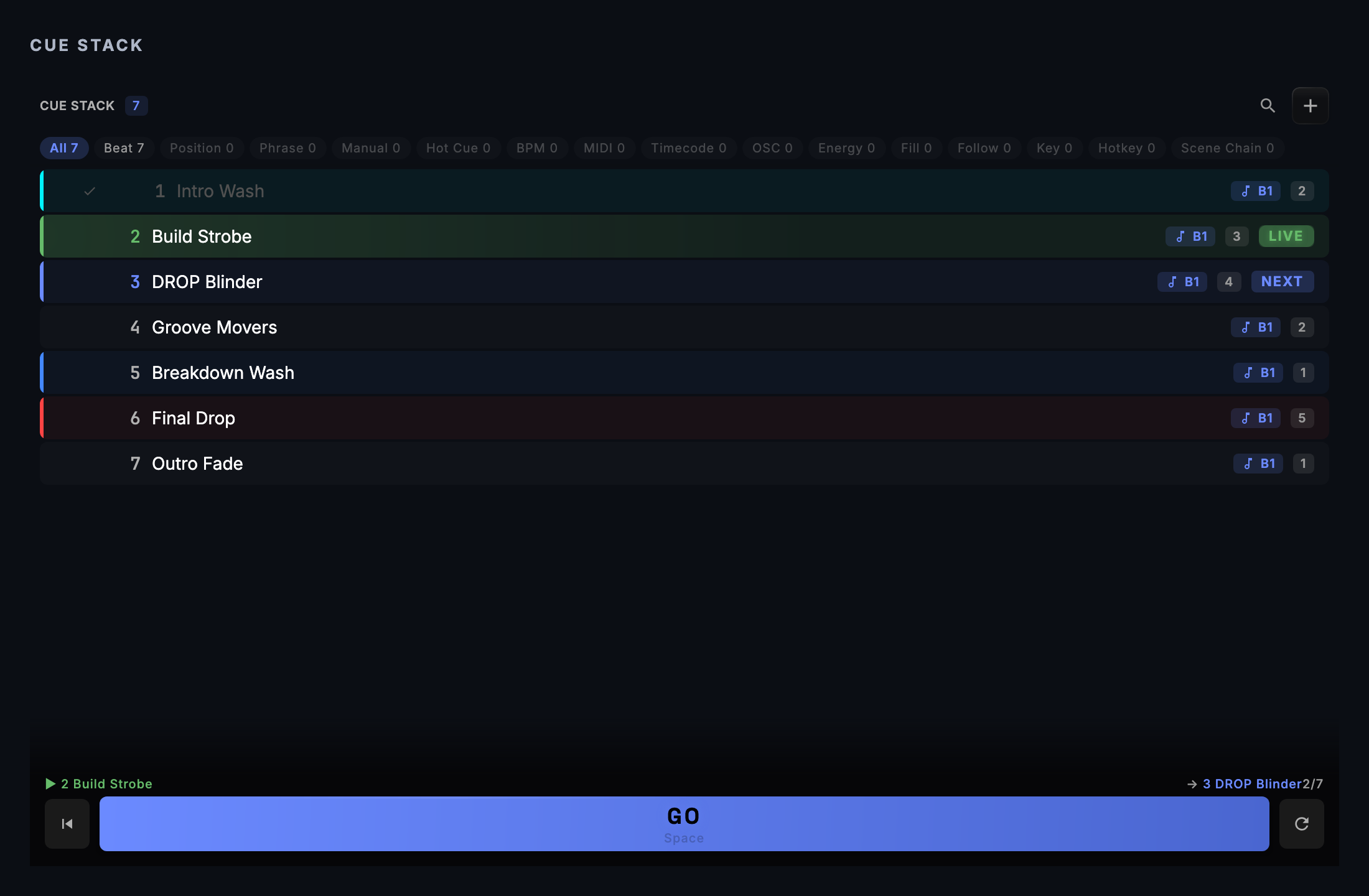
Toolbar (top) — Contains the + button to add a new cue, a search/filter field to narrow the list by trigger type (the chips beside it are the trigger types your edition can author, plus any already in the stack — DJ has no Timecode, OSC, Hotkey, Scene Chain or DMX chip; Theatre has no Phrase, Hot Cue, BPM, Energy, Fill, Key or Position chip), a bulk-edit button when multiple cues are selected, and a DRY toggle beside the search icon. The toggle reads DRY RUN while it is on: cues still advance on screen, but no command is sent to any output. Turn it off before the show.
Cue stack list (main area) — Your ordered list of cues, grouped into any groups you have created. Each row shows:
- Cue number and name — editable by double-clicking the row or opening the Cue Editor.
- Trigger badge — the condition that fires the cue (Beat, BPM, Phrase, Hot Cue, MIDI, Timecode, Energy, Hotkey, Track Position, etc.). The Cue Editor's trigger picker groups these into Music-Reactive (beat, phrase, energy…) and Scripted / Manual (GO, hotkey, timecode, track position…). The full list with firing semantics is in the Trigger Reference.
- Action count chip — how many actions the cue carries. Hover over the row to reveal an inline test-fire button.
- Ready state — a Drafted / Tested / Ready badge indicating how far the cue has been verified.
- AUTO chip — present on cues that were generated automatically by Auto Pilot or by track analysis.
- Status badge — shows the cue's current state (e.g., NEXT, LIVE, DISABLED).
Per-cue context menu (right-click or …) — Offers duplicate, delete, assign to group, and assign to a pad.
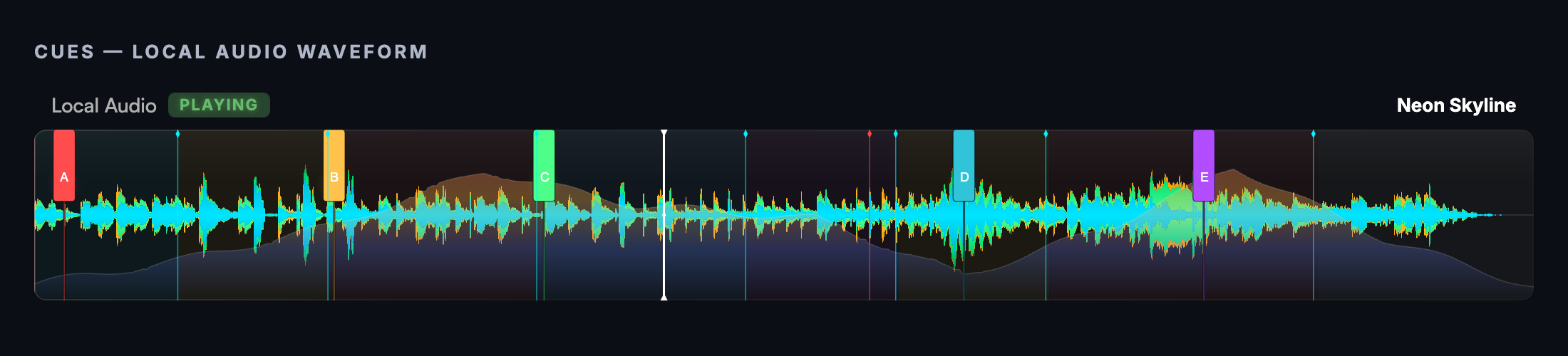
Local-audio waveform (when no deck has a track) — On a deckless DJ or Production rig, where no Pioneer player has a track loaded but the local queue does, the Cues screen shows the playing track's waveform in place of the deck readout: playhead, phrase tints, and the hot-cue markers your cues are anchored to. It is a read-only view — author cues in Track Prep, and drive the transport from Local Audio. Theatre has neither PRO DJ LINK nor Local Audio, so it never shows this panel.
Common tasks
- Add a cue — Click
+in the toolbar, or choose Transport ▸ Cue Stack ▸ Add Cue… (Cmd+Nis New Project everywhere except the Show Editor). The Cue Editor dialog opens. Set the trigger, add one or more actions, name the cue, then click Save. - Edit a cue — Double-click any row, or select the row and press
Enter. The Cue Editor dialog opens with the cue's current settings. - Reorder cues — Drag a row up or down (or press
Cmd+Up/Cmd+Down); reordering is switched off while a search or filter is active, because the rows on screen are not the whole stack. The cue stack is sequential: cues fire in order when a sequential trigger evaluates. (Only the next cue in the stack is evaluated for sequential triggers at any moment, and that includes MIDI. Hot Cue Hit is the one exception: it can also fire a matching cue further down the stack. See Tips & gotchas.) - Enable or disable a cue — Click the toggle on the right side of the row, or select the cue and press
Cmd+Shift+E. Disabled cues are skipped during playback. - Test-fire a cue — Hover over the row and click the play icon that appears on the right. Output fires immediately regardless of trigger state.
- Delete a cue — Select the row and press
Delete(or right-click → Delete). - Bind a cue to a keyboard key — In the Cue Editor, pick the Hotkey trigger and type the key name (letters, digits,
F1–F12). Pressing that key in Run Mode fires the cue when it is the next cue in the stack. A blank key never fires, and neither doP,L,RorSPACE: Run Mode keeps those for its own controls, and the Cue Editor says so if you bind one. - Fade a value over time — In the action editor, add a Fade (OSC ramp) action. Pick the Fade target: Art-Net channel, sACN channel, Raw OSC, TouchDesigner parameter, Resolume layer opacity, Resolume layer volume, GrandMA3 fixture intensity, or QLab cue level. The fade needs the output that matches its target, connected: Raw OSC needs a Custom OSC output, Art-Net and sACN their own outputs, and so on. The GrandMA3 and QLab targets need the console's OSC (UDP) output, not the TCP one. Set From % and To % (the QLab target is in dB: From dB and To dB), choose a duration in Duration (beats) (tempo-scaled — the ramp follows the live BPM) or in the or ms box (wall-clock), and pick a curve (Linear, In, Out, S-Curve, Exp).
- Fire a cue at an exact track position — Give the cue a Track Position trigger. It fires once when the playing deck reaches (or seeks past) the target beat — no timecode needed. Place and retime it on the waveform in Track Prep; the cue editor shows the position read-only.
Tips & gotchas
- Cues fire in order for sequential triggers. CueSync evaluates only the next cue for triggers like Beat, BPM, and Phrase. If a cue is misconfigured and never fires, the cues below it will also be blocked. Check the cue's trigger settings and ready state.
- Hot Cue triggers do look-ahead. A cue with a Hot Cue trigger can fire even when it is not the "next" cue in the stack — it evaluates any time the matching hot cue is hit on the decks. It only looks forward: a hot cue never jumps back to a cue you have already passed. MIDI triggers do not look ahead. A MIDI cue fires only while it is the next cue.
- Groups organise the stack; GO still walks it one cue at a time. Grouping cues into named groups does not change the order GO fires them in. The underlying sequence is still the full flat stack. A group can also be fired on its own: right-click its header for Fire Group (N), and choose Fire sequentially (each cue waits out its follow time before the next) or Fire simultaneously.
- A Cues-list cue holds actions, not intents. Intents, the venue-portable "set look / strobe burst" instructions, live on Theatre show cues, Auto Pilot moments and Show Themes. See Intents and Actions, and Cues, Pads or Scenes? for choosing between the three surfaces.
- DRY RUN sends nothing. While the toolbar toggle reads DRY RUN, firing a cue advances the stack on screen, but no protocol command is sent from cues, pads or Auto Pilot. Use it to walk a stack without touching the rig. Check that it reads DRY, not DRY RUN, before the show.
- A cue's actions fire together; only a Wait splits them. All the actions between two Wait actions start at the same moment, in parallel. A Wait holds the cue for its delay, then the next group starts. List order alone does not sequence anything on the Cues screen.
- Cues of a track that left the decks switch off by themselves. A track's cues that have not fired switch off when it leaves every deck, or stops while another deck plays, and switch back on when it returns, with a notice. A cue you switched off by hand stays off. If bringing them back would repeat cues that already fired, they stay off and the notice says so; Reset Cue Stack switches them back on for a track that is on a deck. See DJ Set Workflow.
- Editing a cue's trigger or action may demote its ready state. A cue that was marked Ready may drop back to Tested or Drafted after a behaviour-changing edit. Check the badge before the show.
- Fade behaviour. Starting a new fade on the same target replaces the previous one, and panic and show-stop cancel every running fade. If an output disconnects mid-fade, the fade stops and CueSync warns you.
Escsteps out one thing at a time, and never rewinds the stack silently. In the main window it first releases a latched blackout; otherwise it closes or clears whatever is open or selected, and only when nothing is left does it reset the cue stack — which asks first (Reset Cue Stack?) whenever the stack has progress to lose. Reset only moves the stack back to the top and sends nothing to the rig.- Action labels show real names. Cue rows, pads and live surfaces show the name of the Look they fire, such as "Warm Wash". If the Look has been deleted, the label shows a placeholder.
Related
- Show Editor — Sequence cues on a waveform timeline (Theatre edition)
- Cue Pads — Trigger individual cues from a grid of pads
- Palette — the looks (named output states) your cue actions can fire
- Intents and Actions — what a cue's actions are, and why a Cues-list cue holds no intents
- Cues, Pads or Scenes? — choosing between the Cues list, Cue Pads and Looks
Looking for a quick fix?
The Help Center has short task-focused articles and a support team that responds within 24 hours.