Devices
AllWhat it's for — Devices is your at-a-glance connection dashboard. It shows every Pioneer CDJ or XDJ on your PRO DJ LINK network alongside your protocol outputs and MIDI controllers, so you can confirm the whole rig is ready before you go live.
PRO DJ LINK decks are a DJ and Production feature. Theatre has no PRO DJ LINK, so its Devices screen shows protocol outputs and MIDI controllers only.
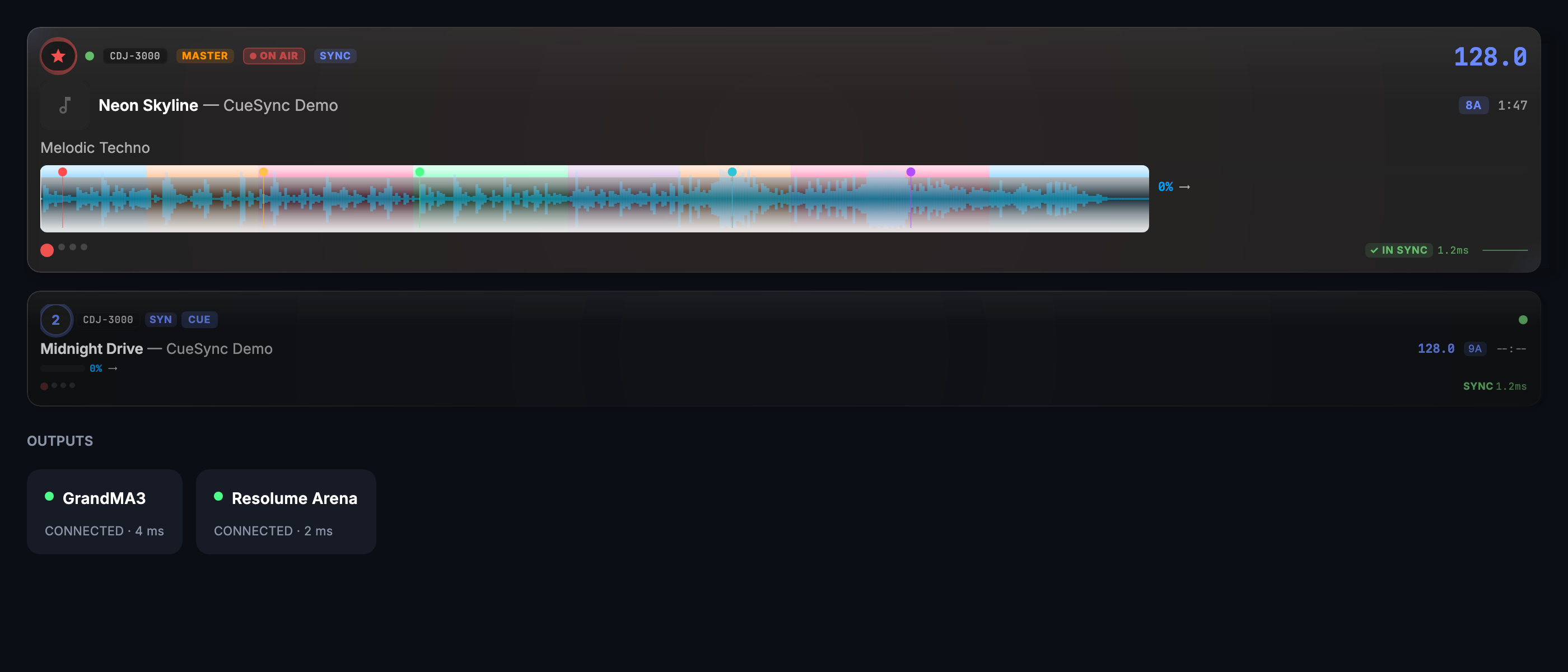
The screen, region by region
Header — Shows how many Pioneer players are currently online. If the network is joined but no players have appeared yet, the subtitle reads "Scanning…"; after 60 seconds with nothing found it switches to "No CDJs found on this network" so you know the scan is running but the network is empty.
System status strip — Appears below the header when at least one output is configured or PRO DJ LINK is joined. Gives a one-row summary of DJ Link state, output health, and any outputs CueSync has taken offline across your whole rig — all in one place so Devices acts as a mission-control surface, not just a deck list.
Rig mode badge — A compact label reading PRO DJ LINK or OPUS QUAD that identifies the rig's link topology (a standard PRO DJ LINK network, or Opus Quad compatibility mode). Hidden until the topology resolves.
Mounted media strip — Shows the USB or SD slot status for each connected player, updated when a slot is mounted or ejected. Automatically hidden when no media is mounted.
Pioneer player section — Cards for each connected CDJ or XDJ. Each card shows the player number, track name and artist, BPM, connection quality, and a compact waveform overview. On wider windows the cards sit side-by-side; on narrow windows they stack vertically. Clicking the analysis health indicator on a card deep-links to Track Prep for that track.
Outputs and controllers section — A grid of your configured protocol outputs (lighting consoles, media servers, show control systems) and any connected MIDI controllers. Each output shows its current connection state. Outputs CueSync has stopped sending to after repeated failures show a warning badge — click "Go to Network" to investigate.
Common tasks
- Verify pre-show readiness — Open Devices before your set and confirm all Pioneer player cards are green and your output health strip shows no amber or red items.
- Check which media is loaded — Read the mounted media strip to confirm each player has the correct USB drive inserted.
- Jump to Network for a failing output — Click the "Go to Network" link on the outputs grid to open the Network screen for that output's details.
- Expand a deck card — Click the chevron on any Pioneer player card to give it more height for the full waveform view. Click again to collapse back to equal distribution.
Tips & gotchas
- PRO DJ LINK must be joined for player cards to appear. If the strip says "DJ Link offline", check that this computer is on the same network as your Pioneer gear, not only on the same switch: a switch joins cables, and the players' addresses and this computer's address must also start the same way (for example both
192.168.1.x, or both169.254.x.x). When CueSync hears players it cannot join, it says so, and it joins by itself as soon as an adapter has an address in their network. See Network Planning. - Outputs in the grid are read-only here. Use Network to add, edit, or test an output. Devices shows status only.
- The 60-second scan timeout does not stop scanning. It only changes the label. If a CDJ appears later it will show up in the list immediately.
- A held output looks parked. A show saved on another computer opens with its network outputs held, so they show as not connected here until you press Connect in the notice or switch them on in Network (Network Outputs).
- Warning badges are real-time. An output that goes down mid-show updates its badge immediately, not on the next navigation.
Related
- Network Outputs — Add outputs and run connection tests
- Network Planning — One switch, several networks: what each device needs
- Pro Decks — Full-screen Pioneer deck display with waveforms and sync chips
- Diagnostics — Deep runtime health data for troubleshooting
Looking for a quick fix?
The Help Center has short task-focused articles and a support team that responds within 24 hours.