Elgato Stream Deck
AllWhat it's for — CueSync drives an Elgato Stream Deck directly over USB as a physical cue surface: the keys mirror your current CuePad bank (or, if you choose, the Palette's looks) with live names, colors, icons and run-state, and the bottom row gives you hardware GO, STOP, and bank switching. No Elgato software, no Companion, no plugins — plug in, flip one toggle, and the deck lights up with your show.
Turning it on
Stream Deck support is off by default — CueSync and the Elgato Stream Deck app can't share a deck (USB HID devices have one owner). To enable it:
- If the Elgato Stream Deck app is installed, either quit it or (app version 7.1+) disable the specific deck under its Preferences → Devices.
- In CueSync, open Settings → Stream Deck and switch on Enable Stream Deck.
- With Auto-connect on (the default), the deck connects within a few seconds and every reconnect afterwards is automatic.
If a deck appears in the Devices card but won't connect, another app owns it — CueSync tells you exactly that in a notification rather than failing silently.
The key layout
Pad area (all rows except the bottom) — mirrors the current CuePad bank slot-by-slot. Each key shows the pad's name on its color, and tracks the pad live:
- Idle — a dimmed, inset button in the pad's color with a thin rim, so even a near-black pad reads as a pad and not an empty key.
- Armed for downbeat — dim fill with a bright frame in the pad's color.
- Queued (quantize wait) — mid-bright with a thin white frame. A pad a Follow Action has armed to fire shows the same look, so you never hit it by hand and fire it twice.
- Active — full pad color.
- Executing — full color with a thick white frame.
- Press missed — the key flashes dark red when a press didn't land (stale slot, or the license is in read-only mode), so you never wonder whether the deck heard you.
Bottom row (transport) — bank prev / bank label / bank next on the left, STOP and GO in the bottom-right corner. The bank label shows the bank's name and one dot per bank, the current one filled. The GO key shows the name of the next cue in the stack, so you always know what you're about to fire. GO goes through the same safety gating as the on-screen and APC40 transport.
Layouts adapt per model: a 15-key MK.2 mirrors 10 pads, an XL mirrors 24, a Stream Deck + and a Neo mirror 4, a Mini mirrors 3 (with GO but no STOP — panic stays on screen/keyboard where it can't be fat-fingered).
Icons on the keys
Every icon is built into CueSync, and a pad wears one when its action or mode says something the name can't:
| Icon | On a pad | Means |
|---|---|---|
| ⏭ skip-next | Go Next | Fires the next cue in the stack, whatever the pad is named |
| ⏮ skip-back | Go Previous | Steps the stack back |
| ■ square | Stop | Resets the cue stack |
| ⏻ power | Blackout All | Takes every blackout-capable output dark |
| ◎ helm | Resume AutoPilot | Hands the set back to AutoPilot |
| ⚡ bolt | Flash mode | Lit only while you hold it |
| ◖● toggle | Toggle mode | Press on, press off |
| ↻ loop | Repeat mode | Re-fires while held |
| 🔒 padlock | Phrase Latch mode | Holds until the phrase ends |
| ⧉ stack | Pad Group | Fires several pads as one |
| ◉ record | Macro | Replays a recorded sequence |
A plain cue pad (fires a cue, sends OSC, runs an action) has no icon — its name is the whole story. A pad's action wins over its mode: a Flash pad that blacks out still shows the power icon.
A shorter name for the key
A pad name is written for the screen — Chorus Sweep Wide Wash — and a key holds about two lines of eight characters. In the pad editor, Appearance → Stream Deck label sets what the key says instead (CHORUS, up to 24 characters). Leave it empty and the key shows the pad's name. The label is only for the deck: the grid, search, the Show Companion tablet and every other surface keep the name, and changing a label never counts as editing what the pad fires — a pad's Ready state is untouched and a pad already published to the deputy tablet keeps working.
New installs start with five Go Next pads named Next 1, Next 2, Next 3, Next 4 and Next Q (after their keyboard shortcuts).
Looks on the deck (Palette page)
In Settings → Stream Deck, Keys show picks what the pad area mirrors: Cue Pads (the default), Palette, or — for editions with Local Audio — Set (see Running a set from the deck), or — for editions with AutoPilot — AutoPilot (see Steering AutoPilot from the deck). With Palette chosen:
- Each key is a look from the bank the Palette is showing, slot for slot — key 1 is slot 1, the numbering MIDI Fire slot and the Palette's fire keys use. A key wears the look's tile colour, dimmed while idle. A look on stage lights up with the word its Palette pad shows (LIVE, SENT, or 1/3 for a bundle). An empty slot or a switched-off look leaves the key dark.
- A press fires that slot's look exactly as tapping its pad does: the licence gate, the switched-off refusal and rehearsal mode apply the same way, and a failed fire is reported the same way. The look's Press setting applies: a Toggle look is taken down by a second press, and a Flash look is on while you hold the key and is released when you let go, even if you stepped to another Look bank in between. Unplugging the deck, or turning Stream Deck support off, lets a held look go.
- The bank keys step Look banks (and the touchscreen swipe on a Stream Deck +, and the Neo's two buttons). The label key shows the bank's name with LOOKS 2/3 under it, so you can see which page you are on.
- GO, STOP, PREV, BLACKOUT and MASTER do not move and do the same thing on both pages.
You can switch pages from the Settings card, or from the deck itself: hold the bank-label key for about half a second and let go. Each hold moves to the next page your edition has — Cue Pads, Palette, Set, AutoPilot, then back to Cue Pads — and the label key says which page you are on (LOOKS, SET or AUTO under the bank name). A quick tap on that key still does nothing, so a brush cannot change the page. The choice is saved on this machine, not in the show.
Running a set from the deck (Set page)
For a DJ who plays their own files from Local Audio, Settings → Stream Deck → Keys show → Set puts the queue's transport on the first four pad keys:
| Key | What it does | Face |
|---|---|---|
| 1 | Previous track — restarts the current track once it is more than 3 seconds in, else goes back one | skip-back, TRACK |
| 2 | Play / pause | PLAY (green) while the music is not playing, PAUSE while it is |
| 3 | Next track — a hard cut to the next playable track | skip-forward, TRACK |
| 4 | Stop — stops the track and releases the cue pipeline (it does not start the next track) | stop, STOP |
A key with nothing to do — Next on the last track, Stop with nothing playing, a track change still loading — is drawn dim and is not a live control. These are the same verbs as the buttons on the Local Audio transport strip. The other pad keys stay pads, GO, STOP, PREV, BLACKOUT and MASTER do not move, and a Mini (three pad keys) gets Previous, Play / pause and Next. The pedal is unchanged: its middle stomp is GO. An edition without Local Audio never shows the page, whatever was saved. The choice is saved on this machine, not in the show.
Steering AutoPilot from the deck (AutoPilot page)
For a DJ who lets Auto Pilot run the lights but wants a hand on it, Settings → Stream Deck → Keys show → AutoPilot puts its five operator controls on the first five pad keys, a sixth key that lifts a Freeze, and — on a Stream Deck XL — five keys that nudge a timecode wire:
| Key | What it does | Face |
|---|---|---|
| 1 | Pause / Resume — pauses Auto Pilot until you resume it (the same pause as a double GO, so it also ends when the next track loads); while it is paused or held, the key resumes | pause icon, PAUSE; amber RESUME while paused, with hold 2 under it while a hold counts down |
| 2 | Hold 1 phrase — stands Auto Pilot down for the next phrase, then it takes over by itself | latch icon, HOLD 1; amber 1 LEFT while it is in force |
| 3 | Skip next moment — the next planned moment does not fire, and it is listed as skipped by the operator in Recent fires | skip icon, SKIP, and the moment under it (DROP in 8, in beats) |
| 4 | Force Fire next moment — fires the next planned moment now, even while paused or held | bolt icon, FORCE, and the same caption |
| 5 | Hold 4 phrases | latch icon, HOLD 4; amber 4 LEFT while it is in force |
| 6 | Release Freeze — lifts a Freeze (the hold MIDI Stop All puts on) and nothing else; a Blackout stays on until you release it | latch icon, dim FREEZE; amber RELEASE FREEZE while a Freeze is on |
| 7 | Nudge target (XL) — aims the five nudge keys at the next wire: the deck routes, then LTC, MTC, Art-Net and TCNet, round again | NUDGE, the wire (ROUTES, LTC, MTC, ARTNET, TCNET) and what it stands at (+2 f, 2 on) | | 8–11 | Nudge −1, +1, −10, +10 frames (XL) — move the wire the target key shows: a leg's Output Compensation (up to 10 frames), or every deck route that is switched on | −1, +1, −10, +10, FRAMES |
A key with nothing to do is drawn dim and is not a live control: Release Freeze with no Freeze on, Skip and Force Fire with no moment ahead (the caption says none ahead), the holds with no track armed, and Force Fire during a Blackout or Freeze, or while a Theatre show is playing, which refuse it. The key works again once the show stops. If a press on a lit key is still refused, a notification says why. Pressing Resume ends a pause and a hold, whichever is in force.
The nudge keys are dim when a press would only be refused — timecode held by Dry run or Hold TC, or the deck routes aimed at with none switched on — and each press says on screen what it did or why it did not. They work with Auto Pilot off. A deck with fewer pad keys gets the first of them — a Mini has the first three, a Stream Deck + or a Neo the first four, so Hold 4 phrases and Release Freeze are on the XL and the MK.2 — and the five nudge keys are all or nothing: only the XL has room for them and for pads, so the MK.2 keeps its four pads, and a deck without them has the same nudges as MIDI mapping targets and in the command palette. The other pad keys stay pads, and GO, STOP, PREV, BLACKOUT and MASTER do not move. A deck on Theatre never shows the page, whatever was saved: Theatre has no Auto Pilot. The choice is saved on this machine, not in the show. The same controls are MIDI mapping targets — see OSC, DMX and Remote Inputs.
DJ vs Show transport
The GO, STOP and PREV keys drive different things depending on your CueSync edition and what's loaded:
- CueSync DJ — GO, STOP and PREV always control the DJ cue stack.
- CueSync Theatre — they always control the show timeline.
- CueSync Production (Full) — they auto-follow your show. While a show with any cue is loaded, or a show is playing or paused, the transport is in Show mode; with no show it drives the DJ cue stack. When that flips without you touching the deck, CueSync says so in a notification. If a stray show should never take your GO, open Settings → Stream Deck → GO / STOP / PREV drive and pin it to DJ or Show (Production only; the choice is ignored on DJ and Theatre, which each have only one engine).
In Show mode, the bottom-right keys are labeled SHOW GO and SHOW STOP and PREV becomes BACK, so you know at a glance which mode you're driving. On the DJ cue stack the STOP key reads RESET STACK: it rewinds the running order to the top, so once cues have fired it asks first, with the same Reset Cue Stack? question as Esc, and you answer on screen. The GO key shows the next cue's name, and on its own line underneath, the countdown (e.g. -0:04) or GO for a cue that waits for your press. A long cue name is shortened to make room; the countdown never is.
A double-press confirmation shows on the key. If you've set a double-press GO confirmation in Run Mode, the first press turns the key dark with a green frame and the word CONFIRM; STOP and BACK do the same in red and white. The key goes back to normal when the window lapses. A press that only armed the key has not fired anything.
Pads, bank keys, and the Stream Deck + master dial work identically in both modes.
PLAY / PAUSE / RESUME (XL, Show mode). While the transport drives the show, the XL's third spare column is the show's play key — the same control as P in Run Mode. On a stopped show it is a green PLAY key and starts the show, with the same checks as Run Mode's Play. If you have switched on Confirm start when cues aren't Ready and a cue is not Ready, the deck refuses and says so — start from Run Mode, where you can confirm. While the show is playing it reads PAUSE; a press goes through the same double-press gate as STOP (the key turns dark amber and reads CONFIRM until the second press), because freezing a show mid-act is as costly as stopping it. While the show is held it is a lit amber RESUME key, and resuming is one press. It replaces the AUTOPILOT and MASTER keys in that column while you are in Show mode — AutoPilot has nothing to do there, and the master level is on dial 1 and on screen.
AutoPilot on the deck
On CueSync DJ and Production, AutoPilot has three marks on the deck:
- AUTO PAUSED — an amber ribbon across the top of the GO key whenever AutoPilot has handed the set back to you. Two GOs inside three seconds do it, and so does a blackout; the ribbon is how you find out without looking at the screen.
- A Resume AutoPilot pad (see the icon table) shows the helm and resumes it.
- On an XL, an AUTOPILOT key takes the third spare column: it reads AUTO running, PAUSED (amber — tap resume), READY or AUTO off, and pressing it resumes a paused AutoPilot.
To steer it by hand — pause, hold a phrase or four, skip or force the next moment — switch Keys show to AutoPilot (see above).
CueSync Theatre has no AutoPilot, so none of these appear.
PREV, BLACKOUT, and MASTER — Stream Deck XL
On decks wide enough to spare extra transport columns beyond bank-switching and STOP/GO — currently the Stream Deck XL (8 columns) — three more keys appear in the bottom row, mirroring workflows a lighting operator reaches for constantly. The first two are fixed; the third is the most useful one for what you are doing (PAUSE in Show mode, AUTOPILOT where your licence has it, otherwise MASTER):
- PREV — fires the previous cue, gated the same way as GO. In Show mode it is BACK: Run Mode's Back, with the same licence check and double-press confirmation.
- BLACKOUT — toggles the same emergency blackout as the keyboard shortcut and menu bar. Engaging is one press, instantly darkening every connected output (and pausing AutoPilot). Releasing needs a second press inside two seconds — the key reads RELEASE? in between — because releasing sets a grandMA3's Grand Master back to 100, not to the level the LD had before, and a stray touch next to the bank keys must not do that. Press again — from the deck, the keyboard, or the on-screen release button, they're all the same switch. This is distinct from STOP: BLACKOUT kills the outputs, STOP resets the cue stack. Neither one moves the master-intensity fader — that's what the MASTER key and dial 1 show and control, and it's the level your rig returns to when you release the blackout.
- MASTER — a read-only key showing current master intensity as a percentage, always in sync with the on-screen fader. It is the third key only when neither PAUSE nor AUTOPILOT applies.
The Stream Deck + and the Mini have no spare columns, so they keep their original bank-switch + STOP/GO row with none of these keys — there is no PLAY or PAUSE key on them; use P on the keyboard or a MIDI pedal.
The 15-key MK.2 in Show mode. Its bottom row has no spare column either, so while the transport drives the show its second row becomes the show's controls, left to right: PLAY / PAUSE / RESUME (as on the XL), BACK, BLACKOUT (one press to go dark, two to release), a TC key showing the show's timecode, and the MASTER readout above GO. The pads keep the top row — the first five slots of the bank — and slots 6 to 10 return the moment you leave Show mode. GO and STOP stay in the bottom-right corner. PLAY sits at the far left, away from GO, so a start is never mistaken for a fire.
The TC key. A display, not a button — pressing it does nothing. It reads the same timecode state as the TC chip in Run Mode: LOCK while the clock is healthy; FW (freewheel) when the source has gone quiet and the position is being extrapolated, so the show is on borrowed time; NO TC when the show is running and no frame has ever arrived — check the rig; LOST when a source was there and went away; and a dim TC idle while the show is stopped.
Stream Deck +: dials and touchscreen
- Dial 1 — master intensity. One detent is ±2%. Holding the dial down for about half a second and releasing snaps intensity back to full; a brush does nothing, because the dial sits under your palm.
- Dial 4 — blackout. Pressing the dial is the BLACKOUT key — instant to engage, a second press to release. Turning it is a fine fade to black (±1% per detent) — a slower, more controlled ramp than dial 1's coarse jumps.
- Dials 2 and 3 are unmapped — they are left inert on purpose rather than bound to something that wouldn't do anything useful.
- Touchscreen shows a live status strip: BPM (from the current tempo master) on the left, MASTER % in the center (turns red while blacked out), and the NEXT cue name on the right — the same value shown on the GO key, with its countdown kept when the name is long.
- Swipe the touchscreen to change bank. Drag right-to-left for the next bank, left-to-right for the previous one — the same two steps as the bank keys, without giving up a key. Taps are deliberately ignored: the strip sits directly under your hand as you reach for the dials, and a brushed finger must never move a level or fire a cue.
Stream Deck Neo
The Neo's two buttons below the screen are its bank switches — left for the previous bank, right for the next. That is what the hardware is labeled for, and it leaves the eight LCD keys to do their normal job (four cue pads on top, bank / STOP / GO along the bottom). The bank keys on the bottom row keep working too, so either one gets you there.
The Neo's secondary info screen is not driven.
Stream Deck Pedal
The middle pedal is GO; the side pedals are deliberately unmapped so a mis-stomp can never stop your show.
A pedal works beside a deck. Connect a deck and a Pedal and CueSync drives both: the deck is your keys, the pedal is a hands-free GO that goes through exactly the same gate — the same double-press confirmation, the same SHOW or DJ mode, the same tag on the key. Settings → Stream Deck shows both as Connected, and a notification confirms the pedal when it comes up so you know the foot GO is live before the house lights go down. Plug them in either order; unplugging one never disturbs the other. The pedal is inert while the test card is showing, like every key.
Getting the most from your deck
One display deck connects at a time (plus a Pedal beside it), so pick the deck that suits the job:
| Deck | Pad keys | Best for |
|---|---|---|
| XL | 24 | Production or Theatre — the only deck with a hardware BLACKOUT, PREV, PAUSE and AUTOPILOT |
| MK.2 (15-key) | 10 | DJ hits; no hardware blackout, so keep a Blackout All pad well away from GO and STOP |
| Stream Deck + | 4 | DJ with your hands on the mixer: dial 1 master, dial 4 blackout, BPM and NEXT on the strip; use banks and swipe |
| Pedal | — | A foot GO, on its own or beside any deck |
- DJ. Bank 1 Hits: Flash pads (hold to fire, release to end) for strobe, blinder, haze, fog, a drop hit. Bank 2 Looks: pads that fire a cue, named for what they fire; use Phrase Latch for "stay in this look until the phrase ends, then hand back to AutoPilot". Bank 3 Utility:
Resume AutoPilot. Keep anything destructive in the pad slots furthest from GO and STOP (on a 15-key, the left of the second row — not the two keys directly above STOP and GO). - Theatre. Keep double-press GO on and read the CONFIRM on the key. Use pad banks for specials — house lights, preset looks, interval — one bank per act, so the bank label's dots tell you where you are. A Pedal makes a good stage-manager GO.
- Production. The deck can follow your show or stay where you put it. If you DJ and run shows on the same licence, pin GO to DJ while you DJ, or close the show; keep DJ hits on Bank 1 and show specials on Bank 2.
Settings reference
- Enable Stream Deck — master switch; also starts/stops USB scanning.
- Auto-connect — connect automatically whenever a deck is detected.
- Brightness — key backlight, applied immediately and re-applied on every reconnect.
- Keys show — Cue Pads, Palette, Set or AutoPilot: what the pad area mirrors (see Looks on the deck, Running a set from the deck and Steering AutoPilot from the deck).
- GO / STOP / PREV drive (Production only) — Auto follows the loaded show; DJ or Show pins it.
- Test card — paints a calibration card on the deck's keys for 20 seconds: a magenta ruler on the very edge of every key, a cyan one at the text margin, each key's number, every icon in the set, and a grey and colour ramp. The keys do nothing while it is showing. Photograph it: it shows how much of each tile your keycaps hide, and whether every icon draws on your panel.
- Devices — every detected deck with its serial; use Connect to pick one when several display decks are attached. A Pedal connects beside a deck on its own and shows Connected next to it.
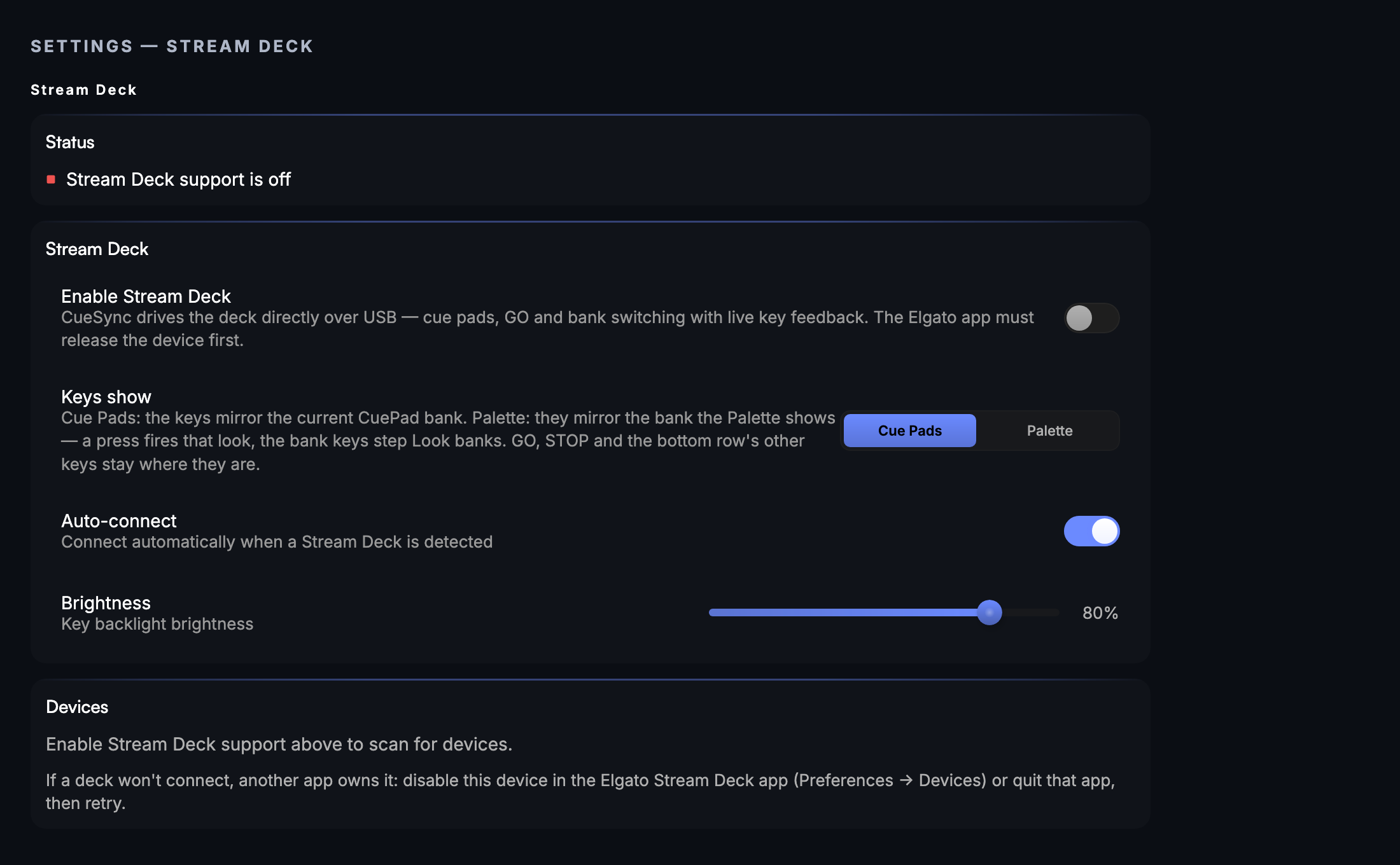
With support switched off the Devices card does not scan at all — so an attached deck that never appears is usually this switch rather than a cable.
Troubleshooting
- Deck stays on the Elgato logo — support is disabled, or the Elgato app owns the device (see Turning it on).
- "Stream Deck disconnected" notification — the USB link dropped; reconnecting the cable resumes automatically, and any held pads were released safely the moment the link died.
- Keys look stale — if key-image updates start failing while connected, CueSync raises a notification instead of letting you trust a frozen display. Reseat the USB cable.
- A key says CONFIRM — that action is armed and waiting for its second press. Press it again to fire it, or leave it: the key returns to normal when the window lapses, and nothing has fired.
- GO drives the wrong mode — the key's tag says which (SHOW GO or plain GO). On Production, pin it in Settings → Stream Deck.
- The pedal does nothing — check Settings → Stream Deck lists it as Connected; only the middle pedal is mapped, and it is silent while the test card is up. If it says another app owns it, free it in the Elgato app like any deck.
- There is no PLAY or PAUSE key — it exists in Show mode on the XL (bottom row) and on the 15-key MK.2 (second row). Other decks have no room for it.
- Nothing happens when I press a key — the test card may be showing; it is inert by design and clears after 20 seconds.
Models CueSync speaks to: Stream Deck (original), Mini and Mini MK.2, V2/MK.2, XL, Neo (keys and both hardware bank buttons), Stream Deck + (keys, dials, and touchscreen), and Pedal. Each is built to Elgato's published USB interface; a real-hardware pass has not been run, so USB timing and firmware quirks are unproven. Plug yours in, run the test card, and check every key before a show.
Stream Deck Studio is not supported. If you plug one in, CueSync names it in the Devices list and tells you it can't drive it, rather than leaving you wondering why nothing happened.
Looking for a quick fix?
The Help Center has short task-focused articles and a support team that responds within 24 hours.