Auto Pilot
DJWhat it's for — Auto Pilot watches your set's phrase structure in real time and fires cues automatically at structural moments (drops, builds, choruses, phrase endings) so your lighting and video rig reacts to the music without you manually pressing GO every time.
The screen, region by region
Empty state — If Auto Pilot is disabled and no track is armed, the screen shows a breathing animation and an Enable Auto Pilot button. Connect a Pioneer device and load a track to arm it.
Dashboard tab — Appears once Auto Pilot is enabled. Contains:
- Status header — Shows the active profile name and the current state: Idle, Armed, Running, or Paused. A Pause button appears while running; a Resume button appears while paused. A running Auto Pilot that is not firing says why instead of a green Running: HELD under a Blackout or Freeze, STANDBY while a Theatre show is playing, and HOLD · N phrases during a phrase hold.
- Track waveform — A full-width waveform of the currently armed track with phrase bands, fire-plan markers, and cue markers overlaid. Hidden when no track is armed.
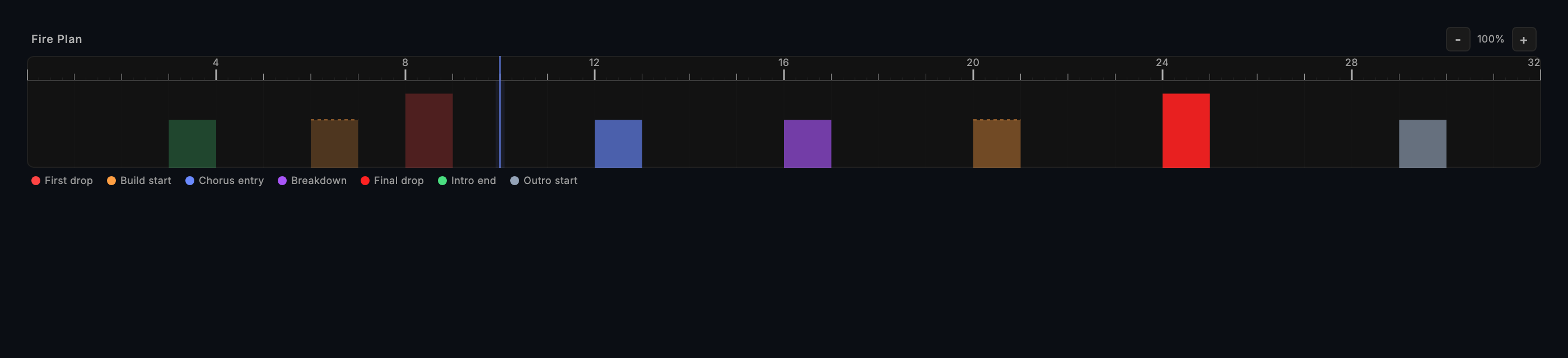
- Fire plan timeline — A scrolling beat timeline showing the planned automation moments as vertical markers. Fired moments are distinguished from upcoming ones.
- Next moment / Last fired cards — Side by side below the timeline. "Next moment" shows the type and beat position of the next planned automation event, and the outputs it will reach (for example Resolume: Layer 1 Clip 6, GMA3: Cue 6). A moment your profile maps that no connected output takes is named underneath in amber — No output reaches: Breakdown (beat 49) — so you hear about it before the drop rather than watching nothing happen. "Last fired" shows what just fired and the rationale (which phrase rule triggered it).
- Recent fires — A history list of recent automation events with the rationale recorded for each. A moment that was decided against is listed too, marked SKIPPED, with the reason (energy under the floor, paused or held, held back by the high-impact limit, or no output to take it). Use this after a set to review what Auto Pilot did and why.
- Profile information — Shows the current energy level and the profile's active settings summary.
Limits on the loudest moments — A moment your profile marks high-impact (a drop, a chorus entry: the blinder, the strobe) is held back when another one fired fewer than 8 beats earlier, or when 16 have already fired in the last minute; a venue profile can set its own numbers. A held-back moment appears in Recent fires as SKIPPED — high-impact limit. Your own Force Fire is never limited, and jumping back onto a drop with a hot cue fires it again. A Strobe burst ends on its own: when its duration (in beats) is over — and on Blackout, when the next track loads, or when AutoPilot is switched off — AutoPilot clears the Resolume layer it connected.
Show Receipt in the show report — File ▸ Export Show Report… (and Settings ▸ Advanced ▸ Show Report) now also records what AutoPilot was set up to do for each track next to what it did. Per track there is one RECEIPT row — the profile and a content hash of what it does, the connected rig, and the epoch (the number the probabilistic draws are keyed on, and whether it was pinned by the seed lock or derived from the track, profile and rig) — then one PLAN row per planned moment with the outputs it was going to reach and how it went (FIRED, SKIPPED with the reason, NOT FIRED), and an AUTOPILOT row for any decision that matches no planned moment. The columns and the existing row types are unchanged, so a spreadsheet that filters by Type keeps working. Two receipts with the same profile hash, rig and epoch describe the same show. If you ran Rehearse set on the Local Audio screen first (see below), the RECEIPT row also says whether the show matched it: Rehearsal: matches the rehearsal, or Rehearsal: differs: profile changed, a different profile (Peak Hour, rehearsed with Warm-up), rig changed or track or seed changed. A track that was not in the rehearsal says not in the rehearsal. With no rehearsal the row says nothing about one.
Rehearsing a set — A DJ playing their own files can ask Auto Pilot for its whole plan before the doors open. Rehearse set, in the readiness strip on Local Audio, plays every queued track's beats against the rig that is connected right now, with nothing played and nothing sent, and lists per track what would fire, on which beat and bar, which outputs it would reach, which moments were held back and why, and which moment no connected output takes. Export it as a CSV or copy it as text for a crew. The same rehearsal run twice gives the same list, and the Show Receipt above says afterwards whether the show matched it.
Operator controls — Six controls let you steer Auto Pilot by hand without opening this screen. They are on the Stream Deck's AutoPilot page (Pause and Resume share one key) and as MIDI mapping targets under Auto Pilot (see Stream Deck and OSC, DMX and Remote Inputs):
- Pause — Auto Pilot stands down until you resume it. It is the same pause as the Pause button, the Command Palette and a double GO. It also ends when the next track loads.
- Hold 1 phrase and Hold 4 phrases — Auto Pilot stands down for the next one or four phrases and takes over again by itself at the boundary.
- Skip next moment — the next planned moment does not fire. (The override bar's Skip Moment does this; its Skip Cue moves the cue stack past a cue instead.) The lead-in before it is skipped too, if it has not started. The moment is listed in Recent fires as SKIPPED — skipped by the operator, it fires nothing later, and it works while Auto Pilot is paused or held.
- Force Fire next moment — fires the next planned moment now, the same as Force Fire on the Performance override bar, including while Auto Pilot is paused or held. It is refused during a Blackout or Freeze and while a Theatre show is playing, and says so; it is never limited by the high-impact limit.
- Resume — ends whichever of these is in force, a pause or a hold.
A control with nothing to act on does nothing and says why: Skip and Force Fire need a moment ahead in the plan, and the holds need an armed track.
Profile Editor tab — Lets you adjust the automation profile without leaving the screen. A dot appears on the tab label when there are unsaved changes. Key settings:
- Pause on Manual Go — When enabled (the default), Auto Pilot pauses its own automation once you take over by hand: two manual firings within 3 seconds while it is running (a GO or Previous, from the keyboard, a pad or a mapped controller, or a hot cue pressed on the deck Auto Pilot is following; a hot cue on the other deck does not count). One GO alone does not pause it. It then stays paused until you resume it. Turned off, your GOs never pause it.
- BPM sync targets — Configure which outputs should have their parameter sync locked to the current BPM.
Common tasks
- Enable Auto Pilot — Click Enable Auto Pilot on the empty state, or use the enable toggle in the status header.
- Arm a track — Load a track on your Pioneer player. Auto Pilot arms automatically once the track's phrase analysis is available.
- Review what will fire — Check the fire plan timeline and the next moment card. The fire plan lists every planned moment with its beat position.
- Pause automation — Click the Pause button in the status header. Auto Pilot stops firing cues until you resume it. A TAKEOVER ACTIVE banner also appears on the Performance screen reminding you it is paused.
- Resume automation — Click the Resume button in the status header, click RESUME AUTOPILOT on the Performance banner, or press
Cmd+Shift+P. Resume declines, with a warning, if no fire plan is armed. - Adjust profile settings — Click the Profile Editor tab, make changes, and save. Settings are saved into the show file.
- Review recent fires after a set — Scroll to the Recent Fires section on the Dashboard tab to audit what fired and why.
- Rehearse the set — On Local Audio, with the set queued and nothing playing, press Rehearse set. Read the report, fix any moment it says no output reaches, and run it again.
- Skip or force a moment from a controller — Map Skip Next Moment and Force Fire Next Moment to a pad or a footswitch (MIDI Mappings → Auto Pilot), or use the Stream Deck's AutoPilot page. Skip a moment you do not want; force the next one when the room is ready early.
Tips & gotchas
- Profile settings live in the show file. Changes you make in the Profile Editor are saved with your show, not globally. This means the same show file restores the same automation profile when you reopen it.
- Auto Pilot pauses on the second manual GO, not the first. With Pause on Manual Go enabled (the default), it takes two manual firings inside 3 seconds to trip the pause; a single GO leaves Auto Pilot running. Every hot cue you press on a deck counts as one. The panic controls are different: Blackout, Freeze and Manual Override (Transport ▸ Panic) pause it at once, whatever the toggle says. Click Resume when you want Auto Pilot to take over again.
- A paused banner appears on the Performance screen. If you forget Auto Pilot is paused, the Performance screen shows a prominent TAKEOVER ACTIVE banner so you can resume without navigating away. The one-phrase pause from the Performance override bar (
Cmd+P) is a different, shorter pause: it ends by itself at the next phrase boundary and shows no banner. See Performance. - Phrase analysis must complete before arming. If you load a fresh track that has never been analysed, Auto Pilot waits for the analysis pass to finish before generating a fire plan. Analyse tracks in Track Prep before the set for the fastest arm time.
- The fire plan updates live. The plan can change while the track plays. The waveform overlay shows the latest plan.
- A beat grid that is a guess is held. On CueSync's own player, a track Track Prep calls No usable beat grid does not get a fire plan laid on an invented pulse: the arm pill reads Held · grid is a guess and a notice offers Arm anyway. The cues you saved for the track still fire. Correct the grid in Track Prep and it arms normally; decks over PRO DJ LINK hold back an incomplete analysis already. See DJ Set Workflow.
- On grandMA3, a moment's Grand Master dip follows the room's energy. Where a profile scales its moments with the room's energy, the grandMA3 Grand Master level is scaled too, like Resolume's master opacity, an Avolites grand master and DMX channel 1, instead of going to the same level at any energy; and the level AutoPilot writes back afterwards is the level the rig actually got. A write-back the desk refuses stays owed and is sent when the next track loads.
- Pin the Looks bank. AutoPilot chooses its Looks from one bank. Tick AutoPilot Pool on a bank to pin it, so paging banks to reach manual pads does not change what it can choose; the AUTO tooltip reads Pool: Bank 2. See Palette.
Related
- Home — Fire plan preview card on the home dashboard
- Performance — Live DJ dashboard with Auto Pilot status strip
- Track Prep — Analyse tracks before arming Auto Pilot
- Cues — Hand-authored cues that Auto Pilot fires on your behalf
- Local Audio — Rehearse set, for a set played from your own files
- Elgato Stream Deck — The AutoPilot page: pause, hold, skip and force fire from the keys
Looking for a quick fix?
The Help Center has short task-focused articles and a support team that responds within 24 hours.