Resolume Arena
AllWhat it's for — CueSync drives Resolume Arena over OSC. It triggers clips and columns, moves layer and master levels, fades a layer's opacity to the tempo, follows the DJ's BPM, and blacks the composition out on panic. This page covers the whole path, from the switches in Arena's Preferences to a show-day checklist.
1 · Connect Arena
In Arena — Preferences
CueSync needs two switches in Arena, and they are separate.
| Setting | Where | What it does for CueSync |
|---|---|---|
| OSC input | Preferences → OSC | Arena ignores every OSC packet until this is on. The port must match the CueSync output. Arena's own default is 7000, and so is CueSync's. |
| Web server | Preferences → Web Server | CueSync judges the health of a Resolume output with one web request to this server (default port 8080; grandMA3 onPC also uses 8080, see Tips). CueSync never writes anything through it. |
Both can be off on a fresh Arena install, so check them once when you rig. OSC is UDP, so a cue to an Arena with OSC input off still reads green: Arena discards the packet and nothing can tell CueSync.
Then build the composition the cues will address. CueSync addresses everything by number: layer, clip, column and deck, counted from 1. A cue for layer 2 clip 5 does nothing useful if that slot is empty, and nothing reports it.
In CueSync
- Network → Outputs → Add Output. Under Category, pick Video, then Resolume Arena (Arena/Avenue OSC).
- Give it a Name, and enter Arena's Host / IP Address. Port fills in as 7000.
- Leave Timing at 0 unless you have measured a delay (see below).
- Leave Liveness Check as it is. The check runs whatever you tick; tick Use a different port only if Arena's web server is not on 8080, and type the port in REST/health port.
- Click Add Output, then open the output again and click Test Connection.
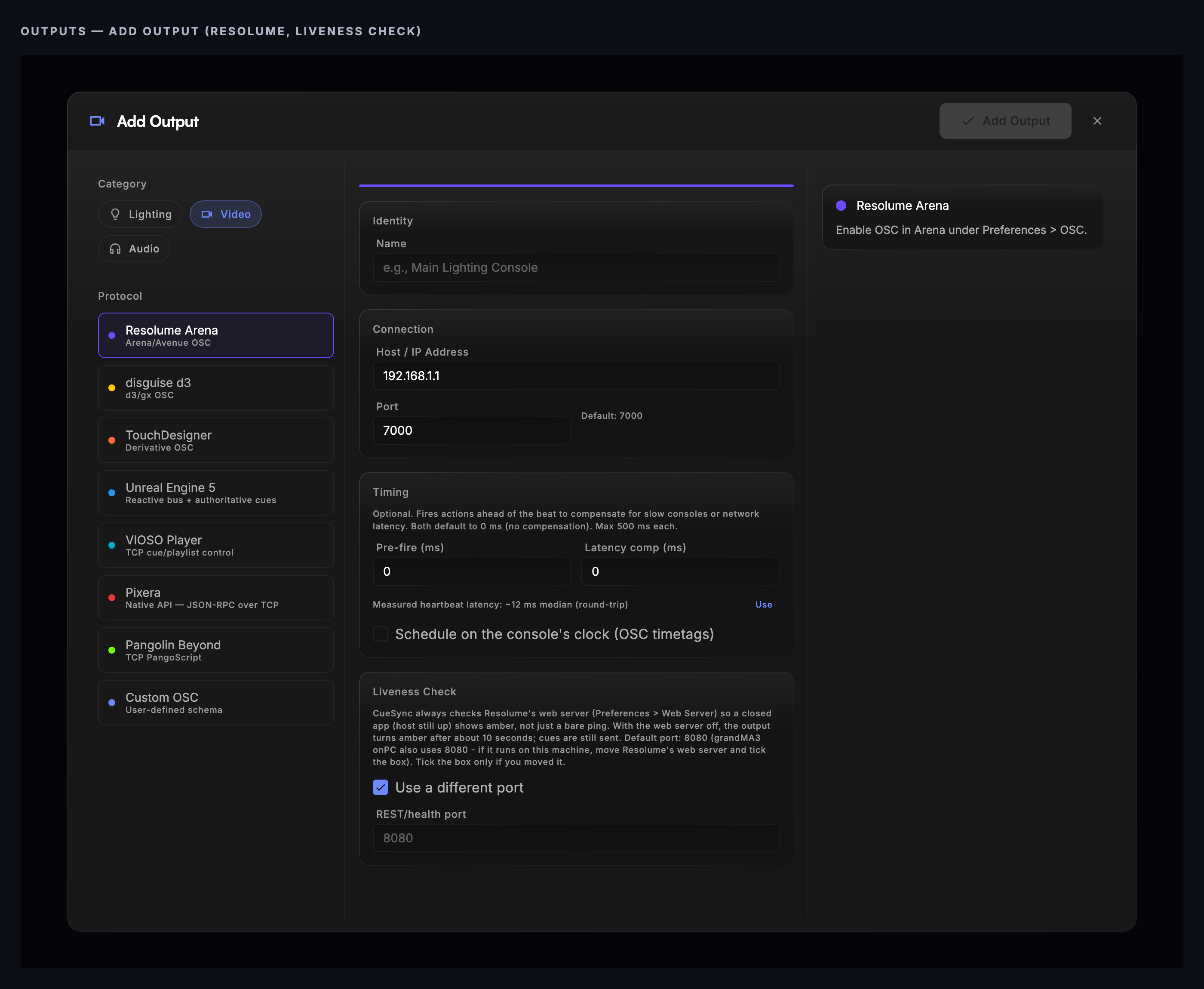
What "connected" means for Resolume. The output is green while Arena's web server answers its status check. That proves Arena is running with its web server on. It does not prove OSC input is on. If the web server stops answering, the output turns amber (degraded) with a connection degraded warning that says why when CueSync knows: another app is answering on the port, or nothing is listening because Arena's web server is off. Amber does not stop cues: they are still sent.
The check cannot be switched off. Use a different port only changes which port it checks (default 8080). If you run Arena's web server on another port, tick the box and type it in REST/health port. If the web server is off, the output goes amber shortly after it connects, even though OSC arrives and cues still land.
Every send is UDP. A green cue means the packet left this machine. It does not mean Arena applied it.
Timing
- Pre-fire (ms) and Latency comp (ms) (0–500 each) send this output's beat and track-position cues early. Set them only from a measurement. The editor can show the output's measured round-trip with a Use button.
- Schedule on the console's clock (OSC timetags) is offered for Resolume. It needs Pre-fire or Latency comp above 0 and both machines on one clock. Leave it off. It is untested against Arena: if Arena applies a timetagged bundle on arrival rather than scheduling it, the option makes cues early.
More than one Arena. An action with no output chosen goes to the first connected Resolume output. Tick Send to every Resolume output on the action to reach all of them, or pick a specific output when you add the action. BPM Sync has its own Broadcast switch (§5).
2 · What a Resolume action can do
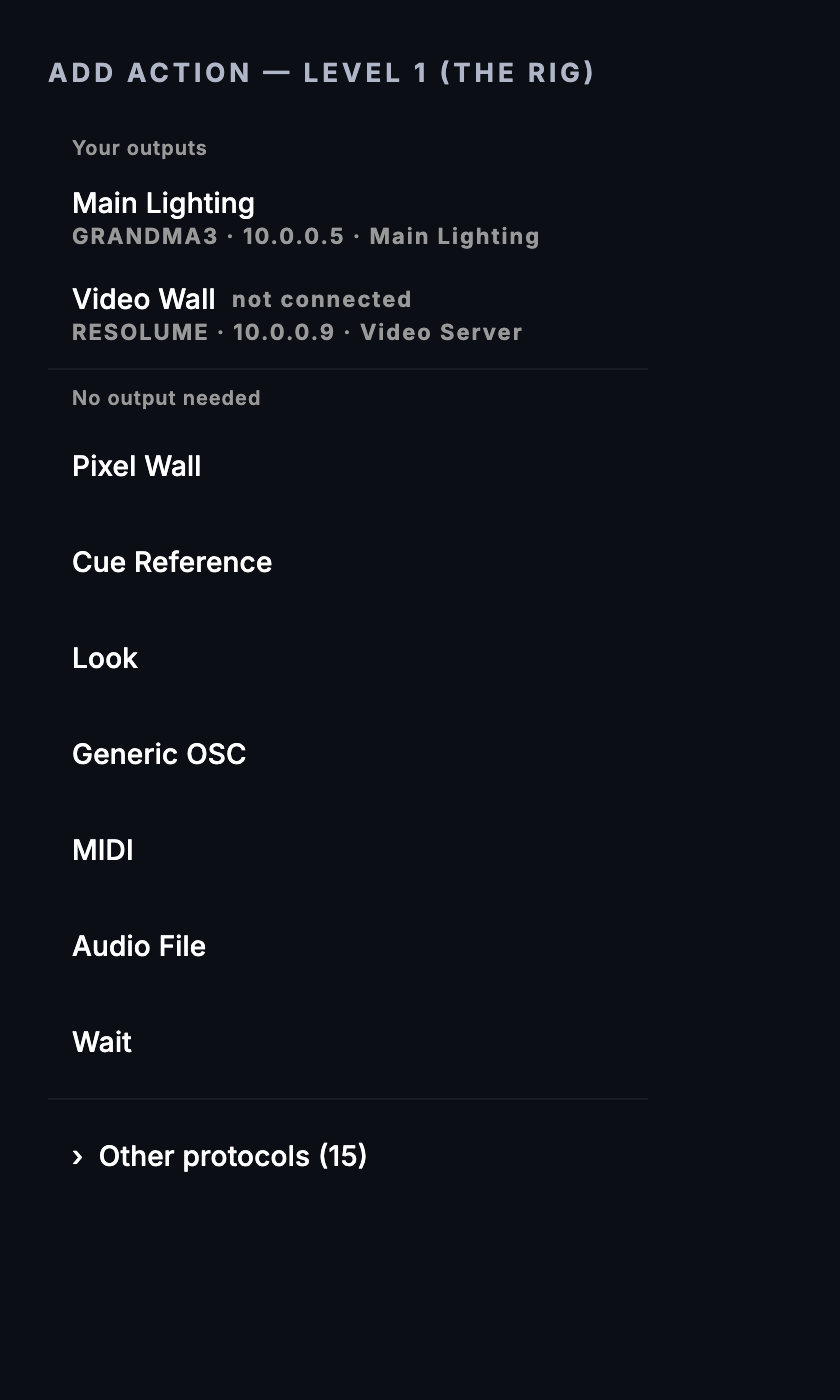
Add an action to a cue or a Cue Pad. The Add Action menu starts from your outputs: pick the Resolume output, then Resolume. (With no Resolume output configured, Resolume sits under Other protocols, and a search for it is marked — not in your rig.)
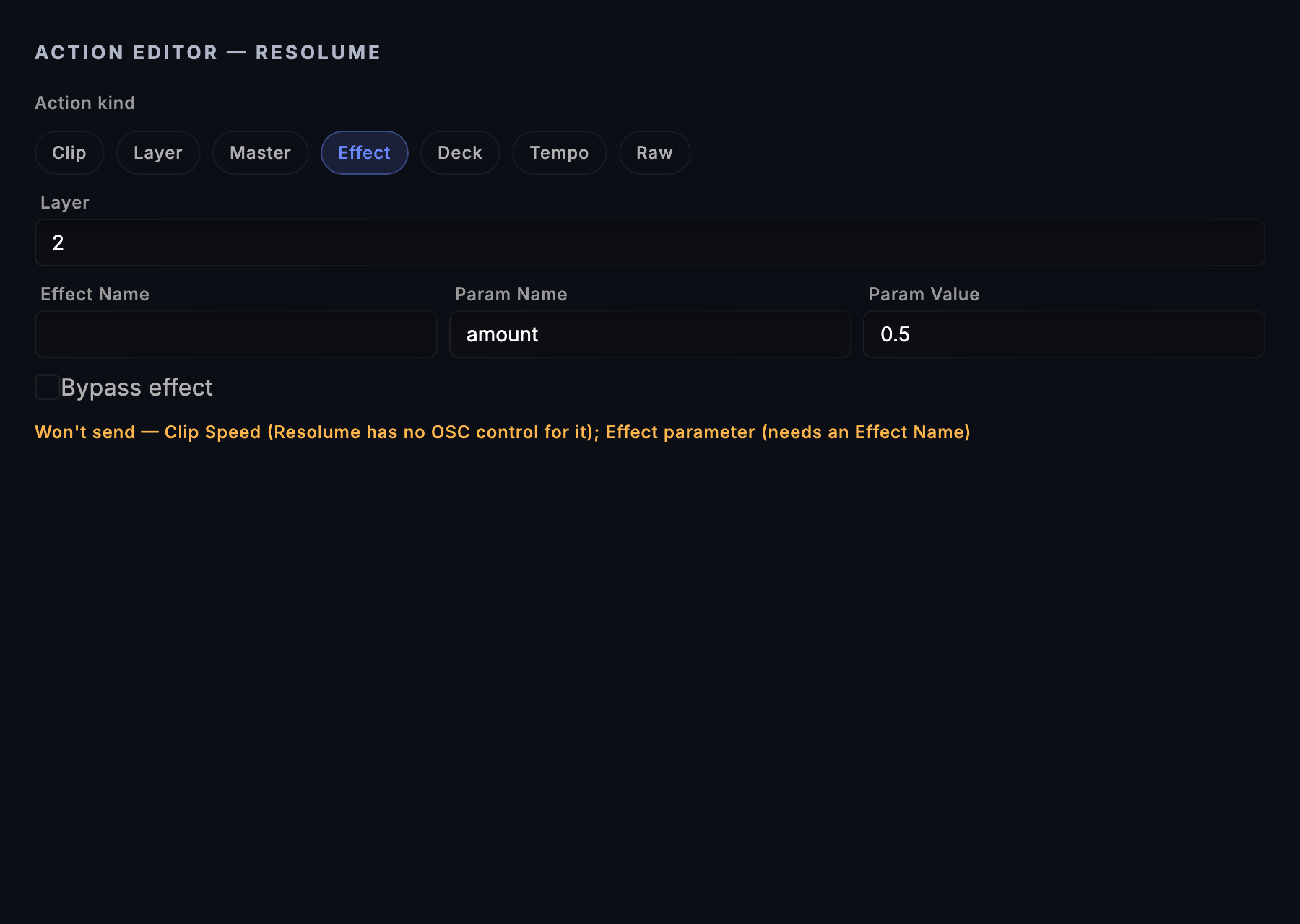
The action editor is kind-first. Pick one of seven kinds and only that kind's fields appear. Switching kind clears the fields of the others. The collapsed action row shows a summary, for example L2 Clip 3 Op:1.0, and the editor prints Won't send — in amber when the action carries something CueSync would drop.
| Kind | Fields (exact labels) | What Arena receives |
|---|---|---|
| Clip | Layer, Clip, Opacity (0-1), Volume (0-1), Clip Position (0-1), tick Clear layer first | /composition/layers/L/clips/C/connect 1, …/video/opacity, …/audio/volume, …/clips/C/transport/position, and …/clear 1 first |
| Layer | Layer, Opacity (0-1), Volume (0-1), Blend Mode, ticks Solo, Bypass, Clear | …/layers/L/video/opacity, …/audio/volume, …/solo 1, …/bypassed 1, …/video/mixer/blendmode <index>, …/clear 1 |
| Master | Master Opacity (0-1), Master Volume (0-1), Column, ticks Blackout (disconnect all + opacity 0) and Blackout off (opacity 1.0) | /composition/video/opacity, /composition/audio/volume, /composition/columns/N/connect 1, /composition/disconnectall 1 |
| Effect | Layer, Effect Name, Param Name, Param Value, tick Bypass effect | /composition/layers/L/video/effects/<effect>/<param> and …/<effect>/bypassed 1 |
| Deck | Deck, Deck Opacity (0-1), tick Select Deck (make it the active deck) | /composition/decks/D/select 1, /composition/decks/D/video/opacity |
| Tempo | BPM (20-500), Playback Rate (0-2, 1 = normal), ticks Tap Tempo, Resync | /composition/tempocontroller/tempo, …/tempotap 1, …/resync 1, /composition/speed |
| Raw | Raw OSC Address, Raw Arguments (comma-separated) | your address and arguments, verbatim |
Level fields are floats from 0 to 1. Arena treats every float parameter as a position across that parameter's own range, so a level of 0.5 lands at the middle of whatever the parameter spans. Opacity and volume already span 0–1, which is why they look trivial.
How one action is sent
- A Resolume action sends every field you filled in, all in one OSC bundle (a single field goes as a plain message). A clip trigger and its opacity therefore arrive together. This is different from Pixera, VIOSO and disguise's Stop, where one action means one operation.
- Blackout goes first, and a Clear layer first lands before the clip it belongs to. The order inside the bundle is fixed.
- Blackout wins. With Blackout ticked, Master Opacity and Blackout off are not sent. The editor says so under the checkboxes.
- Levels outside 0–1 are refused before anything is sent (see below).
What is refused up front, and what fails visibly
CueSync refuses these actions instead of reporting green with half of the action missing. The editor shows the same reasons in its Won't send — line.
| You set | What happens |
|---|---|
| Clip Position with no Clip | Refused: Clip Position (needs a Clip #) |
| Effect Name empty, but a param, value or bypass set | Refused: Effect parameter (needs an Effect Name) or Effect Bypass (needs an Effect Name) |
| Param Name without Param Value, or the reverse | Refused: Effect parameter (needs both Param Name and Param Value) |
| Deck alone | Refused: Deck (needs a Deck Opacity, or tick Select Deck) |
| Deck Opacity or Select Deck without a Deck | Refused, naming the missing Deck # |
| Clip Speed (a show saved by an older version may carry one) | Refused. The message reads Resolume action can't send Clip Speed (Resolume has no OSC control for it). Switch the action to another kind and back to clear it. |
| Nothing at all | Fails with Resolume action has no operation set |
A layer, clip, column or deck below 1, a level outside 0–1, a BPM outside 20–500, or a Raw address that does not start with / | Fails before dispatch with a message that starts Resolume validation failed: |
Blend Mode takes an index, not a name. Type a whole number from 0 to 59. Arena ignores a mode's display name on OSC, so a non-numeric entry is dropped with a log warning and no red cue. The cue still sends its other fields and reports success. (If the blend mode was the only field, the cue fails as having no operation.) Check the summary row for Blend: and read the number back.
Things the editor cannot author
- The Solo, Bypass and Bypass effect ticks only send 1. Unticking clears the field instead of sending 0. To turn one off, use a Raw action:
/composition/layers/1/bypassedwith0(or/solo, or…/effects/<effect>/bypassed). Raw arguments are typed as integer first, then float, then text, so0goes out as an integer. - Effect addressing is by name. Type the effect's name as Arena shows it: CueSync lowercases it and removes spaces (
Position Xbecomespositionx). Two effects with the same name on one layer share one address, and CueSync cannot tell which one Arena picks. Composition-level effects are not covered. Use Raw. - Playback Rate says 0–2. The send accepts up to 10 and clamps above that, because Arena's own range is 0–10. Normal speed is 1.0.
- BPM is accepted from 20 to 500, Arena's own tempo range. Outside it the action is refused before it is sent.
3 · Fades
A Fade (OSC ramp) action moves a layer's opacity or volume over time. Add it from the Resolume output (it is seeded with Resolume layer opacity, layer 1, 100 % over 4 beats), or from Generic → Fade (OSC ramp). The fields are Fade target (Resolume layer opacity or Resolume layer volume), Layer #, From %, To %, Duration (beats) or or ms, and a Curve: Linear, In, Out, S-Curve, Exp.
- CueSync never reads Arena back, so the ramp starts at From %. The seed uses 0 %. If the layer is at 60 % when the fade fires, it jumps to From % first.
- Beats follow the live tempo; ms is wall-clock. Exactly one is used.
- A new fade on the same layer replaces the old one. Panic and show-stop cancel every running fade, and an output that disconnects mid-ramp cancels its fade.
4 · Looks, pads, intents
Looks
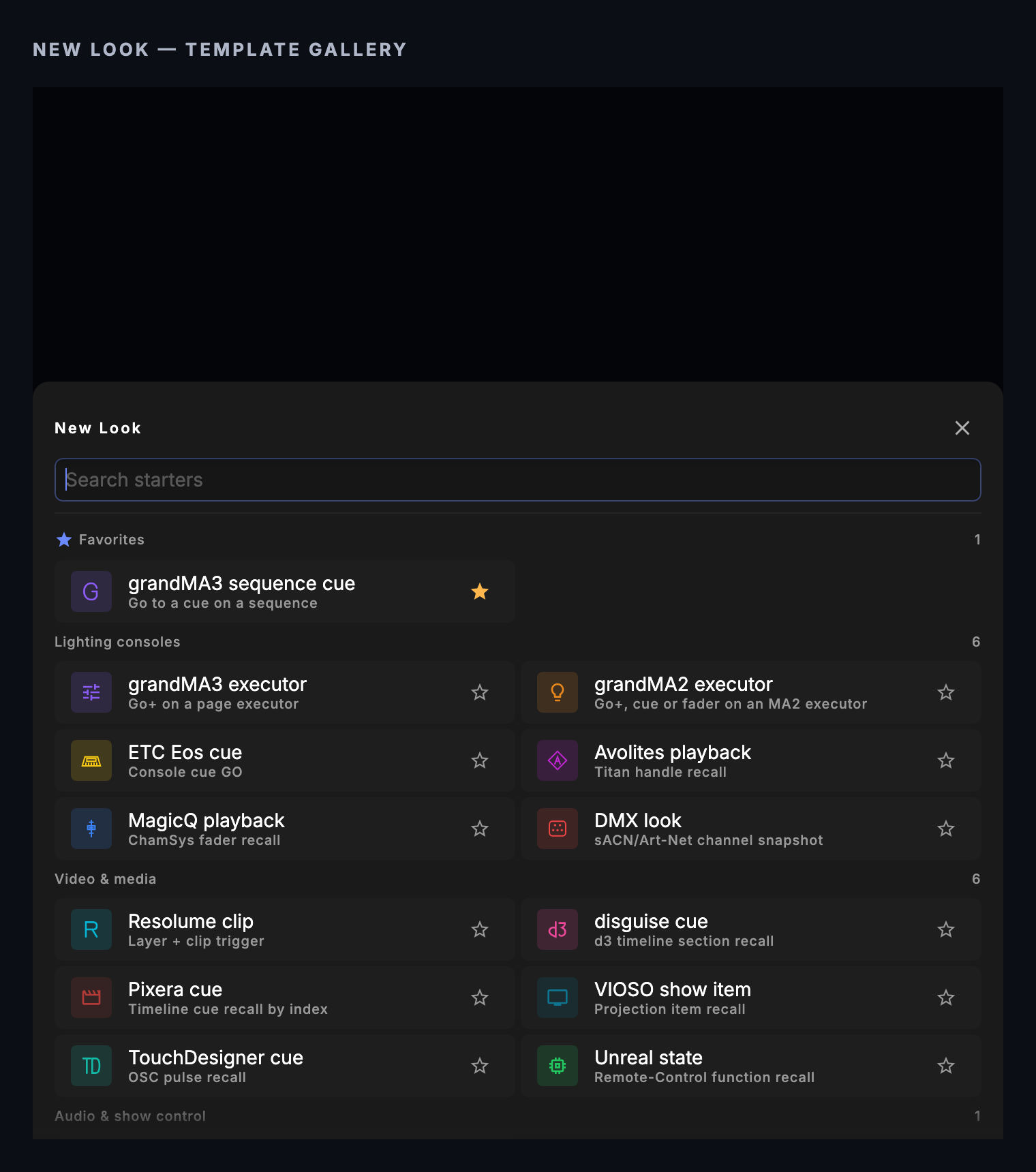
In the Palette, + New Look → Video & media → Resolume clip (Layer + clip trigger). The fields are Layer (1-32) and Clip (1-256). The tile shows the address as L2·C7.
| Look | Fires | Released by panic, track change or a release group |
|---|---|---|
| Resolume clip | …/layers/L/clips/C/connect and nothing else. No opacity. | …/layers/L/clear on that layer |
| Any action holding a Resolume action with a clip or a column | the whole action | clear on the action's layer |
| Any action holding a Resolume action with no clip and no column (layer levels, master, tempo, deck, raw) | the whole action | nothing: the tile says NO RELEASE |
The tile reads SENT, never LIVE: Arena reports nothing back over OSC. A release group sends the previous member's clear first and then the new connect, so expect a brief gap on that layer between two members.
Cue Pads
Templates (on the bank tab bar) has a Resolume section: Trigger Clip, Trigger Column, Clear Layer, Opacity 100%, Master Opacity, Bypass Layer, Solo Layer, Tap Tempo, Resync and Scrub 50%. They point at layer 1, clip 1 and column 1. Repoint them at your composition. The toggle ones (Opacity 100%, Master Opacity, Bypass Layer, Solo Layer) carry a release action that sends the opposite.
Intents
Intent cues (Theatre Show Editor) and Auto Pilot moments reach an output according to its role in the venue profile. An output with no role, or the Custom role, takes every intent. The Video Server role takes Set Visual, Clear Visual and Set Effect, and every role takes Blackout.
| Intent | What Resolume receives |
|---|---|
| Set Visual (Clip #, Layer, Opacity %) | that clip on that layer at that opacity, scaled by the energy level |
| Clear Visual (Layer (blank = all)) | with a layer: clear on it. Blank: the composition blackout (disconnect all and opacity 0), whatever the label says. |
| Blackout | the blackout, and its restore is Blackout off |
| Set Intensity | Master Opacity, scaled by the energy level |
| Strobe Burst | clip 1 on layer 5 at full opacity times the energy level. The layer is fixed. |
| Set Console Look (N) | layer 1, clip N, at the intensity |
| Set Effect | see below |
Set Effect triggers clip Effect # on the effect layer at the intent's level, and sends no speed. Arena has no OSC address for clip speed, so the intent's Speed is not sent to Resolume.
When Auto Pilot fires below full energy, or a velocity pad is pressed softly, Opacity and Master Opacity are scaled down.
5 · Tempo
Two separate things move Arena's tempo.
- A Tempo action sets it once: BPM (20-500). Playback Rate 1.0 is normal speed.
- BPM Sync follows the deck. In Settings → Auto Pilot → BPM Sync (Auto Pilot settings are in the DJ and Production editions), click Add Sync Target, pick Resolume, and click Add. Broadcast on means every Resolume output. Off lets you pick one, or leave First connected. The targets are saved in the show file. CueSync pushes the tempo of the playing deck as it changes, and pushes the current tempo again when a target connects late. If a target is configured and nothing is connected, it says so once.
6 · Panic, blackout and recovery
Blackout on the EdgeBar (or the blackout shortcut) sends /composition/disconnectall and /composition/video/opacity 0.0 to every connected Resolume output, as one bundle. So does the Blackout All pad.
⚠ The composition blackout is half-undone by releasing panic. Releasing panic restores a grandMA3's Grand Master, Unreal's camera fade and Arena's composition opacity (back to 1.0), but not the clips: disconnect all left every one stopped, and CueSync cannot know which were playing. After a panic, a clip or column must be triggered again. After a Blackout action (not a panic), the opacity must come back too (Master → Blackout off). Build one cue for that and rehearse it (use case 3).
Auto Pilot's CUT transition opens and closes its gap with this same blackout and restore. The restore only lifts the opacity and the clips stay disconnected, so Arena shows nothing after the gap until a look connects one.
A Clear Visual intent with a blank layer is the same blackout.
When Arena drops out. An action aimed at an output that is not connected fails and is not queued. Nothing is replayed on reconnect. Trigger a clip again after Arena comes back.
Use cases
1. Fire a clip and bring its layer up
- On the Cues screen, click
+. Name the cue Drop visual. - Choose a trigger. Hotkey with a key is the easiest to test. A music trigger fires it on the beat or phrase instead.
- Add an action, pick your Resolume output, then Resolume. Keep the kind Clip.
- Set Layer to 2, Clip to 3 and Opacity (0-1) to 1. Tick Clear layer first if layer 2 may be busy.
- Save, then hover the row and click the play icon to test-fire.
You should see clip 3 on layer 2 connect in Arena and the layer come up. The row reads L2 Clip 3 Op:1.0 [Clear]. One bundle carried all three messages. If nothing moves and the cue is green, check Preferences → OSC first.
2. Dip a layer at the breakdown and bring it back
- Add a cue Breakdown dip with an action from the Resolume output: Fade (OSC ramp).
- Leave Fade target on Resolume layer opacity. Set Layer # to 2, From % to 100, To % to 30, Duration (beats) to 2 and Curve to Out.
- Add a second cue Breakdown return with the same layer, From % 30, To % 100 and 1 beat.
- Test-fire the first cue while layer 2 sits at full opacity.
You should see layer 2's opacity slide to 30 % over two beats at the current tempo. Firing the second cue slides it back. If Arena's layer was not at 100 % when the dip started, it jumps to 100 % first, because the fade starts at From %.
3. Black the composition out and recover
- Add a cue Video black with a Resolume action, kind Master, and tick Blackout (disconnect all + opacity 0). The row reads
[BO] L1. - Add a cue Video back with a Resolume action, kind Master, tick Blackout off (opacity 1.0) and set Column to 1. The row reads
[BO off] Col:1 L1. - Test-fire Video black. Arena goes black and every clip stops.
- Test-fire Video back.
You should see the picture return on column 1's clips. Now press Blackout on the EdgeBar and release it: Arena stays black. Fire Video back to recover. Keep that cue on a pad.
4. Let Arena follow the deck's tempo
- Open Settings → Auto Pilot and find the BPM Sync card. Click Add Sync Target.
- Choose Resolume and click Add. It shows All outputs. Turn Broadcast off if you run two Arena machines, and pick one.
- Play a track with a known tempo.
Arena's composition tempo should follow the deck. Move the pitch and it follows. If it stays put, the row is not connected: the web check may be failing (§1).
Tips & gotchas
- Arena with OSC input off looks perfect in CueSync. Every cue reads green. Fire a harmless Layer opacity and watch Arena's layer before doors.
- A dead web server turns a working OSC path amber. If the output goes amber shortly after connecting, check Preferences → Web Server and the REST/health port before anything else. Cues keep going out while it is amber.
- grandMA3 onPC and Arena both want port 8080. onPC serves its web remote on TCP 8080. With onPC running on the same machine, Arena's web server cannot start on 8080 and the check gets a 404 from onPC, so a healthy Arena shows amber. Move Arena's web server to another port (Preferences → Web Server, for example 8090), restart Arena so it takes effect, then tick Use a different port on the output and type that port in REST/health port.
- The numbers are your composition's. Layer, clip, column and deck numbers are counted from 1. A cue to an empty slot is silent.
- A cue that mixes clip and levels is atomic. Add a second action only when you want a separate step. On a Theatre cue the actions go out one after another, in list order. On the Cues screen they go out together, and only a Wait action (Wait time (seconds)) makes the next one wait.
- Repeated opacity is skipped. A cue whose only content is a layer opacity that is practically unchanged from the last value CueSync sent to that layer is not sent, and it reports success. If someone moves that layer by hand in Arena, re-sending the same value does nothing until the value changes, or CueSync resets its memory (a track change, or a change to the output list).
- Built-in pads and the starter Look point at layer 1, clip 1. Repoint them before a show.
- A Look adds no opacity. If a hidden layer needs raising, use a cue with a Clip action, or an Any action Look.
- BPM 500 is the top, Arena's own limit. Above it the action is refused before it is sent.
- Blend Mode wants a number. A name is dropped without a red cue.
- Panic is not undone. See §6.
- Timecode leg. Timecode → Output Routing offers Resolume as a target. It sends elapsed seconds to
/composition/tempocontroller/timecode. That address is untested and not in Resolume's documentation. Leave it off unless you have proved it on your Arena.
What has been checked
Resolume Arena 7 is supported. Arena reports nothing back over OSC, so some verbs are sent without confirmation. Avenue, OSC timetags and the timecode address are untested. A cue to an Arena that is off or unreachable still reports success over UDP. Do a dry run on your own Arena before a show.
Related
- Network Outputs — Adding, testing and monitoring outputs
- Looks — Building Looks, Resolume clips included
- Cues — Adding actions and Waits to cues
- Cue Pads — The Resolume pad templates
- Auto Pilot — BPM Sync and moment intents
- Intents and Actions — How intents reach each rig
- What Each Action Can Send — The verb list per action
- Protocol Reference — Ports and connection behaviour
- Timecode — Output routing and the Resolume timecode leg
- Pixera, disguise and VIOSO — The other video servers
- GrandMA3 — The console playbook this page is modelled on
Looking for a quick fix?
The Help Center has short task-focused articles and a support team that responds within 24 hours.