Local Audio
DJNot a tab. Local Audio is a full destination, listed in the View menu with every other screen.
What it's for — Local Audio lets CueSync play audio files directly — analysing each file the way your Pioneer tracks are analysed, so cue triggers and Auto Pilot fire on locally stored audio even when no Pioneer players are connected.
The screen, region by region
Drop zone — The large area at the top of the screen. Drag audio files onto it to add them to the queue. When the queue is empty, the drop zone is full-bleed; once tracks are loaded, it compacts to a narrow band to give more room to the waveform and transport.
Visibility filter chips — Appear above the waveform once a track is loaded and has been analysed. Three toggles control which marker layers are visible on the waveform: Hot Cues, Memory Cues, and Loops. A fourth toggle, Edit Grid, switches the waveform into beat-grid editing mode. The hot cues, loops and memory cues on a freshly analysed track were found by CueSync's analysis, not placed by you; edit or delete any of them.
Waveform — A full-colour waveform of the currently playing track with a live playhead. The waveform shows the layers you have toggled on: hot cue markers, memory cue markers, loop regions, and phrase blocks. Click anywhere on the waveform to seek. Shift+Right arrow jumps to the next cue marker; Shift+Left arrow jumps to the previous one.
Transport strip — The primary control surface, and the panel you look at mid-set. Left to right: Previous track, Stop and Next track; play/pause with the track position, duration and volume (the speaker button mutes, and pressing it again brings the volume back to the level it had before — that level is kept when you leave the screen and across a restart); and GO with the name of the cue it will fire. A control that has nothing to do is dimmed — Next on the last track, Stop with nothing playing — and says why in its tooltip.
Next Up card — Under the transport: the track that will play after this one, with its tempo, key and length, and what is known about it — how many cues it will fire (and how many of those you have tested), the Auto Pilot profile that will run, or what is wrong with it ("not analysed yet", "analysis failed", "file missing"). It is there so a problem with the next track shows while the current one is still playing. It is a read-out only: it does not arm or load anything. At the end of the queue it says so.
Auto-advance toggle and queue counter — In the header row, a toggle controls whether playback advances automatically to the next queued track when the current one ends. The counter shows how many tracks are in the queue. Clear set, beside the counter, empties the queue in one gesture; the toast says Cleared N tracks and its one Undo brings the whole set back, in its old order. It is refused, with the reason, while the set's current track is playing, paused or loading — stop it first, then clear the set.
Set readiness strip — Above the queue: 12 tracks · 9 ready · 3 need attention. Each track that needs attention gets a chip naming the first reason; click a chip to select that track in the queue (it only selects — it never starts playback). Beyond three problems the strip says +N more and each click walks to the next one. A track is ready when it is analysed and something will fire for it: it has saved cues that can fire, or an Auto Pilot profile covers it (a set that runs on Auto Pilot alone is ready with no hand-built cues). Hot-cue hits do not count — a hot-cue trigger comes from a CDJ's pads, which a file played by CueSync does not have — and a track whose only cues are hot-cue hits is flagged (unless an Auto Pilot profile covers it). Prepare set and Rehearse set (see Rehearsing a set) are at the strip's right-hand end.
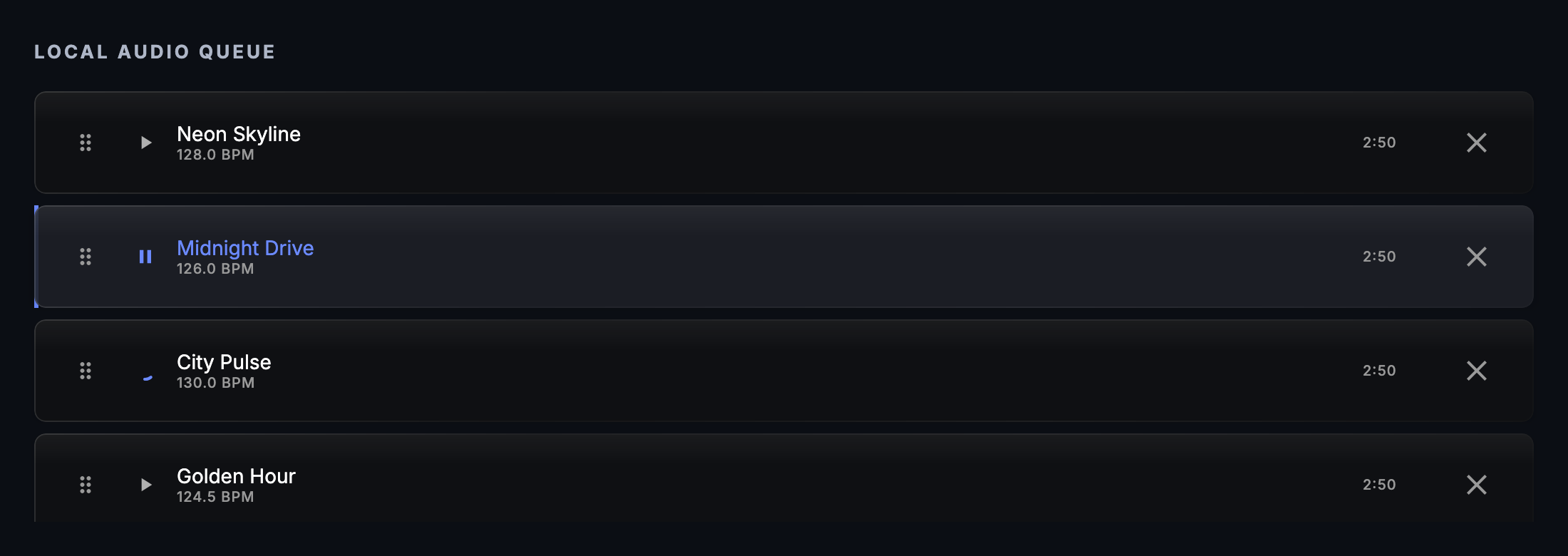
Queue list — The ordered list of tracks waiting to play. Click a row to switch to that track immediately. Focus a row and press Enter or Space to start playback. Press Delete to remove a track. Press Cmd+Up or Cmd+Down to reorder.
Running a set
Local Audio is how a DJ without a Pioneer deck runs a set from CueSync, so the transport has the controls a set needs.
- Next track cuts to the next playable track. It is a hard cut — no crossfade and no gapless playback — and the cue pipeline re-arms for the new track exactly as it does at a natural end: the outgoing track's held outputs are released, AutoPilot arms the new fire plan, and the track's saved cues load. Rows that are not ready (still analysing, failed, file missing) are skipped. At the last track Next is dimmed and, from a key or footswitch, says "End of the set".
- Previous track follows the CD-player rule: more than 3 seconds into a track it restarts the current track; inside the first 3 seconds it goes back one track. So pressing it twice always reaches the previous track. A restart re-arms the track from the top (a fresh load, not a seek): Auto Pilot's fire plan and the cue triggers start over. The cue stack's GO pointer stays where it is — Transport ▸ Cue Stack ▸ Reset Cue Stack takes it back to the top.
- Stop stops the track and releases the cue pipeline; the track stays loaded, so Play starts it again from the top. It does not advance to the next track — a Stop that started the next song would not be a Stop. The same is true of Stop Audio (
Cmd+Shift+X), Audio → Stop and the audio panic (Cmd+Shift+.): none of them starts the next track. - Play / pause pauses a playing track and resumes a paused one. With nothing loaded it starts the first playable track.
- GO fires the next cue in the cue stack — the same GO as
Spacein other screens, the menu, a MIDI mapping and the Stream Deck, including the licence check and the pause it gives a running Auto Pilot.Spaceis not GO here: while a local track is loaded,Spaceplays and pauses it, as it always has. The GO button, theCmd+Entershortcut and the palette entry GO — Local Audio Set are the set's GO. - A second tap on Next or Previous while the first is still loading the new track is ignored, so a double tap cannot skip two tracks.
- Moving to another screen does not stop a live set. While a set is playing, or between two of its tracks, you can go to Run Mode, the Show Editor or any other screen and the music carries on without skipping a track. A paused set, and a track you are only auditioning, still stop when you leave.
The same verbs are on the Audio menu (Previous Track, Next Track, Stop), in the command palette (Local Audio: …), on the Stream Deck's Set page and as MIDI mapping targets — see Stream Deck and MIDI and OSC inputs.
| Action | Default shortcut |
|---|---|
| GO (fire the next cue) | Cmd+Enter |
| Next track | Cmd+Option+→ |
| Previous track | Cmd+Option+← |
| Play / pause | Space (in this screen), or Cmd+Shift+Space anywhere |
| Stop | Cmd+Shift+X |
All of them can be rebound in Settings → Shortcuts, and they stay out of the way of the surfaces that own their own transport: in Run Mode, the Show Editor and Track Prep these chords do nothing.
Preparing a set
Prepare set generates cues for the whole queue in one action — the same generator as Track Prep's batch, run over every analysed track that has no saved prep yet — and shows its progress ("Preparing 3/12 · …") with a Cancel button and a result line ("Done — 7 prepared, 1 failed …") you dismiss. It is safe to run twice, and safe to run on a set you have worked on:
- A track that already has saved cues is left alone, whether you edited it, reviewed it or never opened it. Prepare set only fills in tracks that have nothing. To regenerate a track you do want redone, use Track Prep.
- Running it again finds nothing to do (the button shows Prepare set without a count and is dimmed), so nothing is duplicated.
- It is off while a set is running (playing or paused). Generating cues competes with the live show for the machine; prepare before the doors open.
If you bound an Auto Pilot profile to a track in Track Prep, playing that track from the queue activates that profile (a notice says so), the same as a track loaded from a Pioneer deck. A profile already in force is not re-applied, and a profile you have since deleted raises a warning and leaves the current one running.
Rehearsing a set
Rehearse set shows what Auto Pilot will do across the whole queue before anyone is in the room. It steps through every track's beats without playing them, against the rig that is connected right now, and plays no audio and sends nothing to any output. Your live Auto Pilot is not touched, and running it twice on the same set and rig gives the same list.
- Queue the set and let the tracks finish analysing.
- Press Rehearse set in the readiness strip. The strip shows Rehearsing 3/12 · track name with a Cancel button.
- When it ends the strip says what it found — Rehearsal: 143 fires · 9 held back · 2 moments no output reaches — with Open report and Dismiss.
- Read the Set rehearsal report. Each track has a card: its tempo, length, which profile ran (the one bound to the track in Track Prep, otherwise the active one), how many moments were planned, the first drop and the last fire. Open a card for its timeline — beat, bar, phrase, the moment and the outputs it would reach, or the reason it was held back (the energy floor, the high-impact limit, no output to take it). A moment no connected output takes is named in amber, and a track that could not be rehearsed (not analysed yet, file missing) says why.
- Export CSV writes the plan for a spreadsheet; Copy as text puts it on the clipboard. Rehearse again runs it fresh after you change a profile or a mapping.
The report also lists what the last fire of one track leaves up and what is sent when the next track replaces it, so you see the handover between songs.
What it does not cover. Track Prep cues are counted per track but not played — the cue stack fires those, not Auto Pilot. Crossfades between tracks and the state your lighting desk is in at each track change are not modelled. A rehearsal is Auto Pilot's plan for the rig connected at that moment, not a guarantee of the night.
Rehearse set is off while a set is playing (rehearse before the doors open), with an empty queue, and in an edition without Auto Pilot; the button's tooltip says which. The report is kept while CueSync is open and replaced by the next rehearsal. It is not saved in the show file. After the show, File ▸ Export Show Report… says for each track whether it matches the rehearsal or what differs — see Auto Pilot.
Common tasks
- Load audio files — Drag one or more audio files from Finder onto the drop zone. CueSync adds them to the queue and begins analysis immediately.
- Play a track — Click the play button in the transport strip, or focus a queue row and press
Enter. - Seek to a position — Click anywhere on the waveform, or drag the playhead.
- Jump between cue markers — Press
Shift+Rightto move to the next cue marker (hot cue, memory cue, or loop start). PressShift+Leftto move to the previous one. - Author a hot cue — Long-press on the waveform at the position where you want the cue. CueSync adds a hot cue marker at that beat.
- Remove a queued track — Click the track in the queue list to select it, then press
Delete. The set's current track cannot be removed while it is playing, paused or loading: CueSync says so, and you stop it first. - Clear the whole set — Press Clear set in the header row. If it was a slip, press Undo on the toast and the queue returns as it was, track for track and in order. Only one Undo is offered; a track that came back into the queue meanwhile is not duplicated.
- Reorder the queue — Select a track in the queue list and press
Cmd+UporCmd+Down. - Edit the beat grid — Click the Edit Grid chip above the waveform. The waveform tints amber to indicate edit mode. Drag beat markers to fix grid offset, then click Edit Grid again to exit.
- Toggle a marker layer — Click Hot Cues, Memory Cues, or Loops above the waveform to show or hide that layer. Hiding a layer also disables editing and click-through on those markers.
- Rehearse the set — Press Rehearse set in the readiness strip, then Open report. Export the CSV for your crew if they need the plan.
Tips & gotchas
-
Analysis runs immediately on drop. CueSync starts analysing each file as soon as you add it. Phrase detection and energy curves become available progressively — cue triggers fire as soon as the relevant analysis segment is complete.
-
Cue triggers and Auto Pilot work exactly as they do with Pioneer tracks. Once a track is analysed, its phrase structure drives the same automation. You do not need Pioneer hardware connected for CueSync to respond to drops, builds, or choruses. Track Position cues also fire during local playback — they trigger when the playhead reaches (or seeks past) their target beat.
-
Loudness-matched playback keeps a set level-consistent (Production edition). Enable it under Settings → Audio → Loudness and pick a target (−14 LUFS streaming · −16 broadcast · −9 club). Tracks louder than the target are pulled down toward it on play; quieter tracks are left as they are, never boosted.
-
A virtual output device means silence at the PA. If your master output is set to a loopback/virtual device (BlackHole, VB-Cable, VoiceMeeter), CueSync shows a warning and badges the device "Virtual" in the picker — audio routed there does not reach speakers unless something else is listening. This is the first thing to check when there's "no sound at the venue".
-
A silent playing track raises a warning. With the Silent-Track Warning enabled (Settings → Audio → Reliability & Sync), a track that stays silent while playing triggers an alert — catching a corrupt or empty file before the audience does. It reads the audio CueSync is playing, not what the output device emits, so it cannot see wrong-device routing; Settings → Audio → Test is the check for that.
-
A look the set armed can be handed back when it ends. A look a cue or a pad put on the Pixel Wall stays there until something lets go of it, and a set that is stopped or runs out is no exception. Settings → Pixels → Behaviour → When the local set ends (off by default) hands the wall back to its choreography at that moment — the looks armed while the set played are released, and the wall shows its Idle look. See Pixel Wall.
-
A track that cannot play says why. A row whose file was moved or whose drive is not connected is refused with the file is missing or moved; when another track is playing, the message says the new one cannot play, that the current one keeps playing, and to check the drive or where the file was moved. A row whose analysis failed says failed to analyze — use Re-analyze on it, then play.
-
Auto-advance is saved with your settings, and defaults to on. The toggle here and the one in Settings → Audio → Local Audio are the same preference; it is kept across restarts. It is not stored in the show file.
-
The Edit Grid toggle is a modal state. While Edit Grid is active, cue authoring (long-press to create hot cues) is suppressed, and the waveform tints amber as a visual reminder. Exit edit mode when you are done adjusting the grid.
-
Marker visibility affects editing. If you hide a marker layer, you cannot click or drag those markers — right-click hit testing also excludes hidden layers. Turn the layer back on before trying to move or delete a marker.
Related
- Track Prep — Pre-analyse tracks and manage hot cues for Pioneer sets
- Auto Pilot — Phrase-driven automation that fires on locally analysed audio, and the operator controls (pause, hold, skip, force fire)
- Cues — The cue stack that fires against local audio just as it does against Pioneer decks
Looking for a quick fix?
The Help Center has short task-focused articles and a support team that responds within 24 hours.