Crowd (Audience Phones)
All to author and previewWhat it's for — Crowd turns the audience's own phones into a light source your show controls. People scan a QR code, tap once, and their screen shows the colour and effect your timecoded cues ask for, on a beat and a delay that follow the show. There is no app to install and no account. It sits beside your lighting rig and the pixel wall; it does not touch either, and it is driven only by Pixel Wall actions on timecoded show cues.
Read this first. Crowd is one-way. CueSync sends a show to phones and a clock to keep them in step, and nothing comes back. The desk can tell you what it sent. It cannot tell you that any phone received it, and it cannot count people. The feature has not been run on a real audience's phones. Rehearse it with your own phones, on the venue network, before you promise anyone a moment in a show.
What the audience does
- Scans the code or opens the address. The page opens with your show's name and the line Your phone is part of tonight's lighting. Four short statements sit above the button: no account, no app, nothing installed; the phone never asks where you are (you choose your block, or skip it); no camera, microphone or location; nothing about you is sent anywhere, and your choices stay on your phone.
- Reads the flashing notice and can turn flashing off. The card says the show uses flashing light, that the phone will flash no more than your limit per second (3 unless you lowered it), and offers No flashing: the phone fades instead of flashing. It says plainly that the switch changes that one phone only, because the phones around it still light up. A phone set to reduce motion starts with it on. Then I'm in.
- Picks a block. Where are you standing? lists the blocks you defined, with Skip — I'm not sure. The block decides how long the light waits so it arrives with the sound.
- Puts the phone away. The screen becomes full-bleed colour. One line, Put it away. We'll tell you when., with Tap the screen for options, fades after six seconds. A tap while it shows opens the options; a tap after it has faded only brings it back, so a bump in a pocket cannot dim the show. A small dot at the bottom right opens Options: No flashing, Stop taking part, Clear my choices on this phone. The options sheet takes focus when it opens and Esc closes it. The dot is green when the phone is aligned with the show, amber when it is running on its own clock, grey when it is holding. When a safety limit is reducing a look, the phone says Flash rate limited for safety.
- Can leave at any time. Stop taking part darkens the screen for the night and says You're out of the show, with Take part again. If the page has been reloaded since, Take part again shows the flashing notice first, before any light. The phone keeps only its own choices, sets no cookies, and asks the network for nothing but the time.
How it works
A phone loads the show once. After that it only needs the show clock from the desk, so the network load stays tiny and the page keeps running if the connection drops briefly.
If a phone loses the desk it keeps time on its own. After five minutes the dot turns amber. After fifteen minutes it stops following the show and shows the idle look, a dim wash. Before the first cue, after a Stop, and when nothing has been published, phones show that idle look too. A Pause holds the look in force at that moment. A slow connection alone does not send a phone to the idle look, and a phone that wakes from sleep checks the clock again before it lights.
A phone whose page is no longer the copy the desk is running (an update or another show has been published since it loaded) says This page is out of date. Scan tonight's code again to rejoin the show. and holds the idle look. A blackout or stand-down still reaches it.
Set it up
You need a Theatre-style show with a timeline, a Production licence to publish, and phones on a network they can reach the desk over.
1. Author the cues
Crowd reads Pixel Wall actions on cues in the Show Editor. A cue reaches the crowd only if all of these are true:
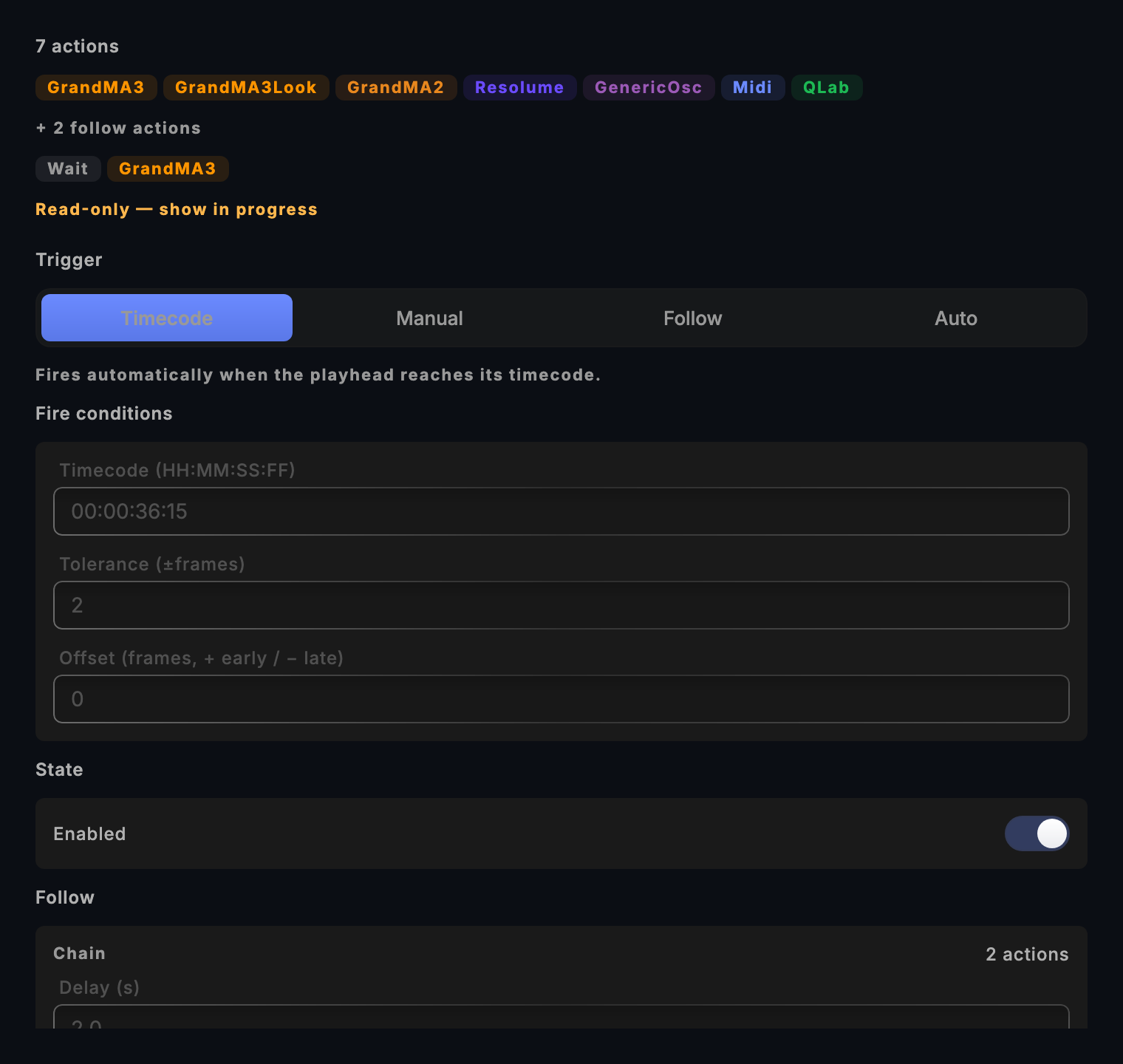
- its trigger mode is Timecode. A Manual, Follow or Auto cue is left out, because its fire time is not known in advance;
- it is enabled and not a standby cue;
- its track is not muted (or, if any track is soloed, it is on a soloed track), and you have not cut it for tonight;
- it carries a Pixel Wall action (Add Action → Pixel Wall, listed under No output needed) that is not aimed at one zone of the wall: phones have no zones, so a zoned action is left out and the page says so. An action that names an effect the app does not recognise is left out the same way, because the wall will not play it either. A cue that plays a Scene is not sent either, because what a Scene puts on the wall is worked out only when the cue fires; the page lists it as worked out only when it fires.
A Pixel Wall action with no effect releases the wall. On phones a release means the idle look.
What of the action reaches the phones:
| Action field | On phones |
|---|---|
| Effect (WASH, ENERGY_FADE, STROBE, BEAT_PULSE, CHASE, SCROLL, and the rest) | Yes |
| Brightness, Speed, Width, Floor | Yes, within the safety limits below |
| Colour ramp: Main ramp | Yes. The colours are the pixel wall's Main ramp, set in Palette → Pixel Wall → Ramps |
| Colour ramp: Accent ramp | Yes. The colours are the wall's Accent ramp (the blinder colour) |
| Colour ramp: a named venue ramp | Played as the Main ramp: phones carry two ramps, Main and Accent (see the first gotcha below) |
| Zone | No. An action aimed at one zone is left out whole rather than lighting the whole room for a look the wall shows on part of the rig |
| Aim, spread, fade in, fade out | No. Phones use the room's own wave and crossfade (below) |
| Follow actions, Wait actions, and a span set to switch off at its end | Yes. A Wait delays the actions after it, a follow action plays after its delay, and a span that switches off at its end puts the phones back to the idle look there, unless a later cue on any lane or track has taken over by then, as on the wall |
Looks that read live music analysis behave differently on a phone, which gets only a simplified view of the music. Spectrum shows three meters at the same height, Kick pulses with the energy, and Riser is a plain chase. Try each with Open it (below) before you use it.
2. Turn it on and choose where it is served
- Open Settings → Crowd. Under Audience phones, switch on Enable the crowd plane. It is dark until you do.
- Under Where it's served, choose This machine or A cloud origin. A fresh install has A cloud origin selected with no address, and the page asks you to set one or serve from this machine.
This machine. The desk serves the plane over the venue's own network. There is nothing to provision, no account and no token. Choose the network in Serve on (the list marks one · recommended and flags networks that carry your outputs ⚠ avoid), and leave Port at 7373 unless something else uses it. If you choose no network, the plane is served to this machine only and no phone can reach it. The page shows Serving on http://… once it is bound. Two costs, both stated on the page: the audience is about 500 phones, because the limit is everyone downloading the page at the same moment over one laptop's Wi-Fi; and it cannot be joined early, because plain HTTP will not let a browser keep the page offline, so people load it in the room. A venue's guest Wi-Fi often stops phones reaching any other machine on the network, and the desk cannot tell. Before doors, open the link on one phone, on the network the audience will use; if it will not load, ask the venue whether guest devices may reach this machine. The join panel under the code repeats this warning whenever the plane is served from this machine.
A cloud origin. Type the Origin address and paste the Publish token, then Test the origin. A token supplied when the app was launched outranks the one typed here; the page says which one is in use. CueSync does not provision an origin for you; contact support for the developer specification and setup guidance. An origin serves one show at a time. The token is masked and kept out of exported shows and support bundles. A cloud origin must be https://; plain http:// is accepted only for a private-network address, and the page warns you each time you use it, because the token then travels unencrypted. This is the choice for a large room, and it needs someone who can run the origin deployment.
The desk warns when the typed token is short. Generate a strong token and copy it makes a long one and puts it on the clipboard; set the same token on your origin, because until the origin has it every publish is refused. The button is offered only when no token is typed or the typed one is short, and not when the app was launched with a token. It is not offered while a plane is live or an earlier show's plane may still be out; the page says to change the token after the show instead. Replacing a short token that is in use takes two presses (Replace the token in use? Press again).
3. Describe the room
Under The room, press Add a block for each part of the audience. Each block has Name the audience sees, an id, From PA (m) (0–400, the slant distance the sound travels), Depth (m) (0–200) and Bands (1–4, which split a deep block into front and back). With no blocks the plane cannot be published, and two blocks may not share an id.
Alignment. Light arrives with the sound is on by default. The closest block is the reference, and each farther block waits its extra distance divided by the speed of sound (Speed of sound, 343 m/s, 320–360). Turn it off to fire the whole room together, which is what a camera wants. Wave across the room (s) (0–10) adds an artistic front-to-back sweep on top. Crossfade between cues (ms) (0–10,000) defaults to 0, a cut. Neither is a safety control. A speed of sound, crossfade or wave outside those ranges is refused in plain words: the reason is printed beside Compile and publish, which stays disabled until it is fixed. The Preview card shows one swatch per block, with each block's own delay.
4. Set and sign off the safety limits
Under Safety, Maximum flashes per second is 1–3 and defaults to 3, the figure public photosensitivity guidance is written around (Ofcom, ITU-R BT.1702, WCAG 2.3.1). 3 is the highest setting, and there is no off position. A setup saved by an earlier version with the ceiling raised to 4 is held at 3 when it loads; because that changes the numbers in force, a sign-off taken at 4 reads as out of date and must be signed again before you can publish. The ceiling governs the audience phones only: a strobe or blinder channel you send to a fixture over DMX is not rate-limited by CueSync. CueSync applies limits in two places:
- When the score is compiled: every look that flashes or twinkles is held under the ceiling at its own rate. A look whose rate is the tempo itself (a beat pulse, a kick, a downbeat) is replaced by a dimmed fade when the tempo is over the ceiling, and a kick's hat twinkle is not shown on phones at all.
- On every phone, on every frame: the whole field moves by at most 25 % of full brightness per frame (a faster phone screen takes proportionally smaller steps, so a full brightness change takes the same time as on a standard one); saturated red is capped at 60 % while it is moving, and a sequence of red looks counts as moving as well as a single strobe; and a panic blackout holds a 6 % warm floor rather than zero. A phone also counts the flashes that actually reach its screen, and every noticeable swing in brightness counts toward the ceiling, the first move of a run included, so a fast look can show fewer flashes than its speed suggests. If cues change so fast that the screen would flash faster than the ceiling (two cues alternating bright and dark every tenth of a second, say), it holds the colour it has until the flashing is back inside the limit, and with No flashing on it holds it to about one a second. Cues that change at a calm pace are never touched.
Under Publishing the desk counts the cues that will reach phones, lists the cues you evidently meant for the wall (they carry a Pixel Wall action or play a Scene) that it leaves out and why, lists the cues that reach phones differently from the wall (a venue colour shown in the main colours), and lists every look the limits reduce, with what changed (Cue 5 STROBE (0:45): speed 4 → 1.5). It shows the first few of each and a count of the rest. A cue that only drives other outputs is counted, not listed. The phone also says so when a limit is reducing a look. The audience's own No flashing switch swaps flashing looks for a dimmed continuous fade.
To publish, someone must enter a Name (Role or company is optional) and press I accept these limits. The statement covers the exact numbers in force, and changing any limit withdraws it. It is a name typed on this machine, the weight of a paper sheet, not an identity check.
5. Publish, join and check
- Under Publishing, read the line N of M cues will reach phones, with the cues that were left out and why (disabled, on standby, set to Manual or Follow, on a muted or cut track). Then press Compile and publish. It is disabled, with the reason beside it, until the plane is enabled, has a room, a usable origin and a sign-off. If your licence does not include Production, an owner of a paid DJ or Theatre licence sees no Publish button at all; anyone else sees it disabled with Publishing to an audience is part of CueSync Production. If no cue will reach phones the button reads Publish anyway — no cue will reach phones, so that is never done by accident.
- The Join URL panel shows a QR code with Copy link, Open it and Save QR (a large PNG named
cuesync-crowd-join.png, on your Desktop, with the address printed under the code; if it cannot be saved, the page says so). On this machine the address ishttp://<desk address>:<port>/j/…, and the barehttp://<desk address>:<port>/redirects to the current show. - Press Open it to see the audience's page in a browser on the desk. Then open the link on a real phone on the venue network.
- Read the Record card. Each publish lists
N sections · N cues. A plane with 0 cues shows only the idle look, and the status chip says CROWD LIVE · NO CUES until you publish one that has some.
Publishing again changes the join address. A code printed or shown before keeps opening the earlier version of the show, not the new one, so replace it before doors. Publishing does not happen by itself when you edit the show; once the show has changed the page says The show has changed since the audience's copy was published and a CROWD STALE chip appears. The page does not ask you to confirm an update, and an update published when nothing has changed also gives a new address.
6. Run the show
The phones follow the show transport, not just the timecode. Press Play in the Show Editor or Run Mode. The chip in the status dock reads CROWD ARMED (configured, nothing published), CROWD LIVE (published, last update accepted), CROWD LIVE · NO CUES (published, but no cue is in it), CROWD LIVE · THIS DESK ONLY (published to an address only this machine can open, so no phone can join), CROWD LIVE · NOT SERVED (the desk restarted and is not serving the join address, so a phone that scans the code gets nothing; publish an update), CROWD CLOCK PAUSED (the licence no longer sends clock updates, so phones follow their last clock; a blackout or stand-down still goes), CROWD STALE (the show has changed since it was published, whatever the change: a cue, a cut, a span end, a follow delay or action, a Wait, the wall's colours, the offset or frame rate, the room), CROWD DIMMED (blacked out), CROWD STOOD DOWN, CROWD · EARLIER SHOW STILL OUT (you loaded another show after publishing; phones that joined the earlier one may still be rendering it, and a stand-down reaches them), CROWD UNREACHABLE (the desk cannot reach its origin) or CROWD NOT SERVING (this machine is the origin and its server is not running). CROWD LIVE does not mean any phone is rendering. Press the chip to open Settings → Crowd → Publishing, where the stand-down and the publish controls are; the command palette has the same door (Crowd: Publishing and Stand-down).
Before Play, the Review in Run Mode's Start show? dialog (and Review… in the Show Editor) lists the crowd plane under CROWD PHONES: whether anything is published, whether the published copy still matches the show (amber when it does not), how many cues will reach phones, when the last update was accepted, a held blackout or stand-down, and whether the licence can publish. Each is a fact about the desk. None can say a phone has the page: open the link on a real phone before doors.
The Audience phones card shows a count of phones checking in with the desk, or Not measured yet. It is a floor and a trend. A locked screen stops checking in, a phone with no signal still takes part but does not check in, and two open tabs count as two.
Panic, blackout and stand-down
| Act | What the phones do | Reversible from the desk |
|---|---|---|
| Panic → Blackout All Outputs | Every phone holds a dim warm floor (6 % by default), not black, reaching each phone within moments. A dark room going fully black at once is an exit hazard. | Yes. Release Blackout and the phones return to the score. |
| Panic → Freeze Outputs | Nothing. Freeze is not sent to phones, and they keep following the show clock. | n/a |
| Stand the crowd plane down (Settings → Crowd → Publishing, or press the chip) | Every phone goes to true black and stays black. It is the venue's control: the house lights are coming up, or someone has asked for the phones to stop. | No. Only a phone reload brings it back. It asks you to confirm, and the confirmation puts itself away if you do nothing. |
| Switching the plane off | Nothing changes on any phone at that moment; they keep rendering from what they hold. With the switch off this desk sends no more clock updates, so phones follow their last clock. In This machine mode the desk keeps serving while a plane is live, so a stand-down can still reach the room. A blackout or stand-down you send still reaches them, and so does one sent after you load a different show. | n/a |
| Closing the app | Nothing changes on any phone, and nothing more can be sent. Send a stand-down before you quit if the phones must stop. | n/a |
Neither blackout nor stand-down is blocked by a lapsed licence. A stand-down stays a stand-down: later clock updates, a Panic or a release do not undo it, and the desk remembers it if it restarts. A phone that was told to stand down stays dark until it reloads, and a phone that was told to black out holds the dim floor until a newer all-clear reaches it, so a desk that restarts does not bring it back to the idle wash. A blackout still held when the desk restarts stays in force and is sent to the room again. A stand-down or blackout that cannot be delivered is sent again until it lands, and the desk says so once. The Publishing card shows a held halt at the top. With the plane stood down the join code is withdrawn from the page and Publish an update becomes Start a new plane, behind a confirmation that says phones which obeyed the stand-down stay out until they reload the page. A blackout held when you publish stays held on the new plane until you release it; a publish never clears it. If the origin refuses a blackout or stand-down, the desk raises a toast you cannot miss: the phones in the room are STILL LIT. The desk keeps sending it, but if it keeps failing, ask the audience to close the page. Turning off the desk will not darken them.
Use cases
1. A club with a QR code.
- Author a timeline of Pixel Wall cues, each trigger mode Timecode, in the Show Editor.
- In Settings → Crowd, switch on Enable the crowd plane, choose This machine, and pick the venue Wi-Fi under Serve on. Add two blocks, Floor (From PA 10 m, Depth 15 m, Bands 2) and Balcony (From PA 30 m). Sign off the safety limits.
- Press Compile and publish, check the line under Publishing says some cues will reach phones, and press Save QR. Put the code on the screens and the bar, not on the ticket.
- Open the link on your own phone, join, and press Play in the Show Editor.
- You should see the phone sit on a dim wash, then change at each cue. The Preview card's delay table for this room lists 0 ms for Floor — front, 22 ms for Floor — back and 47 ms for Balcony. At club distances that is a frame or two, so do not expect to see the offset. If phones cannot load the page, ask the venue whether guest devices can reach other machines on the network, because some Wi-Fi setups isolate them.
2. A theatre finale.
- Put the finale's colour changes on the show track as timecoded cues: a warm wash, a chase, then a wash at 0.15 brightness.
- In Settings → Crowd, set Crossfade between cues (ms) to
1500and Wave across the room (s) to2, and publish. - Play the show through in rehearsal with two phones in different blocks.
- You should see each cue blend into the next over 1.5 seconds, sweeping front to back. A cue set to Manual will not appear on phones at all; move it to a timecode if the crowd must follow it.
3. Panic during the show.
- Press
Cmd+Shift+B(Panic → Blackout All Outputs). - You should see the rig and wall go dark, and the phones dim to a warm glow within a few seconds on this machine. The chip reads CROWD DIMMED.
- Choose Release Blackout (Panic → Release Blackout). The phones return to the look the show is on now.
- To take the phones fully black for good, use Stand the crowd plane down, then Stand down now.
4. Finding out why the phones show nothing.
- Look at the chip: CROWD ARMED means nothing is published.
- Read the list under Publishing. It names each cue that was left out and why. No cue will reach phones means none qualified; recheck trigger mode, muted tracks and the Pixel Wall action.
- If the show clock never moves the phones, confirm the show transport is playing.
- If a phone will not load the page, try Open it on the desk, then the link on a phone on the same network. If the desk's browser works and the phone does not, look at the network, not at CueSync.
Tips & gotchas
- A named venue ramp plays as the Main ramp on phones. Phones carry two ramps, the wall's Main and its Accent. Colour ramp → Accent ramp (blinder) reaches them as Accent; any other named ramp you defined for the wall ("amber wash", say) has no phone equivalent and plays as Main. Use Open it to check your looks, and set the wall's Main ramp to the colours you want on phones.
- A publish that compiled nothing still succeeds, but the desk now says so before you do it and afterwards on the chip. If the chip reads CROWD LIVE · THIS DESK ONLY, you published to an address no phone can reach: pick the network the audience is on and publish again.
- The phones move only while the show transport plays. Cues can fire from another clock and leave the phones on the idle look.
- Editing the show does not update phones. Publishing an update issues a new address; a code printed before it keeps opening the earlier version.
- Battery and screens. A phone showing full-screen colour uses its battery faster than usual, and a phone can still dim or lock its screen on its own timer. On this machine's address the page does what it can to keep the screen awake and cannot promise it. Tell the audience to keep the page open, the phone awake and charged.
- Restarting the desk. CueSync remembers a plane it published within the last 12 hours, so the stand-down and Panic still reach it; an older plane is not driven by the show clock again, though a stand-down or Panic still reaches it. In This machine mode the document is not served after a restart, and a red line says so: publish again, which changes the address.
- Publishing needs Production. Authoring, preview and the compiled score work on every edition. Halts are never blocked by licence state.
- The room, the limits and the sign-off belong to this machine, not to the show file. Open the show on another computer and you set the room again. Export Settings (Settings → Advanced) carries them across, without the publish token or the record of what this desk last published (an imported file is read without one, so it never claims an audience this machine did not publish to).
- Nothing measures the audience. Do not quote the audience card as attendance.
What has been checked
It has not been run on a crowd of real phones, on an arena network, or against a production cloud origin. Treat the whole feature as unproven at scale: a rehearsal with your own phones on the venue's network is the test that counts.
Related
- Pixel Wall — the RGB wall whose ramps and effects the crowd shares
- Show Editor — trigger modes and the cues the crowd compiles
- Show Companion — a different feature: tablet surfaces for crew (the Deputy page can fire the pads you publish), not an audience light source
- Run Mode — the show transport and Panic
- Timecode — the clock the cues fire from
- Settings — the Crowd section in context
- Preparing the Show Machine — keeping the desk quiet during a show
Looking for a quick fix?
The Help Center has short task-focused articles and a support team that responds within 24 hours.