Pro Decks
DJWhat it's for — Pro Decks gives you a full-screen view of every connected Pioneer player, one player per row, with full waveforms and real-time sync data. Use it on a secondary monitor or whenever you need more waveform detail than the Devices overview provides.
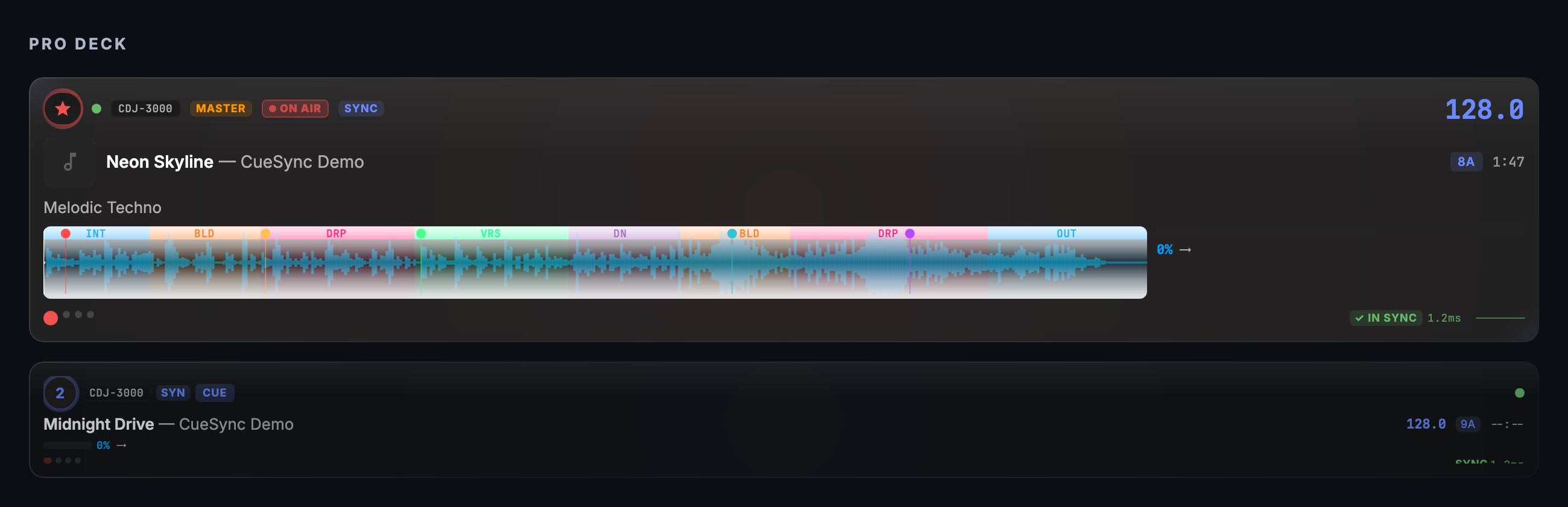
The screen, region by region
Master tempo bar — A persistent strip across the top of the deck area. The left side shows a coloured pill naming the deck the tempo beside it is read from, in that deck's colour: "MASTER · CDJ-N" when it is the deck holding the MASTER flag, "ON AIR · CDJ-N" when the flagged deck is off-air and the tempo follows the deck the room is hearing (pressing SYNC/MASTER on the incoming headphone deck is routine), and "TEMPO · CDJ-N" when no deck is flagged. The centre shows the current BPM to two decimal places on a soft halo, with a subtle size pulse on every beat (suppressed if you have reduce-motion enabled). Alongside the BPM is that deck's current pitch offset in percent. The right side shows beat phase dots and a row of per-deck sync chips.
Sync chips — One compact chip per connected player. Each chip shows the player number, current BPM, an on-air indicator (when your mixer reports the channel live), and a small phase-alignment dot that is green when the deck is in sync, amber on slight drift, and red when out of sync. Hover a chip for a tooltip with full detail. When drift exceeds a threshold the chip gives a short wobble; severe drift tints it red. Drift and the phase dot are reported only for a deck that is playing on a live link — a cued deck waiting at its own tempo is not drifting, and a deck whose packets have stopped fades and says so rather than showing its last numbers. The master deck's chip scales up briefly when it takes the tempo crown.
Deck strips — One strip per connected Pioneer player (or per slot if you enable four-deck mode in Settings). How they are arranged is your choice (see Layout and look below); on Auto, in a window narrower than about 1,400 dp, or whenever a deck is expanded, the strips stack one full-width row each, and in a wider window with nothing expanded they tile two-up (two decks) or two-by-two (three or more). Auto also takes the two-by-two grid in a shorter window (900 dp or wider) whenever a stack would leave three or more decks with no room for their scrolling waveform. Each strip shows:
- The player number and the deck's colour (the number is printed at every size, so the colour is never the only signal)
- A red bar down the left edge of the deck your mixer reports on air, at every strip size — including a collapsed strip with no room for the AIR badge. An OFFLINE deck never shows it
- Track title, artist, and album artwork — or, with no metadata, what the player actually reports: "Loading track…", "Track loaded · no metadata" (a CD or an unanalysed drive), or "No track loaded"
- A full scrolling waveform with a live playhead — if a track is loaded but its waveform never arrives, the lane says "Waveform unavailable" after about 12 seconds instead of shimmering forever
- Hot cue markers along the waveform; the active hot cue flashes on hit
- NO GRID in the header when a track is loaded and its waveform is drawn but the player has no beat grid for it (after about three seconds, so a grid that is merely a beat behind its waveform is not reported). Without a grid there is no bar counter, no phrase countdown and no beat ticks — the mark says why
- Dragging the overview strip moves only CueSync's view — it does not seek the player. While a view is scrubbed the header shows VIEW beside the time remaining and the bar counter (they describe the spot you dragged to, not the player); the mark goes when the player rolls, is moved by its own jog, or loads another track
- Track key and a harmonic-compatibility dot (green: same or relative key; amber: a neighbour on the Camelot wheel; red: clash) when multiple decks are loaded (at the two roomier strip sizes). The dot compares a deck with the deck the room is hearing, so a clash with what is playing is red even if a third deck would have fitted; the playing deck's own dot shows its best match among the others
- A phrase countdown on every deck whose track has rekordbox phrase analysis — "→ BRG in 4 bars", or the phrase name when no further phrase follows — so the incoming deck shows when its next section starts, not only the deck the room is hearing
- An analysis health indicator showing whether track structure data is ready (click to open that track in Prepare on the Home screen)
- An OFFLINE / RECONNECTING… badge, and a faded strip, when the deck's status packets stop — the same wording the Devices cards use. An offline deck lights no AIR, M or S
Expand mode — Click the header of any deck strip (or press its number key, 1–6) to give it roughly 90 % of the available height while the other strips collapse to header-only view (each keeps its whole header, player number included, however many decks there are). Click again to restore equal distribution. If the expanded deck disconnects, the layout returns to equal distribution automatically; if a collapsed deck above it disconnects, the expanded deck keeps its size. Picking a layout in the picker (here or in Settings) also puts an expanded deck back, so the arrangement you chose is the one you see; a header click made afterwards expands as before.
Layout and look — The button at the right of the header (it shows the current arrangement) opens the picker; the same choices live in Settings → Look & Feel → Pro Decks look.
- Layout: Auto (the page decides, as above), Stacked (one full-width lane per deck — the longest view for beatmatching; four stacked decks need a tall window), Columns (two or three decks side by side at full height; four or more become the grid, and a window too narrow for 360 dp a deck falls back to a stack), Grid (two columns; needs about 900 dp of width, below that it stacks), and Focus (the deck the room hears is expanded and follows the master — a new master is adopted only after it has held for about a second and a half, so a long blend does not make the page move; with two decks the other stays a live strip, with more it folds to its header; the big deck's header says FOLLOWING MASTER; clicking it (or pressing its number key) keeps that deck big and the header says PINNED, clicking it again — or pressing Esc — returns to following the master, and clicking another deck's header makes that deck the big one).
- Look — four recommended combinations of layout, waveform colours (style and theme) and the energy overlay / Hot-cue bar positions. Club (recommended; the default) is Auto layout with colours from the hardware; Focus is the Focus layout with the energy curve on the waveform; Booth is a grid with the waveform theme set to Pioneer, the CDJ-3000's own palette, so the screen matches the hardware; Stage is a plain stack of single-band waveforms with the bar-position labels on the hot-cue pads switched off (Hot-cue bar positions in Look & Feel; the pads themselves stay) — calm, readable from across the room and safe for any kind of colour vision. Picking a look changes only those settings — the waveform theme included, which Club, Focus and Stage set back to Signal — and never your Waveform color-vision palette: while that is on it still decides the waveform colours, whichever look you pick. If you then change one setting by hand, the picker says Custom.
Empty state — When no Pioneer players are detected, the screen shows a scanning animation. Connect a CDJ or XDJ to your network to populate the deck strips. Below the scanner is a tap-tempo panel for a rig with no Pioneer hardware: tap along to set a BPM, then press Start grid to run beat-based cues against it. Tapping never starts anything by itself; a CDJ appearing on the network takes the tempo back automatically.
Common tasks
- Monitor sync across all decks — Watch the phase dots in the sync chip row. All green means all decks are in phase with the master tempo. A red chip before a mix means the off-beat deck needs attention.
- Expand a deck for full waveform detail — Click the deck's header to give it 70 % of the screen height.
- Open Track Prep for a loaded track — Click the analysis health indicator on any deck strip to jump directly to Track Prep with that track pre-selected.
- Enable four-deck mode — Go to Settings → Look & Feel → Display and toggle four-deck mode on to always show four deck slots even when fewer players are connected. Four-deck mode keeps four slots (empty ones wait as placeholders); a connected player 5 or 6 still gets its own strip.
- Look around within a track — Drag the waveform to scroll its view, or click or drag the overview strip to jump the view. This moves CueSync's display only: PRO DJ LINK gives CueSync no command to move a CDJ's playhead, so the player keeps playing where it is and the strip returns to live when the player reports a position change.
- Use the keyboard —
1–6expand a deck,=and-zoom (the expanded deck, or every deck if none is expanded), and0resets the zoom the same way.
Tips & gotchas
- The pitch offset label only appears when a tempo source is present. With players connected but no tempo yet (nothing loaded, nothing analysed), the headline reads "NO TEMPO" in the warning colour and the pitch row is hidden. With no players at all the tempo bar is not shown — the empty state takes its place.
- Sync chips appear only when two or more players are connected. A single-deck rig doesn't need a sync comparison, so the chip row is suppressed.
- Waveform zoom is per-deck and persists across navigation within a session (it is not saved across restarts). Scroll over a waveform or use its zoom controls to set the level you want — it survives switching to Performance and back. You can zoom out past the whole track; the track is then centred in the lane. Wheel and trackpad zoom compounds each notch, so a long scroll keeps zooming smoothly instead of stalling and lurching, and the deck lanes are drawn at the screen's own resolution, so a long track stays sharp at the default window.
- Waveform colours and timing are Look & Feel settings. Settings → Look & Feel → Waveform holds the Waveform theme (Signal, Accent, Ember, Glacier, Pioneer or Mono — one theme paints every waveform, and the Command Palette's Waveform: Cycle Theme steps through them) and Waveform timing, which nudges the moving playhead from −200 to +200 ms in 10 ms steps to line it up with what you hear. The Waveform color-vision palette still outranks the theme.
Related
- Devices — Overview dashboard showing decks alongside outputs and controllers
- Performance — Live performance screen that reuses the BPM and cue data shown here
- Track Prep — Prepare tracks and build track analysis before your set
Looking for a quick fix?
The Help Center has short task-focused articles and a support team that responds within 24 hours.