Track Prep
DJWhat it's for — Track Prep is where you analyse tracks, edit beat grids, place hot cues, and review cue suggestions before using a track in a live set. Well-prepped tracks give Auto Pilot and the cue engine everything they need to fire at the right moments.
The screen, region by region
Tab strip (top) — Two tabs:
- Library — Browse and select tracks from connected Pioneer USB drives, local files, or the tracks currently loaded on your decks.
- Show Memory — Tracks you have already used in the current show, with their prep status preserved.
Quickstart panel — On first run, above an empty library, three numbered steps say how to get going (connect a Pioneer USB drive, wait for analysis, double-click a track to open the editor). Dismiss closes it for good. It is a compact band even on a very wide window, so Dismiss sits beside the steps it closes.
Show prep line — Once a library is mounted, a quiet line under the toolbar maps it to a show that fires: Show prep: Analyze → Generate cues → Profile + AutoPilot → Flight Check. A step gets a ✓ when it is done and the next thing to do is in bold, so the line always points at one step. Analyze is done when no track is waiting for analysis; Generate cues when every analysed track has saved prep; Profile + AutoPilot when AutoPilot is on with a profile armed. Flight Check is the last thing to do and is never ticked. An empty library shows the quickstart panel instead.
Prep Run strip — When tracks in your library still need analysis, the toolbar shows an Analyze all N button. Starting a run docks a progress strip above the library: "Preparing X / Y" with the current stage, an estimated time remaining, and a Cancel button. When the run finishes you get a summary — "N tracks analyzed" — with a Generate cues button to turn the fresh analysis into suggested cues in one step. Failed tracks are reported honestly ("N need attention", each with its reason) rather than silently skipped. Bulk prep pauses automatically if you start a live set (Auto Pilot arms) and resumes when it disarms. A track a deck is waiting on is analysed ahead of a Prep Run's long mix. A 96 kHz or surround file is weighed at its own size before its analysis starts, so a few long hi-res mixes wait for room instead of together outgrowing the memory set aside for analysis. A file too long to analyse is refused with how long a file of that quality can be and what to do — Split the mix in a DAW, or analyze it in rekordbox.
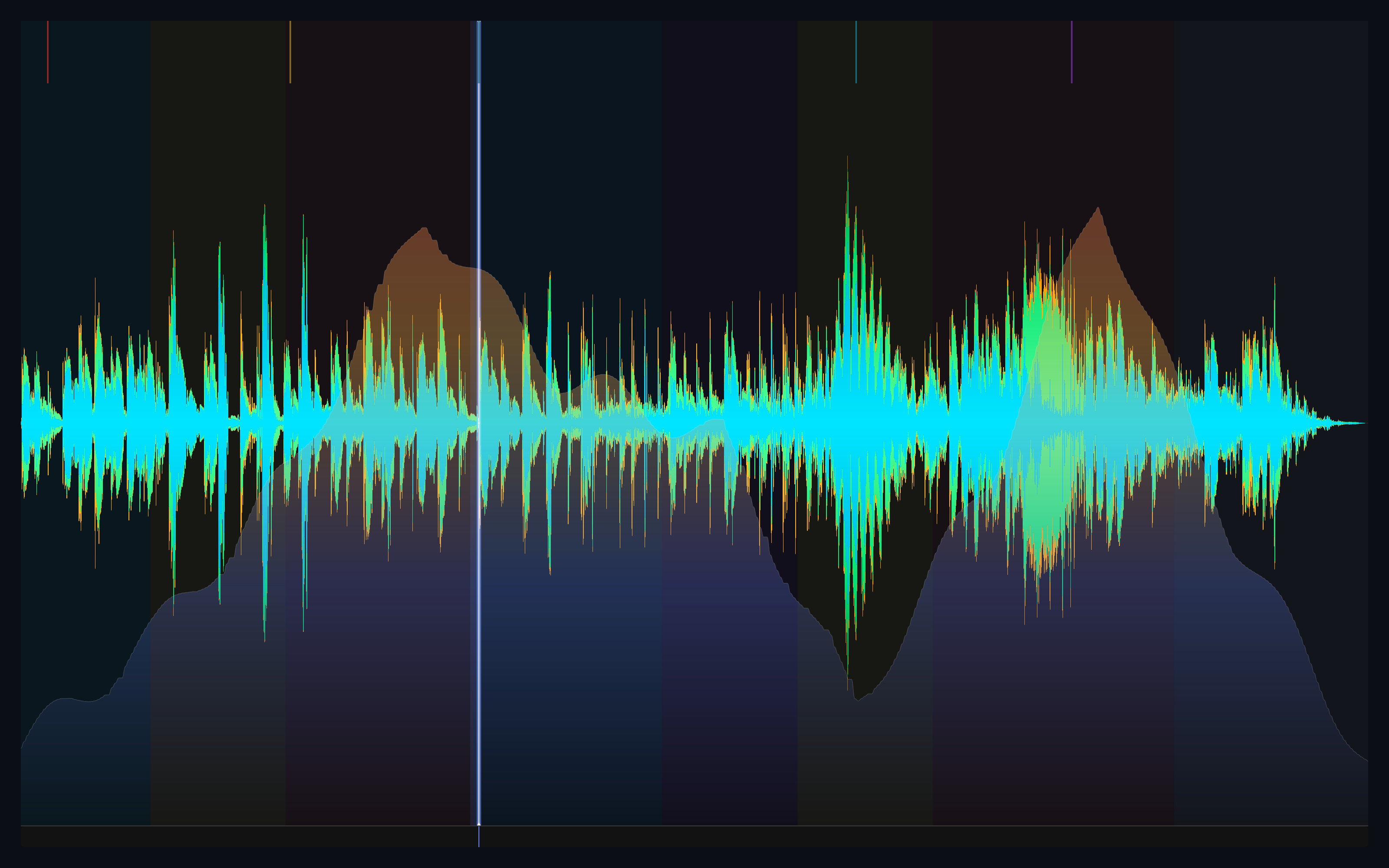
Track overview panel — When you select a track in the Library tab, this panel shows a compact waveform of the full track plus BPM, grid, and key badges. Click a point on the waveform to preview that position. On a wide window (a 4K display, say) the panel sits beside the library instead of above it, which gives the track list its height back; the library table stops growing at a readable width, so a track's name and its tempo are never a screen apart.
Editor (full panel, opens when you double-click a track) — The detailed editing surface:
- Waveform canvas — Full-colour waveform with beat markers, phrase blocks, and hot-cue markers overlaid. Drag a hot-cue marker to reposition it. Pinch-to-zoom or use the zoom controls.
- Markers CueSync found itself — When CueSync analyses one of your own audio files it also proposes hot cues, loops and memory cues from the track's structure. They are the analysis's guesses, not markers you placed: they are drawn a little dimmer, you can drag, delete or replace any of them, and a Pioneer track keeps the markers rekordbox authored instead.
- BPM / beat-grid editor — Click Override in the editor header to open Override Track Analysis. Set the BPM (type a value, step it, or tap it out with tap tempo), the key, and the Grid Offset: four steps of −1, −½, +½ and +1 beat, each added to the shift the grid already has (the dialog shows the current shift). A step asks you to confirm — and can be cancelled — then finds hot cues and loops again on the shifted grid, and every cue placed on a beat fires on the new beats. Clear All, also confirmed, returns the BPM, key and grid offset to the detected values. For finer work, switch on Edit Grid on the waveform: tap a beat to nudge it, long-press to set the downbeat, and use the Bar chip to change the beats per bar.
- Key / Camelot display — Shows the detected musical key in both standard and Camelot notation. The Library tab highlights compatible keys for the currently playing track.
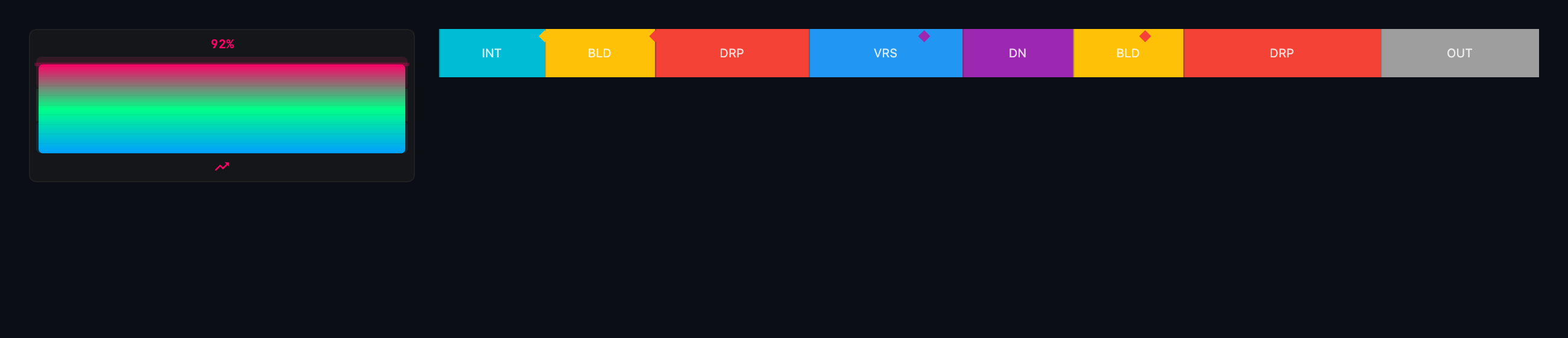
- Phrase strip — Colour-coded phrase blocks (Intro, Verse, Chorus, Bridge, Outro, etc.) derived from the track's structure analysis. Phrases are the primary input for Auto Pilot and phrase-triggered cues.
- Cue suggestion list — Suggested cue positions generated from the track's analysis. Each suggestion shows the moment type (drop, build, chorus peak, etc.), beat position, and how sure CueSync is of the set as a whole: Solid, Check or Guess. Click the test-fire button on any suggestion to hear what firing at that moment would sound like. Accept a suggestion to add it to the cue stack. With Vocal Detection switched on (Settings → Analysis), a vocal that returns after a long instrumental stretch can appear in this list as a Vocal Return suggestion, placed on the start of the phrase where the vocal comes back; if that phrase already has a cue on its boundary, the existing cue is noted "vocal hook returns" instead. A Vocal Return is accepted or skipped like any other suggestion, and nothing fires from it until you accept it. A suggested phrase cue is tied to its own track and its own phrase: the Final Drop cue fires on the final drop only, not on every drop, and a track's cues left in the stack never fire on the next track's phrases.
- Analysis strength and loudness chips — Indicators showing how sure CueSync is of the tempo and key, and the track's integrated loudness. The tempo and key chips read Solid (green — a reading you can rely on; it is still an estimate), Check (amber — look at it before the show) or Guess (red — set it by hand or accept it knowingly), instead of a percentage; hover for what to do. A tag from another analyser that disagrees with CueSync's analysis always reads Check. The suggestions header and a key cue's rationale use the same three words.
- Cue cards: Mark Ready and Disabled — Mark Ready (the Detail tab's button, the bulk bar, or
R) works only on a cue that has an action and was test-fired since its last edit. When it cannot, the Detail tab says why: Add an action before this cue can be marked Ready, or Edited since its last test - Test Fire it again to mark it Ready. A cue you have switched off wears a Disabled badge, and the Pre-Show Check no longer counts it Ready.
Common tasks
- Open a track for prep — Browse to it in the Library tab, then double-click the row. The editor opens.
- Analyse a track — Analysis starts automatically when you open a track that has not been fully analysed yet and Auto Pilot is not currently armed. You can also click the Analyse button in the prep status panel to start analysis manually.
- Edit the BPM and beat grid — Click Override in the editor header to open Override Track Analysis. The button appears for local tracks only — a track read off a Pioneer USB carries rekordbox's own analysis, which CueSync does not overwrite. Adjust the BPM, or shift the grid by a half or a whole beat. The waveform snaps to the new grid.
- Move a hot cue — Drag its marker on the waveform canvas to the new position. The marker snaps to the nearest beat.
- Accept a cue suggestion — In the cue suggestion list, click the checkmark next to a suggestion. The cue is added to your cue stack with the suggested trigger already configured. Loading a track's cues again after editing them updates the cues already in the stack (one undo restores the previous versions), and the message says how many were added, updated or already loaded.
- Test-fire a suggestion — Click the play icon on any suggestion row. The cue fires immediately so you can preview the output before committing.
- Prep the whole library at once — Click Analyze all N in the Library toolbar. The Prep Run works through every track that needs analysis (local files, USB tracks with incomplete analysis, un-prepped deck tracks) in the background — sound-checking with a CDJ connected is fine. When it completes, click Generate cues to review suggestions for the freshly analysed tracks. Generate never overwrites prep you have reviewed — edited, test-fired or marked Ready: those tracks are kept and the summary says how many ("3 generated, 2 kept"). To regenerate one of them, open it in the editor and Generate there, where it is one undoable step.
- Zoom the waveform — Press
Cmd+=to zoom in,Cmd+-to zoom out.
Tips & gotchas
-
Analysis runs automatically on open, but only when safe. If Auto Pilot is armed (a live set is running), auto-analysis is suspended to avoid interfering with the show. Prep tracks before arming Auto Pilot, or manually trigger analysis between sets.
-
USB tracks benefit from enhanced analysis. Tracks on a connected Pioneer USB drive start from rekordbox's own analysis, so they usually need little extra prep.
-
Editing BPM, the beat grid or the phrase map demotes ready state. A BPM or grid change drops every Tested or Ready cue placed in beats or on a phrase back to Drafted, and a phrase edit does the same to phrase cues — their timing moved. Timecode and hot-cue cues keep their state. A cue you paste from another track, or apply from a pattern, also starts Drafted and is re-bound to the track it lands on.
-
Undo stays on the open track.
Cmd+Zin Track Prep undoes only the open track's own commands. Opening another track, or closing the editor, takes the previous track's steps off the undo stack, so an undo can never write one track's cues into another. A grid edit is undone in the order it was made, and a batch Generate over the library is one undo step (Library). -
Re-analyze keeps the cues you imported. A forced re-analysis detects the track again from scratch, but the hot cues, memory cues and loops you imported from rekordbox stay, and the message says so — Re-analyzed track - kept the N cues imported from rekordbox. Only an explicit reset of the markers discards them.
-
Phrase and marker corrections travel with the show. When you save, the show file carries your corrections for the tracks it has prep for, and so does a Tour Pack the moment you export it, saved or not, so a backup laptop opening the same show runs the corrected phrases. If that laptop's copy of a track was analysed differently, the correction is not applied and CueSync says so on screen when the track loads — PhraseChange cues and Auto Pilot then follow the uncorrected phrases until you re-confirm the track in Track Prep.
-
Prep follows the audio, not the USB. When CueSync recalls your prep onto another copy of the same track — another USB export, the original USB after prepping a mirrored copy, or a plain data USB — your cues follow the track to the new copy.
-
Optional analysis features live in Settings → Analysis. Vocal Detection (listens for a vocal returning after a long instrumental stretch and suggests a Vocal Return cue for that phrase, in this screen's suggestion list; it downloads a one-time, about 2.3 MB model from GitHub the first time it runs) and Drop Detection are off until you switch them on. Intro & Outro Boundaries (detects phrase changes in the first and last bars so short intros aren't swallowed) is on by default, as are Adaptive Tempo Tracking, Downbeat Alignment and Complex-Domain Onset Detection. Pioneer tracks keep their rekordbox-authored phrases and beat grids. See Settings.
-
The loudness chip is a read-out, not a control. Integrated LUFS and loudness range appear next to BPM and key so you can spot brick-walled or quiet masters at a glance. To fire cues on loudness, use the Loudness Transition trigger (Production edition) — it fires once when the track's live loudness enters an absolute LUFS band, which stays consistent across tracks in a way relative energy levels can't.
Related
- Library — this screen's own Library tab, in detail: sources, search, filters and key matching
- Cues — Manage the cue stack that accepted suggestions feed into
- Track Program — Visualise the fire plan against track structure
- rekordbox XML — Bring a rekordbox collection in, or send your prep back to rekordbox
Looking for a quick fix?
The Help Center has short task-focused articles and a support team that responds within 24 hours.