Show Editor
TheatreWhat it's for — The Show Editor is where you build and arrange your Theatre show: add cues, sequence them on a timeline, set how each cue fires (timecode, manual GO, or chained), and inspect or edit every detail before the curtain goes up.
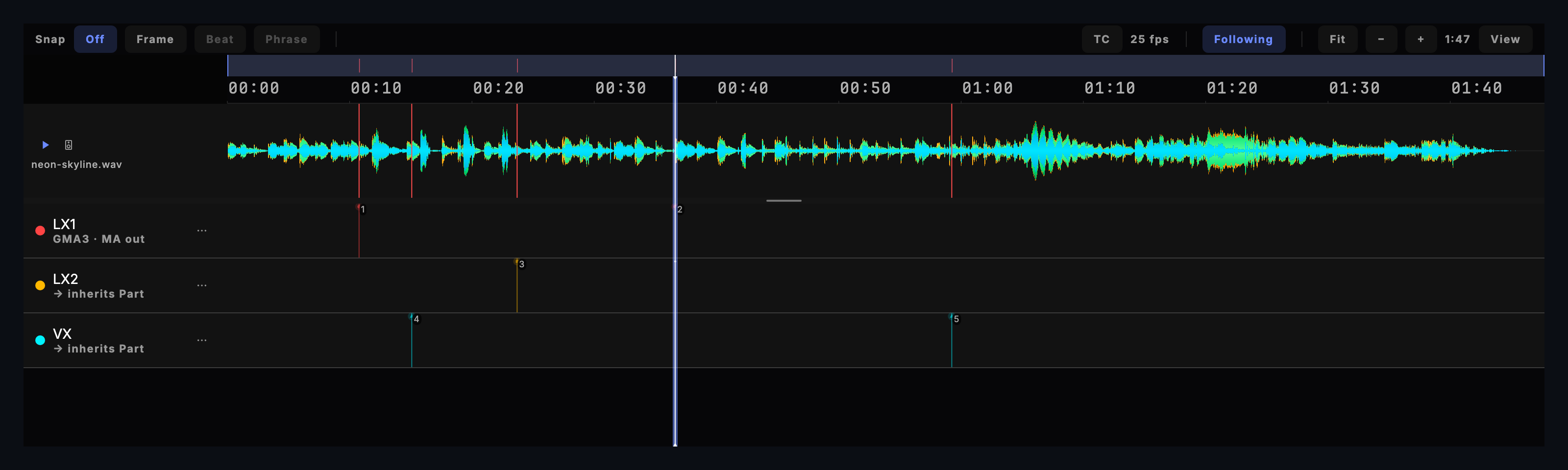
The screen, region by region
Lane filter strip (top) — One chip per output lane, showing its name and output. Click chips to show only those lanes; All shows every lane again. The filter changes what you see, never what fires. Right-click a lane chip to rename, recolour, route or delete it, and + Lane adds one. At the right end is the rehearsal mode selector — SHOW / DRY / REHEARSE+ — which sets one mode for the whole show, not per Part. SHOW is the normal performance: cues fire on GO. DRY steps through cues without sending anything to hardware. REHEARSE+ is a rehearsal that still fires outputs. The selector is locked while the show is playing; pause first. The gear opens the Show Control and Timecode settings.
Parts rail (left panel) — The show's running order as a tree of Parts, Acts and Scenes. Select a Part to edit it; click an Act or Scene to jump to that section. Right-click a Part to rename, mute or solo it, route its outputs, set its audio or reference video, recolour, renumber or delete it, or re-place it on the show clock with Part timing… (frame-exact, for a silent Part as well as one with audio: its audio, cues, window and Acts and Scenes move together as one undo step, and it is refused while the show is playing). + Add Part and Import audio sit at the bottom. Hide it with Cmd+B or the rail toggle at the left of the cue list toolbar, and drag its edge to resize it.
Cue list (below the timeline, or beside it) — Your ordered list of cues. Each row shows the cue number, name, trigger badge, and action count. The cue that is in — the look on stage — is tinted green with a bar down its left edge and a NOW tag; the cue that comes next has a blue outline and a NEXT tag, and while the show runs its state dot breathes. Stopped, the two tags follow the playhead instead (the last cue at or before it, and the first after it). Cues the playhead has passed are dimmed. Rest the pointer on a row and that cue's marker lifts on the timeline; rest it on a marker and its row is tinted. Hovering never scrolls the list. While the show plays the list follows it and keeps the next few cues in view; scroll away to check a later cue and the list stays where you put it until you click Follow, or until you leave it alone for a few seconds. Select two or more cues to delete, duplicate, enable or disable, or recolour them together. Single-click a cue's timecode cell to jump the playhead (and any slaved audio/video) straight to that cue; double-click the cell to edit the timecode inline.
Cue list toolbar — The strip directly above the cue list. + Cue opens the cue editor for a new cue at the playhead. Templates adds a cue from a built-in or saved template, Suggest opens Suggest Cues, the search field filters the list as you type, and Export… opens Export Cue Sheet. The density button cycles the row density, and the layout button at the right end moves the cue list beside or below the timeline (see Cue list placement below). When the editor is narrow, the controls that don't fit move into a ⋯ menu.
Cue list placement — Choose where the cue list sits: Below Timeline (the default — the timeline on top, the list underneath at full width) or Beside Timeline (the timeline takes the full height of the editor, and the list becomes a column on the right with the Inspector under it). Beside suits a wide screen: the timeline gets every lane at full height and the list shows far more cues at once. Switch with View → Cue List (choose Below Timeline or Beside Timeline), Alt+Cmd+B, the layout button on the cue list toolbar, or Cmd+K → Show Editor: Cue List Beside Timeline. CueSync never switches it for you, and it remembers your choice on this computer. Hide cue list (the button beside the layout button on the cue list toolbar) puts the list away so the timeline takes its room: a bar along the bottom of the editor when the list is below the timeline, a slim rail on the right edge when it is beside; click either to bring the list back. That choice is remembered too. Switching Part moves the timeline to that Part's cues, and the navigator strip above the ruler shows the selected Part's cues. In the side column each cue takes two lines — number, timecode, name and its markers on the first; the output it goes to (with its connection dot), its type and its notes on the second. The Inspector docks under the list while one or more cues are selected or the Inspector is pinned. Drag the column's left edge to make it wider or narrower, and drag the divider between the list and the Inspector to share the height between them. Your selection, search, filters, follow state and scroll position stay as they are when you switch, even with a filter menu open.
Capture toolbar — A slim chip row of up to ten capture slots, each bound to a bare number key (1–0). While the audio preview is playing, press a slot's key (or click its chip) to punch a new cue with that slot's label and colour at the live playhead — the fastest way to rough in a show while listening. The trailing gear opens the Capture Slots editor: add or remove slots, recolour and rename them, give a slot a cue template so every cue punched from it already carries that template's actions and trigger mode (a punched GO is ready to fire, not an empty marker to fill in later), load a starter set (Main · Hit · Build · Sweep · Pyro), and choose whether each punch pops a naming field (Label on capture) and whether the transport holds while you type (Pause while labelling). Slots are saved with the show.
Timeline / waveform panel (top of the centre column, above the divider) — Shows the audio waveform with the cue markers overlaid. Drag the split divider up or down to trade space between the timeline and the cue list (with the list beside the timeline, the timeline fills the whole column and there is no divider). Suggestions you stage from Suggest Cues appear here as ghost markers: tap one to accept it, long-press to dismiss it. When several cues stack at (almost) the same position, the marker lane shows a small ×N count badge — tap the stack repeatedly to cycle the selection through the cues under it. Each marker carries its cue number, and its name too once you zoom in far enough for the name to fit; a label never covers another cue's marker, except the selected cue's, which is labelled ahead of the others (a cue inside a ×N stack is counted by the stack's badge instead). Number labels and count badges are kept apart, so a number is never run together with its neighbour's. A cue keeps its own colour, or its lane's, after it fires — the dot at the top of the marker turns green, and the outline of its label follows the cue's state — so a lane behind the playhead is not one green wall. The Snap chips above the timeline (Off · Frame · Beat · Phrase · Cue) decide where a dragged cue lands; Cue pulls it onto the nearest other cue in the Part (on any visible lane), or onto the playhead, and holding Alt (Option on Mac) frees the drag. Right-click a marker for the same verbs the cue list offers — Edit, Test Fire, Mark Ready, Insert Mark Cue, Duplicate, Move to lane, Enable/Disable, Color and Delete — and rest the pointer on one for a card edged in the cue's colour with its name, number, timecode, state (with a dot in the state's colour) and, when it fires early or late, a Fires … early or late line that names the offset. [ and ] step the selection through the cues on screen and, when the show is not playing, move the playhead to the cue.
Reference video pane — Appears between the timeline and the cue list when the selected Part has a reference video attached (rehearsal footage, a previz render, a director's cut). The header shows the filename, a speaker button and volume slider (the footage is silent until you turn its sound on), a settings gear, and a collapse chevron. Under the picture a status line says whether the video is Tracking the playhead, Held, At edge (the playhead is outside the footage), or Dropping frames (this computer cannot decode the footage in real time — transcode it to a smaller H.264 file). The bar beside it shows where the footage is, to the frame (m:ss.ff). Drag the bar to slide the footage against the music — the picture follows as you drag and the whole drag is one undo step — or scroll over it to move it one frame at a time (hold Shift for ten). A row of nudge buttons — −1s −10f −1f · Video offset · +1f +10f +1s, plus a reset — does the same in steps. The wand button beside the reset, Align to this Part's audio, does it for you: CueSync listens to the Part's own audio and to the footage's sound, finds where the music sits in the recording, and moves the footage there as one undo step. It works with a camera microphone's version of the music (quieter, with the room in it) and with footage that starts before or after the Part; if the footage's sound doesn't contain this Part's audio, or CueSync isn't sure, it says so and changes nothing. Rest the pointer on the file name to see the full path and what the footage is (codec, size, frame rate); scroll over the volume slider to change the sound level. The video is an editing aid only: it opens on its first picture and follows the playhead — scrubbing the ruler, clicking a timecode cell, or playing the audio preview all keep the frame in sync, and footage that has played to its end picks up again when the playhead comes back inside it. It is never sent to any output and is ignored entirely by Run Mode. While a show is running a different video cannot be opened; the pane says so and opens it as soon as the show stops. If the file has moved, the pane offers Locate….
Inspector (right panel) — A tabbed panel that opens when you select one or more cues. With the cue list beside the timeline, it opens under the list instead of as a separate panel. Tabs cover: Trigger settings (including the trigger mode and control-cue sections below), Action settings, Cue details (name, notes, ready state), and Notes. Changes apply immediately. The Notes tab opens with Page — the script page or book reference the stage manager calls the cue from (p. 34, II.3); it shows at the front of the cue's notes in the cue list, the cue list search finds it, and Export Cue Sheet prints it as a Page column. Page and notes stay editable while the show runs: neither changes when or what a cue fires. The cue editor dialog has the same Page field.
Transport bar (bottom) — Play, Pause and Stop buttons with ⏪ / ⏩ (5 seconds back / forward) beside them, a large hero timecode readout, the TC role chip, the Rehearsal chip (the A–B loop and Desk GO, below), the status line, and the GO button. When the Part on screen has audio, the status line ends with the Generate Theatre Show button (step 12 of Common tasks). The skip buttons (Alt+← / Alt+→, and Cmd+Shift+, for back) move the playhead exactly as a click on the ruler does — the audio preview, the reference video and the timecode CueSync generates as the show's clock follow it — and, like that click, they do not move a playing show in SHOW mode. GO carries the current rehearsal mode in its label (GO · SHOW, GO · DRY, GO · REHEARSE+); change the mode in the lane filter strip. On a narrow window the bar keeps its status line readable by dropping optional items, lowest priority first: the next-cue readout, Review…, the 5-second skip buttons (Alt+← / Alt+→ still work), Generate Theatre Show and finally the Rehearsal chip. Widen the window to bring them back.
A–B loop. To rehearse a passage over and over, put the playhead where it starts and choose Set loop start (A) here from the Rehearsal chip, where it ends and choose Set loop end (B) here (at least a second after A), then Loop A–B. The chip reads Looping A–B while it runs. While the editor's transport plays, the playhead jumps back to A each time it plays through B. The jump is the same as a click on the ruler: the audio preview, the reference video and the timecode CueSync generates as the show's clock follow it, and the cues ahead of A re-arm — so in REHEARSE+ each pass fires its cues again, as playing it again would. The loop is a rehearsal tool: it works in DRY and REHEARSE+, and switching to SHOW turns it off. The points are not saved with the show; Clear A–B forgets them. Slowed-down playback is not available.
The chip beside the readout says whether this show is the clock or chases one. Follower ← ext TC means the show follows incoming timecode. Master · TC idle means CueSync is the show's clock and is not sending yet. Master ▶ TC out means CueSync is sending timecode now. One tap flips the role, and it refuses while the show is playing — pause first. The role also decides which transport Play and Space drive (see Common tasks). A show made with File → New Project on Theatre or Production starts as a Master with no audio, so CueSync generates the clock; a show with no clock setting in its file opens as a Follower. See Theatre Show Workflow for the roles and Timecode for the sources.
Trigger modes — how a cue fires
Every cue sits at an absolute timecode position on the ruler, but the Trigger section of the Inspector's Triggers tab decides how it actually fires. The segmented control reads Timecode, Manual, Follow and Auto. (With several cues selected, the batch bar offers → Manual GO and → Timecode. In the cue list a Manual cue is marked GO, a Follow cue FLW and an Auto cue AUTO; a Timecode cue has no mark.) Pick one of four modes:
| Mode | Fires when |
|---|---|
| Timecode | The playhead reaches the cue's position — never before it. The tolerance only matters when timecode steps past the cue without landing on it: the cue is still caught up if timecode lands within a short window set by its tolerance. The default — classic timecode automation. |
| Manual | You fire it: GO, or in Run Mode Enter or the standby card's FIRE; a footswitch or a Stream Deck also sends. The clock never fires it. When you press Play (or seek, or Goto), every enabled Manual cue at or after the playhead (in a Part that is not muted) goes to STANDBY, wherever it sits on the ruler, and waits there for you; the clock does not wait for it. Its position is an anchor, not a trigger. Play arms the show this way while Auto-arm on play (Settings → Show Control → Playback) is on, which is the default. |
| Follow | Automatically, a set time after the previous cue in the same lane of the same Part fires. The timing follows the predecessor, not the clock. |
| Auto | Together with the previous cue in the same lane of the same Part — both fire as one moment. |
Follow and Auto cues also go to STANDBY when you press Play or seek, and wait for their predecessor to fire. A cue is linked only to the cue before it in its own lane, in timecode order (ties by cue number) — not to the previous row of the list, and never to a cue in another lane or another Part.
Pre-wait (s) appears for Follow and Auto only: a hold applied after the predecessor fires, before the actions dispatch (the same idea as a pre-wait on a theatre desk). A Manual cue has no pre-wait — it goes the instant you press GO, on purpose. For "GO, then a beat, then the cue", make the first cue Manual and put a Follow cue with the pre-wait behind it. A Timecode cue does not use it either.
Chain behaviour worth knowing: Follow and Auto cues chain down the lane — a fired cue schedules the next Follow or Auto cue in its lane after that cue's pre-wait, which schedules the next, and so on. Stop and a seek cancel every waiting link. Pause does not cancel one: the countdown freezes and carries on when you resume, and Hold TC in Run Mode freezes it the same way. Manually firing or disabling a cue mid-chain breaks the chain. A cue fired while the show is paused does not fire its Follow or Auto successor: CueSync loads it as the next standby, says so in a message, and you fire it yourself. More on the chain and on GO in the Theatre Show Workflow.
Control cues — Goto, Group, Load
The Control section of the Triggers tab turns a cue into a control cue: it still runs its own actions, and additionally drives the show when it fires. Targets are entered by cue number, just like on a desk.
- Goto — jumps the playhead to the target cue when it fires. Use it to build rehearsal loops or alternate branches. A loop-safety guard means a Goto only jumps once per playback pass; stopping the show or scrubbing re-arms it. The jump needs a clock CueSync can move: against external timecode (MTC, LTC, TCNet, Art-Net timecode, a CDJ) it is refused and named, and the show carries on with the clock. A jump puts each lane's desk back on the look it should show at the target, but it never re-sends a MIDI Show Control cue addressed to a pyro, flame, CO₂, fireworks, explosion or smoke-pot format: a warning names the cue that was not re-sent, and it goes out when the show plays through it (see Run Mode).
- Group — also fires every listed target cue together (a container cue). Already-fired and disabled targets are skipped, so accidental cycles break instead of cascading.
- Load — pre-arms the target cue (the desk "load" — a later GO on it is instant) without firing it.
The Control section only appears when the show has other cues to target. A target number that doesn't resolve simply reverts — nothing is saved half-configured.
Common tasks
- Add a cue at the playhead — Press
Cmd+N. A new cue appears at the current playhead position in the timeline. - Set how a cue fires — Select it, open the Inspector's Triggers tab, and pick Timecode / Manual / Follow / Auto in the Trigger section. For a Follow or Auto cue, add a Pre-wait (s) if it should hold after its predecessor fires before dispatching; the field does not appear for Timecode or Manual.
- Punch cues while listening — Set up capture slots (gear on the capture toolbar), press
Spaceto run the audio preview, then hit1–0at each moment. Rename afterwards, or enable Label on capture to name each cue as you punch it.Spaceis the same key as the Play / Pause button beside the clock, and it works only in DRY and REHEARSE+ — in SHOW mode it does nothing except say so, so a stray key cannot pause the show (the toast offers Switch to DRY when the show is not playing). It works from the moment the editor opens. On a Part with audio in the Master role, Play andSpacerun the audio preview, which drives the show; on a Part with no audio, or with the chip on Follower ← ext TC, they arm the show. Once the show is running or paused,Spacepauses or resumes the show.Spacenever fires GO on this screen — use the GO button.
SHOW mode protects a running show. In SHOW mode the editor's Pause needs a second press (the button reads Press again to pause after the first), Stop asks before it stops a running or paused show, and a click on the ruler, the waveform, a marker or a cue row does not move a playing show — it selects the cue and leaves the show where it is. While the editor's own run plays in SHOW mode, switching to another Part, adding a Part or deleting the Part that is playing is refused with a message naming that Part — each of them would stop the show. Pause first, or rehearse in DRY or REHEARSE+, where scrubbing while listening works as before.
Following the show across Parts. The cue list shows the Part you have selected. When a show run from Run Mode, a remote or a timecode master moves into a different Part, a ▶ The show is in … · Show it chip appears above the timeline; click it to select that Part. It never moves the show. The marker that breathes on the timeline is the same NEXT cue the list tags.
Cue List window. Window → Cue List, a right-click on the Show Editor tab, or Cmd+K → Open Cue List in New Window opens the whole show's running order in a window of its own, for a second monitor: every Part in order, big NOW and NEXT cards with a countdown to the next cue, the show clock, the rehearsal mode and a GO button. It follows the show the same way the editor's list does. Filter by Part or search; click a cue to select it in the editor, double-click to edit it.
4. Line up multi-part shows — If each track carries one part's audio, open Sequence Parts (in the editor toolbar). Review the computed start timecodes, set the Gap between parts, optionally tick Create an Act per part, and apply. Every part's audio and its cues move together, as a single undoable step. Start at says where the first Part goes — it begins at the time that Part already has, not at 0:00, and a bare number is minutes. Parts with no audio are listed as Not moved and keep their cues where they are, and a sequence that would run past 24:00:00 is refused.
5. Attach a reference video — Right-click the Part in the Parts rail and choose Set Reference Video…, then pick the file. The pane appears automatically; for a Part that has audio, press the wand (Align to this Part's audio) to line the footage up automatically, or set an offset by hand with the nudge row under the picture or the gear in the pane header (Edit Reference Video…) if the footage has pre-roll. To point a Part at a different or moved file without losing its alignment, choose Replace Reference Video… — or Locate… in the pane when the file can't be found.
6. Duplicate a cue — Select the cue, then press Cmd+D. The duplicate is inserted immediately after the original.
7. Reorder cues — Select a cue and press Cmd+Up or Cmd+Down to move it one position at a time. This swaps the cue's timecode with its neighbour's, so the running order and the timeline stay in step. (Alt+Up / Alt+Down do something different here: they select the previous or next Part. In the Cues list — the DJ cue stack — those same two chords move a cue within the stack.)
8. Nudge a cue's timing — Press ← or → to shift the selected cue by one frame. Hold Shift to nudge by one second.
9. Step through the structure — Press Alt+[ or Alt+] to highlight the previous or next Act / Scene and seek the playhead to its start. It steps from where the playhead is, asks first when the show is playing, and does nothing while you are typing in a text field.
10. See every Part's cues at once — Press Cmd+Shift+L for the cross-track overview.
11. Zoom the timeline — Press Cmd+= to zoom in and Cmd+- to zoom out.
12. Generate cue suggestions — Press Cmd+Shift+S (or Suggest in the cue list toolbar) to open Suggest Cues, which analyses the Part's audio without changing anything. Pick the Source — At every phrase boundary, At downbeats every …, At energy peaks above …, At structural moments … or At silence sections … — and, if you like, a cue Template and a Number prefix. Tick the suggestions you want, then Add them as cues in one undoable step, or Stage them as ghost markers on the timeline to accept one at a time (tap to accept, long-press to dismiss). A suggested cue carries no actions unless you chose a template, so give each one its action afterwards. For a one-click version with no dialog, use Generate Theatre Show at the end of the status line. It reads Analyzing … and stays greyed out while CueSync reads the Part's audio (or Audio missing — repoint … if the file cannot be found), and reads Generate Theatre Show once it is ready. One click adds a cue at the start of every phrase and at the strong energy peaks, numbered on from the Part's last cue and placed on the lane you are filtered to, as Cmd+N does. Each is marked ✦ in the cue list so you can spot and disable the ones you don't want, and one Cmd+Z removes the whole set. Like the dialog's Add, it carries no actions, and like every cue edit it is refused while the show is playing.
13. Toggle a cue enabled/disabled — Select the cue and press Cmd+Shift+E. With several cues selected, Toggle Enabled sets one state for the whole selection: if any of them is enabled they all become disabled, otherwise they all become enabled — so a cue you switched off on purpose is never re-armed by a mixed selection.
14. Undo / redo — Cmd+Z / Cmd+Shift+Z.
15. Retime several cues at once — Select two or more cues and right-click one: the Fire offset section offers Fire earlier 1 f, Fire earlier 5 f, Fire later 1 f, Fire later 5 f and Set offset…. Each is one undo step, changes only the cues that fire on timecode (a message says how many were left alone), and is refused while the show is playing. An offset is whole frames, + fires early and − fires late, in the cue dialog's Offset field too. When the show carries a Global trigger offset, the status line shows a Global +3f · fires early chip (G +3f when the line is compact), and a marker's hover card says whether the global trim, the cue's own offset or both moved it.
Desk GO — the lighting desk drives the editor
Desk GO — in the transport bar's Rehearsal chip — decides what a lighting desk's GO does here. It is off by default, it works only while the Show Editor is open, and nothing it does reaches an output or a show running from Run Mode.
- Capture — while the editor's transport runs (its Play, the audio preview or the show it drives), each desk GO punches a capture slot's cue at the playhead, exactly as pressing that slot's key would: its label, colour and template. Run the music, have the board operator press GO where the cues go, and the show's cues land where they were called. A GO while the transport is stopped, or while a show runs from Run Mode, adds nothing.
- Locate — a desk GO that names a cue moves the editor to the show cue with that number: in the selected Part first, then in running order. It moves the editor the way a click on that cue's timecode does, so in SHOW mode it does not move a playing show.
Read GO from:
| Source | What counts as a GO | Carries a cue number |
|---|---|---|
| OSC address | One message to CueSync's OSC input (Settings → Advanced → OSC input port) on the address you set (/cuesync/desk/go unless you change it), the cue number as its first argument | Yes |
| ETC Eos | A new active cue on a connected Eos output (CueSync subscribes to it on connect) | Yes |
| QLab | A cue starting on a connected QLab output (TCP) | Yes |
| MA3 key (grandMA3) | A press of one executor's key, read as /Page{page}/Key{executor} on CueSync's OSC input — it needs a desk or console that sends that address. grandMA3 onPC 2.5.0.3 does not send that address, so with that version this source never fires: use the OSC address source. CueSync shows the sequence events onPC does send in Diagnostics and on Look tiles but never takes one as a GO | No — capture only |
The OSC address is let through the OSC input only while Desk GO is on, as one exact address. With Require signed messages on, a desk that cannot sign is refused, as it is for any OSC trigger. The Rehearsal chip reads Desk GO · capture or · locate while it listens, and its menu shows the last GO and what it did.
A captured cue is held for the pass it was punched in — whether a desk GO, a number key or a capture chip punched it. It marks a moment that has just happened, so it does not fire then; it fires from the next pass, after you jump back, loop or stop and play again. A capture slot with a template would otherwise send its GO straight back to the desk.
Try Desk GO with your own desk in rehearsal before you rely on it.
Importing markers from a video editor or DAW
If the show was prepped in an editor, its markers already say where the cues go. File → Sync, Import & Export → Import Markers (Lightworks, Premiere, Resolve, Audacity, Pro Tools, MIDI)… reads the marker list the program exports and creates a new Part from it — or one Part per sequence or colour when the markers name more than one, which it asks about. It is also in ⌘K under the same name. Cue numbers, names, spans and colours follow the same rules as Import Reaper Markers: a (12) in a marker name becomes cue number 12, a duplicate number is renumbered by position, and colours map to the nearest of CueSync's nine.
| Program | Export with | What becomes the cue |
|---|---|---|
| Premiere Pro | File → Export → Markers…, CSV | In, Out (a span when it differs from In), Marker Name, Description |
| DaVinci Resolve | Timeline → Export → Timeline Markers to EDL…, or the Edit Index's CSV export with only markers shown | Record-in timecode, name, colour, note, and a span when the marker lasts longer than one frame |
| Lightworks | Cue Markers panel → right-click → Export to text file | Time, Name, Description |
| Audacity | File → Export → Export Labels… | Start, end (a span for a region label), label text |
| Pro Tools | File → Export → Session Info as Text…, with markers included | Location, name, comments |
| Any DAW | A MIDI file exported with the marker track included | Marker and Cue Point events, timed through the file's tempo map |
| A spreadsheet | CSV or TSV with a header row | A Start / Time / In / Position / Timecode column, plus Name, Description or Notes, End or Duration, and Color |
CueSync recognises the format from the file's contents, not its extension, and the confirmation message names the format it read.
Where the cues land. A file can hold two kinds of time, and they are treated differently:
- Timecode (
01:00:05:12, or01:00:05;12for drop-frame) is a reading of the editor's clock. CueSync converts it at your project frame rate (Settings → Timecode) and then subtracts the project's venue origin (Timecode view). That is the same translation it applies to incoming timecode, so each cue fires when the house clock shows the time written in the file. Editors usually start a timeline at01:00:00:00. With a venue origin of00:00:00:00, the Part then starts an hour in, and the confirmation message tells you so. If your show clock starts at zero, set the venue origin to the editor's timeline start and import again. A time earlier than the venue origin is refused. - Seconds and minutes:seconds (Audacity, Pro Tools' Min:Secs, MIDI files) measure from the start of the timeline and are used as they are. Some files also say what time their start sits at on the clock: a MIDI file's SMPTE offset, or the Pro Tools session start. The confirmation message reports that time but does not add it.
Nothing is guessed.
- A frame number that cannot exist at the project frame rate, such as frame 28 at 25 fps, is refused with a message saying the frame rates disagree.
- Drop-frame timecode in a non-drop project is refused the same way. So is a file that names a different frame rate from the project's, as Pro Tools'
TIMECODE FORMATand an EDL'sFCMline do. - Bars and beats, and feet and frames, are refused by name.
- Pro Tools markers are placed from their exact sample position whenever the file includes it. A Min:Secs export shown in whole seconds therefore still lands on the right frame.
- A MIDI file with no tempo is read at the MIDI standard's 120 BPM, and the confirmation message says so.
- If no row in the file can be read, the whole import is refused.
Imported cues have no actions. Bind them here afterwards. Each cue's notes hold the marker's description, followed by the program and file it came from.
Tips & gotchas
- Text entry suspends shortcuts. While you are typing in the cue search field or the Inspector, keyboard shortcuts such as
DeleteandCmd+Upare suppressed — and so are the capture number keys. PressEscapeor click outside the field to restore them. - Every shortcut on this screen can be remapped. They are listed in Settings → Shortcuts under Show Editor, one row per action including each of the ten capture slots. The full default set is in Keyboard Shortcuts.
- Open dialogs lock the keyboard. Any modal dialog (e.g., the full Cue Editor, a confirm dialog) captures all key events. Close the dialog first if shortcuts appear to stop working.
- DRY mode is your friend. Step through the full show in DRY before switching any track to REHEARSE+ or SHOW. DRY advances the cue stack, runs timecode, and even executes control cues (Goto/Group/Load advance the show state) but does not send output — so you catch sequencing mistakes without affecting the rig.
- The number keys mean different things in different rooms. In the Show Editor, bare
1–0punch capture cues. In Run Mode, bare keys fire cues in the Cues list that have a matching Hotkey trigger. Show cues built here have no hotkey trigger; they fire on timecode, GO, Follow or Auto. - Reference video needs VLC. The pane uses your system's VLC installation, version 3 (videolan.org). If VLC is not installed, the pane shows an install prompt instead of video. Anything VLC plays can be attached, including camcorder and broadcast captures (
.mts,.m2ts,.mpg,.ts) as well as.mp4,.mov,.mkv,.aviand.webm. Widescreen footage stored with non-square pixels (DV and HDV camcorders) is shown at its true shape, and a phone clip filmed in portrait is shown upright. - Reference video is part-anchored. The footage's 0:00 aligns to its part's audio start, not to absolute show timecode — so Sequence Parts carries the video along when it re-places a part. A positive offset means the footage has pre-roll; a negative one delays the video, by up to 24 hours.
- Reference videos do not travel with a bundle. An exported bundle carries the audio but not the footage. On the other machine, choose each video again with Locate… — its offset and sound settings are kept.
- Sequence Parts needs analysed audio. The dialog stays disabled until every part's duration is known; parts whose audio file is missing or unreadable are visibly skipped, and at least two resolved parts are required.
Related
- Run Mode — Run the show these cues belong to, including GO and Back
- Cues — Add and manage the cue stack without the timeline view
- Track Program — The DJ Auto Pilot fire-plan view (DJ edition)
- Palette — Build the looks your cues fire
- Dialogs — Sequence Parts and Capture Slots dialog reference
Looking for a quick fix?
The Help Center has short task-focused articles and a support team that responds within 24 hours.