Settings
AllWhat it's for: Settings is the single place to configure every aspect of CueSync — your account and license, hardware connections, show automation behavior, and application preferences. Open it before your first show to activate your license and connect your gear; return to it any time to tune the system to your workflow.
The settings sections
The sidebar groups all 23 sections into four collapsible groups. On a paid edition the sidebar lists only the sections your edition includes. In Read-Only mode the others stay visible with a lock icon, and selecting one takes you to Account & License so you can see what a licence adds. Type in the search field at the top of the sidebar to find any setting by name — matching sections expand automatically and individual cards are highlighted when you click through. On a wide or 4K window the sections flow into up to four columns, and a control moves under its description rather than squeezing it into a narrow strip (switches stay beside their text).
Account
Account & License
Shows your current license tier and edition, plus billing details for subscription licenses. Enter a license key here to activate CueSync, or use the Subscribe/Upgrade buttons to open checkout. Manage activated devices: a solo license registers two — a primary and a backup, with one live at a time — and you can remove a device if you need to move your license to a new machine. Sign out from this section as well. If you pair a free account with a different email from the one this device is signed in to, CueSync asks first: "This device is signed in to a different account. Switching signs it in to the new one." See Installation for the full activation walkthrough.
Hardware & I/O
DJ Hardware (CueSync DJ and CueSync Production only)
Configure the network interface CueSync listens on for Pioneer gear. Shows live connection status, your virtual device identity on the network, and the list of detected players. Switch the interface when your DJ setup is on a different network adapter from your output gear. The Clock source card picks which tempo source sets CueSync's clock when more than one is switched on — Automatic, Ableton Link, OS2L (DJ software) or Tap tempo. The sources you do not pick stay armed and keep showing their tempo, but they stop moving the clock; picking one does not switch it on, and a PRO DJ LINK deck or CueSync's own player still takes over from all of them. See DJ Set Workflow.
Timecode (input settings: CueSync Theatre and CueSync Production; output settings: every edition)
Set the source priority order for incoming timecode (MTC, LTC, TCNet, Art-Net timecode, or CDJ timecode), switch on chasing a console's Art-Net timecode, choose the project frame rate, and configure LTC audio device selection. Enable a forced source override for rehearsal situations where only one source is available. With Art-Net chase on, Art-Net stream to follow (blank follows any; or enter the Stream ID of the desk's Timecode slot) stops a second slot, a backup desk or a stray sender taking the clock. Silence means stopped has a switch each for MTC, LTC and Art-Net: when a source its switch covers goes quiet, CueSync holds the clock and fires nothing instead of freewheeling. It is on for Art-Net out of the box, because a paused grandMA3 slot sends nothing at all (a pulled cable reads as a pause too, so switch it off to ride through dropouts), and off for MTC and LTC. A grandMA3 slot row that CueSync would drive from the same console it is following is held, with a notice that stays up and a Drive anyway button for the rest of the session. Configure timecode output — MTC, LTC, Art-Net timecode, and TCNet — from this section too. LTC output goes only to a device you name: the picker badges loopback drivers Virtual, warns when the device is also your Master or Cue output (LTC there is mixed into the PA or the headphones — you can keep the choice if that is what you want), and shows the output level as a percentage and as a peak in dBFS (100 % is the default, about −6.2 dBFS). If an LTC output device is unplugged mid-show CueSync stops that wire and says so; reconnect it and restart the transport. The LTC Audio Input card shows a live input level while capture is running, and says so when the open input is delivering nothing but digital zero — on a Mac that is what a denied Microphone permission looks like (System Settings ▸ Privacy & Security ▸ Microphone). CueSync DJ sees this section as Timecode Output, with the output cards only: DJ emits a clock derived from the CDJ playhead and never chases an external master, so the input controls are left out.
MIDI & Sync
Connect and manage MIDI input and output devices. Enable Link-based tempo sync with other compatible software on the same network. View a live MIDI monitor for incoming messages, adjust the MIDI clock output, and set the beat source (Pioneer sync, Link, or internal clock).
Audio
Set the master playback volume and the fade-out duration. Fade-out Duration is how long the internal audio transport (Local Audio and the audition player) takes to fade to silence when you press Stop; 0 ms is a hard stop. It also fades a Theatre show's audio when the show is stopped or paused (with the software mixer on, the default). It does not apply to audio cues, which stop immediately, and a panic stop is always immediate. Toggle auto-play behavior and control whether the mini player is visible during a show. Select the master audio output device and, separately, a cue/headphone (PFL) output — virtual loopback devices (BlackHole, VB-Cable, VoiceMeeter) are badged Virtual, and picking one as master raises a warning since audio routed there will not reach the PA. Each of the two is one stereo output: CueSync plays through the operating system's standard audio path, so it cannot pick an output pair on a multichannel interface or use ASIO. The master and the cue/headphone rows each have a Test button that plays a short tone at the Master Volume on that device; a device you named that is not connected is reported rather than silently replaced by the system default. Output Latency Compensation and Pre-fire Offset (the Cue Timing card) only make audio cues fire earlier; they do not shift the streamed track or the lighting. The Loudness card (CueSync Production only) enables loudness-matched playback: tracks louder than your target LUFS (−14 streaming · −16 broadcast · −9 club) are pulled down toward it — quieter tracks are never boosted. Under Reliability & Sync, the Silent-Track Warning alerts you when a playing track stays silent — catching a corrupt, empty or wrong file early. It reads the audio CueSync is about to play, not what leaves the device, so it cannot catch wrong-device routing: use Test beside Audio Output for that.
Stream Deck
Drive an Elgato Stream Deck directly over USB as a physical cue surface: enable the deck, pick which one to use when several are attached, and set key brightness. See Elgato Stream Deck for the full walkthrough.
Pixels
Patch the built-in RGB pixel engine and put it on the wire. The section is four cards in the order you patch: Pixel Wall (the output — protocol, node, routing, bind interface, frame rate), Rig (what is on the wire), Verify (the test pattern) and Behaviour (brightness, the drop payoff, what plays between songs). The first card prints the first-run path as a checklist until it is walked: pick the node, patch the wall, turn output on, see it light. The full walkthrough is the Pixel Wall page.
Choose the Protocol — Art-Net to one node IP or a directed broadcast, or sACN multicast per universe — then Scan for nodes to pick the node and read the universes it outputs, or type the IP. Describe the run: the number of Pixels (up to 4,420), the pixel type (RGB, GRB, BGR, RGBW, GRBW), the frame rate, and the start universe and start channel. Pixels are addressed back to back, wrapping to the next universe where the next one would not fit, and the start universe is the flat Art-Net port-address (Net × 256 + Subnet × 16 + Universe) rather than the universe number printed on the node — the hint says which controllers count from 1.
Rig is a three-way choice — Strip, Plan or Import — and follows what is patched. Strip is one contiguous run from one start address. Plan patches a rig run by run in a table (name, pixels per run, runs, pixel type, start universe and channel, where it hangs in metres, one universe per run, serpentine for zigzag wiring): a named run becomes a zone, and coordinates are what let looks be aimed. Import takes a rig patched elsewhere — Unreal exports one with export_rig_to_cuesync.py — and the wall drives tubes, walls, blinders and floor as separate zones with real coordinates. Whichever is active, an address map beneath it draws the patch in address order: universe boundaries on the top tier, pixel numbers on the bottom, each zone underlined in its own tint, and one line with the totals — pixels, channels, universes, frame rate and the network load. Verify puts a rainbow comet on the wall without music, narrowed to one universe, one zone or one pixel to find a port or a dead run.
Bind interface pins which adapter the frames leave from. Auto is right on a single-network machine; pin it when the booth has more than one live adapter, because some nodes ignore frames arriving from an unexpected address; a node IP outside the pinned adapter's subnet is called out. House dimmer trims the whole wall. Auto drop payoff decides what the choreography may do at a drop: the built-in strobe, one flash per beat, or no strobe. Idle picks what the wall shows when no music plays — the DJ's dim wash or theatre's dark. When the local set ends (off by default) hands the wall back to its choreography when a Local Audio set is stopped or its last track runs out: the looks the set armed, cues and pads, are let go, and the wall shows the Idle look. Off, a look stays on the wall until a release cue or Release Wall lets go of it; a show's Stop is the venue's house state instead (Venue Profiles). The test pattern — a rainbow comet — lights the run with no music playing so you can confirm addressing and pixel order; narrow it to one universe or one pixel to find a port or a dead run. On the Verify card, Copy wall report copies a plain-text report for a support message: the status line, the output switch, protocol and destination, the patch and its network load, the routing table, the house dimmer and what each node is doing. It holds nothing about who you are. The checklist remembers a wall an Identify was accepted on, so it opens ticked on the next visit and after a restart; a different node, wire or patch is asked again. A live output strip shows the frames actually going out, with a one-line readout of pixel count, channel range, universe and frame rate: the fastest way to confirm the patch matches the node.
Frame rate also caps motion. At 40 fps the wall resolves at most 20 flashes per second, and faster strobes or chases are held to that so they cannot alias into a slower, brighter flicker. Available in every edition, alongside the other output-I/O sections.
The wall's colours, its named zones and its per-phrase choreography are not here — those are authored on the Pixel wall page of the Palette, and a cue drives the wall through a Pixels Look or a Pixel Wall action. This section is the rig: it describes the room, not the piece, and it follows the machine rather than the show file.

Pixel output needs an active licence, whatever your edition. Without one the wall stays dark whatever the patch says — so if nothing lights up, check your licence state before you check the cable.
Fixture patch (on the Pixels page)
Names for raw DMX channels, from the same MVR your console or visualiser already exports. Import it and the Look editor's channel table reads “Mac Aura XB 3 ▸ Dimmer” beside channel 21, with a + From fixture picker that fills the channel for you — so a truss of movers stops being a column of numbers.
This is a separate card from Rig on purpose. Rig is the pixel wall, and it refuses an MVR that holds no pixels — correctly, because a truss of movers is not a wall. Fixture patch is where that refusal points: the same file, read for its patch instead. Importing here fills the names only and never touches your wall's patch.
Nothing here reaches a wire and no show file depends on it: looks still store the same channel numbers, so importing a patch or clearing one changes labels and nothing else. The card reads back what it holds — fixture count, types and universes — so you can tell this rig from last week's, and it accounts for every object in the file that carried no patch, because most of an MVR is trusses, cameras and focus points by design.
The card also draws the patch where it hangs — one dot per fixture, coloured by type, in the designer's own Plan view or as a Front elevation, with the rig's real proportions and its size in metres. It is read-only: it shows what the file says, and the file stays the one owner of the plot. A fixture whose MVR object carried no position is still named and simply not drawn, and the card says how many.
DMX Input
The other direction: what the console is putting on the rig. Off by default, because both wires are LAN-wide and an app that has not been asked to observe your show network should not join multicast groups on it. Switch it on and pick the wires — Art-Net is free once input is on (it shares UDP 6454 with node discovery, so universes appear as the desk sends them), while sACN costs one multicast join per universe and so needs the universes named. A typo in that list refuses the whole list rather than joining the part that parsed: a universe you meant to watch and are not looks exactly like a quiet desk.
Three things it buys you. On the wire is the measured answer to "is anything arriving?", per universe: frames seen, channels above zero, E1.31 priority, and the two states a console can be in that levels alone cannot show — preview data (explicitly not what the rig is doing) and stream terminated (the source is leaving). It also names the universes it joined and heard nothing on, says when UDP/6454 is held by another application, and counts refused frames separately from silence, because a desk sending truncated frames produces no universes at all and a rising refusal count — the opposite diagnosis from a quiet wire.
Capture borrows the desk's fixture library for the price of a UDP listener. Program the look on the console you already know, press Mark to set a baseline, change the look, then Capture — CueSync records the channels that moved and adds them as a DMX look. Differential on purpose: an absolute capture of a live universe records all 512 channels, including every fixture you were not programming, and the resulting look fights every other look in the show. A capture is refused, by name, from a universe sending preview data, from a terminated stream, and from one that has gone stale — capturing any of those would record levels the rig was never showing.
Third, a received channel can fire a cue: see DMX Input in the Trigger Reference.
Accept from limits which senders are received, by address or range (10.0.0.20, 2.0.0.0/8); empty accepts any sender. The same list limits who may send CueSync Art-Net timecode when Timecode → Art-Net Timecode (chase) is on, so it stays editable while either input is switched on.
sACN interface pins which adapter joins the groups. Auto is right on a single-network machine; pin it when the booth has a separate lighting network. Only adapters carrying an IPv4 address are offered, so you are never given a choice that fails silently.
Show & Automation
Show Control (CueSync Theatre and CueSync Production only)
Tune the behaviour of timecode-driven cues. Set the default tolerance in frames for TC cue matching, configure the double-press safety timeout to prevent accidental destructive actions, and toggle auto-arm on play so the show arms itself when timecode starts. Under GO Confirmation, Double-GO protection ignores a GO that arrives within a set time of the last one — from any button, key, MIDI footswitch, Stream Deck or remote — so a bouncing pedal or a double-tapped key cannot fire two cues where one was called. It defaults to 250 ms; set it to Off to let every GO through, or longer for a pedal that bounces badly. An ignored GO says so on screen.
Companion
Enable the LAN monitor that lets backstage devices — stage management tablets, followspot operators, performers — join over Wi-Fi to see virtual cue lights and the live running position. Choose the network interface to serve on (typically your house or backstage Wi-Fi, kept separate from the show-control network). A device can watch the show, and on the crew board it can call cue lights and leave notes (notes wait here for you to apply). Only the Deputy page can fire anything: the pads you tick in the Deputy card here, and nothing else; the transport, the cue list and the show file stay out of reach. The feature is called Show Companion everywhere outside this sidebar row — see Show Companion.
Crowd
Configure the crowd plane — the audience's own phones treated as the last and widest resolution of the pixel field. Enable the plane, then describe the room: how far the audience starts from the PA, how deep it runs, and how many bands it is divided into. Because sound takes time to cross a room, an alignment group (speed of sound, wave time across the room, crossfade between cues) delays each band so the light arrives with the sound rather than ahead of it. Safety caps the maximum flashes per second. Preview lets you watch the plane before an audience is in the room, and Publishing carries the port, origin, publishing credentials and the name the audience sees, plus a "critical tonight" switch and the record of who is running it. The Crowd chip in the status dock opens this card (also in the Command Palette). A held halt leads the card, and standing the plane down withdraws the code and turns Publish into a two-step Start a new plane. In cloud mode the card warns about a short publish token and offers Generate a strong token and copy it when no plane is out.
The Crowd page is part of CueSync Production, and Read-Only mode shows it so you can see what it does; a paid DJ or Theatre edition does not list it. Publishing to a live audience needs a Production licence. A show that carries a crowd plane stays openable on any licence. The room, the limits and the publishing settings are saved in this machine's settings, not in the show file, so a show opened on another machine uses that machine's crowd settings; Export Settings (Settings → Advanced) carries them across, without the publishing credentials and without the record of what this desk last published; an import ignores such a record, so a backup laptop never claims an audience that belongs to another desk. An imported settings file cannot send the publish token to a destination it chose: this machine keeps its own token, and it goes only to an origin this machine already uses, so a settings file that points the origin elsewhere does not receive it.
Auto Pilot (CueSync DJ and CueSync Production only)
Edit and save Auto Pilot profiles — the automation plans built from your tracks that drive lights and video in sync with the music without manual intervention. Configure moment intents, phrase fallbacks, BPM sync targets, mood overrides, fill handling, and pre-roll timing. Set whether Auto Pilot pauses when you fire a cue manually so you stay in control at key moments.
Analysis (CueSync DJ and CueSync Production only)
Switch the deeper analysis features on or off, card by card. Most of them shape local-track analysis at prep time (the beat grid, phrase boundaries, and the cues CueSync suggests) and do not touch live playback. Two toggles, both on the Prep Enrichment card, reach prepped Pioneer (rekordbox) tracks without changing rekordbox's own data: Also analyze fully-prepped rekordbox tracks adds measured energy and loudness alongside it, and Live energy from waveform reads the rekordbox waveform at load time. Each card says whether it ships on or off.
Four of the cards change what the analysis itself produces — Adaptive Tempo Tracking, Complex-Domain Onset Detection, Downbeat Alignment and Intro & Outro Boundaries. Changing one of them re-analyses tracks you have already analysed the next time they load, so their beat grid and phrases can shift: CueSync asks you to confirm each change, and you should make them well before a show, not on the night. The other cards only change what is done with an analysis, or which tracks get one, and leave stored analyses alone.
Off by default — you opt in, so the suggestions never expand under you mid-show:
- Vocal Detection — listens, on your machine, for a vocal that comes back after a long instrumental stretch (about eight bars or more without one) and suggests a cue for the phrase where the vocal returns. The suggestion is a Vocal Return cue placed on the start of that phrase, using the chorus-entry look of the cue style chosen for the track, and it appears in the cue suggestion list in Track Prep. You review it there and accept or skip it; nothing fires until you accept it, and a Vocal Return cue follows the normal cue-density rules, so a sparse density setting can leave it out, and if the phrase already has a cue on its boundary, that cue is noted "vocal hook returns" instead of a second cue being added. While the switch is on, CueSync also measures how much of each track is vocal, which can influence which cue style is suggested; switch it off and that influence stops. It applies to tracks analysed after you switch it on. Vocal Detection is included in CueSync DJ and CueSync Production.
- One download, then fully on-device. The first time it runs, CueSync downloads a one-time, integrity-verified model — the open-source Silero VAD speech model (MIT licence), about 2.3 MB — from GitHub, so GitHub sees your IP address for that one request. Your audio never leaves the machine.
- What it is and is not. The model detects a voice; CueSync has not measured how accurately it picks out returning vocals in real music, so treat a Vocal Return suggestion as a prompt to listen, not a verdict.
- The model status line. With the switch on, the card shows where the model stands: The model downloads when the next local track is analysed (nothing fetched yet), Downloading the model from GitHub…, Model ready, or Model unavailable — the reason with a Retry button.
- If the download fails (offline, or a network that blocks GitHub), CueSync shows a message once, the card shows Model unavailable with the reason, tracks keep their standard analysis, and no Vocal Return suggestions appear. Press Retry on the card once the network is back (switching Vocal Detection off and on also retries). A track analysed while the model was unavailable is analysed again for vocal returns the next time you analyse it.
- Drop Detection — looks for beats where the energy collapses into the bass and stores them with the track's analysis as candidate drops to review in Track Prep, not certainties: its accuracy on real music has not been measured. Pure on-device DSP, no model, no network. Tracks analysed before you switch it on keep their existing markers until you re-analyse them. Let AutoPilot fire on detected drops, under it, adds drops the phrase analysis missed to the AutoPilot fire plan; because that accuracy is unmeasured, rehearse a track before you rely on it. Off, detected drops appear as suggestions only.
- Auto-suggest harmonic mixing cues — key-based cue suggestions at track start when key detection is reliable.
- Energy-Level Triggers — cues where a track's energy crosses its own rising and falling thresholds.
- Cross-Track Intensity — dims AutoPilot's automated lighting and video output for quietly mastered tracks, relative to a −14 LUFS reference. It only dims, never boosts above what you programmed, and manual fires stay at full intensity.
- Prep Enrichment (Also analyze fully-prepped rekordbox tracks) — runs Prep Run over tracks that are already show-ready on a USB, adding measured per-beat energy and loudness that rekordbox does not store. It grows the Prep Run inbox: a fully-prepped library will show tracks to enrich.
On by default — each can be switched off if it does not suit your material:
- Intro & Outro Boundaries — looks more closely at the first and last four bars of a track so short intros and outro pickups get their own phrase boundaries instead of being absorbed. May add boundaries on slow fade-ins.
- Adaptive Tempo Tracking — allows up to ±5 % per-beat tempo drift in the local beat grid; useful for live recordings and hand-played mixes, and unchanged on steady-tempo tracks.
- Downbeat Alignment — re-anchors beat 1 of the local grid to the bar's true downbeat when it is confident, so automatic phrase boundaries line up with the music's bars. Pioneer tracks already carry a downbeat grid and are unaffected.
- Complex-Domain Onset Detection — adds a phase-based onset detector so the grid catches vocals re-entering and sustained instruments re-articulating. Turn it off only if you want new analyses to match older ones. It adds about 0.2 s of analysis per two minutes of audio (roughly 0.7 s on a six-minute track).
- Live energy from waveform (on the Prep Enrichment card) — when a prepped rekordbox track has not been enriched, reads its real energy from the rekordbox waveform the moment it loads, so AutoPilot's energy scaling follows the track's actual build and drop; until the waveform arrives it uses an estimate from the phrase labels.
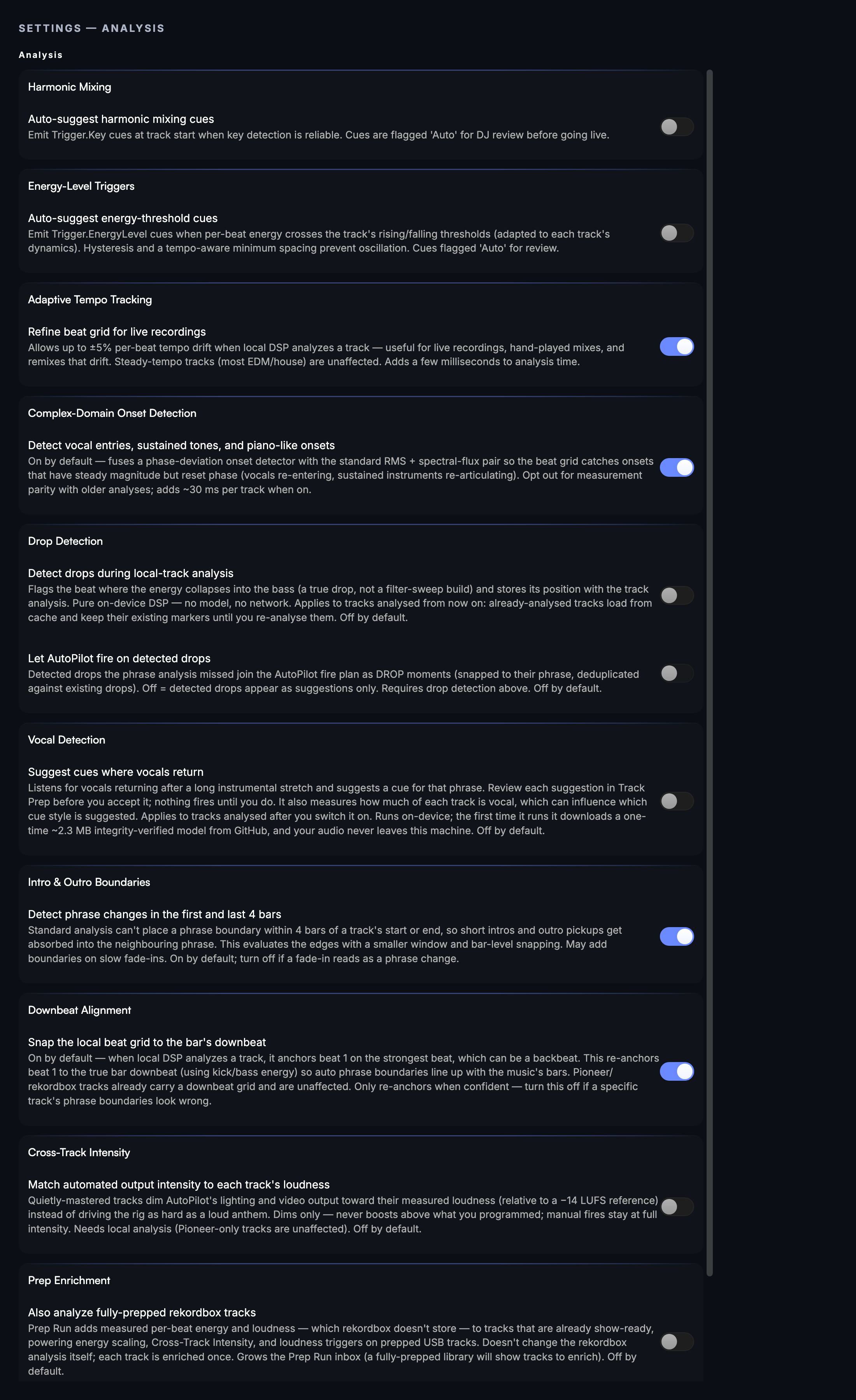
The pure-DSP cards are always interactive. Vocal Detection needs an active license: on an install without one, the card keeps its explanation but shows "Included with CueSync DJ and Production" in place of the toggle, so you can see what it does before you activate.
Venues
Create and manage venue profiles that store your output presets, the rig's capabilities, and your cue-routing (intent) mappings for a specific room or touring stop. Activate a profile when you arrive to restore all your connections in one step — CueSync can even recognize a venue by its network and offer to switch. Available in all editions; the number of profiles you can save depends on your edition. An imported venue shows what it can do before you use it: an inline banner gives its raw-command count and the addresses it reaches. A venue installed from a tour pack is not switched on for you; the show offers Use venue (a notice), and a show whose venue is not on this computer leaves your active venue as it is. Leaving Settings by any door with an unsaved venue edit asks first ("Discard Unsaved Changes?"). See Venue Profiles.
Show Themes (CueSync DJ and CueSync Production only)
Manage the themes the Generate Show feature works from. A theme decides what fires on each phrase of a track — the intro, the build, the drop — as a list of intents for each phrase type, not as colour palettes or intensity curves. The built-in themes are read-only: duplicate one to get a copy you can rename, re-tune in the mapping editor (add, reorder or remove the intents on each phrase) and reuse across shows, and use Copy theme to clipboard and Paste theme to share one between machines. You choose the theme in the Generate Show dialog; see Generate Show.
Projects
Manage your show project files. See the current project name and file path, open recent files, create a new project, and set the auto-save interval. Use the backup controls to export a timestamped copy of your project to a location you choose.
Application
Look & Feel
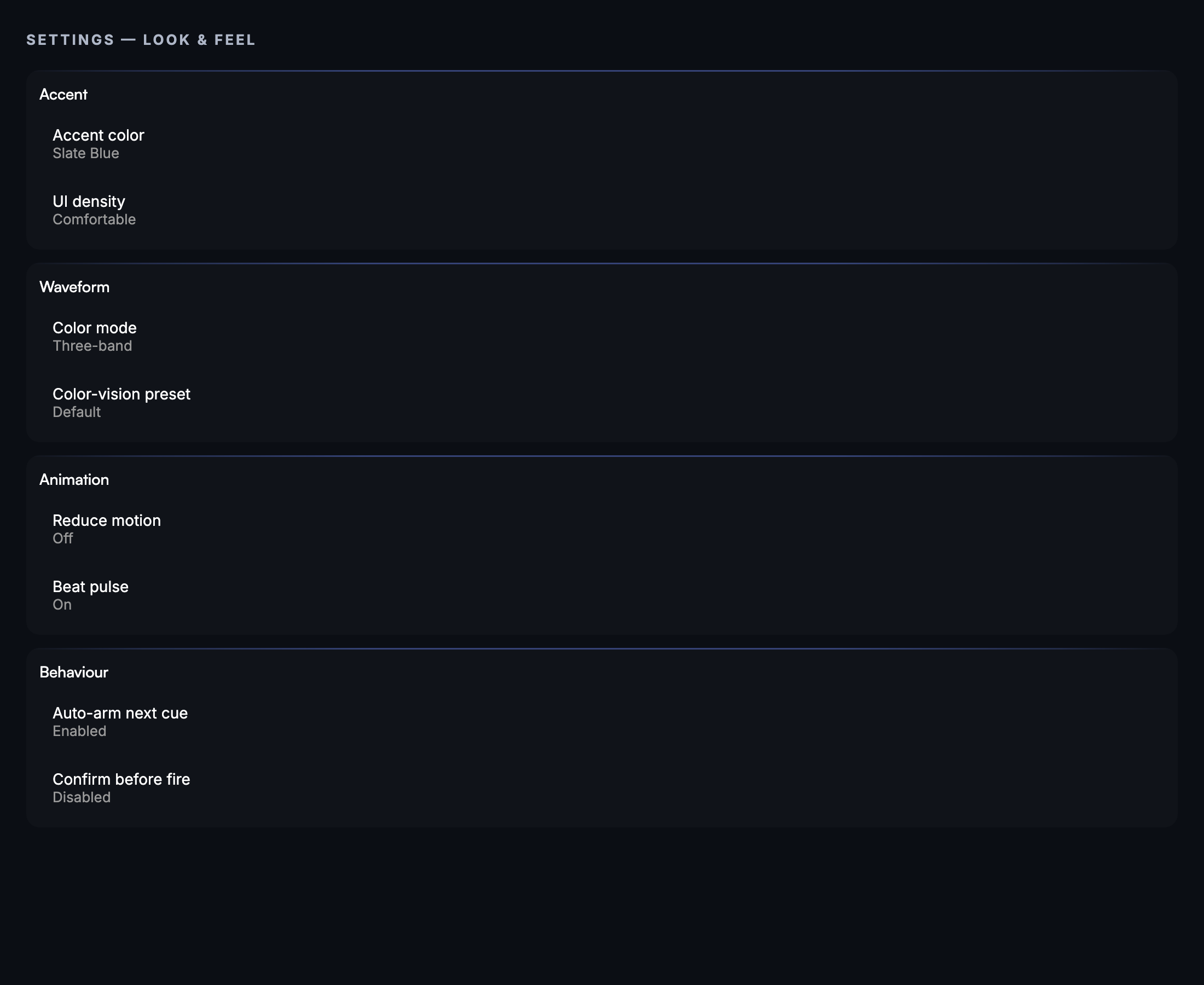
Pick an accent color from the eight preset swatches. Set UI scale — a slider from 75 % to 150 %, with Compact / Normal / FOH presets beside it — which scales the whole shell, type and paddings together. Toggle the beat-indicator dots in the status bar, choose a waveform color mode (default three-band or mono-blue for color-vision accessibility), select a phrase color-blind palette, and set animation speed. Deck display style lives here too. On DJ and Production the Waveform card holds Waveform theme, which colours every waveform in the app — the decks, the library mini-waveforms, the Show Editor and Local Audio. The six themes are Signal (the default), Accent (steps of your accent colour), Ember (red, amber and cream), Glacier (deep blue, ice and white), Pioneer (the CDJ-3000's blue, amber and white) and Mono (one hue, bands told apart by lightness), each shown with a swatch. Waveform color-vision palette (Accessibility) outranks the theme: while it is on, waveforms use the Mono ladder whichever theme is picked. The Command Palette's Waveform: Cycle Theme steps through the six in that order, in every edition. Waveform timing nudges the moving playhead from −200 to +200 ms in 10 ms steps — positive draws it ahead of where the clock says the audio is — so it lines up with what you hear from the room; 0 suits most rigs. Pro Decks look sets the deck layout, theme and overlays together (see Pro Decks). A Replay tour button re-shows the four-card welcome tour the next time CueSync starts — see First launch for the difference between that and the setup wizard, which is re-run from Help ▸ Run Setup Again….
The General card also holds Reopen last project on startup and Keep this computer awake while CueSync is open. The second is for a venue machine that has to be ready for a scheduled show: without it CueSync only holds the computer awake while a show is running, so an idle machine follows its Energy Saver settings and goes to sleep between shows. With it on, the computer stays awake and its display stays lit the whole time CueSync is open, which uses more power. It is off by default.
Touch & Input
Choose the input detection mode: Auto (detects touch on first touch event, reverts after 60 s of mouse-only use), Force Touch (always touch ergonomics — useful on a booth touch monitor), or Force Mouse (disables touch ergonomics entirely). Set touch density (Comfortable / Standard / Compact), the long-press threshold (250 / 350 / 500 ms), and visual haptic strength (Off / Subtle / Standard / Strong). Toggle whether the GO button always appears even when touch mode is off.
Notifications
Control how CueSync surfaces alerts. Enable smart grouping to collapse bursts of related notifications (such as multiple outputs going offline together) into a single "+N more" toast — critical and show-stopper alerts always appear individually. Turn on audible alerts so CueSync plays a sound when the window is unfocused. Configure the Do Not Disturb engagement window so routine notifications are held back during the quiet periods of your show. Errors still come through, and a question that needs your answer (a console at a new address, a show from another computer) waits and appears when Do Not Disturb ends, and the notification history marks it "held until DnD ends". Status messages and timed toasts below error level are still dropped while it is on.
Shortcuts
View and remap every keyboard shortcut, organized by category: Cue Control, Navigation, File, and more. Click a binding to record a new key combination. See Keyboard Shortcuts for the full default reference.
Updates
See the current version, the last time CueSync checked for an update, and the status of any pending update. Choose your update channel (Stable or Beta) and toggle automatic background checks. Download and install updates from this section without leaving the app. Install now restarts CueSync: a running show, deck, AutoPilot or Performance mode refuses it and names the cause, and when only a timecode output, the pixel wall or the beat clock is up it asks first ("Restart to install?") and lists what the restart drops. A required update shows a "Critical Update Required" card here; the dialog for it stays off Performance mode and Run Mode, where a banner says the update is required instead. See Installation.
Advanced
Choose a connection reliability preset. Toggle error tracking and product analytics (the first-run prompt pre-selects "Yes, send" for both, and nothing is sent until you answer it — switch either off here at any time; neither switch covers licence checks or update checks, which run to keep your seat activated and your build current and carry no show content). Enable DSP fallback analysis for tracks that have not been fully prepared in rekordbox, and turn on discovery scanning for unprepped tracks. Manage unprepped library root paths, and configure the OSC input port (off by default — set a port to accept incoming OSC triggers) with an optional Allow other devices on the network switch. The OSC input card counts the messages it drops over its limit and those on addresses nobody listens to, with the last address; with the network switch on, an Accept from list ignores every other sender and counts them (it filters by sender address, which can be faked on a shared network). Under Remote show control a line reads "Last command" with how long ago it arrived, and Run Mode's REMOTE badge reads "REMOTE · NO PORT" or "REMOTE · SIGNED ONLY" when a desk cannot be heard. The grandMA3 Sync card sets which desk sequences Session Sync may write (the scratch range, sequences CueSync holds a baseline for, and an off-by-default Allow writing to ANY sequence) and what the bridge plugin watches. Write colours to the desk (off by default) colours every sequence a push writes, in as many colours as the show uses, as Appearances named "CueSync …" in the range set under Appearances for colours (9000–9999 out of the box; a sequence adopted from the desk keeps its own colours until CueSync has pushed it, and when the range is full the cues that need a new colour keep their sequence colour and the note names the range and the setting; two shows that colour one desk should each have their own range). The grandMA3 Address Limits and grandMA2 Address Limits cards hold the highest page, executor, sequence, macro, cue and slot numbers CueSync will send — see GrandMA3. The Labs card holds Group cues by type, which splits the Score Canvas cue strip into Lighting, Video, Audio and Control rows. Two safety switches sit beside it, both off by default: Also save the show to external drives copies the show file into a "CueSync Backups" folder on every writable drive you have plugged in on each save, keeping the last 10 versions per drive and never using your startup disk; and Show the Diagnostics screen reveals the Diagnostics health dashboard, with its pre-show self-test and per-output connectivity check, from the next launch onwards. (GrandMA3 Session Sync needs no switch — File → Sync, Import & Export → Sync to GrandMA3… is always available.) Your settings file is readable only by you from the moment it is created. The Logging & Diagnostics card opens the log folder and exports the connection log and the show report. The log file records every cue a show sends — live or dry — with how many actions it handed on. A starved worker pool is reported once per episode and a slow minute of the screen is summarised in one line; every stall report (a frozen window included) is also written to a small, size-capped stall log (ui-stalls.log) beside the main log, so "why did the screen freeze" has a short file to answer it. Clear Logs keeps the current stall log and the live logs. Some cards follow your edition: the OSC input listener and remote show control, grandMA3 Sync and grandMA3 Timecode Files are Theatre and Production; the DSP fallback, track analysis and CuePads deck-binding cards are DJ and Production.
About
Displays the CueSync version number, your activated license key (masked), and links to the website, documentation, and support. Opens the End User License Agreement and Privacy Policy. Carries the same Replay tour button as Look & Feel — two entry points to one control, on purpose.
Common tasks
Activate a license key Open Account & License, paste your key into the license field, and click Activate. CueSync contacts the license server and unlocks your edition features immediately.
Connect Pioneer players Go to DJ Hardware and select the network interface that your players are on. CueSync joins the network automatically; the connection status turns green when players are detected.
Change your accent color Open Look & Feel and click one of the color swatches in the Accent card.
Remap a keyboard shortcut Open Shortcuts, find the action in its category, click the current binding, and press your new key combination.
Save a venue preset Open Venues, click New Venue, configure your outputs and stage geometry, and save. Load the preset next time you arrive at the same room.
Tips & gotchas
- Locked sections are visible only in Read-Only mode. With no licence, edition-gated sections appear in the sidebar with a lock icon, and clicking one takes you to Account & License. On a paid edition they are not listed at all; Account & License is where the other editions are described.
- Search finds individual cards. Typing in the sidebar search field narrows the list by section name and highlights individual setting cards inside the matching section. Click a search result to jump directly to that card.
- Auto Pilot profiles are per-project. Changes you make in the Auto Pilot section are saved to the current show project, not globally. Open the right project before editing a profile.
- Companion and show-control networks should be separate. If you run Show Companion, choose a backstage Wi-Fi interface in its settings — keep it off the same VLAN as your lighting and video outputs to avoid multicast interference.
- Reset to defaults covers its own page only. On the pages that drive live outputs and devices it is refused while a show is running: "A show is running — reset this page after it ends, so nothing the show uses changes under it."
- Fields that talk to a live socket or a follower commit on Enter or when you leave them, not on every keystroke, so a half-typed address or port is never applied.
- Animation speed is four settings, and Off really means off. Look & Feel ▸ Animation offers Off / Slow / Normal / Fast. Slow and Fast scale every transition in CueSync — panel slides, banners, badge pulses, dialog reveals — including the spring-driven ones. Off stops looping animations outright and makes one-shot transitions near-instant.
- Reduce motion is a separate control, and it is the accessibility one. Look & Feel ▸ Accessibility ▸ Reduce motion disables pulsing, spring physics and infinite animations for WCAG 2.3.3. Stage Mode turns it on automatically, and CueSync also pauses ambient animation while its window is in the background so a show machine is not spending frames on a screen nobody is watching.
- A few animations deliberately ignore both settings. Direct responses to your own gesture keep animating — the waveform zoom follows your pinch or scroll, and the touch feedback flash has its own Visual haptics control under Touch & Input (including Off). These are answers to something you just did, not decoration.
Related
Looking for a quick fix?
The Help Center has short task-focused articles and a support team that responds within 24 hours.