Dialogs
TheatreA short reference for every common overlay in CueSync — what each one is for and how to open it.
Dialogs appear on top of the current screen. A secondary confirmation prompt can stack on top of an open dialog (for example, a "Delete cue?" confirm that appears over the Cue Editor). Press Esc or click outside to dismiss most dialogs; a few require an explicit action. A question that can arrive while a show is running is a notice, not a dialog, so it never takes Space from GO: see Notices that ask a question.
Cue Editor
What it's for — Create or edit a cue in the cue stack. Set the trigger (when the cue fires), add one or more actions (what it sends to each output), name the cue, and mark its ready state.
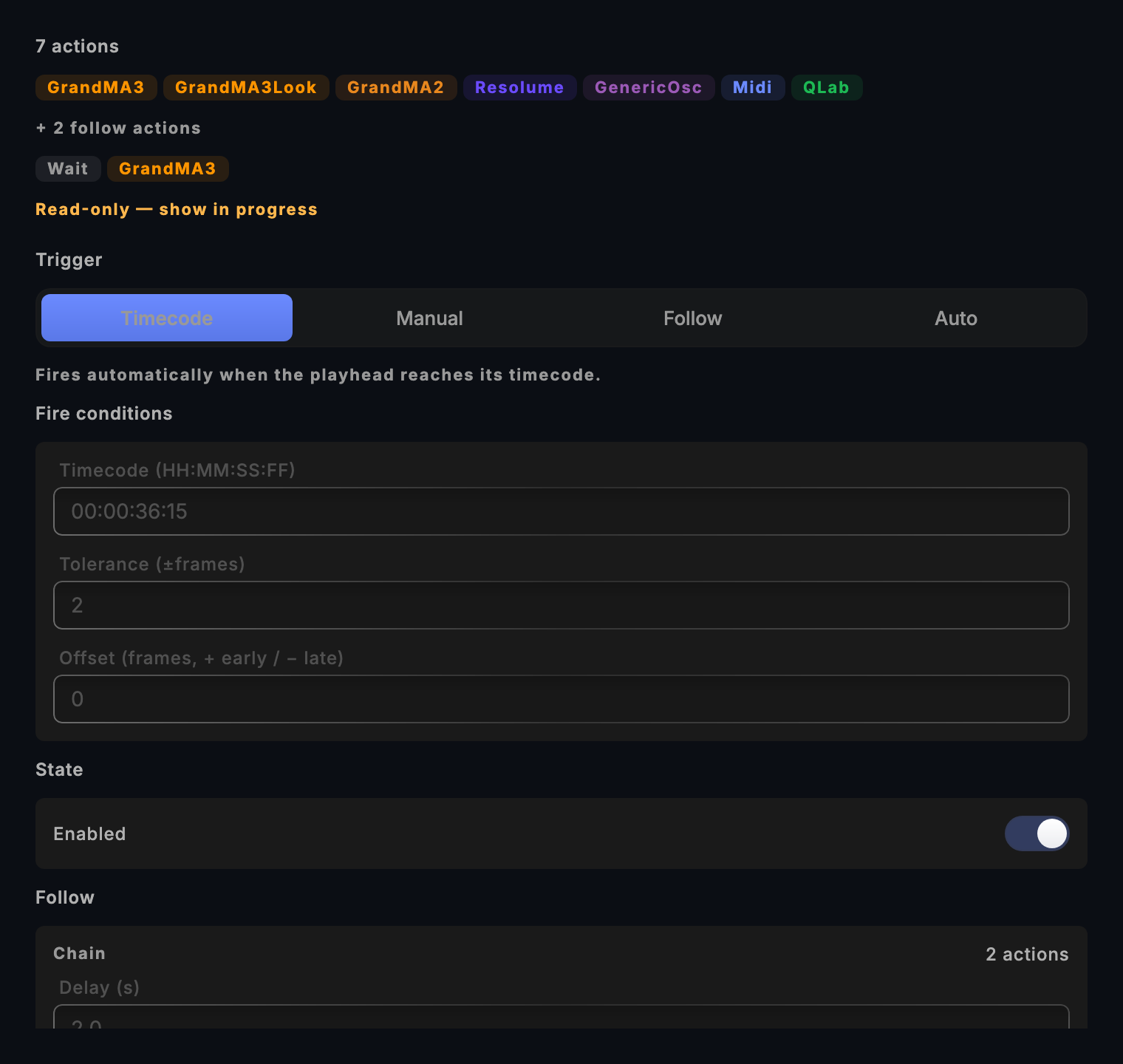
How to open it
- Click
+in the Cues toolbar to create a new cue. - Double-click any cue row, or select a row and press
Enter. - Right-click a cue row and choose Edit.
Show Cue Editor
What it's for — Create or edit a cue on a theatre show track. Works like the Cue Editor but positions the cue at a timecode position on a named track rather than sequentially in the stack.
How to open it
- Double-click a cue block on the Show Editor timeline, or select a cue block and press
Enter. - Click the
+button on any show track to create a new cue at the current timecode.
Output Editor
What it's for — Configure a protocol output: set the host address, port, and any protocol-specific options. Includes a Test Connection button that sends a probe message and reports success or failure immediately, so you can confirm connectivity before the show. The test uses the saved login or passcode that is tied to the address being tested. On a read-only install it only pings the host: no connection is opened and no command or login is sent, and the text says a silent host is not necessarily off.
How to open it
- In Network (the output configuration screen), click any output row or click + Add Output.
Generate Show
What it's for — Automatically generate a cue stack from a track's analysis data (phrases, energy, moments). Review the proposed cues before accepting them.
Edition: DJ, CueSync Production
How to open it
- In Track Prep, with a track open, click Generate Show in the toolbar.
- Or File → Generate Show → Generate Show from Track….
CueSync Theatre has no Generate Show; its counterpart is Suggest Cues, next.
Suggest Cues
What it's for — Draft cues for the Part on screen from its audio. Pick what to place cues on (phrase starts, bars, energy peaks, structural moments or silences), review the preview and add the ones you want. Nothing fires until you commit.
Edition: Theatre, CueSync Production
How to open it
- In the Show Editor, press
Cmd+Shift+Sor click Suggest in the cue list toolbar. - For a one-click version with no dialog, use Generate Theatre Show at the end of the Show Editor's status line. See Show Editor and Generate Show or Suggest Cues?.
Look Editor
What it's for: building one Look, for every protocol including grandMA3. A Look can be a single target (a console cue, a media clip, a laser cue, a pixel-wall look), a Bundle that fires several targets as one, or Any action.
How to open it
- In the Palette, in Edit mode: + New Look (starter gallery) or Blank Look… from its arrow. You can also right-click an empty slot.
- To edit an existing look: double-click the tile, select it and press
Enter, or right-click it → Edit Look…. - In Perform mode: right-click a pad → Edit Look….
A starter opens the editor on a new, unsaved look; nothing reaches the board until Create. When Save is greyed, the line beside it says why. Esc on a changed look asks before discarding.
Flight Check
What it's for — A pre-show check. Its dialog is titled Pre-Show Check; Flight Check is the name on Home's button and in this manual. It checks the show file for problems (Errors, Warnings, Info) and grades whether every output your cues target is reachable right now, ending in a GO or NO-GO line. Two cards act on the rig: Active probe (Probe N outputs) tests every active output end to end through a temporary connection, and Beat timing (Calibrate N outputs) measures how late each console answers, then offers Apply to N outputs. Work through any failures before the show starts.
How to open it
- Transport ▸ Pre-Show Check… in the menu bar.
- The Flight Check button in the hero band on Home. Several items in Home's readiness runway open it too, and on the DJ Home it also opens once per session on its own, the first time you pick a track to prepare (when no other dialog is up).
- Run Mode opens it on its own when you walk in with the show stopped and its readiness report is NO-GO (a targeted output is unreachable, or a cue is pinned to an output that no longer exists). It asks once per show, and never on top of another dialog.
- Entering Performance with validation errors raises a sticky warning that names Transport ▸ Pre-Show Check…. It does not open the dialog for you.
What it names. The pixel wall's row names its wire as Art-Net or sACN, and a wall whose node answered earlier and has stopped answering is amber with the reason: check its power, cable and network before doors. An AutoPilot-only show whose desk is unplugged is no longer All clear: with no cue naming any output, every enabled output is graded by its live state, a dead one is blocked and listed as AutoPilot may fire here. For a grandMA3 setlist, it names the songs the auto-arm will not arm — two consoles connected and none chosen in Sync to grandMA3, or a song whose Timecode object was never sent to a connected console (grandMA3).
Recovery
What it's for — Restore a show file after an unexpected quit. CueSync saves a recovery snapshot periodically; this dialog appears on next launch when a snapshot is newer than the last manual save. Choose to restore the snapshot or continue with the saved file.
How to open it
- Appears automatically on launch after an unclean exit.
- Also accessible from Settings → Projects → Show Recovery Files.
A snapshot whose description CueSync cannot read is still offered, without the description.
MIDI Learn
What it's for — Capture an incoming MIDI message (note, CC, or program change from any connected controller) and apply it to whatever you opened the dialog from. The dialog reads Waiting for MIDI input...: press the control on your hardware and CueSync captures the message and closes the dialog. It gives up after a short wait if nothing arrives, and Cancel closes it sooner.
How to open it
- Right-click a cue pad in Edit mode and choose Assign MIDI… to bind that pad to the message you send. Learning again replaces the old binding, and Clear MIDI Binding (shown once a pad is bound) removes it.
- In the Cue Editor, pick the MIDI trigger and click MIDI Learn to fill in the trigger's message type, channel and note or CC from what you send.
- Right-click a cue row and choose Assign ▸ Assign MIDI... to open the separate MIDI Mappings dialog, which has its own learn step.
Sequence Parts
What it's for — Line up a multi-part theatre show whose parts live on separate tracks (each with its own audio). Shows each part's duration and computed start timecode, a Gap between parts slider, and an optional Create an Act per part toggle. Applying moves every part's audio and its cues in a single undoable step.
Edition: Theatre, CueSync Production
How to open it
- In the Show Editor toolbar, click Sequence Parts. The apply button stays disabled until at least two parts have analysed audio.
Capture Slots
What it's for — Configure the Show Editor's capture toolbar: up to ten label+colour slots bound to the bare number keys 1–0 for punching cues at the live playhead. Each slot can name a cue template (built-in, this show's, or your global library): every cue punched from that slot then carries the template's actions, follow actions, tolerance and trigger mode, under the slot's own name and colour. A slot whose template has since been deleted reads Template missing and punches a cue without actions. Includes a starter set (Main · Hit · Build · Sweep · Pyro) and toggles for labelling each capture as you punch it.
Edition: Theatre, CueSync Production
How to open it
- Click the gear at the end of the capture toolbar in the Show Editor, or Set up capture slots… when the toolbar is empty.
Sync to GrandMA3
What it's for — Push your Theatre cue list to a grandMA3 console (diff-aware — existing desk cues are never re-stored), export it as an MA3 macro for USB transfer, install the read-only console bridge, or pull the console's cue list back into CueSync. Nothing is sent without an explicit two-step confirm. See GrandMA3 Session Sync for the full workflows.
Edition: Theatre, CueSync Production
How to open it
- File → Sync, Import & Export → Sync to GrandMA3…
Confirmations that guard a live show
What it's for — A few actions cannot be taken back while a show is on air, so CueSync asks first. Each is a dialog with an explicit button; Esc keeps things as they are.
| Dialog | When it appears | Button |
|---|---|---|
| Reset Cue Stack? — "Clears fired progress and returns the playhead to the top. Cues themselves are untouched." | Esc (as its last step), Cmd+R, Transport ▸ Cue Stack ▸ Reset Cue Stack or a Reset button, when the stack has fired progress. An untouched stack resets without asking. Nothing is sent to the rig. | Reset |
| Restart to install? | Install now while nothing is playing but a timecode output, the pixel wall or the beat clock is up. It lists what the restart drops. A playing show refuses the install instead. | Install & Restart |
| A show is running or Outputs are live | Quitting. The first title appears when a deck, AutoPilot, a show, a local set or Performance mode is live; the second when only outputs are up. | Quit Anyway |
| A show is running | Loading another show (New, Open, Open Recent, a sample) while one is running. | Load Anyway |
| Discard Unsaved Changes? | Leaving Settings, or moving to another section, with an unsaved venue edit. Going to Run Mode or Performance during a live show discards it with a notice instead. | Discard Changes (or Keep Editing) |
Notices that ask a question
What it's for — A question that can arrive at any moment, including mid-show, is shown as a notice that stays until you answer or close it. It is never a dialog, so Space stays GO. Closing a notice keeps things as they were. With Do Not Disturb on, a question is held and shown when Do Not Disturb ends; the notification history marks it "held until DnD ends". What to do with each: Troubleshooting.
| Notice (opening words) | Button |
|---|---|
| CueSync can't confirm this show was last saved on this computer, so its outputs are not connected yet: … | Connect |
| "…" is announcing a new address, … Nothing has changed: it still points at … Re-point it only if you moved it. | Re-point |
| "…" is connecting to … without its saved console login, because CueSync has not sent it to that address before. Send the console login to …? (also "passcode" and "pairing token") | Send console login, Send passcode, Send pairing token |
| A show from CueSync Studio is waiting to be imported. Nothing has changed — import it when you are ready. | Import now |
| This show was made for venue '…', installed from the tour pack but not switched on … | Use venue |
| Timecode out to … is held: CueSync follows Art-Net timecode from what looks like the same console … | Drive anyway |
| Subscribe to … — you're in read-only mode (an export that writes for a desk or console, on a read-only install) | Subscribe |
Backup Browser / Template Browser
What it's for
- Backup Browser — Browse and restore from dated automatic backups of the current show file.
- Template Browser — Start a new show from a saved project template.
How to open them
- Settings → Projects → Browse Backups opens the Backup Browser.
- File → New from Template (or the equivalent menu action) opens the Template Browser.
Related
- Network Outputs — adding and configuring outputs
- Cues — the cue stack and Cue Editor in context
- Run Mode — Theatre playback and the GO button
Looking for a quick fix?
The Help Center has short task-focused articles and a support team that responds within 24 hours.