Run Mode
TheatreWhat it's for — Run Mode is the focus-mode console for running a Theatre show live. It shows the most important information a stage manager or operator needs at a glance: the next cue, timecode health, per-track readiness, and transport controls.
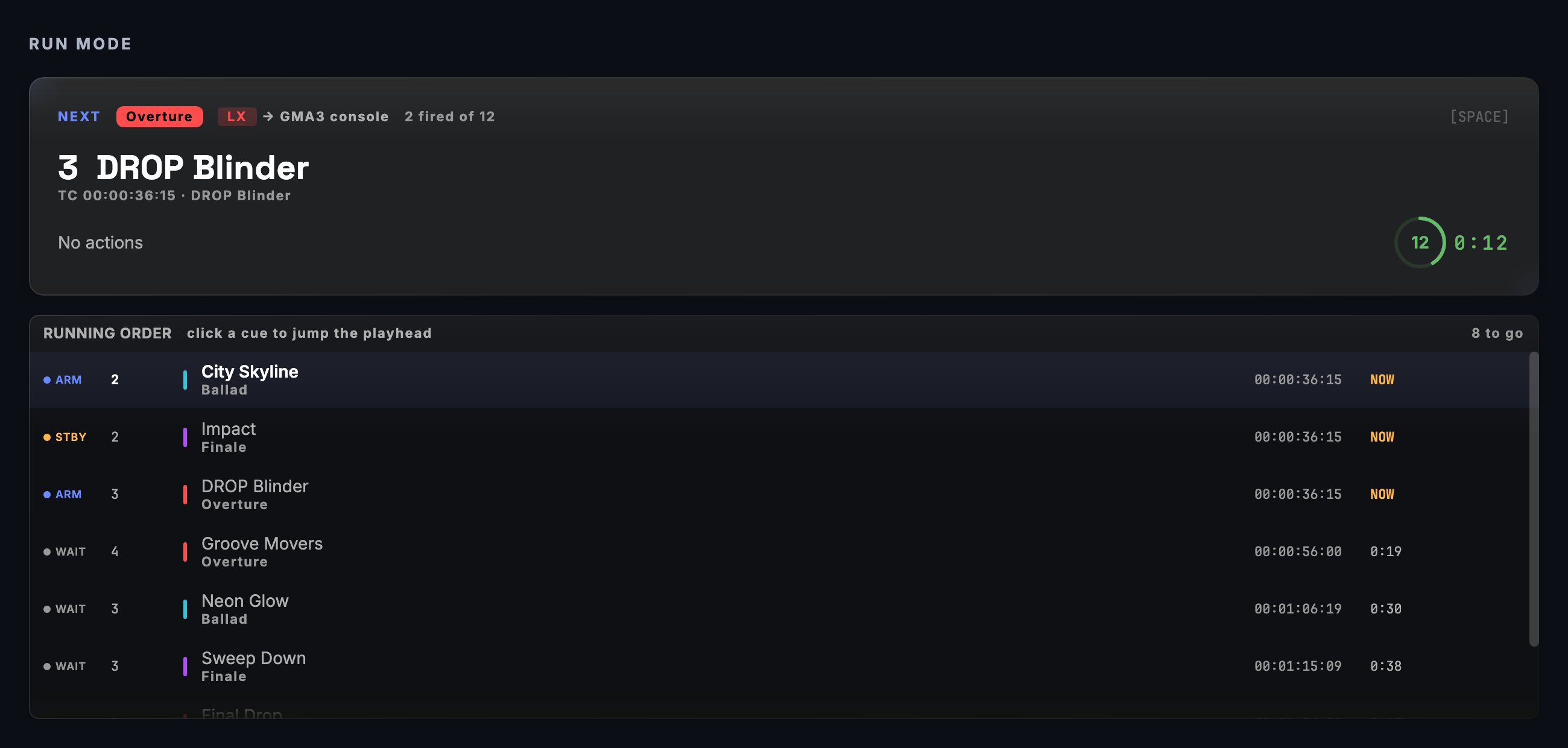
The screen, region by region
Status bar (top) — Shows elapsed time, total show duration (as a progress bar), the current section name with how long it has left (21:05 left), and timecode signal health. While the show is stopped or paused the section name opens a jump menu: every act and scene in order, each with its colour and start time, ▶ beside the one the playhead is in and ✓ beside the ones already played. The timecode indicator names the active source (CDJ, MTC, LTC, TCNet or Art-Net) and the frame rate, with the dropout count and jitter; it turns TC LOST when the signal is gone, reads RATE x ≠ SHOW y when the incoming rate differs from the rate the show was authored at, and shows TC DRIFT when two sources disagree. The Freewheel badge is on the timecode header just below it.
At the left of the bar the transport badge says what the show is doing — RUNNING, WAITING FOR TC (the show is playing, a timecode cue is still waiting for its clock and no clock has arrived; a show called entirely by hand reads RUNNING), TC LOST, HELD — NO TC CUES, PAUSED or STOPPED — and the rehearsal mode sits beside it. When a lighting desk can start, stop and pause the show (Remote show control, Settings → Advanced → OSC Input Listener), a REMOTE badge says so. It reads REMOTE · NO PORT when no listen port is set and REMOTE · SIGNED ONLY when signed messages are required, because a console cannot be heard in either case, and it turns amber for a short while after a desk command is refused. The same card shows the Last command and how long ago it arrived. When the show has a trigger offset, a GLOBAL +3f early (or late) badge says so, and a VENUE badge shows a venue timecode origin; a cue with an offset of its own carries a CUE −3f late style badge on the next-cue card.
Timecode header (between the status bar and the next-cue card) — The large show clock, with the active input source (CDJ, MTC, LTC, TCNet, Art-Net or INT), the frame rate, and a FREEWHEEL badge while the clock is coasting. On the same row, TC OUT says whether this machine is sending timecode: TC OUT · MASTER (CueSync's own show playhead is the clock), TC OUT · FREE RUN, TC OUT · RELAY, TC OUT · JAM or TC OUT · CHASE while sending, and TC OUT OFF when it is not. Tap the chip to start the output; to stop it while a show is live you press it twice (the first press says what stopping will cost — when CueSync is the clock, the show's cues freeze with it). The show's clock role itself — Master or Follower — is set with the TC role chip in the Show Editor's transport bar; a show made with File → New Project on Theatre or Production starts as a Master, so it can send timecode without any input (see Theatre Show Workflow). Beside the chip sit Hold TC and, when an output could not be fed timecode, a ⚠ N TC out fail chip that opens Settings → Timecode.
Standby (under the status bar) — The cue standing by for your GO: STANDBY, its number and name, its Part and routing, when it was due and how long until (or NOW), its note, and FIRE. On a normal-width window it is one row, with +N more at its end when more cues are standing by — click it to see them.
Hero area (left) — A large card showing the next cue to fire: its number, name, actions and note, and a countdown to when it fires. The countdown turns urgent (and the card pulses) when fewer than five seconds remain. While the show is stopped the card reads Ready to Start with the cue count and, under it, Up first: the number, name and time of the cue Play leads to. When the live waveform below is not on screen, the card carries a small waveform thumbnail of the moment the cue lands in.
Call sheet (left, under the hero card) — One line per Part: the last cue it fired and the next one coming. Use it to confirm what just happened on each department's outputs. It is the first thing the left column gives up on a short window.
Running order (right) — The cues still to come, in firing order, with their state (ARM, STBY, WAIT, CUT), timecode, time to go and note. The cue GO fires next has a blue edge and reads NEXT; the cue that went last sits just above it, labelled LAST, with how long ago it fired — two rows of what has gone on a tall window, none on a short one. The list follows the show: each GO puts NEXT back in place. If you scroll away, a ↑ NEXT / ↓ NEXT button names the next cue and brings the list back to it. While stopped or paused, click a row to jump the playhead there; LOAD makes a standing-by cue the next GO.
Live waveform (full width, under the panes) — The show's audio scrolling under a fixed red playhead (in the first seconds of the show the playhead travels in from the left edge instead), with every cue that will fire marked where it fires, offsets applied (a disabled or cut cue is not drawn): a number flag on as many cues as fit, the next GO in blue with its name, cues already fired in green, standing-by cues in amber, and a small amber dot under a cue that has a note. Acts and scenes are shaded behind it and named; a thin bar underneath shows the whole show, with the stretch on screen highlighted. Above it, the Part whose audio is playing and where in the file you are (Main Show · 2:25 / 5:00). Two Parts sounding at once get a row each. Choose how much it shows with 15s / 30s / 1m / 2m. A show without audio still gets the cues, the sections and the playhead. It is not a control — clicking it does not move the show.
Mini timeline (below the waveform) — A compact strip with one lane per Part, showing every cue at the time it fires (offsets applied), at a fixed full-show scale, with the playhead. With the live waveform on screen, a one-Part show does not show it (the waveform's overview bar says the same). It is dropped first when the window is too short.
Transport controls (bottom) — Play, Pause, Stop and Back buttons, a rehearsal mode toggle (SHOW / DRY / REHEARSE+), and the oversized GO button that fires the next cue. Only the rehearsal toggle is disabled while the show is playing — Back, Pause, Stop and GO stay live, and Back, Pause and Stop each need a double-press. Press P to play or pause, Space for GO, Enter to fire the cue standing by, and Esc (twice) to stop. Press R to cycle the rehearsal mode (SHOW → DRY → REHEARSE+), but only when stopped or paused; leaving SHOW takes a second press, so a stray key cannot silence the rig (see Common tasks). Back steps the playhead to the previous enabled cue and re-asserts that cue's look — the theatre "go back one" for a missed call. At the top of the show it is a safe no-op. While the show is playing against timecode CueSync cannot move (see the Goto tip below), Back re-asserts that look where the clock is and the playhead stays with the clock.
Run Mode tab — While the show is playing the Run Mode tab in the tab bar reads RUNNING, and PAUSED while it is paused — the same words as the status bar — so you can see from any other screen that the show is still going.
Activity log (expandable) — A collapsible panel at the bottom that records every cue execution with status (fired, failed, skipped) and track name. Filter by status or track. Export to CSV for a post-show record. On a window tall enough to hold it, the log opens in place and the panels above give up a little room. On a shorter one — the default window is — it opens as a drawer over the lower part of the screen instead, so nothing above it moves; press L or click the header again to put it away. On a window too short even for the drawer the header is greyed and says so.
Common tasks
- Start the show — Press
Por click Play. If any cues are not marked Ready and you have "confirm start with unready cues" enabled, a pre-show gate dialog appears. Click Review to see a per-track readiness matrix, or Start Anyway to start immediately. - Pause mid-show — Press
Por click Pause. The show clock holds position. - Resume after a pause — Press
Pagain. Resuming from a pause skips the pre-show readiness check — it is only triggered on a fresh start. - Cycle rehearsal mode — Press
R(only when stopped or paused). Leaving SHOW takes two presses: the first says Press R again to switch to DRY RUN — no outputs will fire and changes nothing, and a second press within the double-press timeout (Settings → Show Control → Safety) makes the change; holding the key down counts as one press. The later steps (DRY → REHEARSE+ → SHOW) take one press each, and the on-screen toggle changes the mode with one click. SHOW is the normal performance mode and cues fire for real; DRY steps through cues without sending anything to hardware — including timecode: the outputs are muted, and CueSync says so once; REHEARSE+ is a full rehearsal that fires for real, to exactly the same outputs as SHOW. The only mode that suppresses output is DRY. - Step back a cue — Click Back in the transport. The playhead jumps to the previous enabled cue across the active tracks and that cue's look is re-asserted on the rig. (Against an external clock the look is re-asserted and the playhead stays with the clock.) Re-asserting a look never re-sends a pyro, flame, CO₂ or similar equipment cue — see A jump never re-fires pyro below.
- Fire a Cues-list cue from the keyboard — A cue in the Cues list whose trigger is Hotkey fires when you press its bound key (letters, digits,
F1–F12) anywhere in Run Mode, as long as the key isn't a reserved Run Mode shortcut and you aren't typing in a text field.P,L,RandSpaceare reserved by the run surface and can never fire a cue; the cue editor tells you so when you bind one of them. Only the next cue in the Cues list is evaluated. Show cues built in the Show Editor have no hotkey trigger — fire those with GO. - Hold timecode triggers — If you need to freeze timecode firing without pausing playback, click Hold TC in the timecode header, beside the clock. The hold covers both halves of the app: the show's Timecode cues and the Timecode triggers on cues in the Cues list. It also parks CueSync's timecode outputs — MTC, LTC, Art-Net timecode and TCNet stop on the frame they were on, so a desk chasing CueSync fires nothing — and a standing banner says so; the clock itself keeps running. When you release it, the cues that went by during the hold are skipped or caught up by the show's recovery mode, as before. It also freezes a Follow or Auto link that is counting down, which carries on when you resume. GO, the standby cards and the footswitch still fire while the hold is on — it stops the clock from firing cues, not you. The button then reads Resume TC, and the status badge reads HELD — NO TC CUES. While a BLACKOUT is latched the hold belongs to the blackout and the button is disabled: release the blackout to resume.
- Export the activity log — Expand the activity log panel, then click the CSV export button. A save dialog lets you choose where to write the file.
- Filter the activity log — Use the status and track filter chips above the log list to focus on failures or a specific track.
Tips & gotchas
- The pre-show gate only fires on a fresh start, not a resume. A stopped-to-playing transition runs the readiness check. A paused-to-playing transition skips it — you already confirmed you wanted to run.
- Only the rehearsal toggle is locked while playing. Switching SHOW / DRY / REHEARSE+ mid-show would change whether the rest of the act reaches the rig, so it needs a pause first — the control says so under it. Everything else on the transport stays available, with a double-press on Back, Pause and Stop.
- The 5, 3 and 1 second marks are recorded, not announced. They go to the notification history for the post-show record; nothing pops up on screen. The live countdown you watch is the one on the next-cue card, which turns amber at ten seconds out and red inside five.
- Freewheel is a short grace period, not a backup clock. If the timecode indicator shows Freewheel, the incoming signal was lost and CueSync is carrying the clock on from the last good frame at the last rate — for the Freewheel Duration in Settings → Timecode → Advanced (5 seconds by default), not for the rest of the show. If a lower-priority source is already live, it does not wait for that: it takes the clock on its first frame after the Source Timeout (2 seconds by default) passes, and an error notification says the source was lost and which one you are following now. If there is none, the freewheel runs out, the clock stops, a red Timecode lost alarm says so, and timecode cues do not fire until a signal returns. For a source whose pause is silence, Settings → Timecode → Advanced → Silence means stopped holds the clock instead (on by default for Art-Net; turn it on for LTC) so a pause is not extrapolated as a dropout. Check your timecode source as soon as the badge appears. This is not the Freewheel duration under Settings → Show Control → Timecode Recovery, a separate setting with a longer default (15 seconds) that only decides how large a gap or jump in the timecode position counts as a recovery event — see the next tips.
- Audio drift shows in the call sheet. If a track's audio is drifting from timecode by more than a set threshold, the call sheet row for that track gains a warning indicator.
- "Start Anyway" always starts. The pre-show gate is advisory. It cannot block you from running your show — it only surfaces information so you can make an informed decision.
- Already-fired cues stay fired when timecode jumps back a short way. If an external console or DAW scrubs the clock back by less than the Show Control Freewheel duration (Settings → Show Control → Timecode Recovery, 15 s by default — not the Settings → Timecode setting of the same name), one-shot cues that already fired — pyro, video starts — do not re-fire automatically. A throttled warning reminds you. To run the section again, locate the source back further than that duration (a relocate re-arms — next tip), or pause, Goto the cue, locate the source to it and resume. This is deliberate — an automatic re-fire of a one-shot mid-show is worse than a missed rehearsal repeat.
- A longer jump back is a relocate, and it re-arms. When timecode jumps back by more than the Show Control Freewheel duration and recovery is Jump to current or Resume from last, the show re-arms from the new position, so cues ahead of it — one-shots included — fire again as timecode replays them. The TC recovery banner says how many fired cues were re-armed and stays until you acknowledge it. The jump fires no cue — Resume from last only catches up cues that timecode skipped forward over — but it re-sends each lane's look for the new position, the same pick-up a Goto does, so the desks match where the clock now is. A forward relocate re-sends the look only under Jump to current; under Resume from last a forward gap catches up the passed cues (up to eight) and re-sends no look. (Ask operator pauses the show instead and re-arms nothing.)
- Pressing Play into timecode that is already running ahead skips, it does not replay. If the first timecode after Play is more than the Show Control Freewheel duration past where you pressed Play — house timecode already 20 minutes in — nothing dropped out, so even Resume from last does not fire the cues in between. They are skipped — each lane's look for that point is re-sent, as after a relocate — and the TC recovery banner says the timecode was already running when you pressed Play. To pick up mid-show, Goto the cue before you press Play.
- A jump never re-fires pyro. Back, a Goto, a section jump and a timecode relocate all put each lane's desk back on the look it should show by re-sending the cue in charge of that lane. A MIDI Show Control cue addressed to a pyro, flame, CO₂, fireworks, explosion or smoke-pot format is left out of that re-send, whether the cue holds the action itself or reaches it through a Look: the log and a warning name the cue that was not re-sent, a lighting desk's look is still restored, and the cue goes out when the show plays through it (or you fire it by hand).
- A jump keeps the Pixel Wall's part of a follow-up that is still due. A Goto, Back, section jump or Goto control cue that lands inside a Follow-up's delay runs the wall's part of it at what is left of its delay, so a look it was to release does not stand until Release Wall. In a paused show the remaining delay is counted on the show's clock: it waits for Play, and a follow-up already due at the landing waits for Play instead of being dropped. The desk's part is dropped, as before, and the jump's notice says so — the wall's part … still runs on time, but the desk's part was dropped … Fire it by hand if the show still needs it — with a row in the activity log for each dropped part. Only Pixel actions are carried: a jump never fires pyro, flame or CO2 equipment. A follow-up with nothing for the wall, a follow-up that holds only such equipment, and any follow-up in a stopped show (there is no clock to delay it) are told they will not run. A Goto control cue's own follow-up is the cue's own, and is queued in full after the jump.
- A Goto needs a clock it can move. While the show is playing and following timecode CueSync does not author — MTC, LTC, TCNet, Art-Net timecode, a CDJ, or a generator you started by hand in Settings → Timecode — a Goto, a section jump, a Goto control cue, or a jump from the Show Editor (clicking a cue's timecode, "Go to Part", a section jump) is refused, with a message naming the clock and the timecode to locate it to. Cue clicks and section jumps still move the editor's audio preview. The incoming clock would put the playhead straight back. Locate the source instead and the show follows. Goto works as usual when the show is stopped or paused, and whenever the show's own clock (its master audio, or the no-audio master's generator) is running it. If you Goto while paused and then press Play with the source somewhere else, the first timecode frame is handled like any jump: a relocate back re-arms, and a clock already past the cue is a pickup that names what it skipped.
- Follow and Auto chains break on Stop or a seek, not on Pause. A Follow or Auto cue waits for the previous cue in its own lane of its Part. If you Stop the show or seek mid-chain, the waiting links are cancelled — restart from the cue you want with GO or a Goto. A Pause freezes a link that is counting down and it carries on when you resume; Hold TC freezes it the same way. A cue you fire while the show is paused does not fire its Follow or Auto successor — it is loaded as the next standby and CueSync says so.
- A blackout does not disarm the show. With BLACKOUT latched, timecode firing is held — but GO, the standby FIRE button, the footswitch and a Stream Deck still send. Run Mode says so: GO turns red and reads INTO BLACKOUT, and the "On GO →" line says the same.
- Run Mode checks the rig on the way in. When you walk into Run Mode with the show stopped and an output the show sends to cannot be reached, a cue is pinned to an output that no longer exists, or a cue's lane routes it only at outputs of another protocol, Flight Check (the Pre-Show Check dialog) opens once for that show. It stays out of the way of a running show: it does not open over a show that is playing or paused, after you have started the show during this visit, or over another dialog, and a link that is merely degraded is listed inside Flight Check without opening it. Loading a different show while Run Mode stays up asks again for that show.
- A required update never covers the screen you run the show from. In Run Mode the "Critical Update Required" window does not appear, so it cannot take your next GO; a banner says that an update is required, shows its download progress, and the install waits until your show has ended and the rig is idle.
- Restore needs a stopped show. If CueSync was interrupted mid-run, the banner offering to restore the playhead and fired-cue markers only acts while the transport is stopped — restoring into a running show would replace the playhead mid-act. Pressing Play is the other answer to that question, and it clears the offer.
- Hotkeys follow the Cues list, not the show. A Hotkey-triggered cue fires only when it is the next cue in the Cues list. The hero card shows the show's next cue, which is a different list, so if nothing happens on the key press, check the Cues list. Bare number keys punch capture cues in the Show Editor, not here.
Related
- Home — Next GO card links here from the home dashboard
- Show Editor — Build and arrange the cues that Run Mode fires
- Timecode — Configure and verify timecode sources
Looking for a quick fix?
The Help Center has short task-focused articles and a support team that responds within 24 hours.