Timecode
TheatreWhat it's for — Timecode is the master clock screen for Theatre and full-edition rigs. It receives SMPTE timecode from your show system, routes it to outputs, and lets CueSync fire cues at precise frame-accurate positions in the show. You can also generate timecode from within CueSync and distribute it to connected gear.
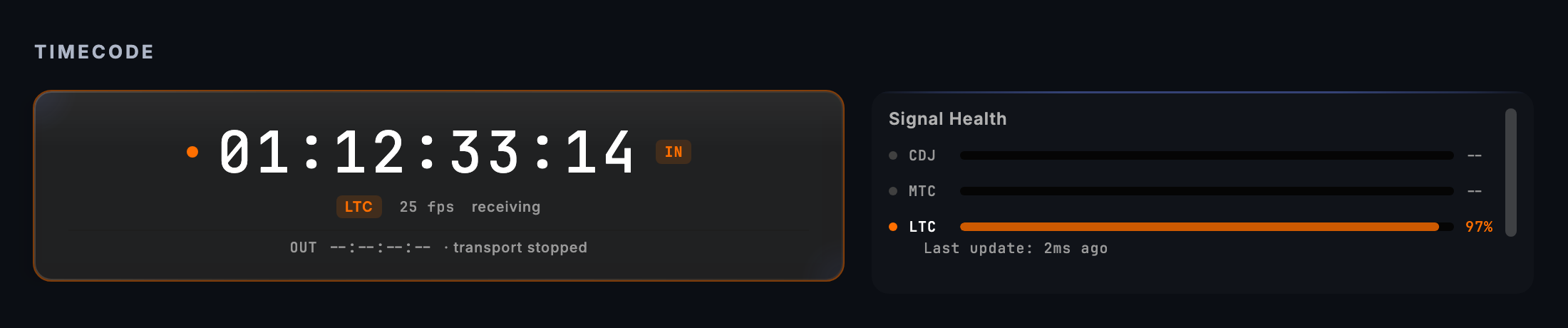
The screen, region by region
Transport bar (top strip)
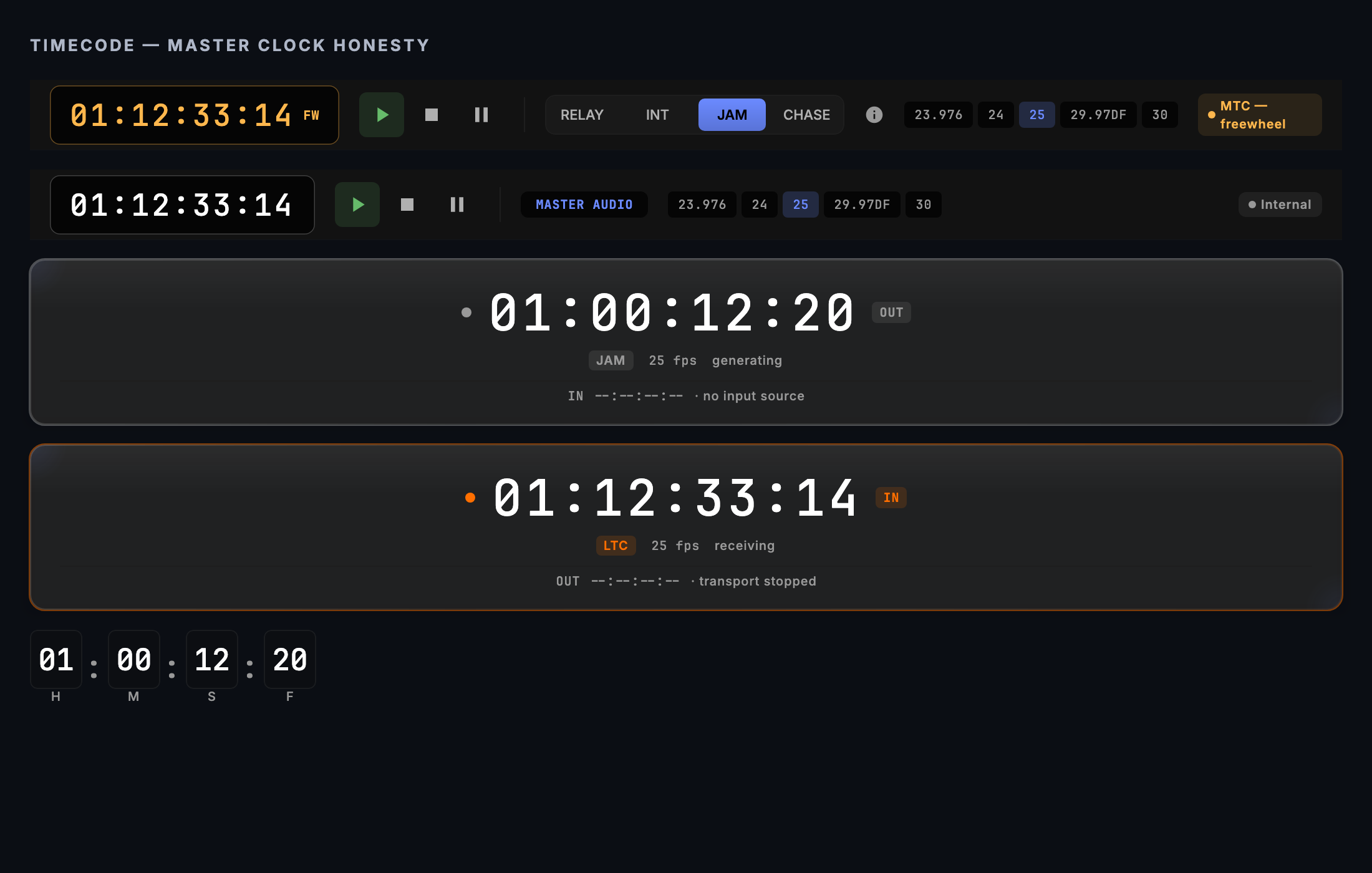
A persistent bar at the top of the screen with the current SMPTE position displayed in large digits (HH:MM:SS:FF). Next to the clock are transport controls:
-
Play / Stop / Pause — start, stop, or pause the generator when it is free-running (INT and JAM modes).
-
Mode selector — a four-way control that sets how the generator produces the clock it sends to your outputs:
- RELAY — mirrors the active input source to your outputs, frame for frame.
- INT — free-runs from a start position on CueSync's internal clock, independent of any input.
- JAM — free-runs like INT but re-locks to the input whenever it drifts past a threshold, so a jittery CDJ or MTC input still becomes a clean, continuous output clock.
- CHASE — follows the input continuously with a fixed frame offset applied, for gear that needs a delayed copy of the show clock. If the input drops, the output holds position while freewheel handles the dropout.
When a master-audio show owns the clock, the generator follows the master audio playhead automatically and the mode selector steps aside. A Theatre show is a Master when CueSync's own playhead or generator is its clock, and a Follower when it chases an incoming source; the TC role chip in the Show Editor's transport bar sets which, and Run Mode's TC OUT chip shows whether the clock is being sent.
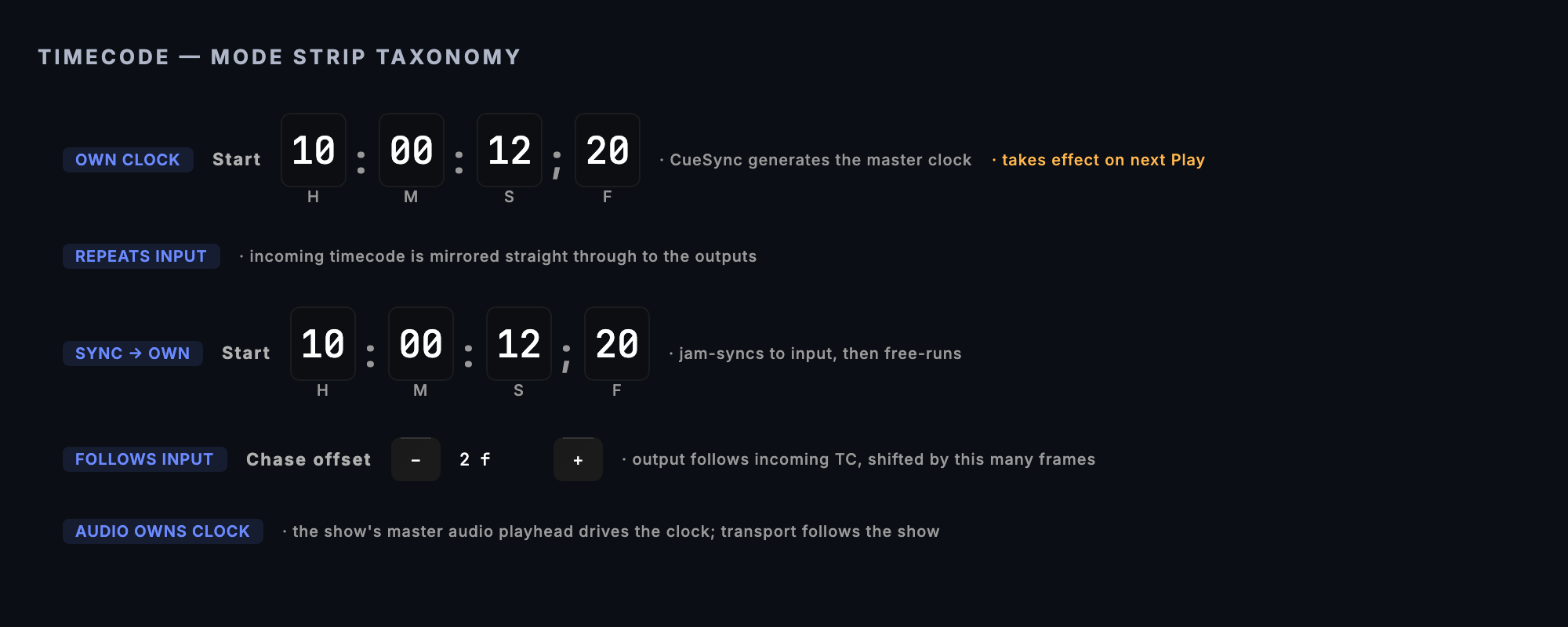
The strip under the selector says what the chosen mode is actually doing, in plain words rather than the acronym — including the master-audio case, where the show's own playhead owns the clock and the transport follows it.
-
Frame rate selector — sets the project and output frame rate. Changing this updates both the generator output rate and the CDJ-to-SMPTE conversion so the clock and cue triggers agree. Available rates: 23.976, 24, 25, 29.97 non-drop, 29.97 drop-frame, 30, and the high-frame-rate variants (48, 50, 59.94, 60 — see the MTC note under Tips).
Left column — Source routing
A list of the timecode input sources CueSync can receive from, with their current status:
- CDJ — timecode embedded in the PRO DJ LINK signal from a connected Pioneer player. Useful for DJ-driven theatre rigs where the CDJ controls the show clock.
- MTC — MIDI Timecode on a MIDI input device. Standard for most show-control environments; requires a MIDI interface connected via the MIDI settings. By default CueSync accepts MTC from every connected input — use Settings → Timecode → MTC Input Device to pin the show clock to one interface.
- LTC — Linear Timecode on an audio input. Requires an audio interface with a dedicated LTC input, chosen under Settings → Timecode → LTC Audio Input — CueSync never opens an audio input you have not chosen.
- TCNet — Timecode over the network (ProDJLink TCNet protocol).
- Art-Net TC — ArtTimeCode from a lighting console or media server on the network (Art-Net, UDP 6454). Off until you turn on Settings → Timecode → Source Configuration → Art-Net Timecode (chase). See Chase a console's Art-Net timecode below.
- Internal — CueSync's own generated clock (active when the generator is free-running in INT).
Each source row shows whether the source is present, locked, and providing clean frames. Use the up and down controls on each source row to re-order priority. Click Force on any source to override the automatic selection and lock to that source regardless of signal quality.
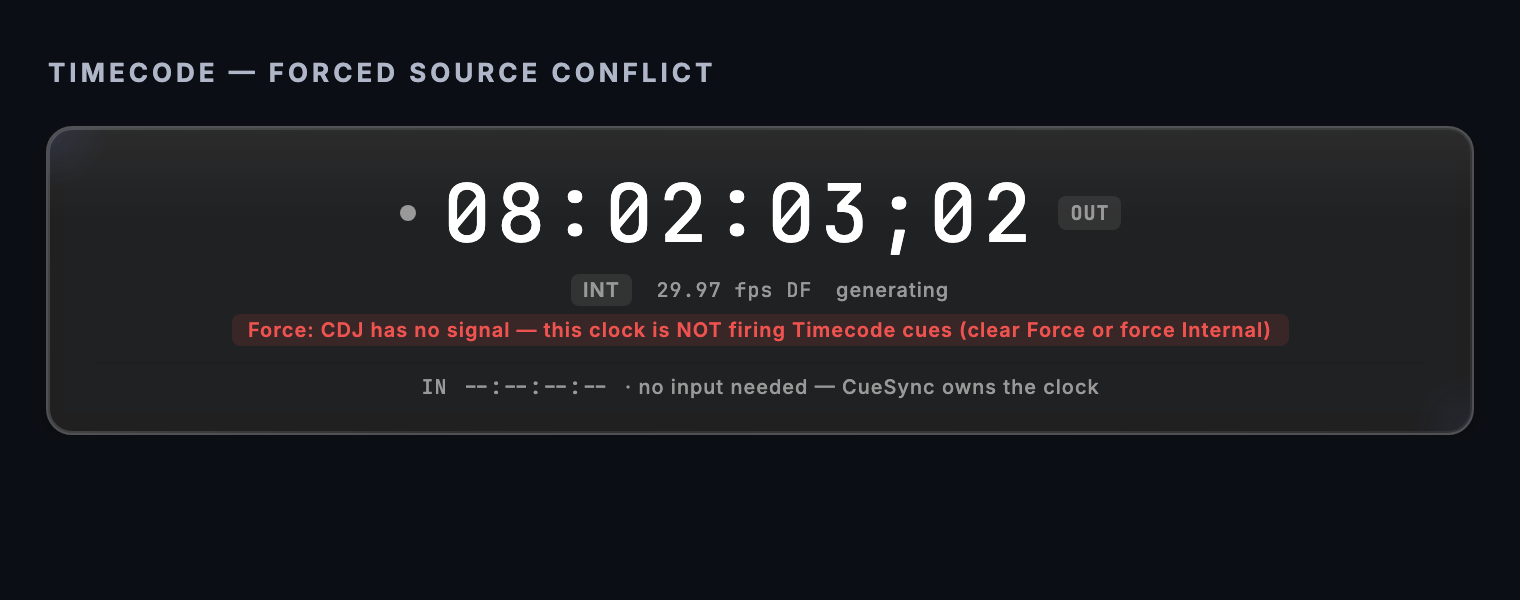
Forcing a source that has no signal stops Timecode cues firing. Fallback is off while a source is forced, so the clock stops on purpose. CueSync says so in four places: the hero clock reads "Force: … has no signal" in red, the transport bar reads "Forced … — no signal", the source badge no longer claims another source is live, and a standing banner stays on screen until you clear the Force or the source arrives. Clear the Force, or force Internal, to get cues back. A Master show ignores a force while it is open — it authors its own clock — and says so once; the force applies again to the next Follower show.
Centre column — Hero clock and output routing
The large SMPTE clock display shows the current position from whichever source is active. When freewheel is engaged (the active source dropped out and CueSync is coasting) the clock is labelled "FREEWHEEL" so you know it is running on inertia, not a live signal. Freewheel continues from the last good frame at the last measured rate for a configurable window (Settings → Timecode → Advanced → Freewheel Duration, 5 seconds by default).
Below the clock is the output routing matrix — a list of your configured outputs that can receive timecode. Toggle each output on or off to route the current clock signal to it. Outputs must be added in Network first before they appear here. A newly added output starts with no timecode route; you switch it on here.
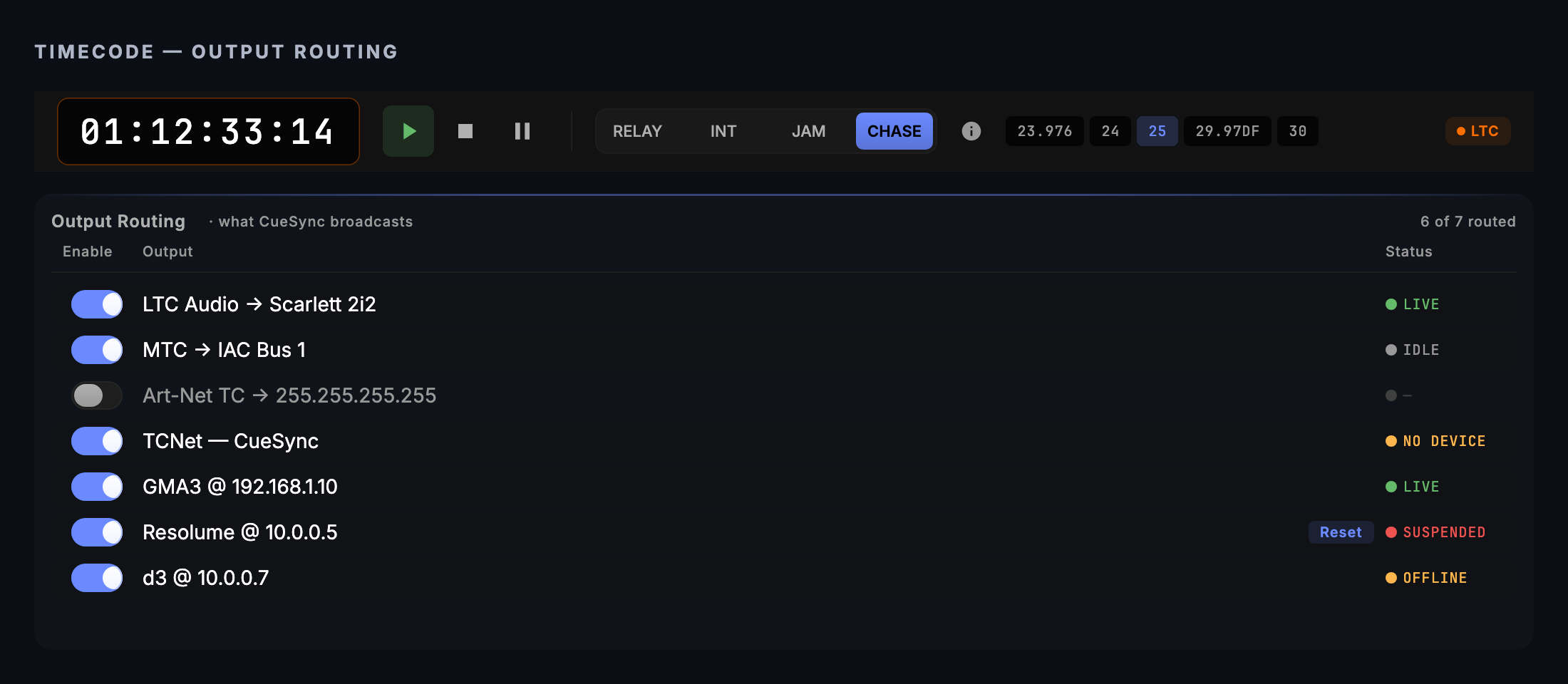
Each row carries its own live status, so a route that is enabled but not arriving — NO DEVICE, OFFLINE, NO SIGNAL, SUSPENDED — is visible without leaving the screen. The count in the header ("6 of 7 routed") is the quick check before doors.
Carry a CDJ's own clock. Each protocol row (the grandMA2 and grandMA3 timecode slots, TouchDesigner, Resolume, Art-Net and sACN) has a Clock menu under its name: Show clock, which is what the row has always carried; Deck 1 to Deck 6, that CDJ's own track time; or Deck N · set, a set clock derived from it. Rows can carry different decks at the same time, so two desks can each follow a different CDJ. The menu offers decks only in an edition that has PRO DJ LINK.
- Deck N is the deck's playhead in track time. It returns to zero when a track is loaded, and it runs at the deck's pitch.
- Deck N · set runs in real time while the deck plays and jumps forward whenever the deck is ahead of it, but it never goes backwards: loading the next track does not move a desk that is chasing it. Use it for a desk that is programmed against one running clock.
- Restart set clock starts a new set. Nothing else ever sends a set clock back: a stop, a reconnect, a route switched off and on, an eject and a new track all leave it running, so tomorrow's set would carry on from today's. When a set begins, press Restart set clock in the Output Routing header (it appears once a row carries a set clock) or run Timecode: Restart Set Clock from the command palette. Every deck's set clock goes back to the start (00:00:00:00, plus the row's offset) and runs on from there, even when a deck is part-way through a track. While a show or set is running and a set clock is feeding a desk, CueSync asks first, because the desk jumps back with it. A route held by Dry Run or Hold TC stays held; the desk is located to the start when the hold lifts. This is deliberately not on a MIDI or Stream Deck key.
- Offset ms / TC shifts the clock. Type milliseconds (a house clock that starts at 01:00:00:00 is
3600000) or a timecode label such as01:00:00:00or-00:00:02:00, read at the output's frame rate; the row shows the frame the stored value lands on. An offset that carries the clock past 24 hours wraps like every other clock, and a shifted position below zero parks at 00:00:00:00. - Stream (Art-Net rows only) is the Art-Net StreamId the row sends: the deck's number unless you set one, so two decks sent to one Art-Net host are two streams. A grandMA3 follows the stream its Art-Net input row is set to, so set that Stream ID to match. The show clock is always stream 0.
A deck route does not wait for Play; it streams while its deck plays. Its status chip reads LIVE while frames are flowing; IDLE with "Deck N is stopped" when the deck is paused (the desk was told, and holds its last frame); NO SIGNAL when the deck has no track loaded or is not on the network; and IDLE with "not started" when CueSync refused to start it — the notification says whether that was the licence, a standby seat, or a clock this build does not have.
Check it on your own rig. Play a track on a CDJ with the route on, and read the desk's time against the deck's elapsed time before you rely on it; Desk Verification has the checklist.
The clock also states which direction it is facing: OUT when CueSync is generating, IN when it is receiving, and FW in amber while it is freewheeling on inertia after a dropout. A clock locked to an external source is drawn in green, whatever the source is, and the source is named in words.
Right column — Health dashboard
Live health indicators for each input source:
- Signal present — whether CueSync is receiving frames from that source.
- Lock quality — whether the received signal is clean and frame-continuous.
- Drift warnings — if a source drifts beyond the configured threshold, a warning appears here for a few seconds then auto-dismisses.
- Source timeout — how long CueSync waits before declaring a source lost and engaging freewheel.
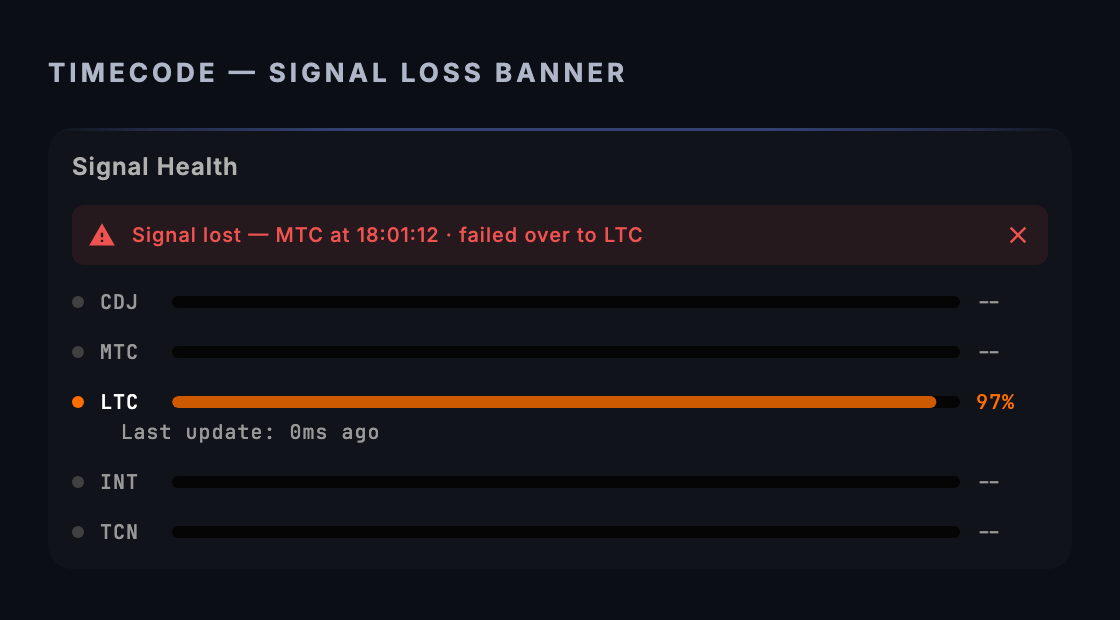
- Signal-loss banner — a genuine loss with nothing to fall back to (the freewheel window ran out) raises a red banner that names the event: which source was lost and at what time. Unlike drift warnings it does not auto-dismiss: it stays until the lost source returns or you dismiss it with the ✕, so a dropout that happened while you were looking elsewhere is still on record. A failover — the source went silent and a live lower-priority source took over — is announced by an error notification instead ("Timecode source lost — MTC went silent. Now following LTC. Verify show position."), not by this banner. Stopping the transport yourself never raises the banner; while a show is playing on CueSync's own clock it raises a separate "timecode generator is stopped" error, because the show's cues froze with it.
Trigger timeline (bottom strip)
A horizontal timeline showing all cues in your cue stack that have timecode triggers. Each cue appears as a marker at its trigger position. The playhead moves with the SMPTE clock. Use this to verify trigger positions visually — particularly useful when adjusting cue offsets.
Common tasks
- Receive timecode from a MIDI interface — Connect your MIDI interface, enable it in Settings → MIDI, then confirm the MTC source row shows "Locked" on this screen. While the sender is running, the interface carries an MTC badge in Settings → MIDI & Sync; the badge reflects the signal on the wire, so it confirms the cable and the sender independently of your timecode settings.
- Pin MTC to one interface — Open Settings → Timecode → MTC Input Device and select the interface carrying your show clock. Leave it on "Any connected input" for a simple rig; pin it when several interfaces are patched at once, so a spare console or a laptop left running cannot take over the source mid-show.
- Generate timecode for your rig — Set the mode selector to INT in the transport bar, set the frame rate to match your show system, click Play, then enable your target outputs in the routing matrix.
- Force a specific timecode source — Click Force on the source row you want to lock. CueSync ignores signal-quality ranking and uses that source until you clear the force.
- Check freewheel is set correctly — Open Settings → Timecode and confirm the source timeout matches your show's acceptable dropout window before CueSync starts coasting.
- Verify cue positions against the clock — Watch the trigger timeline at the bottom. The playhead advances with the clock; cue markers show where each timecode trigger fires.
- Chase a console's Art-Net timecode — Turn on Settings → Timecode → Source Configuration → Art-Net Timecode (chase), then start the console's timecode output. The row under the switch says what is happening: who CueSync is following, or that nothing has arrived yet, or that UDP port 6454 is held by another application on this Mac (CueSync retries automatically). The Art-Net TC row joins Source Routing; on a settings file or show saved by an older version it is added at the bottom of the priority list, so move it up if the console is your master. Restrict who can move the show clock with Settings → DMX Input → Accept from — the same list that limits DMX input; an empty list accepts any sender, and while it is empty and the chase is on, the row says so, with a button to the field.
- Send MTC to more than one console — Pick your primary device under Settings → Timecode, then use Additional MTC Devices to fan the same MTC stream out to more consoles on separate MIDI ports — FOH, lighting, and safety consoles each on their own interface. The row lists every device currently receiving the fan-out; remove one to stop sending to it. A fan-out interface that is unplugged and plugged in again is opened again, and CueSync says so once.
- Give a desk its own CDJ's clock — In Settings → Timecode → Output Routing (Theatre and Production also have it on the Timecode screen), open Clock under the row's name and pick Deck 2, or Deck 2 · set for a clock that never rewinds (press Restart set clock when the next set begins), then switch the row on. Pick the deck first: a row switched on before it has a clock sends the desk the show clock until you change it. Set the slot, then play a track on that CDJ: the row reads
LIVE. While Dry run or Hold TC is on the row readsHELD, because the desk was told the clock stopped and is sent nothing; if the deck disappears mid-set a notice names the deck and the output. A second row can follow a different deck at the same time. - Send several clocks to one desk — A grandMA2 or grandMA3 row has Add route under it (so do Art-Net and sACN rows) in an edition with PRO DJ LINK. It adds a line beneath the row: Route 2, with its own Clock, offset, slot (or Art-Net stream, or sACN start channel), Test, status and Remove route. It starts switched off and on a slot nothing else on that output uses. Pick its deck, set the offset, then switch it on: the desk now follows two decks at once, one on each slot, and each line shows its own
LIVE,HELDorNO SIGNAL. A route added to a row always carries a deck's clock; the show clock stays the row's own. Two feeds are never allowed on one place of one desk: a route aimed at a slot, a stream or a run of sACN channels that another route or the show clock already feeds is not started and a notice names who holds it, whether the other feed comes through the same output or a second output to the same console. A desk that takes one position at one place (TouchDesigner, Resolume) has no Add route. Test on a line tests that line's slot only. A route you take away is stopped, and its slot is told the clock stopped.
Tips & gotchas
- Two settings are called Freewheel. Settings → Timecode → Advanced → Freewheel Duration (5 seconds by default, 1–30) is how long the clock coasts on the last good frame after a source drops out and there is no live source to take over; then the clock clears. A live lower-priority source does not wait that out — it takes the clock on its first frame after the Source Timeout (2 seconds by default) passes. Settings → Show Control → Timecode Recovery → Freewheel duration (15 seconds by default, 1–60) belongs to the show: it is how large a gap or jump in the timecode position counts as a recovery event, which the recovery mode beside it then handles (Jump to current, Resume from last or Ask operator). Changing one does not change the other. Run Mode explains what a relocate does.
- A new Theatre show is a Master, not a Follower. A show made with File → New Project on Theatre or Production starts as a Master with no audio: CueSync generates the clock and can send it on Play, with no incoming timecode needed. A DJ-edition show, and a show file that carries no clock setting, opens as a Follower that waits for an incoming source. If you are chasing an LTC or MTC feed from a playback machine, flip the TC role chip in the Show Editor to Follower ← ext TC first. See the Theatre Show Workflow.
- Freewheel is not the same as the source being lost. During freewheel the clock keeps running at the last measured rate. Your cues continue to fire — every one of them, once, in order, including when the source has been quiet for a few seconds. The health dashboard shows "FREEWHEEL" so you can distinguish a momentary glitch from a genuine source failure.
- A grandMA3 and timecode. Three separate routes, none of them automatic; grandMA3 §6 has the detail. (1) A Timecode object written by Export Timecode XML runs on the desk; the file is written for one console release (the current one by default, or the release a connected bridge reports) because a file for the other one imports cleanly and fires nothing. (2) Setlist auto-arm starts a song's object with
Off, a cursor line, thenGo+, and only while the show is playing and not held. (3) The grandMA3 row in Output Routing runs one of the desk's timecode slots: CueSync positions the slot's own generator when its clock starts or jumps and pauses it when it stops (tested with grandMA3 onPC). It also pauses the slot when frames stop arriving, when a followed source is lost, and while DRY RUN or Hold TC is on, and with a pitched master (a CDJ at +3 %) the slot is re-located periodically; prefer an unpitched master for this route. Art-Net timecode into a slot also works. A grandMA3 slot row that CueSync would drive from the same console it is following is held, because moving that slot would fight the clock it follows: a notice stays on screen and offers Drive anyway, which lets that row drive for the rest of the session — use it when the timecode comes from another program or another slot. - Offsets: one rule below zero, and the frame. An offset that would take a clock below 00:00:00:00 never wraps to the end of the day. A deck route with a negative offset waits at 00:00:00:00 until the deck reaches the offset and tells the desk it is stopped; Chase Offset holds the clock at 00:00:00:00 until the input catches up; a source input offset floors at zero the same way. A timecode you type into a route offset stays that timecode when you change the frame rate (01:00:00:00 is still 01:00:00:00); a plain number of milliseconds does not, and CueSync says so in the notification drawer when the rate changes. Chase Offset takes frames or a timecode such as
00:00:02:00(up to an hour at 30 fps), and the source input offsets (on a DJ install, the one CDJ input offset row on the Timecode Output card) are applied in whole frames, rounded down: 10 ms at 25 fps does nothing, 40 ms is one frame. Total vs deck under each routed row adds up the offsets between the deck and that wire, and the -10 -1 +1 +10 buttons move a leg's compensation or a deck route a frame at a time. The same steps are in the command palette, and on a controller as MIDI mapping targets or Stream Deck XL keys that move one wire at a time. - A deck clock is not a different frame rate or a different wire. Only the protocol rows take a deck clock. The MTC, LTC, Art-Net timecode and TCNet legs always carry the show clock; TCNet can also carry each deck on its own layer (Settings → Timecode → TCNet → Per-Deck Mapping): decks 1 to 4 by default, and decks 5 and 6 once you choose a layer for them — until then they are not sent. Per-deck TCNet carries each deck's own position. A row follows one clock, and two rows cannot drive the same desk slot — the second is refused with a notification.
- A deck route starts only when output is permitted. Like every output it needs the licence and the output lease at the moment it starts, and a licence lapse stops it once no show is live. A pitched deck makes a grandMA3 slot re-locate every few seconds; prefer the set clock for a desk.
- Stopping the timecode output while a show is live asks twice. The Timecode screen's Stop, the EdgeBar popup's Stop and Run Mode's TC OUT chip all stop the generator — and when that generator is the show's own clock the show's cues freeze and every desk chasing CueSync loses its timecode. While a show is playing or paused they take a double press within the double-press window (3 seconds by default), like Pause, Stop and GO; the first press says what the Stop will cost. With no show running it stays one tap.
- Switching a reception off is not a dropout. Turning Art-Net chase, MTC or LTC reception off does not start a freewheel or raise "Timecode lost". When a followed source is lost, or the clock stops on its own, CueSync also stops the outputs that cannot be told to stop directly, such as sACN timecode, so they do not keep reporting a running clock.
- Hold TC, a panic blackout and DRY RUN park the timecode outputs. CueSync's own clock keeps running, but what it sends is silenced: MTC, LTC, Art-Net timecode, TCNet and the protocol rows park on the frame they were on (one MTC full-frame, a parked LTC frame), so a desk chasing CueSync reads a stopped transport and fires nothing. Release re-locks MTC receivers with a full-frame at the live position and the other legs resume; a desk reads that as a locate. Hold TC shows a standing banner; DRY says so once.
- Silence means stopped. A master that pauses can go quiet on a wire — LTC and Art-Net have no stop flag to send. Read as a dropout, CueSync freewheels and fires the next several seconds of cues into a scene that is held, and on resume they do not fire again. Settings → Timecode → Advanced → Silence means stopped (MTC / LTC / Art-Net) makes CueSync clear the clock the moment that source passes the Source Timeout instead. It is on by default for Art-Net, because a paused grandMA3 slot sends nothing at all — which also means a pulled cable looks like a pause; switch it off to ride through a dropout. MTC and LTC are off by default: turn it on for a source whose pause is silence, leave it off for one that can really drop out. While CueSync is carrying a lost source's clock on, the setlist auto-arm does not act on it. If a source returns behind the clock CueSync was extrapolating, the cues that fired early are named in an error and are not re-fired. A pause you declared this way reads Stopped in neutral on the Network screen's Timecode card, not as an amber fault.
- A dropped LTC interface, or MTC input, comes back by itself. If the LTC output device disappears mid-show CueSync keeps looking for it and re-opens it when it returns — the show clock is not touched, and a notice says the output is back. The MTC input you pinned in Settings is connected for you, and re-connected after a relaunch or a USB blip; while a show is live a missing pinned input is a standing error. The LTC audio input is kept alive the same way: if it dies (a cable nudge, a USB brown-out) CueSync re-opens it as soon as the device is back, with a standing error while a show is live and a notice when it returns. Auto-start LTC is on by default, so an LTC follower reads its clock after a relaunch without anyone pressing Start — provided the LTC interface is chosen. CueSync never opens the system-default input by itself at launch (it can be a headset's microphone, and opening that drops every sound on the Mac to call quality): with LTC reception on and no interface chosen it shows a notice and opens nothing, until you pick one. The LTC Audio Input card and the Booth Input line name the input that is open. The level bar there stays green across the range a desk's LTC normally sits in, goes amber when the feed runs hot, red when it clips, and amber with a "Level is low" line when the feed is too weak to lock.
- Changing the frame rate updates both the output rate and the CDJ conversion simultaneously. You do not need to set them separately — one control keeps the display and the generator consistent.
- The Global Trigger Offset is saved with the show. Opening a show applies its Settings → Timecode → Advanced → Global Trigger Offset to this computer when it differs from the computer's own, with a notice ("This show carries a trigger offset of +5 f — applied (this machine had 0 f)."); a show saved at 0 clears a leftover value from the last show you had open. Changing the offset while a show is playing, paused or stopped part-way re-judges its timecode cues against the playhead, and a cue pushed too far behind the playhead to still fire is marked passed and announced in one notice.
- MTC cannot carry the high frame rates (48, 50, 59.94, 60). A frame number above 31 wraps (frame 35 is sent as 3), so a receiver reads the wrong frame. CueSync warns when an HD rate is chosen with an MTC, LTC or Art-Net leg on; keep MTC and LTC rigs at 30 fps or below.
- Outputs must be configured in Network before they appear in the routing matrix. If a destination is missing from the list, go to Network → Outputs → + to add it.
- Incoming MTC is corrected for quarter-frame lag, and the correction is adjustable. A complete MTC position arrives as eight quarter-frame messages spanning two frames, so the value is already two frames old when CueSync assembles it. CueSync adds those two frames back, which is what the SMPTE specification asks a receiver to do; without it every MTC-triggered cue would fire two frames late — 80 ms at 25 fps. Set Settings → Timecode → MTC Input Compensation to 0 only if your sender already sends ahead, otherwise the clock runs early.
- Art-Net timecode has the same two blind spots as MTC. Its Type byte has codes for 24, 25, 29.97 drop-frame and 30 only, so a 23.976 master sends the code for 24 and a 29.97 non-drop master sends the code for 30. The two settings that resolve this for MTC — 24fps sources are 23.976 pull-down and MTC Rate Code 3 is 29.97 non-drop (Settings → Timecode → Advanced) — apply to Art-Net timecode too, and MTC Rate Code 3 is 29.97 non-drop applies to LTC input as well: LTC carries a drop-frame flag but no rate, and a flag-clear stream measuring 29.97 cannot be told from true 30 by measurement, so without the declaration a US 29.97 non-drop master reads as 30 and the clock runs 0.1 % short (about 1.8 s per half hour).
- CueSync follows one Art-Net timecode sender at a time. The first sender heard is followed. A second console sending at the same time is ignored, counted, and named in a warning. When the followed sender goes quiet for a second, the next one heard takes over, and a warning says so; to follow only one Timecode slot, enter its Stream ID under Settings → Timecode → Source Configuration → Art-Net stream to follow (blank follows any) and no other stream can take the clock. The limit on how fast frames are accepted is counted per stream, so a desk that sends several streams does not thin the one you follow; a sender flooding far faster than any console is thinned, and the row under the toggle counts the frames skipped. Art-Net timecode has no transport flag: a sender that keeps repeating the same frame reads as stopped, so CueSync clears the clock rather than freewheeling past cues the console never reached. grandMA3 onPC does not repeat: a paused or switched-off timecode slot sends nothing, which CueSync cannot tell from a pulled cable. With Silence means stopped on for Art-Net — the default — it reads that silence as a pause: the clock is held and no cues fire. Switch it off and CueSync freewheels for the freewheel window (5 seconds by default), as it does when an LTC master stops, and timecode cues keep firing across those seconds before the clock clears. A console that does repeat its last frame while parked is the case the "reads as stopped" rule is for; onPC is not one.
- onPC on the same Mac: use the broadcast address. grandMA3 onPC hears Art-Net timecode sent to the subnet broadcast (for example
192.168.1.255) or to255.255.255.255, CueSync's default host, and ignores a datagram sent to127.0.0.1or to the Mac's own address. Going the other way needs nothing special: grandMA3 onPC and CueSync can share the Mac. - Built to the Art-Net 4 specification and tested with grandMA3 onPC. Do one dry run on your own rig before a show; Desk Verification has the checklist.
- CueSync never chases its own Art-Net timecode. With the Art-Net timecode output and the chase input both on, every frame CueSync broadcasts comes straight back to it. CueSync ignores its own Art-Net timecode, so a dead master still freewheels and fails over. Another application on the same Mac that sends Art-Net timecode is not mistaken for CueSync's own output — though an application that holds UDP 6454 exclusively makes CueSync report the port as taken, and two machines are then the reliable setup.
- A pinned MTC input that is not connected receives nothing. If you have selected a specific interface under MTC Input Device and that interface is unplugged, the MTC source cannot lock even though the MTC toggle is on. The settings row names the missing device; select "Any connected input" or reconnect the interface.
Related
- Network Outputs — Add and configure the outputs that appear in the routing matrix
- GrandMA3 — Desk timecode slots, Timecode objects and auto-arm (§6)
- Cues — Add a Timecode trigger to a cue so it fires at a specific SMPTE position
- Diagnostics — Connection event log and uptime history for timecode-routed outputs
Looking for a quick fix?
The Help Center has short task-focused articles and a support team that responds within 24 hours.