Pixera
AllWhat it's for — CueSync drives an AV Stumpfl Pixera media server over Pixera's Native API (JSON-RPC over TCP). It plays, pauses and stops timelines by name, jumps a timeline to a time, recalls a cue by index, and stops every timeline on panic. Pixera support follows AV Stumpfl's published API and has not been proven on a live Pixera. Read the last section before you rely on any of it.
1 · Connect Pixera
In Pixera — Settings → API
Pixera exposes its API through API Access slots. Each slot has its own protocol and port. CueSync must be pointed at a slot set up like this.
| Setting | Value | Why |
|---|---|---|
| Where | Settings (top right) → the API tab | Pixera's help names this tab as the starting point for the API. |
| Protocol | JSON/TCP (dl) | CueSync sends delimited messages, which is what the (dl) mode reads. Plain JSON/TCP expects a different framing, which CueSync does not write. UDP and OSC modes cannot answer back. |
| Port | any free number you choose | Pixera has no default port. Type the same number into the CueSync output. |
| Input Network Adapter | the Pixera machine's address on the show network | The slot only listens on that adapter. |
Pixera's own help also says the program must be restarted for changes on the API tab to take effect. Restart it before you test.
Pixera is the TCP server and CueSync connects to it. Allow inbound TCP on that port on the Pixera machine's firewall.
Then check what the show needs to exist in the project:
- The timelines the cues name, spelled exactly as Pixera shows them. Treat the case as significant.
- For a cue recall by index, the cue must sit at that index on that timeline. An index shifts when someone inserts a cue upstream.
In CueSync
- Network → Outputs → Add Output. Under Category, pick Video, then Pixera (Native API — JSON-RPC over TCP).
- Give it a Name. Enter the Pixera machine's Host / IP Address.
- Set Port to the number you typed into the slot. The field starts at 1234, which is a starting guess and not a standard. 1234 is one of the most reused port numbers there is, so a scan hit on it is not proof of Pixera.
- Click Add Output, then open the output and click Test Connection.
The dialog's right-hand card gives the short version of the slot settings above.
What "connected" means for Pixera. The output is green once Pixera's API accepts a TCP connection on that port. So green proves that something in Pixera accepts connections on that port. It does not prove the slot's protocol is right, and a machine that vanishes may take a while to show as down. A slot left on plain JSON/TCP still accepts the connection and still shows green.
Replies. Every message CueSync sends carries an id, and a healthy Pixera answers with the same id. CueSync waits briefly for that answer:
| What comes back | What CueSync does |
|---|---|
An answer with an error member | The cue fails (Pixera send failed). The log records Pixera's own message. |
| An answer with no error | The cue is confirmed. |
| No answer in time | The cue reports success, unconfirmed. |
If Pixera keeps not answering, CueSync stops waiting, so cues do not slow down against a slot that never answers, and writes a warning to the log (Pixera has not answered … consecutive requests — sending unconfirmed from now on). From then on it can no longer tell a wrong timeline name from a right one. If you see this, the slot is on the wrong protocol.
Timing. The output editor's Pre-fire (ms) and Latency comp (ms) (0–500) apply to Pixera like any other output. OSC timetags are not offered.
More than one Pixera. An action with no output chosen goes to the first connected Pixera output. Tick Send to every Pixera output on the action to reach all of them.
2 · What a Pixera action can do
Add an action to a cue or a Cue Pad. From Add Action, pick the Pixera output, then Pixera. A Pixera action sends one operation. The fields are in the order the app resolves them.
| Editor field | What Pixera receives |
|---|---|
| Timeline name (required for Play / Pause / Stop / Time) | not sent on its own: it is the argument to the next four rows |
| tick Play | Pixera.Compound.setTransportModeOnTimeline with {"timelineName":"…","mode":1} |
| tick Pause | the same method with "mode":2 |
| tick Stop | the same method with "mode":3 |
| Go to time (seconds) | Pixera.Compound.setCurrentTimeOfTimeline with {"timelineName":"…","time":<seconds>} |
| Cue index and Timeline index | Pixera.Compound.applyCueAtIndexOnTimelineAtIndex with {"cueIndex":N,"timelineIndex":M}. A blank Timeline index sends 0. |
| tick Start first timeline | Pixera.Compound.startFirstTimeline, with no name and no parameters |
| tick Stop all timelines | Pixera.Timelines.getTimelines, then Pixera.Timelines.Timeline.stop with {"handle":H} for each timeline it returns |
| Raw API method (overrides above) and Raw params JSON | your method and your JSON, verbatim |
The collapsed action row shows a summary such as Play · ACT1, @ 0.0s · ACT1 or Cue 1 / TL 0.
One action, one operation
The editor's first-match order is: raw method, cue recall, then Stop, Pause, Play, then Go to time, then Start first timeline, then Stop all timelines. CueSync does not fire the first match and drop the rest. An action that names more than one of those operations is refused by name before anything is sent:
Pixera action asks for Play + Go to time — one Pixera action sends one operation, so split them into separate actions in fire order
The editor prints the same sentence under the fields as Won't send —. The Play, Pause and Stop ticks are exclusive in the editor (ticking one clears the others).
- The raw method is the one exception. It is announced as overrides above: an action carrying one sends it and ignores the other fields, without an error.
- The timeline name is required for Play, Pause, Stop and Go to time. Without one the action is refused (Pixera transport and time verbs need a timeline name).
- Values are checked first. A negative time, cue index or timeline index is refused before sending, with a message that starts Pixera validation failed:. An action with nothing set fails with Pixera action has no operation set.
Order across actions. On a Theatre cue the actions go out one after another, in list order. On the Cues screen they go out together, and only a Wait action (Wait time (seconds)) makes the next one wait. To "go to the top and play" on the Cues screen, put a Wait of a fraction of a second between the two actions.
What each verb leaves behind
- Go to time moves the playhead. It does not start or stop the timeline. Whether the timeline keeps rolling afterwards depends on the mode it was already in. Pair it with Play when a cue means "jump there and run".
- Cue index recalls a cue. CueSync sends no transport verb with it, so whether the timeline then rolls is up to your Pixera project.
- Play on a stopped timeline starts it. On a paused one it resumes.
- Stop all timelines is composed from two documented calls, because Pixera has no global stop. It needs at least one timeline handle in the reply. If none come back, it fails, and a panic raises Blackout incomplete.
- Raw reaches anything else, including the handle-based methods. A handle is a runtime identity that changes when the project is rebuilt, so do not build a show on one. The params JSON is passed through untouched, and CueSync does not check that it is valid.
3 · Looks, pads, intents
Looks
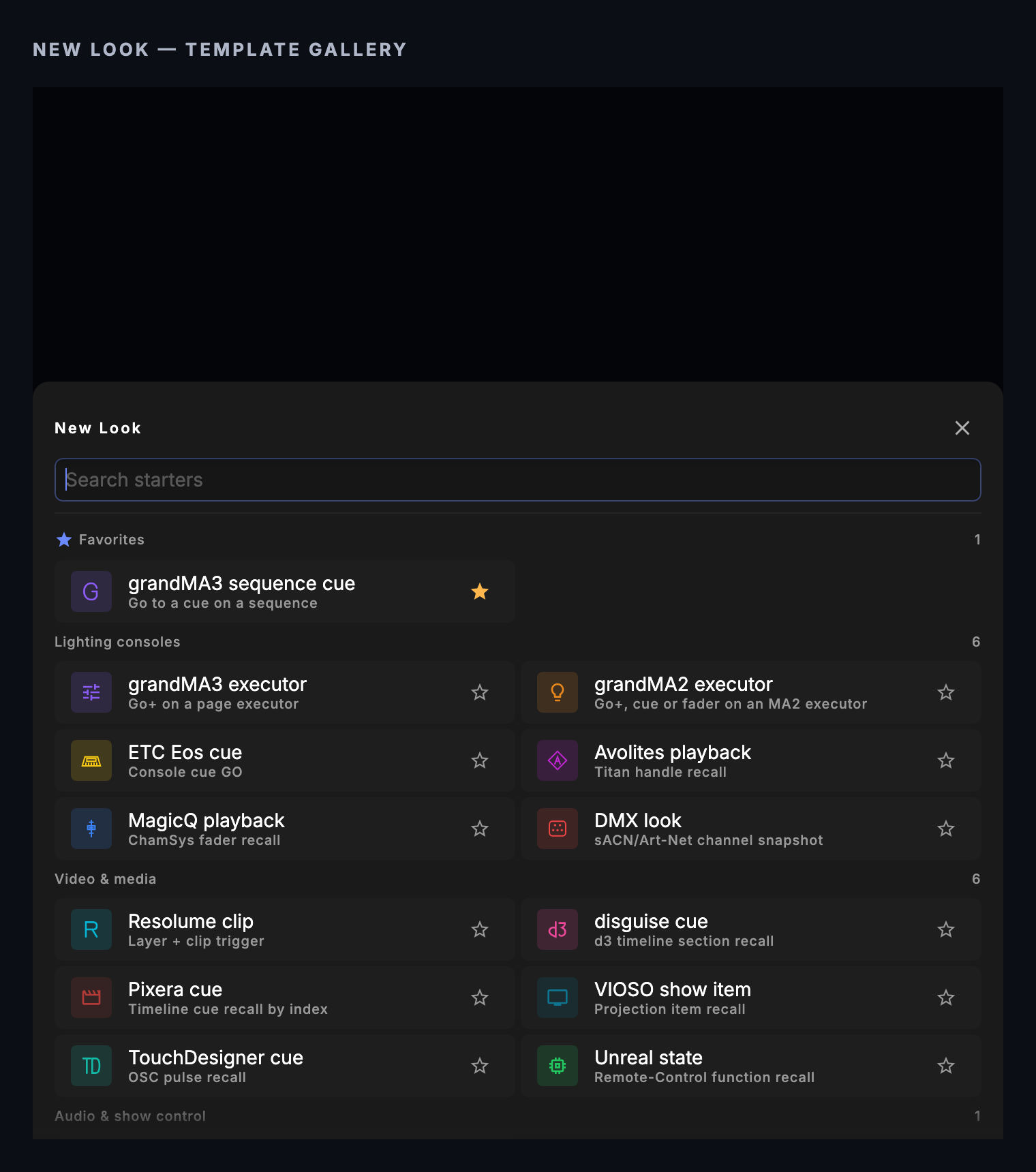
In the Palette, + New Look → Video & media → Pixera cue (Timeline cue recall by index). The fields are Cue index (0-based) and Timeline index (0-based). This is the one recall that needs no timeline name, so the same Look works on a rig whose project names its timelines differently.
| Look | Fires | Released by panic, track change or a release group |
|---|---|---|
| Pixera cue | a cue recall by index. No transport verb: whether the timeline rolls is the project's business. | nothing: the tile says NO RELEASE and reads SENT |
| Any action holding Play with a timeline name | the whole action | Stop on the same timeline |
| Any action holding anything else | the whole action | nothing |
The reason for no release: the opposite of "recall cue 3" is not "stop", which would halt a timeline the Look never started.
Cue Pads
Templates (on the bank tab bar) has a Pixera section: Start First TL, Play, Pause, Stop, To Start and Cue 1. Play, Pause, Stop and To Start ship with the placeholder timeline name Timeline 1, deliberately visible. Rename it to your timeline, or the pad fails once Pixera answers that no such timeline exists. Cue 1 recalls cue index 1 on timeline index 0.
Intents
Intent cues (Theatre Show Editor) and Auto Pilot moments reach Pixera by cue index only. An output with no role, or the Custom role, takes every intent. The Video Server role takes Set Visual and Clear Visual, so a Pixera output with that role never receives Go Show Cue.
| Intent | What Pixera receives |
|---|---|
| Set Visual (Clip #) | a cue recall: cue index = Clip #, timeline index 0. The layer and opacity have no Pixera form and are dropped. |
| Go Show Cue (Cue #, Cue list) | a cue recall: cue index = Cue # (a whole number of 0 or more), timeline index = Cue list, or 0 when blank |
| Blackout, Set Intensity, Clear Visual, Strobe Burst, Set Effect | nothing: Pixera publishes no verb for them |
Fades and feedback
There is no fade target for Pixera, and CueSync reads nothing back from it: the tile reads SENT, and the only return channel in use is the JSON-RPC reply described in §1. There is no Pixera timecode leg. Use Go to time if a cue must place a timeline.
4 · Panic
Blackout on the EdgeBar (or the blackout shortcut), the Blackout All pad and a Stop all timelines action all do the same thing. CueSync asks Pixera for its timelines, then stops each one. Pixera has no blackout verb, so this is a stop, not a dark screen: what the outputs show after a stop is whatever your project defines. The panic waits a limited time per output, and Pixera's stop is a query plus one call per timeline, so a slow machine can be reported as timed out. A panic that stopped nothing raises Blackout incomplete, naming the Pixera output. Stop by hand if you see it.
Releasing panic does nothing for Pixera. Play the timelines again from a cue or a pad.
When Pixera drops out. An action aimed at an output that is not connected fails and is not queued. Nothing is replayed on reconnect.
Use cases
1. Play and stop a timeline from pads
- Open Cue Pads. Click Templates, open the Pixera section and drop Play into a free slot. Drop Stop into the next.
- Right-click each pad → Edit. Set Timeline name to your timeline, for example
ACT1. - Right-click the Play pad → Test Fire.
The ACT1 timeline should start. Test Fire the Stop pad and it should stop. If Pixera answers with an error (a wrong name), the cue fails and a notification says so. If it never answers, the pad still reads green, and the log says CueSync went unconfirmed.
2. Recall a cue by index
- On the Cues screen, click
+. Name the cue Scene change. - Add an action from the Pixera output: Cue index 1, Timeline index 0. The row reads
Cue 1 / TL 0. - Test-fire the cue.
Pixera should jump timeline 0 to the cue at index 1. Confirm on site which cue index 1 actually is: CueSync sends the number you typed and cannot see the project.
3. Restart an act from the top
- Add a cue Act 2 restart.
- Add a Pixera action with Timeline name
ACT1and Go to time (seconds)0. The row reads@ 0.0s · ACT1. - On the Cues screen, add a Wait action of
0.2seconds. On a Theatre cue you can skip this, because the actions go out in list order. - Add a second Pixera action: Timeline name
ACT1, tick Play. The row readsPlay · ACT1.
ACT1 should jump to zero, then run. If you tick Play and set Go to time in the same action, the editor prints Won't send — and the cue is refused. That is intended, so a cue never plays from wherever the last act left the timeline.
4. Panic stops every timeline
- With both
ACT1andCLUBplaying, click Blackout on the EdgeBar. - Watch Pixera.
Both timelines should stop, and there should be no Blackout incomplete banner. If the banner appears naming your Pixera output, Pixera returned no timeline handles (an empty project, or the wrong framing) or the answer was late. Release the blackout, then start the timelines from a cue.
Tips & gotchas
- Plain JSON/TCP looks healthy. The slot accepts the connection, every send reports success, and nothing happens. The tell is the log line about N consecutive requests, or a wrong timeline name that never fails.
- Restart Pixera after touching the API tab. Its help says changes need it.
- A cue that fails visibly means the link works. If Pixera answers with an error, the framing is right and the name or index is wrong.
- Names are exact. Type them as Pixera shows them, and treat the case as significant.
- The port is yours. Pixera has no default. 1234 is CueSync's guess.
- Go to time never plays; Play never seeks. That is why "restart from the top" is two actions.
- A recall by index breaks quietly when a cue is inserted above it.
- Stop is not black. Rehearse what your project shows when a timeline is stopped, and keep a blackout cue in Pixera.
- Keep Pixera's own operator ready. Nothing here has run against the program.
- Stop-all is unproven against a real Pixera. Check on your own project that every timeline stops.
What has been checked
Pixera support is based on AV Stumpfl's published documentation and has not been run against a live Pixera. Treat every Pixera cue as unproven until you have seen it work on your own project, and do a dry run before doors.
Related
- Network Outputs — Adding, testing and monitoring outputs
- Looks — Building Looks, Pixera cues included
- Cues — Adding actions and Waits to cues
- Cue Pads — The Pixera pad templates
- Intents and Actions — How intents reach each rig
- Venue Profiles — Output roles
- What Each Action Can Send — The verb list per action
- Protocol Reference — Ports and connection behaviour
- Desk Verification — A checklist for proving your own setup
- Resolume, disguise and VIOSO — The other video servers
Looking for a quick fix?
The Help Center has short task-focused articles and a support team that responds within 24 hours.