Performance
DJNot a tab. Performance is a full-screen mode rather than a peer destination — the EdgeBar is hidden while it is active, which is why it does not appear in the CONTROL group.
What it's for — Performance is the live DJ dashboard, designed to be read from two metres away. It shows BPM, the current and next cue, phrase structure, output health, and your Cue Pads — all on one screen with no scrolling required.
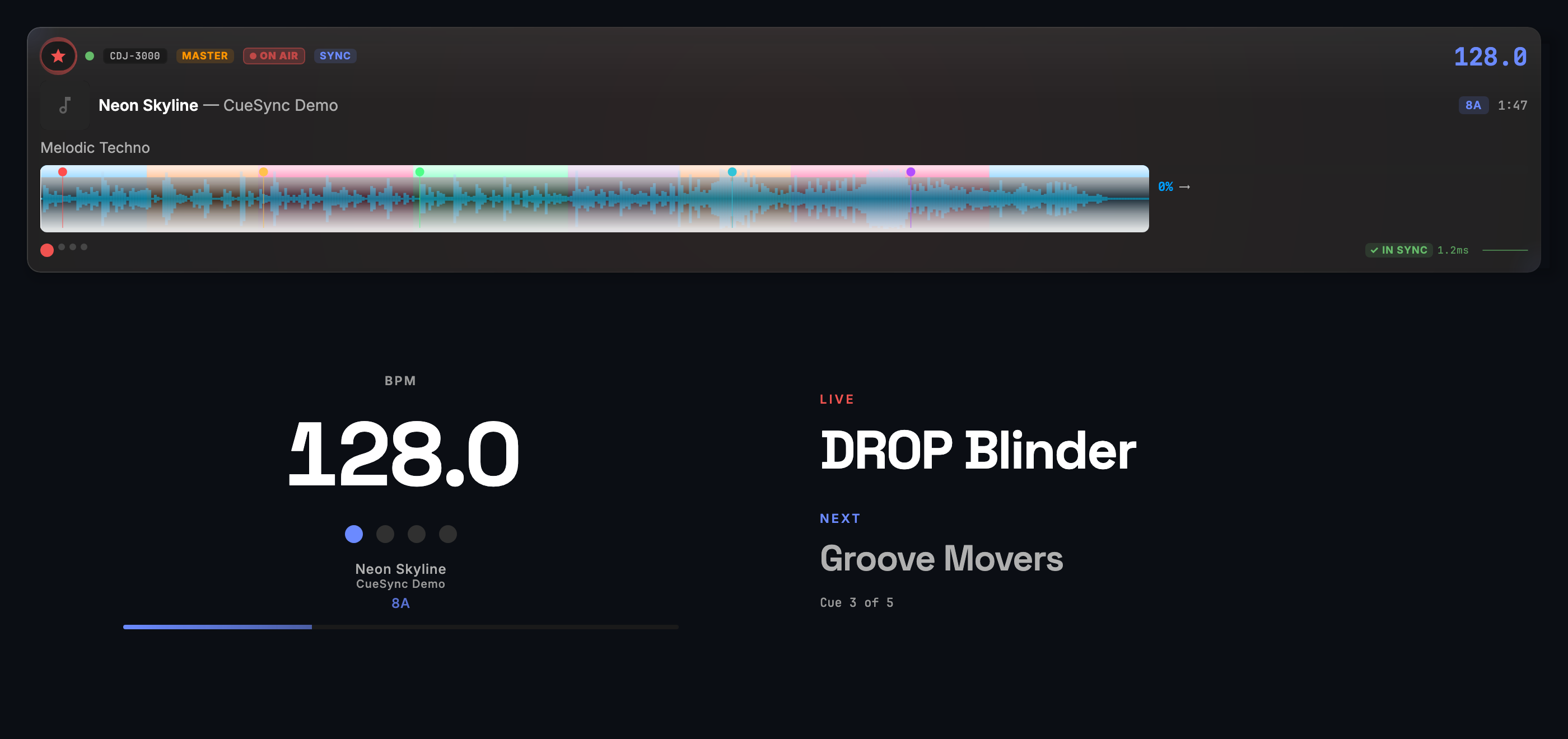
The screen, region by region
The screen has two modes that switch automatically:
- Setup mode — shown when nothing is playing. Displays readiness cards: DJ Link status, cue stack status, and output connection health. Click any card to jump to the relevant configuration screen.
- Live mode — activates as soon as a Pioneer player starts playing (or a Theatre show begins) and your cue stack is non-empty. It also activates while a Local Audio set is playing — CueSync playing your own files counts as playback, whether or not you have a cue stack. The readiness cards slide out and performance panels slide in. A paused Local Audio track is not live, the same as a paused deck.
Header strip (top) — Shows the current show name and a venue selector. If a venue profile is active, the venue name appears here; click to switch profiles or deactivate the current one. A Show Mode button on the right of the header opens Show Mode, the DJ/VJ full-screen layout: the cue list on the left, the pad grid on the right and a GO bar underneath, with editing switched off (a cue's right-click menu offers only Fire Now and Set as Next). It is not the Theatre console; that is Run Mode. Esc leaves Show Mode. Show Mode's top bar carries its own on-screen panic controls: BLACKOUT needs two presses (the first reads TAP AGAIN) and becomes RECOVER while the rig is dark, and RELEASE FREEZE and RELEASE MANUAL appear while those states are latched, each lifting its own state only. A badge reading BLACKOUT, FREEZE or MANUAL shows while one is held. While the rig is blacked out, Esc brings it back first; a second Esc leaves Show Mode. A right-click (or Control-click on a Mac) on a pad here, or on Home's pad strip, is not a press and fires nothing. The pad grid's header reads AutoPilot only while Auto Pilot will really fire; when it is held it says so (for example AutoPilot · HELD).
Alert banner — Appears below the header only when something needs attention: an output's connection has been paused, a connection failed, outgoing commands backed up, or Pioneer beat signals went silent. Alerts clear on their own after a short time.
Auto Pilot banner — A distinct TAKEOVER ACTIVE banner with a RESUME AUTOPILOT button. It appears when Auto Pilot has been paused (after a takeover, or by the panic controls) and lets you resume without leaving this screen. The one-phrase pause from the override bar does not raise it.
Override bar — A compact row of buttons for manual overrides: Skip Cue (moves the cue stack past the next cue without firing it), Skip Moment (the next Auto Pilot moment does not fire), Pause AP (holds Auto Pilot for one phrase; it then reads Hold · 1), Resume (ends a hold or a takeover pause; enabled only while one is active), Force Fire (fires a specific upcoming moment from a dropdown; shown only when Auto Pilot has moments queued) and Undo (enabled only while the last override can be reversed). Keyboard shortcuts, active while Performance is open: Cmd+K Skip Cue, Cmd+P pause one phrase, Cmd+R end a hold or a takeover pause, Cmd+Z undo, Cmd+F open the moment picker. Cmd+Shift+P and the banner button end a takeover pause too. The same keys work on macOS and Windows (Ctrl): while Performance is open Cmd+K is Skip, not the Command Palette, and Cmd+Z undoes the last live action; the menus' Command Palette, Undo, Redo and Reset Cue Stack rows show no shortcut there, but still work when clicked. The buttons show their keys on hover (Skip Moment has no key), and the keyboard shortcut sheet lists the chords under Performance Overrides.
BPM panel (live mode) — Large BPM readout, beat phase indicator, and the title of the currently playing track.
Cue panel (live mode) — Shows the current cue name and number and the next cue name and trigger type. Auto-generated cues (from Generate Show) are prefixed with a diamond (◆) so you can distinguish them from hand-authored cues at a glance.
Waveform strip (live mode) — A compact scrolling waveform of the playing track with a live playhead. Visible in live mode only.
Phrase timeline (live mode) — A real-time phrase-structure timeline below the waveform, showing the current phrase type (intro, verse, chorus, bridge, outro, etc.) colour-coded.
Section status row (live mode) — Shows the current and upcoming section labels.
Auto Pilot status strip (live mode) — Shows the Auto Pilot fire-trace rationale: which phrase rule caused the last automation event to fire, and what is planned next. The pill reads PILOT: IDLE, ARMED, RUNNING or PAUSED; while a running Auto Pilot is not firing it says why — HELD (a Blackout or Freeze), STANDBY (a Theatre show is playing) or HOLD · N phrases — and the next-moment countdown appears only while Auto Pilot will really fire it.
Cue Pads (live mode, when pads are configured) — A compact grid of your current Cue Pad bank. Trigger pads by clicking or using the keyboard. Pads whose output connection is paused (output disconnected) show a warning badge so you know before you fire.
Output health row (live mode) — Three columns: current phrase energy, overall energy trend, and a system health summary (connected outputs, error count, outputs paused by connection recovery).
Floating GO button — A large button that floats at the top-right of the screen. Hidden by default; enable it in Settings → Touch & Input for touch-screen rigs or when you want a large manual trigger area. It appears by itself when a Local Audio queue is loaded and the cue stack has cues, because Space plays and pauses the music there; its key cap then names the set's GO shortcut (Cmd+Enter) instead of Space. It is the same GO as every other: it checks your licence and pauses a running Auto Pilot, like Space, the menu and a MIDI mapping do. It also honours Double-GO protection (Settings → Show Control → GO Confirmation): a second tap that lands within that window of the last one is ignored, so a bouncing touch cannot fire two cues and trip the Auto Pilot pause. Show Mode's GO bar and the GO on Home's pad strip do the same.
Blackout and Freeze while a local set plays — The on-screen Blackout, Freeze and Manual Override buttons (Mission Control) are shown whenever anything is playing — a Pioneer deck, a show, or a Local Audio track — and whenever a panic is latched. BLACKOUT, FREEZE and MANUAL are latching toggles: a second press releases that state alone. RESUME AP (Cmd+Shift+P) resumes Auto Pilot only (it also ends a standing Manual Override); a latched Blackout or Freeze stays latched until you release it.
Common tasks
- Check that everything is ready — In setup mode, verify all readiness cards are green before you go live. Click any amber or red card to jump to the relevant screen.
- Manually fire the next cue — Press
Spacewhile in Performance. The next cue in the stack fires immediately. If a Local Audio track is playing or paused,Spaceplays or pauses that track instead; the set's GO isCmd+Enter— see Local Audio. Two manual firings within 3 seconds pause a running Auto Pilot (see Auto Pilot). - Skip the next cue — Press
Cmd+Kor click Skip Cue in the override bar. The stack moves past the next cue and nothing is sent. - Pause Auto Pilot for a phrase — Press
Cmd+Por click Pause AP in the override bar. Auto Pilot fires nothing until the track crosses its next phrase boundary, then carries on by itself. Nothing needs resuming. - End that pause early, or resume after a takeover —
Cmd+R(or Resume) ends whichever quiet state is in force: the one-phrase pause from Pause AP or a takeover pause. If the TAKEOVER ACTIVE banner is showing, you can also click RESUME AUTOPILOT or pressCmd+Shift+P. - Force-fire a specific upcoming moment — Press
Cmd+Fto open the moment picker, then select the moment you want to fire now. With no moment queued,Cmd+Fsays Nothing to force-fire — no upcoming moment is queued and opens nothing. - Undo the last override — Press
Cmd+Z. It reverses a pause or a resume. A skip or a force-fire stays done: the Undo button is greyed, andCmd+Zsays Can't undo a skip or Can't undo a fired moment instead of reaching past it to an earlier pause. - Switch venue profile — Click the venue name in the header strip and select a different profile. See Venue Profiles.
Tips & gotchas
- The screen switches between setup and live mode automatically. You do not need to toggle anything — playing a track with cues in the stack is enough to flip to live mode.
- Alert banners clear on their own. If an alert keeps reappearing, the underlying issue is recurring — check the relevant output in the Devices or Network screen.
- Cue Pad connection badges are live. If an output disconnects mid-set, the affected pad cells show a warning badge immediately, before you try to fire. This is a live indicator, not a pre-show check.
- A required update never covers Performance. The "Critical Update Required" window does not appear here, so it cannot take your next GO; a banner says that an update is required and shows its download progress, and the install waits until the set has ended and the rig is idle.
- Stage Mode is a projection-friendly full-screen waveform. Press
Cmd+Option+Sto fill the window with a single deck's live, tilted, glowing waveform — built for a booth- or stage-facing display.Escexits back to Performance.
Related
- Home — Pre-show command deck before going to Performance
- Auto Pilot — Configure and monitor phrase-driven automation
- Cues — Build the cue stack that Performance fires
- Cue Pads — Set up the pad grid visible in the live dashboard
Looking for a quick fix?
The Help Center has short task-focused articles and a support team that responds within 24 hours.