QLab
AllWhat it's for — CueSync drives QLab 5 over OSC. A Theatre cue, a Cue Pad, a Look or the panic can GO a QLab cue by number, start it, stop it, move the playhead, or change a cue's level, rate, opacity, pre-wait and duration. It can also build your QLab cue list from a Part (section 7); it never deletes or changes a cue that is already there. QLab keeps the audio and video; CueSync says when.
What has been checked. CueSync has been tested against QLab 5 on both transports. Some verbs are built from QLab's documented OSC addresses and have not been confirmed one by one; see What has been checked. QLab 4 has not been checked.
1 · Set up QLab
Do this once on the QLab machine, with the workspace open. Most mistakes here look like success in CueSync: the cue reports sent and QLab does nothing.
- Open the workspace and leave QLab running. CueSync's own hint says a workspace must be open and QLab in the foreground.
- Open Workspace Settings > Network > OSC Access. QLab 5 ships this panel with two rows: a No Passcode row that grants nothing, and a QLab-generated four-digit passcode row that grants View, Edit and Control. Pick one way in: either tick View, Edit and Control on the No Passcode row, or keep the passcode and type it into the CueSync output (OSC passcode, section 2).
- Leave the OSC port at 53000. CueSync uses 53000 for both TCP and UDP.
- Keep one workspace open, or read the two-workspace rule below.
- Make sure the QLab machine's firewall accepts inbound TCP and UDP on 53000.
| QLab is set like this | What QLab answers | What CueSync shows |
|---|---|---|
| No Passcode row grants nothing, no passcode sent (the factory state) | "status":"denied" to every command | On TCP the cue reports a failure worded QLab refused the connection — set the output's QLab passcode. Over UDP QLab's answer is never read, so the cue reports sent. |
| Passcode sent, and it is right | ok, with the granted permissions listed (view, edit, control) | Normal. |
| Passcode sent, and it is wrong for that workspace | badpass, then denied | Same as the factory state. Passcodes are per workspace: the same code is badpass on another workspace. |
| No Passcode row ticked View, Edit and Control | ok | Normal. Leave OSC passcode blank. |
Two workspaces open is the dangerous case. QLab then discards the /cue/<number> part of an unscoped address and runs what is left as a workspace-level command. A GO fires whatever sits at the playhead and advances it. A stop aimed at one cue stops them all. Both are answered ok. The property setters (rate, level, opacity, preWait, duration) have no workspace-level form and answer error. With one workspace open, the unscoped form was correct in every case tested. So: one workspace, the Workspace ID field is optional; two, it is required.
Cue numbers are matched across the whole workspace. Give every cue a unique number, in every cue list.
2 · Connect CueSync
- Network → Outputs → Add Output. Set Category to Audio, then Protocol to QLab (TCP).
- Give it a Name. Enter the QLab machine in Host / IP Address. Port fills in as 53000.
- Workspace ID (optional): leave empty on a one-workspace rig. Fill it in whenever a second workspace is open (a show and its backup). CueSync's hint says it logs every open workspace's ID and name when it connects. QLab does not show the ID beside the OSC settings.
- OSC passcode: the code from QLab's OSC Access panel, or blank if you ticked the No Passcode row. The field starts empty on an existing output and says leave blank to keep the stored code. CueSync keeps the passcode securely on this Mac; it is not written to the show file or a settings export. The passcode belongs to the address you typed it for. If an output's passcode was saved before that, or the output has since been moved to another address, the output connects without it and a notice asks Send the passcode to <address>? with a Send passcode button; your answer is remembered for that address.
- Timing (optional): Pre-fire (ms) and Latency comp (ms), 0–500 each. See section 5.
- Test Connection, then Add Output. The output connects immediately.
TCP or UDP. Both go to port 53000 and carry the same addresses. They differ in what CueSync can learn back.
| QLab (TCP) | QLab (UDP) | |
|---|---|---|
| Transport | OSC over TCP | OSC over UDP |
| Replies | Read. CueSync learns refusals, the workspace list and which cues are running | Not readable. UDP only sends |
| Wrong passcode | Noticed (logged, held as the output's last error) | Silent |
| Look tile can turn LIVE | Yes, while QLab reports the cue running | No. It stays SENT |
| Fade (OSC ramp) action | Cannot use it | Needs this output |
| Schedule on the console's clock | Not offered | Offered. QLab documents OSC 1.1 timetags |
Use TCP unless you need a Fade ramp or timetag scheduling.
Do not add both transports for one machine. CueSync fires every QLab action down every QLab transport it has. A machine with a TCP and a UDP output receives each GO twice, and the second one fires the next cue. The Add Output dialog warns "Every cue would reach this device twice". A venue profile or an imported output list can add outputs without that warning, so check the list afterwards. If you need both on one machine, pin each action to one output: pick that output first in Add Action (section 3), and only that output receives it.
What "connected" means. Read the green dot for what it proves.
| Output | Green means | It does not mean |
|---|---|---|
| QLab (TCP) | The TCP session is open and CueSync's keep-alive goes out on it (Flight Check calls this console responded) | That the workspace accepts your commands. A locked-out workspace still reads green |
| QLab (UDP) | The QLab machine answers a network reachability check and a keep-alive was sent (Flight Check: sent — no ack (UDP)) | That QLab heard anything. A machine that ignores pings can read as down while QLab listens |
On a TCP connect CueSync sends your passcode (if you set one), reads the workspace list and subscribes to QLab's running-cue updates, which is what lets a Look turn LIVE.
A refusal is easy to miss over UDP. CueSync reads QLab's
deniedon TCP, records it in its log and as the output's last error, and reports the cue as failed with the wording "QLab refused the connection — set the output's QLab passcode". UDP carries no reply, so nothing is read back there. On a new rig, fire one harmless cue and watch QLab. A QLab Look that never turns LIVE while QLab visibly runs the cue is the other symptom, because refusals do not count as feedback.
3 · What a QLab action can send
Add the action from a cue's Actions list (Show Editor Inspector → Actions tab, or the Cue Editor) with Add Action. Pick your QLab output under Your outputs, then QLab. That pins the action to that one output. Or search for QLab; the entry sits under Show Control. A new QLab action starts with GO ticked.
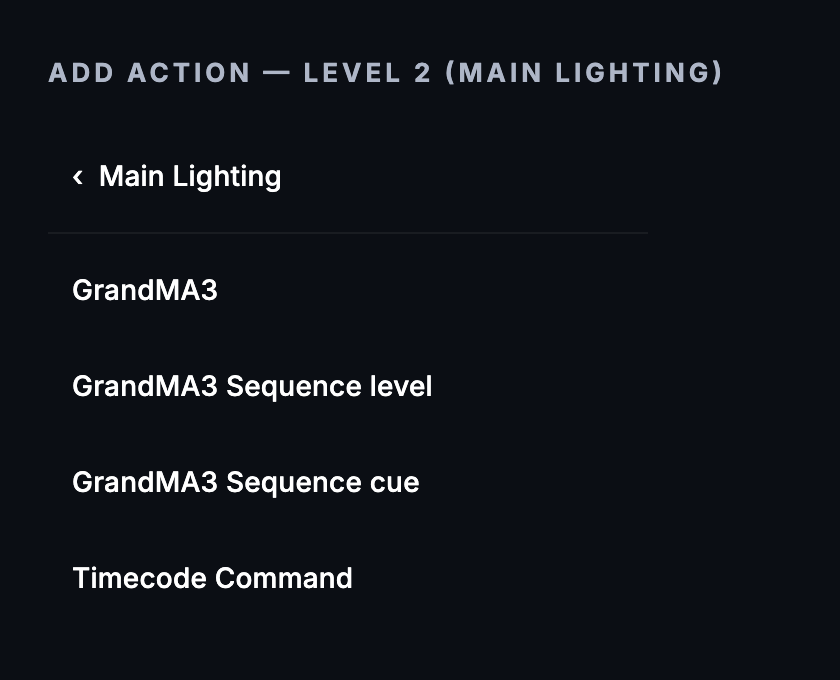
The fields, and what goes on the wire
| Control (exact label) | QLab receives | Needs |
|---|---|---|
| GO, no cue number | /go (whatever the playhead holds) | — |
| GO with Cue Number (blank for selected) filled | /cue/<n>/go | Cue Number |
| Cue List (blank for default) | Nothing different. See the warning below | — |
| Start cue | /cue/<n>/start: starts that cue and leaves the playhead where it was | Cue Number |
| Playhead to cue | /playhead/<n>: moves the playhead and fires nothing | Cue Number |
| Select Cue | /select/<n> | the Select Cue box |
| Select Next / Select Previous | /select/next / /select/previous | — |
| Stop, no cue number | /stop (every running cue in the workspace) | — |
| Stop with a cue number | /cue/<n>/stop | Cue Number |
| Pause / Resume / Reset | /pause / /resume / /reset | — |
| Panic | /panic: stop everything. QLab fades briefly into a hard stop; CueSync has no /hardStop verb for an instant cut | — |
| Playback Rate | /cue/<n>/rate <float> | Cue Number |
| Audio Level (dB) | /cue/<n>/level/0/0 <dB>: the cue's master crosspoint | Cue Number |
| Video Opacity 0-1 | /cue/<n>/opacity <float> | Cue Number |
| Pre-Wait (seconds) | /cue/<n>/preWait <seconds> | Cue Number |
| Duration Override (seconds) | /cue/<n>/duration <seconds> | Cue Number |
With a Workspace ID set, every address above is prefixed /workspace/<id>. A TCP output and a UDP output send the same address for each verb.
⚠ The Cue List box changes nothing on the wire. QLab has no OSC address that scopes a GO to one cue list. CueSync logs the list name and sends
/cue/<n>/go, which QLab resolves across the whole workspace. Two cue lists with the same cue number are a trap.
Which verb wins
An action does one transport verb, chosen in this order: panic, stop, pause, resume, reset, select cue, select next, select previous, playhead, start, GO. The first one that is set fires and the rest are dropped. Property setters (rate, level, opacity, pre-wait, duration) are separate: each one that has a value is sent alongside the verb, after it, provided a Cue Number is set.
Three consequences that catch people:
- GO is ticked by default, and it loses to everything above it. Type a Select Cue and leave GO ticked, and CueSync sends the select and drops the GO. If you want select, then GO, use two actions.
- A property-only action needs GO unticked. Cue Number 12 plus Audio Level (dB) −12 with GO still ticked sends
/cue/12/goand then the level. The cue starts, and the level arrives after it. - Properties go out after the verb. If a level must be in place before a cue starts, put it in an earlier action.
What is refused, and what fails visibly
| Situation | What you see |
|---|---|
| A property, Start cue or Playhead to cue with no Cue Number | The editor shows Won't send — … (needs a Cue Number) under the boxes. At fire time the cue fails with "QLab action can't send …". Nothing goes out, not even the GO |
| Nothing set at all (GO unticked, no other verb, no property) | The cue fails: send failed |
| Video opacity outside 0–1, a negative pre-wait or duration, or a blank cue number | Refused before anything is sent |
A cue number containing any of / * ? [ ] { } # , or a control character (QLab would read it as an address or a pattern and aim the command at other cues) | The cue fails as QLab cue number contains characters that would address other cues, so it was not sent, and nothing is sent. Numbers such as 12, 1.5, A1 and Intro 2 send normally |
| No QLab output connected | "No QLab output connected" |
| An output exists but is inactive, disconnected or suspended after repeated failures | The cue fails naming the output and the reason |
QLab refuses (denied, badpass) | On TCP the cue fails with the refusal wording; over UDP nothing is read back. See the note in section 2 |
Rate and level take any number: CueSync does not range-check them. QLab's level is in dB, and QLab documents a rate range of 0.03 to 33 (from QLab's documentation), so a rate outside it is QLab's to clamp or ignore.
Fade (OSC ramp)
Add Action → Fade (OSC ramp), target QLab cue level, ramps a cue's level from From dB to To dB over Duration (beats) or or ms, on a curve (Linear, In, Out, S-Curve, Exp). It sends /cue/<n>/level/0/0 repeatedly, so it needs the QLab (UDP) output. The dB boxes are limited to −60 to +12. Panic, show-stop and a disconnect cancel it.
4 · How QLab is reached from Looks, pads, intents and panic
| Surface | What happens |
|---|---|
| Look (Palette → New Look → Audio & show control → QLab) | Fields Cue Number and Cue List (blank = default). Fires /cue/<n>/go. On release it sends /cue/<n>/stop for that cue. A QLab Look always has a cue number. An Any action Look that holds a cue-less GO, or any verb other than GO or Start, has no honest release and reads NO RELEASE, because its stop would be the workspace-wide /stop |
| Look tile state | LIVE while QLab (TCP) reports the cue running, otherwise SENT. A QLab (UDP) Look never confirms |
| Cue Pad | Pad templates for QLab: Go, Pause, Resume, Stop, Select Next, Select Prev, Panic. Or right-click a pad → Edit → Action and choose a QLab action |
| Go Show Cue intent (AutoPilot, venue profile) | Fires /cue/<n>/go to every connected QLab output, on both transports |
| Blackout intent, Set Intensity intent | Not sent to QLab. QLab has no blackout or master-level verb here, and CueSync will not invent one |
| Blackout pad (unfiltered) and panic | /panic to every connected QLab output, TCP and UDP, scoped to each output's workspace |
| Blackout pad filtered to include QLab | /panic to QLab, without latching the panic |
Panic is one-way for QLab. Releasing the panic (Cmd+Shift+B again, or Resume) restores nothing in QLab. /panic ends in a hard stop; QLab fades briefly into it, and CueSync has no /hardStop verb for an instant cut. Start the audio again with a cue. In Run Mode a manual GO still reaches QLab while a blackout is latched, and the GO button reads INTO BLACKOUT.
Timecode does not stream to QLab. QLab reads MTC or LTC itself. CueSync's timecode output routing deliberately excludes it. See Timecode.
5 · Timing
- Pre-fire and Latency comp shift when a beat-driven cue's QLab message is sent, per output, up to 500 ms each. A Theatre GO is sent when you press it.
- Schedule on the console's clock (QLab UDP only) sends pre-fired cues as timetagged bundles. It needs Pre-fire or Latency comp above 0 and both machines on one clock. It is untested against a real QLab.
- A QLab (TCP) output shows a measured latency in its editor with a one-tap Use for Latency comp.
6 · Use cases
A · Theatre: GO a sound cue by number
You have a Theatre show and QLab 5 running the sound design. Cue 5 of the show should start QLab cue 3.
- In QLab: Workspace Settings > Network > OSC Access, tick View, Edit and Control on the No Passcode row. Confirm cue 3 exists and is the only cue numbered 3.
- In CueSync: Network → Outputs → Add Output, Audio, QLab (TCP), host = the QLab machine, Test Connection, Add Output. Expect a green output.
- In the Show Editor, open Output Routing… for the lane that carries sound cues (lane header ⋯ menu, or right-click the lane chip). Tick only the QLab output and Save.
- Select cue 5. In the Inspector's Triggers tab set the mode to Manual.
- Actions tab → Add Action → your QLab output → QLab. Expand the row. Set Cue Number to
3. Leave GO ticked and Cue List blank. - The row's summary reads
Go 3. Set the rehearsal selector to DRY first and step through the show to check sequencing without sending anything. Then switch to SHOW. - Open Run Mode, press
Pto play, and pressSpaceat the cue.
You should see: QLab starts cue 3. Run Mode's activity log records the cue as fired. If it fails, the log names the output and the reason.
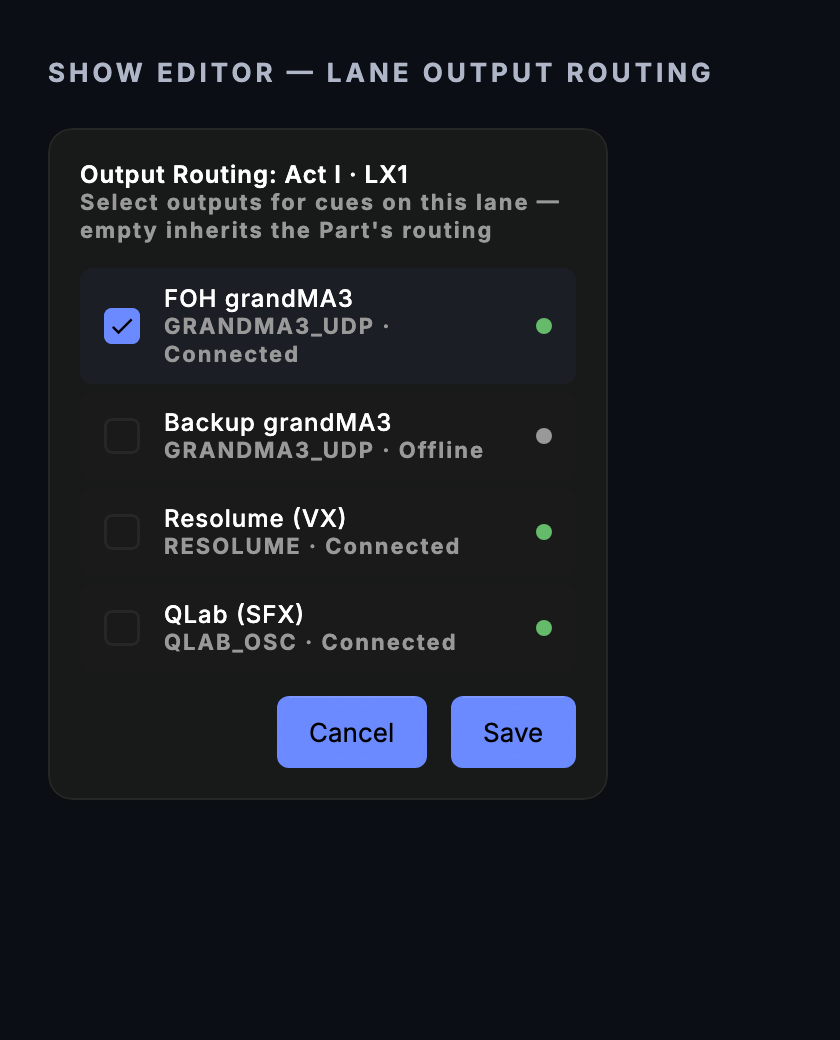
Give QLab its own lane. Every action in a lane is tried against every output the lane routes to. An output of a different protocol refuses it by name: "Cue routed to '<name>' (…) but this action needs QLAB — fix the lane/track output routing". The QLab leg still fires; the cue then reports one failed output.
B · Hybrid night: QLab as the audio half, with a panic
A DJ set with stingers and spoken cues played from QLab, and one gesture that stops everything.
- Add the QLab (TCP) output as above. Put its passcode in OSC passcode if you used one.
- Open Cue Pads. Add three pads from the QLab templates: Go, Stop and Panic. Set the Go pad's action to GO with a Cue Number if you want one stinger per pad, since a bare GO fires whatever the playhead holds.
- Test-fire each pad with a harmless cue at the playhead (right-click → Test Fire).
- During the set, fire the stingers from the pads.
- To stop everything, press
Cmd+Shift+B, or Transport → Panic → Blackout.
You should see: QLab stops every cue at once (a brief fade into a hard stop, QLab's own panic), and the lighting outputs go dark with it. If the QLab output was down, CueSync raises a sticky Blackout incomplete banner naming it. Release the panic when you are ready, then start audio again with a cue. See Hybrid Night workflow.
C · Ramp a music bed down
- On the QLab machine's output, use QLab (UDP) only (a Fade needs it), or keep a UDP output beside the TCP one and pin your GO actions to the TCP output.
- In a cue: Add Action → Fade (OSC ramp). Choose QLab cue level. Set Cue # to the music cue, From dB
0, To dB-60, Duration (beats) blank, or ms4000.
You should see: the cue's level in QLab move over four seconds. The level/0/0 address is QLab's documented form, so watch the level move on a rehearsal before you trust it.
7 · Send a cue list to QLab
File → Sync, Import & Export → Send Cue List to QLab… (Theatre and Production; also in ⌘K) creates one QLab cue for each cue of a Part, in the workspace of a QLab output, so the sound department does not retype the cue list.
- Pick the QLab output (when there are several), the Part, and optionally one Lane (your SFX lane, say). Choose Memo (a placeholder) or Group (a container you drop the audio cues into; firing the group fires them).
- Read the plan. Every row shows the show's cue number, the QLab number it becomes, the name and, for a Timecode cue, its trigger time. A cue with a QLab GO or Start action becomes a QLab cue with that number, the number CueSync already fires. A cue without one keeps its own number and is marked the show does not fire it. Skipped, each with its reason: a disabled cue, no number, a number used twice, a number QLab cannot be sent over OSC (a space,
/,*,?,#,,,[ ] { }), and a number QLab already holds. - Read QLab asks the workspace which of those numbers it already has. Those cues are left exactly as they are, so sending again after a partial send creates only what is missing.
- Send N cues…, then Create N cues. CueSync reads QLab again, then creates each cue after the previous one (the first after the cue selected in QLab), with its number, name, notes and timecode trigger time, and reads each one back. It stops at the first thing QLab refuses and reports what it had made and what QLab said.
Timecode triggers. With Write timecode trigger times on, a Timecode cue gets its trigger set to the time CueSync fires it, on the house clock (venue origin and trigger offsets included). QLab's OSC dictionary can set that time but has no command to switch a cue's timecode trigger on, or to make a cue list follow timecode, and setting the time does not switch it on (the trigger reads disabled with the time filled in). Do both in QLab: tick Timecode in the cues' Triggers tab and set the list's timecode input at the show's rate. GO, standby and follow cues get no trigger time.
What it needs from QLab. One workspace open, or the output's Workspace ID set; with two open and no ID, the send refuses, because QLab sends an unscoped message to every workspace. Edit access: the output's passcode, or Edit ticked on the No Passcode row. A send is refused while the show is live.
What was checked. The messages are QLab 5's documented ones (see What has been checked).
Tips & gotchas
- Factory workspace, no passcode, no ticked row: every command is
denied. The number-one first-day problem. See section 1. - One workspace, or set the ID. With two workspaces open and no ID, a GO fires the playhead cue and a stop stops everything, and QLab answers
ok. - Same cue number in two lists. The Cue List box does not disambiguate. Renumber.
- GO is ticked by default. A select, stop, pause or panic in the same action wins over it. A property-only action needs GO unticked.
- A cue-less Stop is
/stop. It stops every running cue in the workspace, including the music bed and ambience CueSync did not start. - UDP cannot tell you anything. Not a wrong passcode, not a refusal, not a closed workspace. Prefer TCP.
- Two transports, one machine, double GO. Keep one, or pin.
- The panic does not undo itself. Restart audio with a cue.
- Lane routing. Give QLab a lane of its own, or every routed non-QLab output reports a mismatch.
- Rehearse in DRY. DRY steps through cues and sends nothing to hardware.
What has been checked
CueSync has been tested against QLab 5 on both transports. Some verbs are built from QLab's documented OSC addresses and have not been confirmed one by one, and QLab 4 has not been checked. Do one dry run on your own QLab before you rely on a verb, and try Send Cue List on a scratch workspace first. A checklist is on Desk Verification.
Related
- Network Outputs — Adding, testing and monitoring outputs
- Palette — Building Looks, QLab cues included
- Cues — Adding actions to cues
- Cue Pads — Putting QLab actions on pads
- Show Editor — Lanes, Parts and Output Routing
- Timecode — Why QLab follows MTC or LTC itself
- Diagnostics — Flight Check depth labels and the connection log
- Desk Verification — A checklist for proving your own setup
- What Each Action Can Send — The verb list for every action
- MIDI and MIDI Show Control — The theatre-desk lane
- Theatre show workflow — Building a whole show
- Hybrid night workflow — A DJ half and a theatre half in one night
- GrandMA3 — The console playbook this page follows
Looking for a quick fix?
The Help Center has short task-focused articles and a support team that responds within 24 hours.