Theatre Show Workflow
TheatreWhat it's for — This page follows one cue-driven show from the first network test to the printed cue sheet. It ties together what the Show Editor, Timecode, Run Mode and the console pages describe in pieces: how a cue becomes a command on a real system, who owns the clock, what each rehearsal mode does and does not stop, and what to do when timecode or an output goes away mid-act.
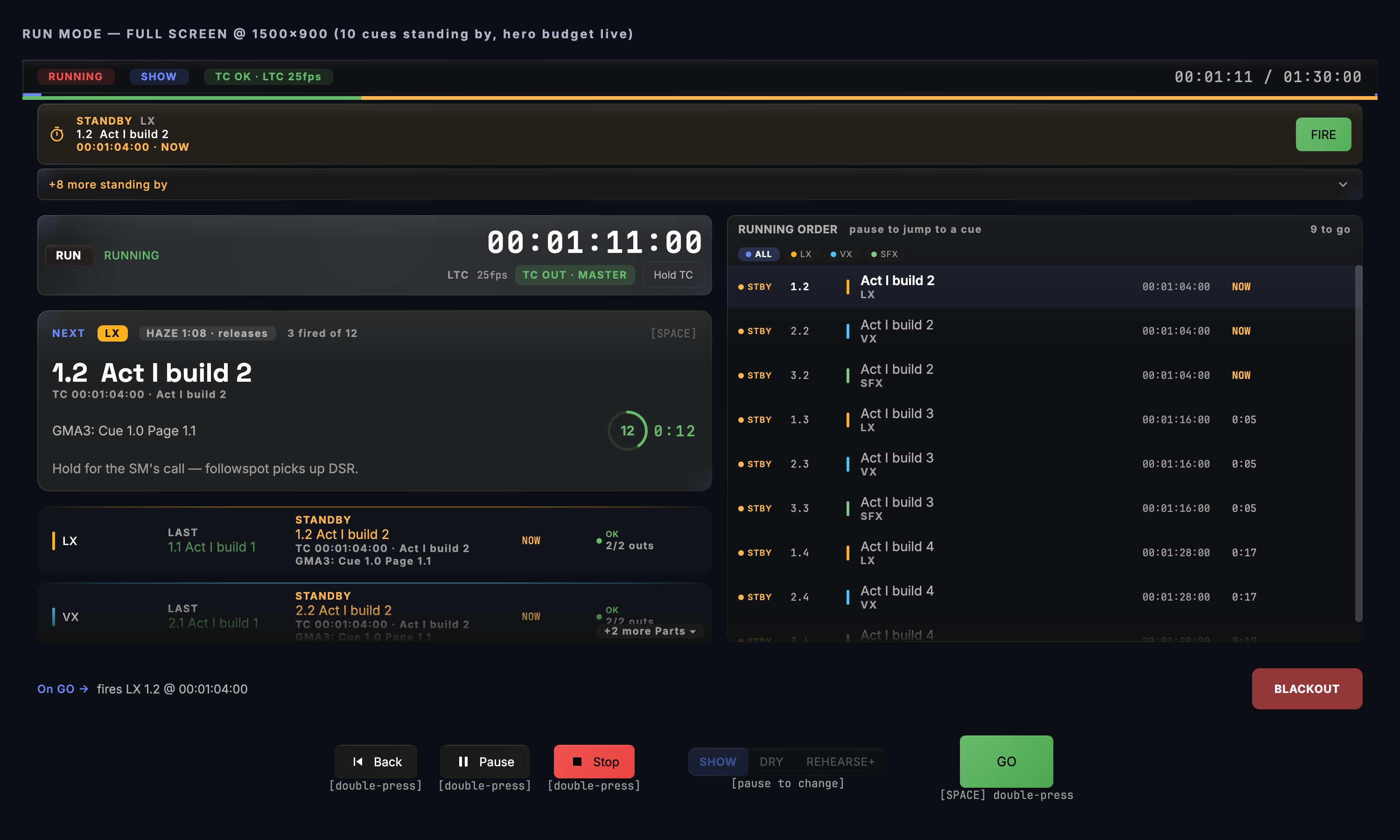
The eight phases
| # | Phase | Where | You are done when |
|---|---|---|---|
| 1 | Prep | Network → Outputs, the desk's own settings, Settings → Timecode | Every output tests healthy, the desk's OSC or Telnet settings are checked, and you have picked a timecode source |
| 2 | Author | Show Editor (Suggest Cues drafts a Part's cues from its audio) | Parts, lanes, cues and trigger modes match the running order |
| 3 | Route | Show Editor (lane and Part routing), Timecode → Output Routing | Every lane names the output it drives, and the show has a clock role |
| 4 | Sync | File → Sync, Import & Export → Sync to GrandMA3… | The desk's sequence and the cue list agree |
| 5 | Rehearse | Run Mode (R), Flight Check, cue Test Fire | You have run the show in DRY, then in REHEARSE+, and the cues you trust are marked Ready |
| 6 | Run | Run Mode | The curtain comes down |
| 7 | Recover | Run Mode banners, Recovery dialog, Hold TC, BLACKOUT | Whatever broke, the show carried on or came back |
| 8 | Paperwork | File → Sync, Import & Export → Export Cue Sheet… | The department sheets are printed |
How a cue becomes something on a real system
Parts, lanes and routing
A Part is one item in the running order: a song, a scene, a reel. It carries its own cue list and, optionally, its own audio. A lane is a department row — LX, VX, SFX and so on — and lanes are shared by every Part. Every cue sits in one Part and one lane. + Lane in the Show Editor's lane strip suggests the next unused name from LX, VX, SFX, FX, PYRO, AV; a new show starts with one lane called Main.
Routing decides which outputs a cue's actions are sent to. It has two levels and the more specific one wins:
- Lane routing. Right-click a lane chip and choose its routing. The popover is titled Output Routing: <Part> · <lane> and says empty inherits the Part's routing. A lane's popover also has a grandMA desk setting — Auto, On or Off — which decides whether its cues are written to the desk; pyro, laser, flame and CO₂ lanes are held back on Auto (grandMA3 Session Sync).
- Part routing. Right-click a Part in the Parts rail and choose Output Routing.
If a lane has any output ticked, its cues go there. If it has none, they go where the Part routes. If both are empty, each action goes wherever its own output picker says: one named output, the first connected output of that protocol, or every output of it when the action is set to broadcast.
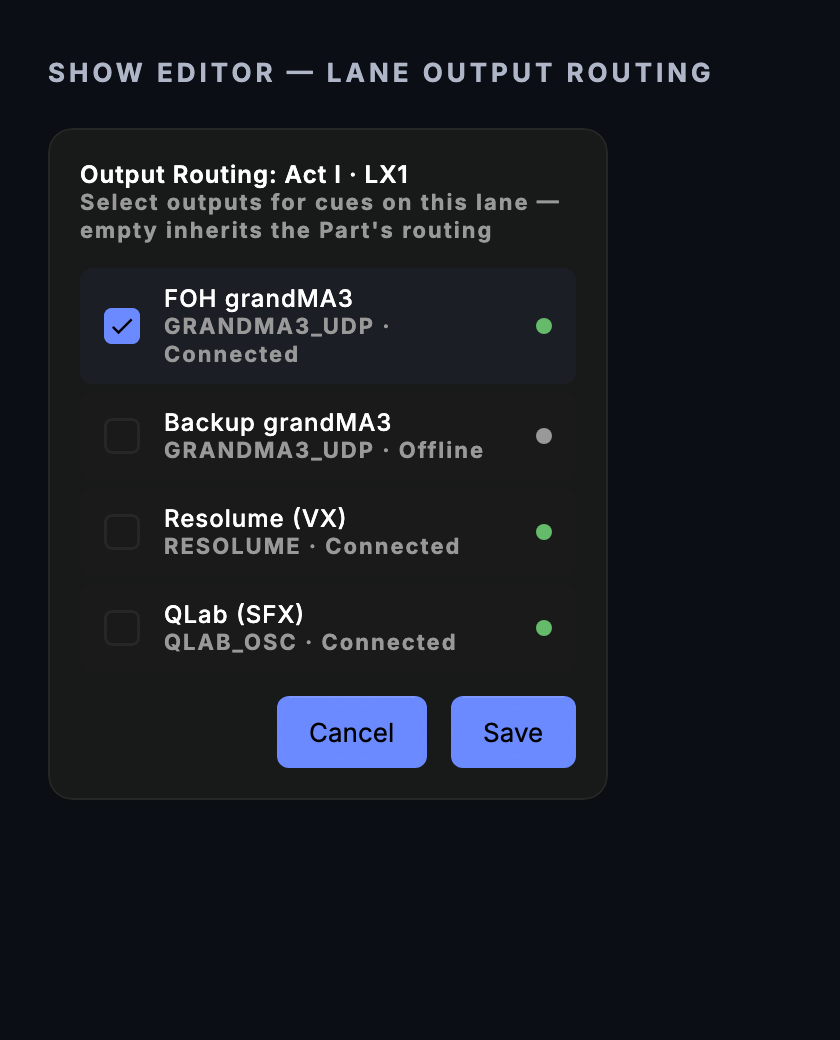
Three consequences worth knowing before you rig:
- Every action on a cue is sent to every output in its routing. A lane routed to a main and a backup grandMA3 sends the cue to both. Actions that are not addressed to a device — an audio file, a Wait, a reference to another cue — run once.
- A lane can be routed to a protocol its actions do not speak. The cue fails with an error naming the mismatch. It is not skipped in silence.
- Different Parts can go to different desks. Flight Check grades each routed desk separately, so a Part routed only at an unplugged backup is reported before doors.
The four trigger modes
Pick the mode in the Inspector's Triggers tab. The four segments read Timecode, Manual, Follow and Auto.
| Mode | Fires | Position field means |
|---|---|---|
| Timecode | On the first frame at or after its position, offset by the cue's own Offset (frames, + early / − late) and the show-wide Global Trigger Offset (Settings → Timecode → Advanced). Never before it. A cue that timecode steps over is still caught up if it lands within a short window set by its Tolerance (±frames) | The moment it fires |
| Manual | When you fire it: GO, Enter, the standby card's FIRE, a footswitch or a Stream Deck | An anchor. Every Manual cue at or after the playhead is in STANDBY from the moment you press Play |
| Follow | After the previous cue in the same lane of the same Part has fired, plus its Pre-wait (s) | An anchor |
| Auto | Together with the previous cue in the same lane, plus its Pre-wait (s) (0 by default) | An anchor |
Pre-wait exists only on Follow and Auto. A Manual cue goes the instant you press GO, on purpose. For "GO, then a beat, then the cue", make the first cue Manual and put a Follow cue with the pre-wait behind it.
A chain only runs while the show is playing. If a cue is fired while the show is paused, its Follow or Auto successor is not fired. It is loaded as the next standby and CueSync says so, so a GO during an interval never walks the rest of the lane out. A link that is already counting down when you pause freezes and carries on when you resume, and Hold TC freezes it the same way. Stop and a seek cancel every waiting link.
What GO fires
GO (Space in Run Mode, or the GO button) picks in this order:
- The earliest armed timecode cues. Cues sharing that instant go together. This is the show's next timecode cue now, whatever the clock says.
- If nothing is armed, the head of the standby stack — one cue. This is on by default: Settings → Show Control → Playback → GO fires the standby stack.
- If neither exists, GO says GO: nothing is armed or standing by. Start the show, or Goto a cue to arm from there.
Enter fires the head of the standby stack whatever is armed. LOAD on a standby row in the running order makes that cue the head of the stack, so it is the next one Enter takes, and the next GO takes it when nothing is armed.
⚠ In a show that mixes Timecode cues with Manual cues, GO takes the armed timecode cue first, early if it is not due yet. Use
Enteror the standby cards for the Manual cues, or keep hand-called cues in their own Part.
Control cues
The Inspector's Control section (None / Goto / Group / Load) turns a cue into a control cue that drives the show as well as sending its own actions. Targets are typed as cue numbers: Goto cue (number), Group cues (numbers, comma-sep), Load cue (number). A Goto jumps once per playback pass. Against an external clock a Goto is refused, because the next frame would put the playhead straight back; against CueSync's own clock it works. Control cues run in DRY too, so a rehearsal walks the same branches. The full rules are on the Show Editor page.
Intents and explicit actions
A cue can carry two kinds of instruction, together.
- Actions are explicit: GrandMA3 Goto cue 12 on page 1.201, QLab GO 3.
- Intents say what should happen, not how: Set Look, Set Intensity, Strobe Burst, Blackout, Set Visual, Clear Visual, Go Show Cue, Set Effect. CueSync resolves them at fire time against the outputs that are connected and the active venue profile.
An intent the venue cannot perform resolves to nothing. The activity log says unsupported and Run Mode raises a banner naming look names that are unbound at this venue. It is never turned into a different cue. Use intents where the rig changes from venue to venue; use explicit actions where the desk is yours. Intents and Actions covers the model.
Absolute verbs, and why Theatre wants them
A relative verb — grandMA3 Go+, Go−, Tap, Macro, Store — does its thing again every time it is sent. An absolute verb — Goto cue, a sequence cue with a cue number, a fader level, Off — describes a state, so sending it twice changes nothing.
That difference decides what Goto, Back and a timecode relocate can do. After a jump CueSync does not fire the cue you landed on. For each lane it re-sends the cue that should be in charge at that point, so the desk shows what it would show there. A relative step is left out of that re-send, and the run log names the cue it skipped. So on any cue a jump should restore, use Goto cue or a GrandMA3 Sequence cue with a cue number, not Go+.
Timecode: who owns the clock
The TC role chip
The show's clock role is a chip in the Show Editor's transport bar, beside the timecode readout. One tap flips it. It is locked while the show plays (Timecode source is locked while the show is running — pause to change it).
| Chip | Role | The clock is | Play does | Use it when |
|---|---|---|---|---|
| Follower ← ext TC | Follower | Incoming timecode: MTC, LTC, TCNet, Art-Net timecode or a CDJ | Arms the show; cues fire as the incoming clock reaches them | Front of house already owns a clock: a playback machine, a DAW, a QLab |
| Master · TC idle / Master ▶ TC out | Master, with audio | The show's audio file | Plays the audio and generates timecode from its playhead | CueSync replaces the playback machine |
| Master · TC idle / Master ▶ TC out | Master, no audio | CueSync's own generator, free-running | Starts the generator | A straight play with no audio bed |
A show made with File → New Project on Theatre or Production starts as a no-audio Master. A DJ-edition show, and a file that carries no clock setting, opens as a Follower. If you are chasing an LTC feed, flip the chip to Follower before you do anything else.
Promoting a show that has no audio anywhere says TC master — this show has no audio, so CueSync will generate timecode. Play starts it. A Master show whose audio file cannot be found degrades to Follower and raises an error on screen: Master audio not found: <file> — show will run in FOLLOWER mode and publish no timecode. Relink the file before you play. A Master show — with audio or without — owns the clock: while it is open the clock mux accepts CueSync's own generator and nothing else, so a live external clock, or a source you forced for an earlier Follower show, cannot take the show's time base. (A forced source is not erased: it applies again to the next Follower show.)
Inputs, priority and the source timeout
The Timecode screen's Input Sources panel lists MTC, LTC, TCNet, Art-Net TC, Pioneer CDJ and Internal. Priority is the order of the rows, and the default is CDJ, MTC, LTC, TCNet, Art-Net TC, so a Pioneer deck joining the venue network outranks a console's MTC or LTC and can take over a chased show mid-act. The Theatre preset above the list orders it MTC, LTC, Art-Net TC, TCNet, CDJ. A list saved before Art-Net timecode existed gets Art-Net TC added at the bottom. Force pins one source and disables the fallback.
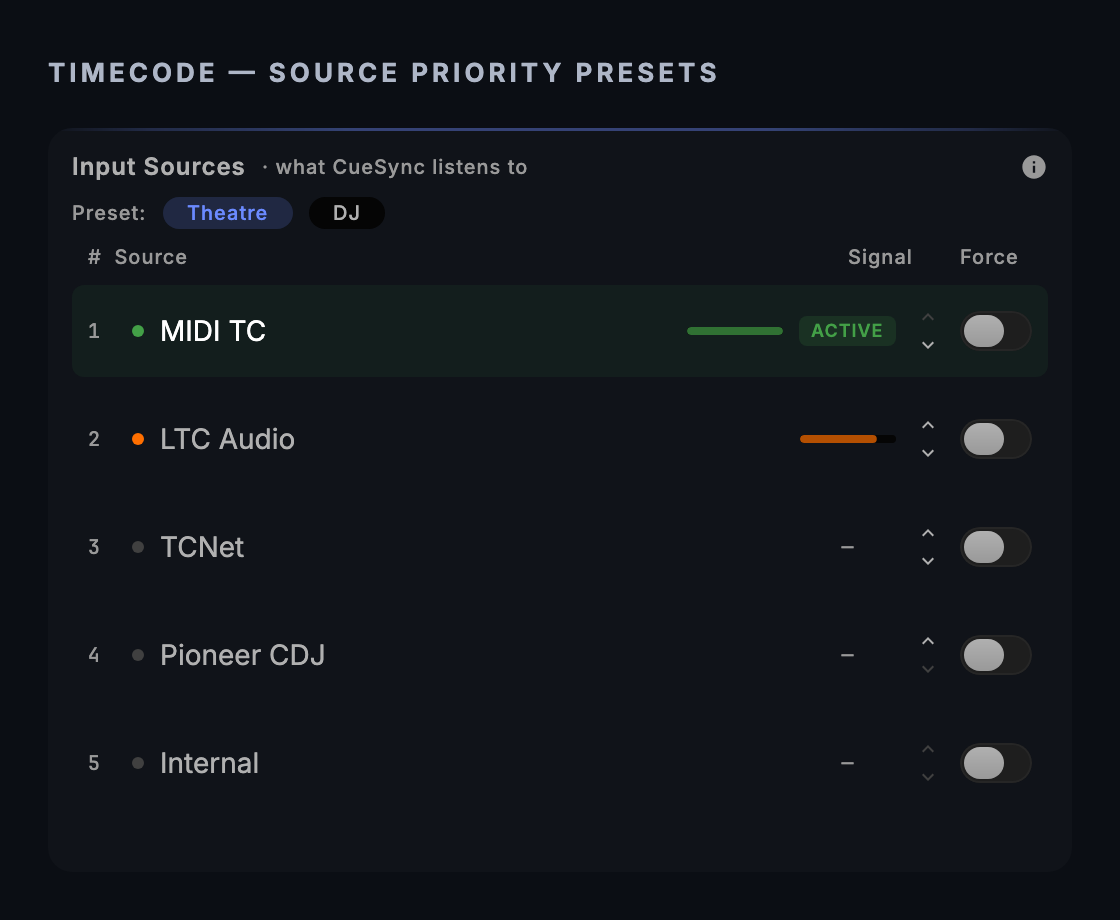
Three timers matter, and two of them are both called freewheel:
| Setting | Where | Default | What it does |
|---|---|---|---|
| Source Timeout | Settings → Timecode → Advanced | 2000 ms | Time without a frame before a source counts as lost |
| Freewheel Duration | Settings → Timecode → Advanced | 5 s (1–30) | How long the clock keeps advancing on its last rate after a dropout when there is no live source to take over, before CueSync gives up. A live lower-priority source takes the clock on its first frame after the Source Timeout (2 s) and does not wait for this |
| Freewheel duration | Settings → Show Control → Timecode Recovery | 15 s (1–60) | How big a jump in timecode counts as a relocate or gap the show must recover from, rather than jitter |
The Timecode screen also carries the show's Venue TC origin: the house-clock reading that equals the show's 00:00:00:00. If the playback starts its LTC at 01:00:00:00, set the origin to 01:00:00:00 and a cue authored at 00:04:00 fires when the house clock reads 01:04:00. A house clock that has not reached the origin is ignored. (The Trigger tolerance beside it is the default for Timecode triggers in the Cues list. A Show Editor cue carries its own Tolerance (±frames), and new cues start with Settings → Show Control → Timecode Tolerance → Default tolerance, 2 frames.)
Sending the clock to the desks
Timecode → Output Routing lists what CueSync broadcasts. Four rows are the native legs, and each needs its own device or switch in Settings → Timecode: LTC Audio → an audio device, MTC → a MIDI port, Art-Net TC → a host (broadcast by default), and TCNet. Below them are protocol rows for outputs you have already added in Network.
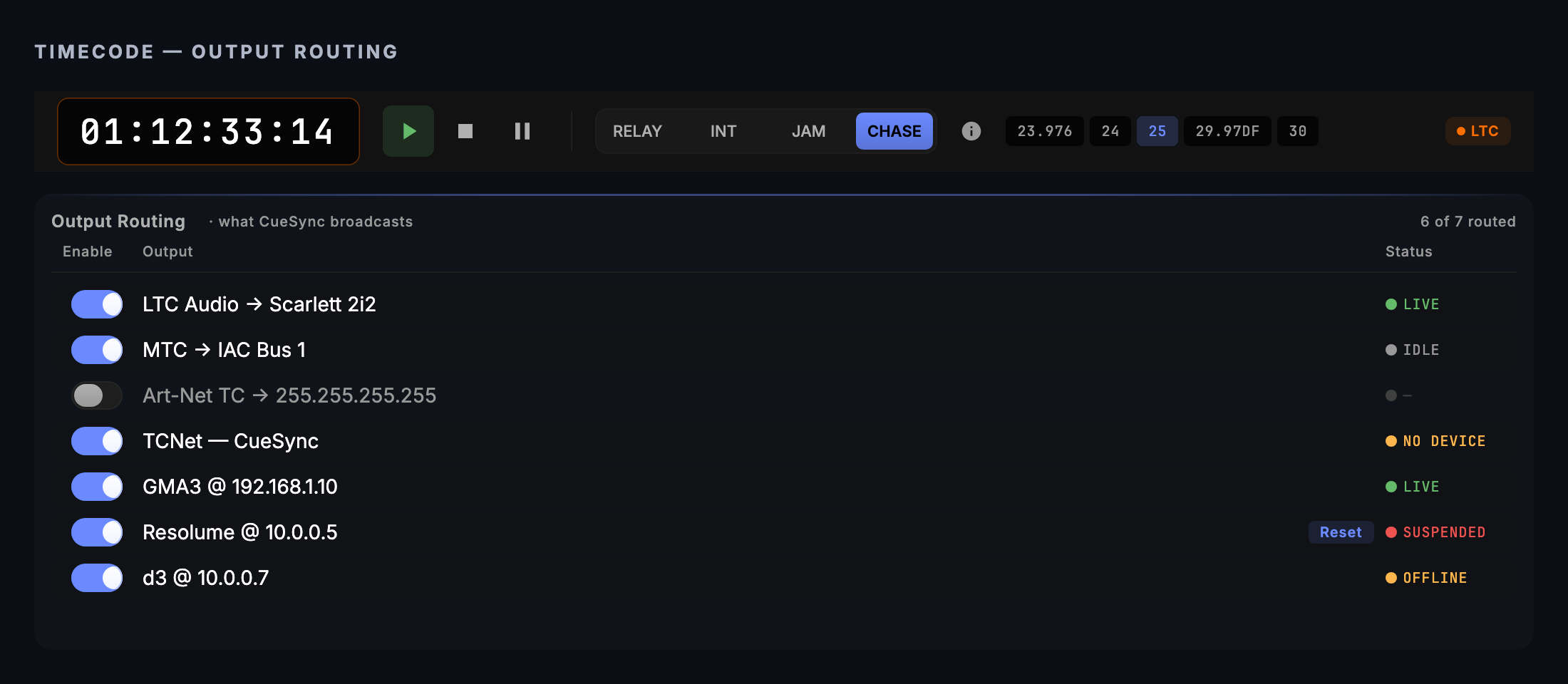
Only some protocols can be a protocol row:
| Can be a row | Lands as |
|---|---|
| grandMA3 (UDP and TCP) | One of the desk's timecode slots, run by its own generator: positioned when the clock starts or jumps, paused when it stops |
| grandMA2 (Telnet and OSC) | Goto Timecode <slot> Time "hh:mm:ss:ff" |
| Resolume, TouchDesigner | Timecode position messages |
| Art-Net | ArtTimeCode packets |
| sACN | Six consecutive DMX channels (hours, minutes, seconds, frames, rate, running) from a start channel you choose |
Not offered, on purpose: disguise takes timecode over LTC or MTC, not OSC. QLab chases MTC or LTC natively. Unreal takes timecode through the paired plugin connection, not a row. ETC Eos, ChamSys, Avolites, Pixera, VIOSO, Pangolin and MSC have no timecode row. Route those systems from the LTC or MTC leg. Each row shows its own health: LIVE, IDLE, NO DEVICE, OFFLINE, or SUSPENDED with a Reset button.
A grandMA3 slot follows CueSync's clock by running its own generator from the position CueSync gives it. The desk runs the clock between positions, so test a whole act for drift before you rely on it.
Locates, relocates and gaps
The rules are on Run Mode. In one table:
| What the clock does | What CueSync does |
|---|---|
| Steps back by less than the Show Control Freewheel duration | Cues that already fired stay fired. A throttled note says so |
| Jumps back by more than it | A relocate. In Jump to current and Resume from last the show re-arms from there, so one-shots ahead fire again. The banner says how many were re-armed |
| Jumps forward by more than it | Jump to current skips and names the passed cues. Resume from last fires only the most recent few. Ask operator pauses |
| Is already running ahead when you press Play | A pickup: the passed cues are skipped, not replayed |
Under Jump to current — the default — a relocate or a skip re-sends each lane's look for the landing point, the same pick-up a Goto does, so the desks match where the clock now is. Resume from last on a forward gap catches the passed cues up (up to eight) and re-sends no look; Ask operator pauses.
The systems, one by one
Each paragraph gives the verbs a Theatre cue uses and how far the lane has been proven. Every edition includes every protocol.
grandMA3. Add an output with GrandMA3 (UDP), port 8000. Use the GrandMA3 Sequence cue action (Goto cue with an optional fade, Go+, Off) or the GrandMA3 verb picker, and prefer Goto cue with a cue number. To prepare the desk, Sync to GrandMA3… pushes a Part into a sequence: one Part per sequence, in the scratch range 900–999 unless you have adopted the LD's own sequence. The first push stores every cue; later pushes merge and never re-store a cue you have not changed, so the looks programmed in them survive. The optional read-only bridge plugin reports the desk's sequences back. For a desk-run show, Export Timecode XML (USB)… writes a Timecode object with an event for each Timecode cue only, on the house clock; import it with Import Timecode <slot> "CueSync TC <seq> - <track>" /NC (the README beside the file prints the exact line). Choose one clock owner: if the desk fires those cues from its Timecode object, do not also route them from CueSync. Run against a physical grandMA3 console and on onPC; dry-run the verbs you rely on. See GrandMA3 and Session Sync.
grandMA2. Add GrandMA2 (Telnet), port 30000, with the desk's login. Verbs are Go+, Goto Cue <n>, Go-, Off and On on Exec <page>.<exec>, plus fader level, macro, blackout and freeze. Timecode goes to one of the desk's eight slots. Export GrandMA2 Macro… builds a cue list on the desk from a file. Do not use GrandMA2 (OSC): a stock MA2 has no OSC input, so cues read green while nothing happens. Not desk-verified. See GrandMA2.
QLab (audio). A QLab action with a cue number sends GO to that cue; with no number it sends GO to whatever the playhead holds. It can also stop, pause, resume, panic, reset, select, start a cue without moving the playhead, and move the playhead without firing. Add the output over TCP or UDP on port 53000. A new QLab 5 workspace answers denied until you enter its OSC passcode or tick View, Edit and Control on the No Passcode row. With a second workspace open, set Workspace ID (optional): without it QLab ignores the cue number and a GO fires whatever sits at the playhead. Run against QLab 5. See QLab.
Resolume, Pixera, disguise (video). Resolume (UDP OSC, port 7000) triggers a clip by layer and position, clears layers, and sets layer and composition opacity; it was run against a live Arena. Pixera (JSON-RPC over TCP) plays, pauses and stops a timeline by name, seeks, recalls a cue by index on a timeline index, and can stop every timeline. Its API slot must be JSON/TCP (dl), and it has not been run against a Pixera server. disguise (d3, UDP OSC, port 3031) recalls a cue by integer or decimal number and runs section transport; it has no layer or timeline control, and has not been run against a d3, vx or gx. See Resolume, Pixera, disguise.
MIDI Show Control. For houses that run on MSC: GO, STOP, RESUME, TIMED GO, LOAD, RESTORE, RESET and GO OFF on a cue, list or path, FIRE for a macro, ALL OFF, STANDBY and SEQUENCE steps, and start, stop or zero a list's clock. The output's host field is a MIDI output port, and the device ID defaults to all-call. On a rig with several MIDI interfaces, pin the port or a GO reaches the wrong device. Built to the published spec, not hardware-verified. See MIDI and MSC.
Art-Net and sACN. Channel value, a channel map on a universe, blackout and full on. Both emit real packets, but nobody has confirmed a fixture moves on a real node, so they stay experimental. See Art-Net and sACN.
Unreal Engine. With the CueSync for Unreal plugin paired, a Theatre show drives the world over the paired plugin connection: rewinding the show reverts the world instead of leaving values stuck on, and the plugin can act as the engine's timecode provider. Nothing is sent to it in DRY. Run in the engine. See Unreal.
Pixel wall. A Pixel Wall action fires an authored look at a timecode, with a fade, a colour ramp by name and a zone. It needs a licence that can operate and this machine to be the live one, and a frozen wall refuses a pixel cue. Art-Net and sACN paths are experimental. See Pixel Wall.
ETC Eos, ChamSys MagicQ, Avolites are built to the manufacturers' published interfaces and are not hardware-verified. See Eos, ChamSys and Avolites.
Rehearsal safety
SHOW, DRY and REHEARSE+
The mode is one setting for the whole show. Change it from the Show Editor's lane strip, from Run Mode's toggle, or with R in Run Mode. It cannot be changed while the show plays ([pause to change]).
| Mode | Cue actions | Run Mode banner |
|---|---|---|
| SHOW | Sent to every routed output | none |
| DRY | Not sent. Cue states, chains and control cues still advance, and the activity log records each fire as DRY | DRY RUN — No outputs |
| REHEARSE+ | Sent, to exactly the same outputs as SHOW | LIVE REHEARSAL — outputs are firing |
The only mode that suppresses cue output is DRY. Three things follow.
- DRY mutes timecode output. The generator's clock keeps running, but MTC, LTC, Art-Net timecode, TCNet and the protocol rows are parked, so a desk chasing CueSync's clock does not follow, and nothing fires there from it. CueSync says so once when you enter DRY. Take the show out of DRY to send timecode again.
- The switch is shared. DRY switches off output for every engine, so the Cues list and pads are silent too. The Cues screen has its own DRY RUN toggle that works the same way. Check both before doors.
- In the Show Editor on a Master show with audio, Play previews the Part's audio and also puts timecode on the wire. CueSync fires no cues until Run Mode starts the show, but a desk chasing CueSync's clock runs.
The mode is not saved in the show file. It comes back as SHOW.
The Run Mode transport
P plays and pauses; Pause, Stop (Esc) and Back each need a second press inside Settings → Show Control → Safety → Double-press timeout (3 s by default). GO can be made a double press too: Settings → Show Control → GO Confirmation → Double press. A GO that comes within 250 ms of the last one is ignored by default (Double-GO protection, same card), whichever door it came through; Enter and Fire Next Standby ask the same window. A held key is one press. Esc on a stopped show does nothing. Hold TC stops the clock from firing cues without pausing playback; GO and the standby cards still fire. Back steps to the previous enabled cue and re-sends that lane's look; against an external clock it re-sends the look and the playhead stays with the clock. A Goto, Back, section jump or timecode locate never re-sends a MIDI Show Control cue addressed to pyro, flame, CO₂, fireworks, explosion or smoke-pot equipment: the log and a warning name the cue that was not re-sent, a lighting desk's MSC look is still restored, and the pyro cue fires when the show plays through it. The running order jumps to a cue only while the show is paused or stopped.
The state words in the running order:
| Word | Meaning |
|---|---|
| STBY | Standing by. Manual, Follow and Auto cues sit here from Play; a GO or Enter takes them |
| ARM | Armed on timecode. Fires when the clock reaches it, or on GO |
| WAIT | Pending. Its section is set to arm on entry and the playhead has not reached it |
| CUT | Disarmed by hand from its section's menu (Disarm cues). It stays out until you re-arm it — a Goto, Back or section jump past it does not send it |
| LAST | The cue that went last, just above NEXT, with how long ago it fired |
| GONE | Already fired. Recent ones stay above the head of the list, dimmed |
The status badge in the header reads RUNNING, WAITING FOR TC, PAUSED, STOPPED, or HELD — NO TC CUES while Hold TC is on and the show is playing (a paused show with Hold TC on reads PAUSED).
Section menus in the Parts rail carry two theatre tools. On an Intermission, At end → Hold show (pause) pauses the transport when the playhead leaves it — before anything in the next section fires. The next section's opening cue goes when you resume. On any Act or Scene, Arming → On entry holds that section's cues as WAIT until the playhead enters it, so a later act is not armed during the first.
The readiness gate and Flight Check
Every cue has a readiness state: Drafted, Tested, Ready. Right-click a cue in the cue list: Test Fire sends it, and a successful send marks it Tested (in DRY nothing is sent, so nothing is promoted); Mark Ready appears once it is Tested. With Settings → Show Control → Playback → Confirm start when cues aren't Ready on (it is off by default), pressing Play in Run Mode on a stopped show asks Start show? and names how many cues are not Ready. Review opens the per-Part matrix. Start Anyway always starts: the gate advises and never blocks. Resuming from a pause skips it.
Walking into Run Mode with the show stopped also opens Flight Check once per show, but only when an output a cue targets is unreachable or a cue is pinned to an output that no longer exists. The window is titled Pre-Show Check. It is also on the Network screen's toolbar.
When things fail
| What you see | What it means | What to do |
|---|---|---|
| WAITING FOR TC, chip NO TC, a banner WAITING FOR TIMECODE … Expecting <the top-priority source>, then a red toast No timecode received — the show is armed but will not advance and no cues will fire | Play was pressed and no frame has arrived | Open Timecode Settings from the banner. Check the source row, that the chip says Follower, and that nothing is Forced to a silent source. Press Stop, then Play |
| Header shows FREEWHEEL, and a standing banner Timecode freewheeling — source <X> silent | The source dropped and nothing live can take over. The clock carries on from its last rate for the Freewheel Duration and cues keep firing | Fix the source. Nothing else is needed yet |
| An error notification Timecode source lost — MTC went silent. Now following LTC. Verify show position. | The source went silent and a live lower-priority source took the clock on its first frame after the Source Timeout. Cues inside the gap are caught up, like a freewheel | Check the show position against the room, then find why the first source died |
| A red Timecode lost — no fallback source available | Freewheel ran out and nothing else is live. The show stays PLAYING; cue firing freezes at the last position. Show audio keeps playing on its own clock | Take the show by hand (below). Fix the source |
| Timecode lost — forced source <X> silent (fallback disabled while forced) | A Forced source is dead and Force blocks the fallback | Clear the Force |
| Running on CueSync's internal timecode — no external source is locked. Verify show position against the room. | CueSync fell back onto its own generator | Do not trust the position. Goto or locate the source |
| TC recovery or TC jumped back banner | The clock jumped past the recovery window | Read the banner, press Acknowledge. What fires again depends on the recovery mode |
| ⚠ N TC out fail, or a row SUSPENDED | A timecode output failed. CueSync suspends a failing row and retries | Press Reset on the row. Check the device |
| A cue fails on one output; the status dock shows it unreachable or paused | The output is down. Other outputs keep firing. CueSync reconnects automatically | Network → Outputs → Restart Failed is safe mid-show. Nothing is queued: a cue that failed is not replayed |
| Green cue, nothing on the desk | UDP cannot say whether anything listened | Read the desk's own log. For grandMA3, the Command Line History |
Taking a show by hand when timecode is gone. Press Hold TC first, so the clock cannot fire a burst if it returns. Then work GO down the running order; GO fires the next armed cue whatever the clock says. To skip ahead, pause and click the cue in the running order. When the clock is back, Resume TC; the held span is treated as a gap and the recovery mode decides what happens to it.
After a crash. There are two separate offers on relaunch.
- Unsaved Changes Found (the Recovery dialog) offers Restore Recovery, Open Last Save or Cancel for edits made since the last save.
- This show was interrupted while running is a banner in Run Mode. It reads Restore to <timecode> with N cues already fired · saved <age> ago, with Discard and Restore. Restore only works while the show is stopped, and Play clears the offer. The snapshot is written at the Backup interval you set in Settings → Show Control → Auto-Backup while the show plays, is offered after a crash for a limited time, and is cleared by a clean Stop. Pause does not clear it.
CueSync sends nothing on relaunch. The desks stay where they were until a cue, a Goto or a Back re-sends a look.
Panic. BLACKOUT in Run Mode (press twice inside the window), Cmd+Shift+B from anywhere, or PANIC: Blackout All Outputs in the command palette blacks every output out and latches.
- Blackout holds the show. It engages Hold TC, the badge reads HELD — NO TC CUES, and a banner says Blackout — show held; TC cues paused. Release the blackout (Esc) to continue — Resume TC stays locked while it is on. CueSync's timecode outputs are parked while it is latched, so a desk chasing CueSync stops too.
- GO still sends. The GO button turns red and its caption reads INTO BLACKOUT. Manual firing is never disarmed.
- Release with one click on the same button, which now reads BLACKOUT — Click to release, or with
Cmd+Shift+BorEsc. Release restores a grandMA3's Grand Master to 100, not the level the LD had, and lifts Unreal's camera fade. It restores nothing else. Bring looks back with a Goto or Back. - Freeze (
Cmd+Shift+G) and Manual Override (Cmd+Shift+M) act on AutoPilot, the Cues list's automatic triggers and the pads. They do not hold a Theatre show's timecode cues. To stop a show firing, use Hold TC, Pause or BLACKOUT.
Paperwork
Export Cue Sheet (File → Sync, Import & Export → Export Cue Sheet…, Export… in the cue list toolbar, or the button on the Timecode screen) writes the operator list, department sheets, calling script and running order from the cues in the Show Editor, as PDF, HTML, CSV or Markdown. Cues fired by GO read STBY in the calling script. See Export Cue Sheet.
After the show, three records exist. Run Mode's activity log exports as CSV (its file name starts with the show's name and ends activity log <date time>). Settings → Timecode → Advanced → Forensic Log has Export Timecode Event Log. Notification History is Cmd+Shift+H.
Use cases
1. A 90-minute musical on LTC, with a grandMA3 and QLab
This is an illustrative rig: one LTC feed from the playback machine into an audio input, one grandMA3, one QLab machine.
- In Network → Outputs, press + and add GrandMA3 (UDP) on the desk's address, port 8000, then QLab on port 53000 with its OSC passcode. Press Test All. Each row should read Healthy.
- On the desk, Menu → In & Out → OSC: Enable Input and Receive Command on, Prefix empty, port 8000.
- Open Timecode (
Cmd+0). Press the Theatre preset. In Settings → Timecode turn on LTC (Linear Timecode), choose the LTC Audio Input, and set the Frame Rate to the playback's rate. Set Venue TC origin to the hour the LTC starts on. - In the Show Editor, tap the TC role chip until it reads Follower ← ext TC.
- Press + Lane (it offers LX first) and route the lane to the grandMA3; press + Lane again for SFX and route it to QLab. Press + Add Part for each number in the running order. Add each cue in Timecode mode with a GrandMA3 Sequence cue (with a cue number) or a QLab action (with its cue number).
- Choose File → Sync, Import & Export → Sync to GrandMA3…, pick sequence 900, read the First push diff, Send to GrandMA3…, Confirm send. Let the LD program into those cues. Do not also export a Timecode XML for the same cues.
- Run Flight Check. In Run Mode, press
Runtil the toggle reads DRY, press Play (the header reads WAITING FOR TC until the LTC arrives), then start the playback and watch the running order. Nothing reaches the rig. Pause, pressRfor REHEARSE+, and run it again. - For doors: set SHOW. Press Play before the playback's LTC starts, or Goto the opening cue first: a Play into a clock that is already running well ahead (by more than the Show Control Freewheel duration) skips the cues in between instead of replaying them.
You should see the header read TC OK · LTC 25fps (at your rate), the next cue counting down, and the grandMA3's Command Line History showing an OK: line for each cue.
2. A corporate show called by a stage manager, Manual GO only
- Choose File → New Project. On Theatre or Production the show starts as a no-audio Master, so CueSync generates the clock and Play starts it. Leave it; see the note below.
- In the Show Editor add the cues, number them as the stage manager's script does, and set each to Manual in the Inspector's Triggers tab.
- Route the lanes as in use case 1.
- Optional: Settings → Show Control → GO Confirmation → Double press. Leave GO fires the standby stack on.
- In Run Mode press Play. Every Manual cue moves to STBY and the hero card is labelled STANDBY, with GO in place of a countdown. When the stage manager calls "LX 12, go", press
Space. - To pick up from another cue, press LOAD on its row; the next GO or
Entertakes it. To jump the whole show, pause, then jump from the running order. - Afterwards, choose Export Cue Sheet… and the Calling script layout.
You should see the fired cue turn GONE, the next standby cue take the hero card, and the On GO → line name the cue GO will fire.
Why Master, and not Follower: a show with no timecode source shows WAITING FOR TC and NO TC while it plays, and the red No timecode received toast is raised after a couple of seconds even when every cue is Manual. On a no-audio Master the generator supplies a clock and the toast does not arise. Back steps by timecode position, so with a stopped clock it has nowhere to go; use LOAD and Goto.
3. A rehearsal day: DRY, then REHEARSE+
- In Run Mode, stopped, press
Runtil the toggle reads DRY. The banner reads DRY RUN — No outputs. - Press Play and run the act. Pause and use the running order to jump; press Back twice to step back a cue.
- Press
Lto open the activity log. Each fire is recorded as DRY. Export it as CSV if the director wants a record. - Pause, press
Rto REHEARSE+. The banner reads LIVE REHEARSAL — outputs are firing. Run the same act. - In the Show Editor, right-click each cue you have proved and choose Test Fire, then Mark Ready.
- Before doors, turn on Confirm start when cues aren't Ready in Settings → Show Control and set the mode back to SHOW.
You should see DRY fires in the log with nothing on the desk, then the same cues reaching the rig in REHEARSE+, and a Start show? prompt that counts any cue you skipped.
If a desk is chasing CueSync's clock, it does not follow in DRY — timecode is muted — so rehearse the desk's own timecode show with the show out of DRY.
4. LTC dies mid-act
- The header shows FREEWHEEL. Do nothing for the Freewheel Duration (5 s by default). Cues keep firing.
- If a lower-priority source is live, an error notification names the failover. Check the position against the room.
- If not, a red Timecode lost — no fallback source available appears. Click Hold TC.
- Press GO for each cue the stage manager calls. If the show must skip ahead, pause, click the cue in the running order, and resume.
- When LTC returns, click Resume TC. Press Acknowledge on the recovery banner.
You should see cues firing only when you press GO while the hold is on. When you release, the cues that went by during the hold are skipped or caught up as the show's recovery mode says — under the default Jump to current there is no burst.
Tips & gotchas
- File → New Project starts a Theatre show as a Master. A show that must chase an external clock needs the chip flipped to Follower.
- A Master show with audio may not send MTC. MTC from a Master show depends on the show's own MTC setting as well as on Settings → Timecode → MTC Output, and the show's own setting is switched on every time you promote a show with the chip — audio Masters included — and by File → New Project; to publish MTC from a show that lacks it, flip the chip to Follower and back. The LTC, Art-Net Timecode and TCNet legs and the protocol rows have no such condition. If a desk must have MTC from an audio Master, test it before the day.
Spacemeans different things by screen. In Run Mode it is the Theatre GO. In the Show Editor it is Play / Pause — the same as the transport's Play button — in DRY and REHEARSE+, and it does nothing in SHOW mode, so a stray key cannot pause the show; it never fires GO there. On the other screens, such as Cues, Cue Pads and Home, it is the Cues list's GO, unless a local audio track is playing or paused, in which case it toggles that track. In Track Prep it never fires a cue.- A show built on another computer opens with its network outputs held. A notice lists them, each with the address it would dial, and nothing is sent until you press Connect (or switch each output on from Outputs). MIDI outputs are not held. Do this at the tech rehearsal, not at half hour; once a show with no unsaved changes has been connected here, it reopens connected on this computer until the file changes.
- UDP outputs report a send, not an arrival. grandMA3 and Resolume over UDP show green whether or not anything listened. Prove each lane on the system itself.
- Nothing is queued for an output that is down. After it returns, re-establish lane looks with Goto or Back; only absolute actions are restored.
Before show use
Protocol status follows the Protocol Reference: grandMA3 has been run against a physical console and on onPC, Resolume against a live Arena, QLab against the real program and Unreal Engine 5 inside the engine. The other integrations are built to the manufacturers' published interfaces and are not hardware-verified, and Art-Net and sACN are experimental. Do one dry run on your own rig and software versions before show use. A checklist for proving your own desk is on Desk Verification.
Related
- Show Editor — Build the Parts, lanes and cues
- Run Mode — The live console, transport and timecode recovery rules
- Timecode — Sources, generator modes and the output matrix
- GrandMA3 and Session Sync — Verbs, the push and the Timecode object
- Network Outputs — Adding and testing outputs
- Export Cue Sheet — The paperwork
- Hybrid Night: Theatre then DJ — When the night does not end at the curtain
- How CueSync Works — The mental model
- Protocols — Every transport and default port
Looking for a quick fix?
The Help Center has short task-focused articles and a support team that responds within 24 hours.