Home
AllWhat it's for — Home is your command deck before and between sets. It surfaces everything you need to start or resume a show: pre-show readiness gaps, the next cue ready to fire, recent show files, and quick-launch actions.
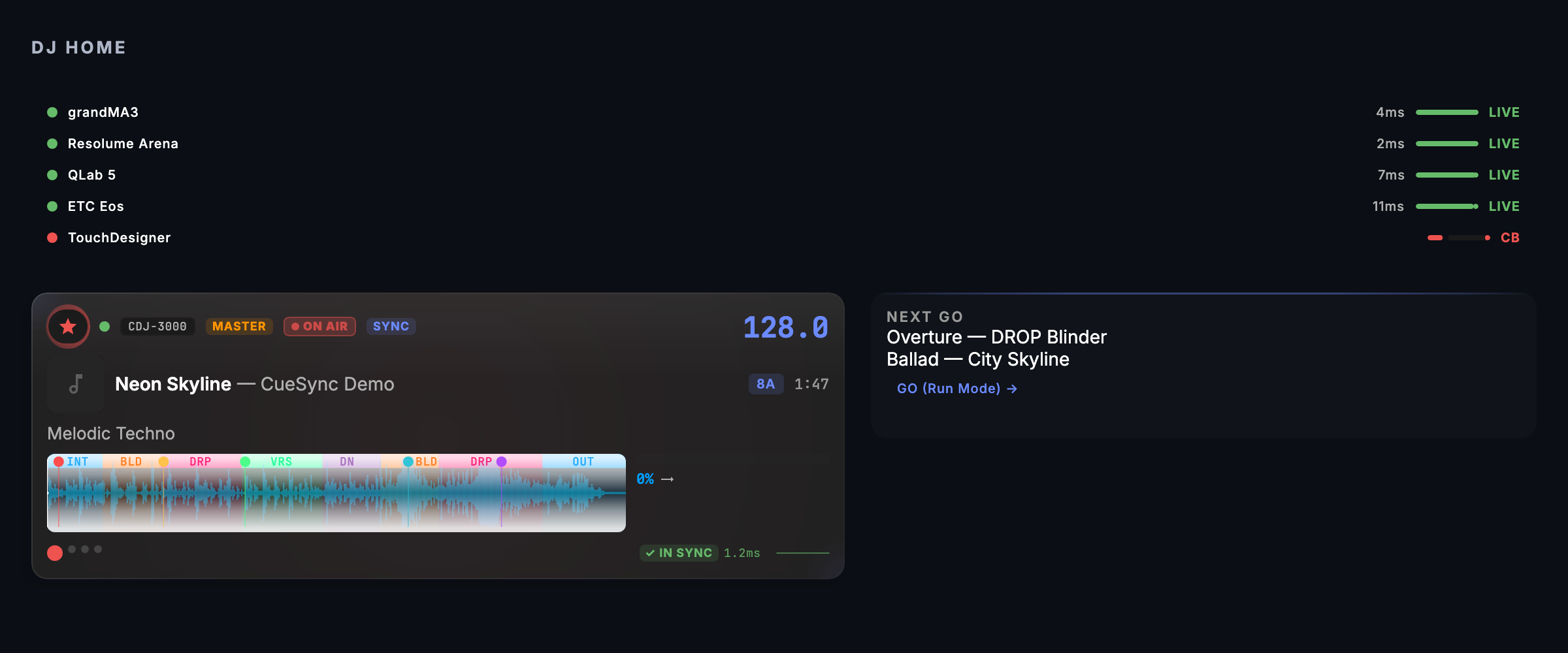
The screen, region by region
Project card (top) — Shows the current show's name, venue, and a one-line summary of what it holds (for example 6 outputs · 128 cues; Theatre shows count show tracks, and Production lists both) beside the last-saved time. An amber dot appears when there are unsaved changes. A Read-Only pill appears if your license is not active, and clicking it opens Settings. Action buttons sit to the right:
- Save — saves the current show (only visible when there are unsaved changes).
- Project Info — opens the show's venue, notes and file location (the same dialog as File ▸ Project Info…,
Cmd+I). - Flight Check — opens the pre-show readiness dialog, which lists every unresolved issue before you go live. The dialog itself is titled Pre-Show Check; see Dialogs. It also carries a line for each MIDI Show Control action in a pyro, flame, CO₂, fireworks, explosion or smoke-pot format — one per cue, pad, Look, Auto Pilot profile or timeline clip that holds one, with the device and format — so you know what the show can fire; those lines are notices and never stop you going live, and an action addressed to every device (the all-call) counts as a warning.
Readiness runway (left column) — Tells you what to fix, in order. A header shows how many fixes stand between you and show-ready (or prep-complete) and how many checks are already clear. Directly under it, one card names the single best next step — Fix this first when it is a blocker, Next best step when it is a warning — with its fix as a button. Everything after that is listed under After that, each row naming the issue, what it blocks, and a primary fix (accent) and, where there is one, a quieter secondary fix. Informational items (an optional MIDI controller, say) are listed but never recommended. When the active AutoPilot profile maps moments that no connected output takes, the runway says so — as a warning when none of its moments can fire on this rig (it would arm and fire nothing), as information when only some cannot — naming them; it is one of the At the venue checks while you prepare. When nothing is left, the card gives way to a green Show-ready banner.
The runway has two contexts, set with the Prep | Venue switch in its header:
- Prep — you are building the show away from the rig. Hardware checks (outputs reachable, CDJs, timecode source) are folded into an At the venue note instead of nagging.
- Venue — every check is live, including the rig.
The switch follows your rig on its own (a CDJ or a healthy output moves Prep to Venue) and is marked AUTO. Click either side to pin that context; a ↺ AUTO tag then appears — click it to hand control back.
A Local Audio set counts as a way to run the show. While tracks are queued in Local Audio, or one is playing, the runway does not ask for CDJs or for PRO DJ LINK: the set plays from files. If Auto Pilot is on with a profile armed it does not ask for cues in the stack either, because Auto Pilot fires from the tracks' own structure, and Local Audio set appears among the checks that are clear. Without an armed profile, No cues loaded still stands, since nothing would fire. Decks that are on the link are still checked as before, and every other check (outputs, the show file, unsaved changes) is unchanged. Home does not judge the queued tracks one by one — the readiness strip on the Local Audio screen does that.
Right column — Contains up to four panels, stacked vertically:
- Next cue card (DJ / CueSync Production editions) — Shows the name, number, and trigger type of the next cue in your stack. Press GO to fire it immediately (shortcut:
Space). If the stack is empty, a link opens the cue stack directly. - Fire plan preview (DJ / CueSync Production editions) — Appears when Auto Pilot is armed. Lists the next three planned automation moments with beat positions. Click the card to open the full Auto Pilot screen.
- Next GO (Theatre / CueSync Production editions) — Shows the next cue a GO will fire, with a link to Run Mode.
- Recent shows — Up to eight previously opened show files, each showing its venue, when you last opened it and its size. The show that is open now is marked OPEN (with a show open and nothing else to list, the card reads No other recent shows). A Resume tile for the most recent show (with its venue and when you last opened it) appears above the grid when it differs from the currently loaded show. Right-click any show for Open, Reveal in Finder and Remove from recents (this forgets the list entry only — the show file is never touched). A show whose file cannot be found — typically one on a USB stick or network share that is not connected — is dimmed and marked File not found, and offers Remove instead of a click that loads nothing. Below the grid, New Show, Open Show, and Templates buttons let you start fresh. A show that CueSync cannot confirm was last saved on this computer (one a colleague sent you, say) opens with its network outputs held: a notice lists them with the addresses they would dial, and Connect turns them on (or switch each on in Outputs). Your own shows open connected as before.
Pad strip (bottom) — The current bank's cue pads, always within reach without leaving Home. Step between banks with the arrows either side of the bank name; the badge beside it counts pads currently active. GO fires the next cue (the same action as Space) and RESET rewinds the cue stack to the top — it stops nothing and it is not a blackout; the panic controls are on the EdgeBar. The Stop All button beside GO is two-press (it reads TAP AGAIN for a moment) and is enabled only while something is actually latched on; it releases every active pad across every bank, not just the one you are looking at. Pads that do not fit the width collapse into a +N overflow.

Common tasks
- Run a flight check — Click Flight Check in the hero band. Review and resolve each issue before switching to a live screen.
- Resume the last show — Click the Resume tile at the top of the recent shows list. The show loads immediately.
- Fire the next cue — Click GO in the next cue card, or press
Space. - Open a recent show — Click any card in the recent shows grid.
- Start a new show — Click New Show in the quick-launch row.
- Open an existing show — Click Open Show (
Cmd+O). - Jump to a readiness gap — Click the fix on the Fix this first card or on any row below it. CueSync navigates to the relevant screen and, where possible, initiates the fix automatically.
- Tidy the recent list — Right-click a show ▸ Remove from recents, or click Remove on a card marked File not found.
- Find a show on disk — Right-click it ▸ Reveal in Finder, or open Project Info for the show that is loaded.
Tips & gotchas
- The readiness runway context switches automatically. When Pioneer devices appear on the network the runway switches to "venue" context (focusing on output routing and connection health). When no devices are present it defaults to "prep" context (focusing on cue stack and track analysis). Pin one with the Prep | Venue switch; ↺ AUTO returns to auto-sensing. Once the rig has been seen in a session, auto stays on Venue — a CDJ power-cycling mid-show never quietly mutes the hardware checks.
- The fire plan preview only appears when Auto Pilot is armed. If you do not see it, open Auto Pilot and enable it there, or wait for a track to load.
Spaceis not always GO. While a Local Audio track is playing or paused,Spaceplays or pauses that track instead of firing the cue. Click GO, or stop the local track first. See Local Audio.- Pre-Show Check can open by itself once. On the DJ Home, the first time you move into preparing a track in a session, the check opens on its own if no other dialog is up. Close it and carry on. It does not reopen until the next session.
- Two manual GOs in 3 seconds pause Auto Pilot. GO here counts as a manual firing, like GO anywhere else. See Auto Pilot, and the DJ Set Workflow for a whole set.
- Read-Only mode blocks saves and GO. If you see the Read-Only pill, your license is not active. Go to Settings → Account to activate it.
- The Next cue and Next GO panels are edition-adaptive. On CueSync Production (the combined edition), both panels appear simultaneously when a DJ cue stack and a Theatre show track are both loaded.
Related
- Auto Pilot — Set up and monitor automation
- Run Mode — Theatre live playback console
- Performance — DJ live dashboard
- Cues — Manage the cue stack
Looking for a quick fix?
The Help Center has short task-focused articles and a support team that responds within 24 hours.