Cues, Pads or Scenes?
AllWhat it's for — CueSync gives you three things to build a show from: cues that fire on a trigger, Cue Pads you play by hand, and Looks in the Palette, which are named stage states any of the others can fire. They overlap on purpose. This page says what each one is, what only it can do, how they combine, and which to reach for. Then it walks through eight recipes built for a realistic demo rig.
Words first. The title says Scenes because people arrive with that word. In CueSync a Look is the named stage state, and the app says Look everywhere. Scene means two other things here: a row of Cue Pads fired together, and the middle level of Act.Scene.Cue in the Show Editor. It is never a Look. The Scene Chain trigger is a third use of the word: it chains cues, not Looks.
The three side by side
| Cue | Cue Pad | Look | |
|---|---|---|---|
| What it is | A trigger plus a list of actions | A button with a name, colour, fire mode and one action | A named stage state: one console cue, clip, laser cue or pixel look, or a Bundle of several |
| Made in | Cues (cue stack), Show Editor (Theatre) | CuePads | Palette |
| Fired by | Its trigger: a beat, a phrase, timecode, MIDI, your GO, a hotkey. Also a pad, another cue, or Test Fire | A click, a key, a MIDI note, a Stream Deck or grid controller, a Companion Deputy tablet | A cue, a pad or an Auto Pilot moment, through a Look action. Also its own tile in the Palette's Perform mode |
| Holds more than one thing? | Yes: many actions | One action (a pad can fire a group of pads, or a recorded macro) | A Bundle holds several targets |
| Timing | Actions between Waits fire together; a Wait holds the next step. Auto-follow advances the stack by itself | Launch quantize, repeat rate, follow action, arm for next downbeat | The Look itself has none. The thing that fires it does |
| Hold and release | None. A cue fires and is done | Toggle, Flash, Phrase Latch and Repeat hold and release | Tracked: panic and track change release it with its own Off. A release group makes Looks release each other |
| Ready state | Drafted, Tested, Ready | Drafted, Tested, Ready (Test Fire advances it) | None |
| Re-point mid-show? | Edit the cue | Edit the pad | Edit the Look once and every cue and pad that fires it follows |
| Saved in | The show file | The show file | The show file |
Cues
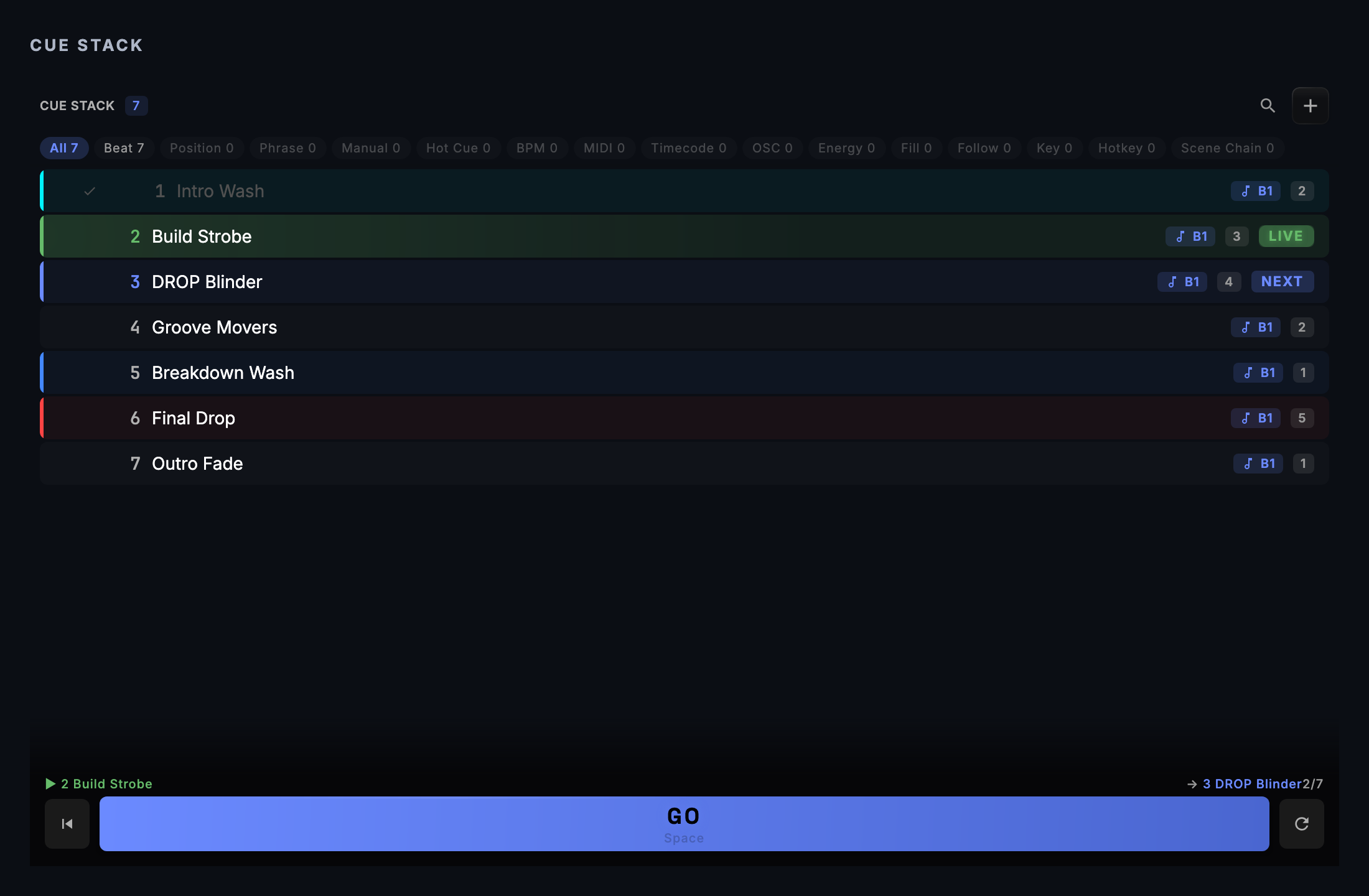
A cue is a trigger plus a list of actions, with a number, a name and a colour. The full screen is described in Cues. What matters when you are choosing:
- GO and order. The stack is ordered. Sequential triggers (Beat, Phrase, BPM and so on) are evaluated for the next cue only, so a stalled cue blocks the ones below it. A Manual cue waits for
Space. Hot Cue Hit is the exception and can fire any matching cue. Test Fire, the play icon on the row, fires a cue at once whatever its trigger says. - Steps. In the cue stack, the actions of one cue fire together. A Wait action ends a step: what comes after it fires when the wait is over. If a blackout or freeze lands mid-cue, the steps still to come are dropped and CueSync logs that.
- Follow. Auto-follow delay (seconds) in the Cue Editor makes the stack advance by itself that long after the cue fires. Firing another cue during the countdown cancels it.
- Groups. Select several cues and choose Transport ▸ Cue Stack ▸ Create Group. Right-click the group header for Fire Group (N), then Fire sequentially (each member waits out the previous member's auto-follow delay) or Fire simultaneously. GO still advances one cue at a time. Group fire is a separate verb.
- Cue Reference. A cue can hold a Cue Reference action that runs another cue. FIRE_ACTIONS runs its actions and leaves the stack where it was. GO_TO_CUE makes it the next cue without firing it. A loop is refused and the editor says so.
- Ready. Each cue is Drafted, Tested or Ready. An edit that changes what it does can demote it. Pre-show review counts them.
- Scene Chain. A cue with this trigger fires 1 to 32 bars after a named cue fires. It counts bars from beat events, so it needs a beat source. It is held while a Theatre show is playing, and cleared on a track change.
Theatre show cues live in the Show Editor at a timecode position on a lane, not in the cue stack. Each has a trigger mode: Timecode, Manual, Follow or Auto. Follow fires after its lane predecessor on the cue's pre-wait, and Auto fires together with it. A show cue can also carry intents, follow actions after a delay, and a control action (Goto, Group, Load). See Show Editor.
Cue Pads
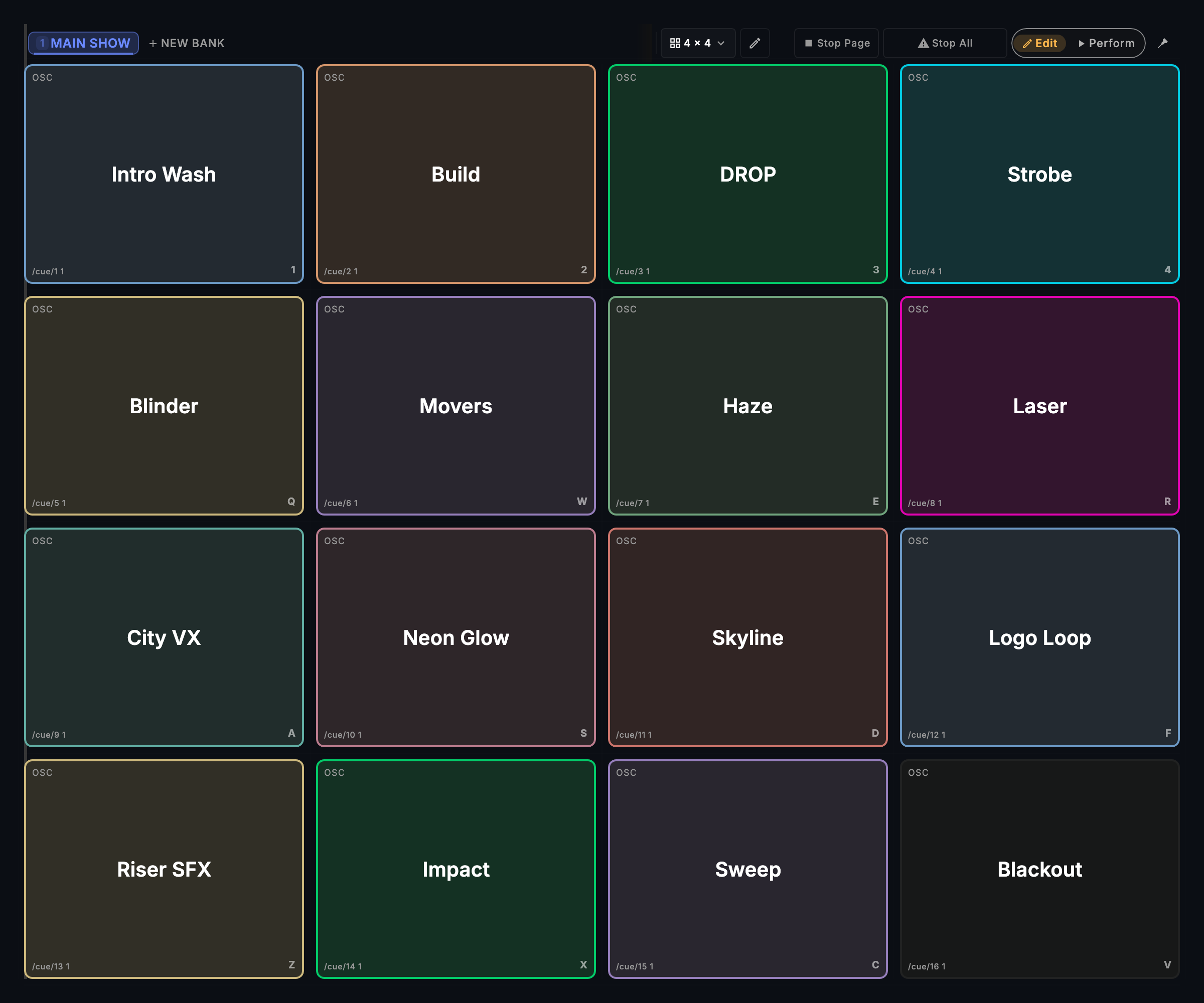
A pad holds one action, and the editor's Action section picks its kind with chips:
| Kind | Chip | What it does |
|---|---|---|
| A Look | Look | Fires a Palette Look. The Look decides the protocol |
| A protocol action | GMA2, GMA3, Resolume, QLab, Avolites, disguise, Art-Net, sACN, TD, UE5, MIDI, Custom OSC, Audio, ETC Eos, MagicQ, Beyond, VIOSO, Pixera, MSC, Pixels | Sends one typed action |
| Fire a cue | Cue Control ▸ Fire Cue | Runs a cue's actions from the pad |
| Step the stack | Cue Control ▸ Go Next, Go Previous | Moves the cue stack |
| Rewind the stack | Cue Control ▸ Stack Reset | Rewinds the stack to the top and sends nothing |
| Raw OSC | Advanced ▸ Send OSC | One OSC address and value |
| A chord | Advanced ▸ Pad Group | Fires other pads together |
| Panic | Advanced ▸ Blackout All | Fans out a blackout. With no protocol picked it is the same latched panic as Cmd+Shift+B. With protocols picked it is a filtered fan-out |
| Hand back | Advanced ▸ Resume AutoPilot | Same as the resume control |
| A recording | Macro | Replays the pads you recorded, with their timing. Made only by the recorder bar |
Fire modes (right-click → Mode, or the editor's Behavior section):
| Mode | Behaviour |
|---|---|
| Activate | Fires once on press |
| Toggle | First press fires the Activate action, the second fires the Deactivate action |
| Flash | Active while held. Releasing fires the Deactivate action. Auto-releases after 30 seconds if the release is lost |
| Phrase Latch | Holds until the next phrase boundary, then releases. Auto-releases after 60 seconds |
| Repeat | Re-fires while held. Rate is free (50 ms to 2 s, 250 ms by default) or tempo-synced to 1/4, 1/8, 1/16 or 1/32. Auto-releases after 30 seconds |
Toggle, Flash, Phrase Latch and Repeat use the editor's Activate and Deactivate tabs. A toggle pad with no Deactivate action shows a hint that the output will stay on.
Also in the pad editor and menus:
- Launch Quantize: Immediate, 1 Beat, 1/2 Bar, 1 Bar, 2 Bars, 4 Bars, 8 Bars or Phrase.
- Choke Group: firing a pad releases the other active pads in the same group in the same bank.
- Follow Action: fire another pad 1 to 32 beats later, with a chance below 100% if you want variation.
- Arm for next downbeat (right-click in Perform) fires the pad on the next downbeat.
- Test Fire (right-click) fires the pad without lighting its state, and it is what marks the pad Tested. A live press never does.
- Banks hold a grid (presets from 3 by 3 to 8 by 4, or a custom size), a colour, a lock that stops layout edits while pads still fire, and an optional deck for Auto-Switch on Deck, which acts only if Settings → Advanced → CuePads → Auto-switch bank on deck change is on. A scene row fires a set of pads together and can carry its own quantize.
- Panic locks the grid to Perform until the panic clears.
Looks
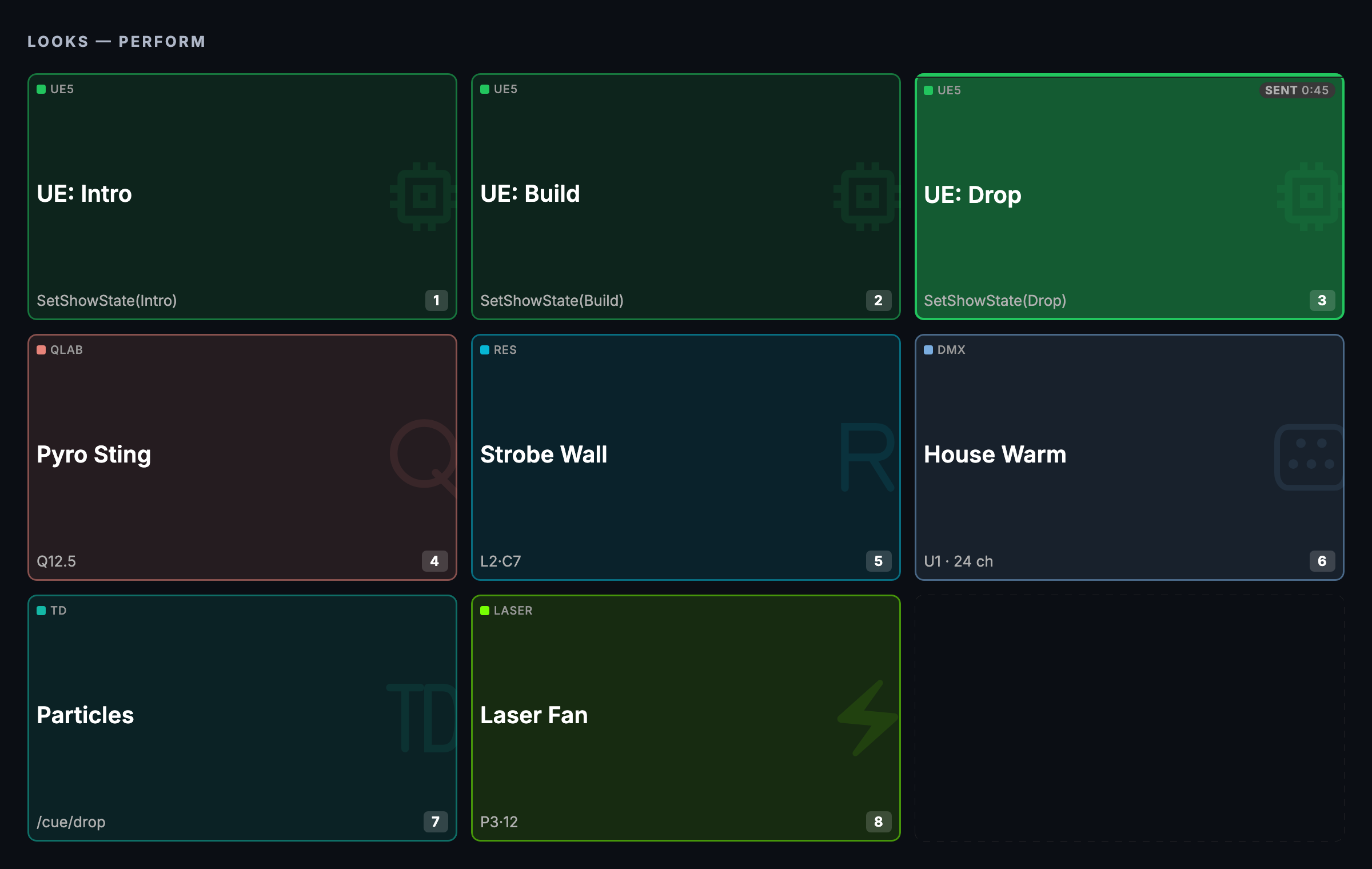
A Look is a named stage state. Build it once in the Palette, fire it from as many cues, pads and Auto Pilot moments as you like, and change what it points at without opening any of them. The Palette page covers the screen. What matters here:
- What can a Look be? One target for a grandMA3, grandMA2, ETC Eos, Avolites, MagicQ, Resolume, disguise, Pixera, VIOSO, TouchDesigner, Unreal, QLab or Pangolin, a DMX look, or a pixel-wall look. A Bundle holds several across any mix of systems and fires them as one. Any action holds a full action for any protocol and verb. A Look cannot fire another Look.
- How is it fired? A Look action in a cue, in a pad, or in an Auto Pilot profile. In Perform mode, its own tile.
- Who releases it? CueSync tracks what it fired. Panic, a track change and Release Bank or Release All send each Look its own Off. A Look with no honest Off (a preset recall, a raw command, a VIOSO item) is tagged NO RELEASE and may stay live. Looks in the same release group release each other. Raw actions on a cue or pad are not tracked this way. A panic still reaches their gear with the protocol-wide blackout.
- Can Auto Pilot choose it? In the Look editor's AutoPilot section, switch Manual only to Auto-fire ON and set its phrase types, energy and BPM bands, when to fire, a priority and an exclusivity tag. A Look left on Manual only is never chosen by Auto Pilot.
- Who uses it? Used By on a tile lists every cue, pad and Auto Pilot rule that fires it.
How they combine
- A pad can fire a cue (Cue Control ▸ Fire Cue). The cue's actions live in one place and the pad is only the button.
- A cue can fire a Look (a Look action), and so can a pad or an Auto Pilot moment. The Look decides the protocol.
- A Look can fire many protocols at once when it is a Bundle.
- A cue can fire another cue (Cue Reference).
- A pad can fire other pads (Pad Group, a scene row, a follow action).
- A Look cannot fire a Look. A cue reference loop is refused.
Which do I use?
| I want… | Use | Why |
|---|---|---|
| Something to fire on a beat, a phrase, a BPM, a hot cue, timecode or a MIDI note | A cue | Only cues have triggers |
| A button I press by hand, with hold and release | A pad | Only pads have fire modes |
| The same stage state from several cues and pads, changeable mid-show | A Look | One edit re-points every user |
| Lighting, video and audio from one press | A Look Bundle, or a cue with several actions | Both fire the pieces together |
| Steps with a pause between them | A cue with Wait actions | Waits split a cue into steps |
| A show that runs on a call, in order | Cues with Manual triggers, or Theatre show cues | The stack keeps the order for you |
| Panic and track change to release it by themselves | A Look | Tracked Looks get their own Off |
| A hold-to-fire effect | A pad in Flash mode | It has a release |
| The same command from a cue and a button | A cue, with a pad set to Fire Cue | Edit it once |
| A cue that fires N bars after another | A cue with a Scene Chain trigger | It counts bars for you |
Recipes
These recipes are built for a realistic demo rig. Their names, numbers and cue numbers are examples, not yours, and they are a starting point.
1. Manual-GO panic and release. A show that runs with no timecode, no deck and no Auto Pilot. Its safety kit is two cues and two pads.
- In Cues, add a cue numbered
99.0namedPANIC — Everything Safe, trigger Manual. Give it four actions: GrandMA3 with the Blackout verb, Resolume on its Master kind with Blackout (disconnect all + opacity 0) ticked, Pixera with Stop all timelines ticked, and QLab with Panic ticked. Tick Send to every … output on each. - Add cue
0.2namedRELEASE — Lift Blackoutswith GrandMA3 Blackout off and Resolume with Blackout off (opacity 1.0) ticked. - In CuePads, in Edit mode, right-click an empty slot and choose New Pad…. Name it
PANIC ALLand pick Advanced ▸ Blackout All with no protocol ticked. Make a second padRELEASEwith Cue Control ▸ Fire Cue on cue0.2. (Right-click ▸ Quick Assign ▸ Fire Cue does the same in one step.) - Press
PANIC ALL, thenRELEASE. You should see the grid lock to Perform during the panic, and the desk's Grand Master and Resolume come back onRELEASE. Know what release does not do. Releasing withCmd+Shift+BorEscrestores the grandMA3 Grand Master and Resolume's composition opacity, but Resolume's clips stay disconnected, so it stays black until cue0.2runs. Nothing restarts a Pixera timeline or a look.
2. One GO, three systems (cue 5.0, "DJ Transition"). The hand-over from a theatre act to a DJ act.
- Add a cue
5.0, trigger Manual, with four actions: GrandMA3 cue5on executor101, Resolume layer1clear, Pixera stop timelineACT1, Pixera play timelineCLUB. Tick broadcast on all four. - Put it in a group named
20 · Act Two — DJ. - When it is the next cue, press
Space. (Test Fire, the play icon on the row, fires it out of order.) You should see the desk change look, the video layer clear and the Pixera timelines swap, from one press. Pixera names must match the project exactly. A wrong name fails the cue visibly.
3. Hold-to-strobe.
- In CuePads, in Edit mode, right-click an empty slot and choose New Pad…. Name it
STROBE HOLDand set its mode to Flash. - On the Activate tab, choose GMA3 and set cue
8on executor101. - On the Deactivate tab, choose GMA3 with the Off verb on executor
101. You should see the strobe run while you hold the pad and stop when you let go. If the release is lost, the pad lets go after 30 seconds.
4. A music-driven stack. A DJ stack with no manual firing.
- Add a cue with a Beat trigger, beat
1, every1bar, firing GrandMA2 cue2on executor1. Add another at every8bars firing cue1on executor4. - Add
Chorus Pre-Roll — Build 8 Beats: trigger Phrase Change, phrase type Chorus, beat offset1, pre-roll8beats, with a pre-roll action of GrandMA2 cue15on executor5page2. Its own action is GrandMA2 cue20on executor5page3. - Add
Hot Cue A — Strobe Blast: trigger Hot Cue Hit, hot cue A, firing GrandMA2 cue5on executor4page3. - Add
High BPM — Peak Energy (>140): trigger BPM Range, minimum140, with three GrandMA2 actions. You should see them queue in order. Only the next cue is evaluated by the sequential triggers, so keep the stack in the order the set will need it. Hot Cue Hit is the exception.
5. A chord of pads. Pads DROP! and CHILL fire other pads.
- Make individual pads for STROBE, RED, FULL and MOVE FAST.
- Make a pad
DROP!with Advanced ▸ Pad Group ticking those four. - Make a second group pad
CHILLover BLUE, 50% and MOVE SLOW. You should see one press light several pads and send all their actions. ASTROBE+VJpad could be a Flash-mode group over a strobe pad and a Resolume flash pad. A group cannot recurse more than three levels.
6. Steps with waits (cue 70, "Build → Drop Sequence").
- Add a cue with a Manual trigger and a first group of actions.
- Add a Wait of
0.5seconds, then GrandMA2 cue5on executor4page3and Resolume layer4clip1. - Add a Wait of
0.3seconds, then GrandMA2 executor1page3at full, Resolume layer2clip1, and an Audio File action forsfx/drop-impact.wavat 70%. You should see three steps land half a second, then a third of a second apart.
7. Phrase-driven camera cuts plus a manual camera bank. Cues do the automation and pads reuse them.
- Add a cue per phrase with a Phrase Change trigger: INTRO cuts to camera
0, VERSE to2with a slow drift, DROP to camera5with a burst. Each action is an Unreal Engine action, Blueprint Function kind, presetCueSyncBus, with the Camera Cut, Camera Move and Screen Media quick-picks. - Add manual cues
Cut: WidetoCut: Beams(cameras0to5), and cuesPANIC · BlackoutandRelease blackout. - In CuePads, make a 6 by 4 bank named
UE Stage. For each manual cue, right-click an empty slot and choose Quick Assign ▸ Fire Cue and the cue. Put PANIC and RELEASE at the bottom right. You should see the music cut cameras on its own, and a hand on the pads overrule it. Camera numbers follow the sort order of the camera actors in the level, and beat, energy and key stream to Unreal automatically, so you do not author them as cues.
8. Looks chosen by the music (two Looks in the Palette).
- In Palette, Edit mode, click + New Look and pick the grandMA3 starter. Name it
Verse baseand give it executor2, page1, fader70%. Set its Release group tobase. - In the Look editor's AutoPilot section, switch Manual only to Auto-fire ON. Set Phrase Types to Verse, Energy Min %
10and Energy Max %70, Fire on Next phrase, Priority50and Exclusivity tagbase. - Make
Chorus fullthe same way: executor3at100%, Release groupbase, Phrase Types Chorus and Up, Energy55to100, Fire on Next phrase, Priority60, Exclusivity tagbase. - Enable Auto Pilot and play. You should see Auto Pilot pick the Look that fits each phrase and energy. Because both share the release group, firing one releases the other.
Tips & gotchas
- Put the actions in the cue and the button on the pad. A pad that fires a cue changes when the cue does. A pad with its own action is a second place to edit.
- A Look with no Off may stay live. NO RELEASE on a tile is the honest warning. Plan how you will turn that one off.
- Toggle is only as good as its Deactivate. A pad set to Toggle with no Deactivate action says so and leaves the output on.
- Stack Reset is not a stop. It rewinds the cue stack and sends nothing.
- Pad velocity is not a level control. Hitting a MIDI pad harder does not change what a pad you built in the editor sends.
- Scene Chain waits for beats and yields to a Theatre show. For a call you make by hand, use Manual triggers or Follow.
- The word "scene" is not a Look. The pad strip called SCENES fires pads together.
Before you rely on a recipe
The recipes are starting points. Their desk, media-server and QLab numbers are demo values that assume the other systems already hold those cues, clips and timelines. Do a dry run of any recipe on your own rig before you rely on it. Desk Verification has a checklist for proving your own desk.
Related
- Cues — the cue stack screen
- Cue Pads — banks, modes and the pad editor
- Palette — building and firing Looks
- Show Editor — Theatre show cues and trigger modes
- Intents and Actions — actions, intents and how a venue maps them
- Trigger Reference
- How CueSync Works
Looking for a quick fix?
The Help Center has short task-focused articles and a support team that responds within 24 hours.