Palette
AllWhat it's for: the Palette holds every Look your show fires. A look is a named stage state: a console cue, a media clip, a QLab cue, a laser cue, a pixel-wall look, or several of them at once. Build it once, and fire it from any number of cues, pads and AutoPilot moments. If you point it at something else mid-show, every one of them follows without being edited. The Palette also holds the built-in pixel wall's designer.
The screen is called Palette; its items are Looks. Here Palette is only the name of this screen. On ETC Eos, Avolites Titan and ChamSys MagicQ a palette is an attribute preset (a colour or a position); CueSync does not send or edit those. Scene keeps its two other meanings in CueSync: the middle number in
Act.Scene.Cue, and a row of Cue Pads fired together.
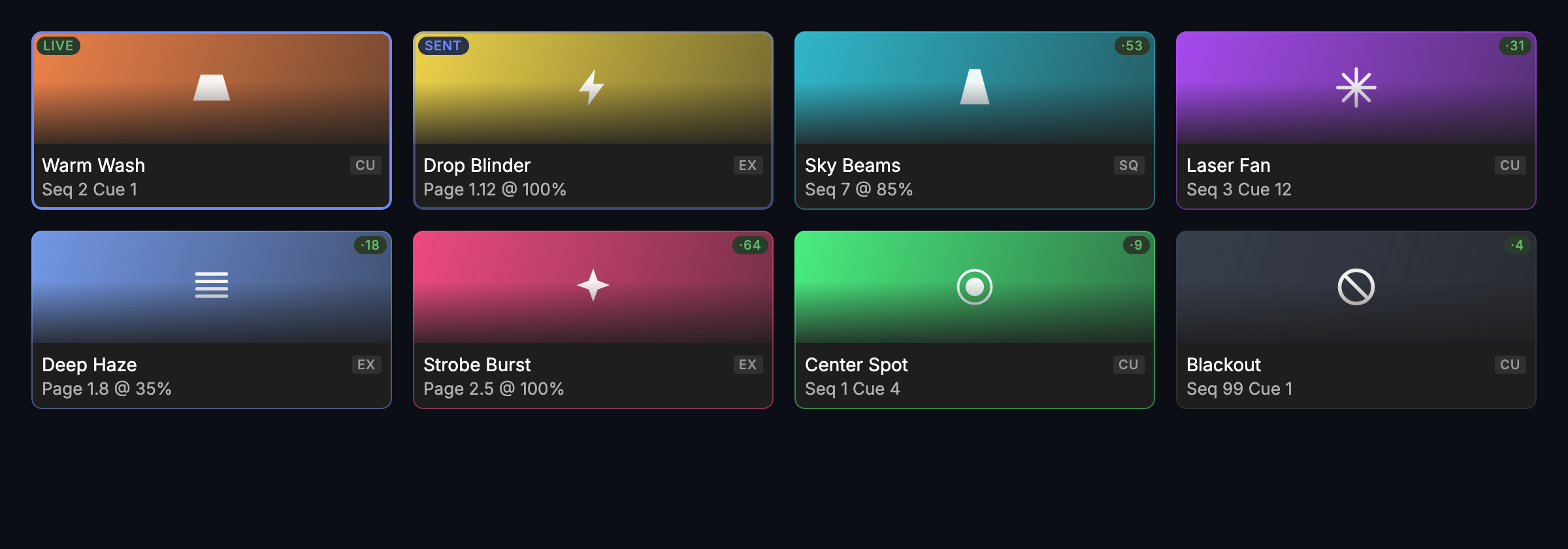
The screen
The Palette has two modes, switched by Edit | Perform at the left of the toolbar (⌘L):
- Edit is where you prepare: build looks, organise them into banks, and set up the pixel wall.
- Perform is the run console you fire them from during the show.
A brand-new show with no looks opens in Edit, so the create buttons are the first thing you see.
There are two kinds of look, and the Palette shows both side by side:
- Protocol looks fire something on another system: a grandMA3, grandMA2, Eos, Avolites or MagicQ cue or playback, a DMX look, a Resolume, disguise, Pixera, VIOSO, TouchDesigner or Unreal cue, a QLab cue, or a Pangolin BEYOND laser cue.
- Pixel looks drive CueSync's own pixel wall.
A bank can mix both kinds. Each tile carries its protocol badge (GMA3, EOS, RES, QLAB, PIX …); when a whole bank uses one protocol, the badge moves to the toolbar instead.
View ▸ Palette always opens the look board, and View ▸ Pixel Wall always opens the wall's page.
Edit mode
The sidebar on the left has three groups:
| Group | What it holds |
|---|---|
| BANKS | Every bank, with its look count and a dot when something on it is live. Pick one to see its board: the slots and their keys, in position. Right-click a bank for Release Bank, Rename Bank…, Bank Colour, Grid Layout, Lock Bank, AutoPilot Pool, Move Up/Down, New Bank and Delete Bank… |
| BY KIND | All looks, Protocol looks (with a row under it for each kind your show uses: Lighting consoles, Video & media, Audio & show control, Laser) and Pixel looks. Each lists the looks of that kind across every bank, under a header per bank, with each look's key. Nothing can be dragged here, because positions belong to banks: use Move to Bank, or Show in Bank to jump to the look on its board |
| PIXEL WALL | The wall's designer: Choreography, Ramps, and Rig & output. See Pixel Wall |
Hide or show the sidebar with View ▸ Palette Sidebar.
The toolbar reads left to right in groups:
| Group | Controls |
|---|---|
| Mode | Edit | Perform |
| Scope | the bank's name · the protocol chip, when a whole bank uses one protocol |
| View | Search · Grid layout (Fit fits the window; a fixed grid makes the fire keys match the rows you see) · Select |
| Create | + New Look ▾. The button opens the starter gallery. Its arrow offers Protocol Look ▸ (the protocols on your rig first), Pixel Look ▸ (the pixel-wall starter, Capture the Wall Now, or From Choreography ▸ one of the wall's rows), Bundle…, Blank Look… and Paste Look |
| Rig | Release Bank and Release All, with counts. Tap once to arm, again to confirm |
A new show with no looks shows only Mode, Scope and Create. The other groups appear once there is something to release or lay out.
Each tile shows:
- the look's name and protocol;
- its address, for example
L2·C7for a Resolume clip,Seq 3 Cue 1for grandMA3 orP3·12for a BEYOND page and cue; - its Perform key;
- a usage count, when a cue or pad fires it;
- its live state (below).
A look you have switched off is dimmed, has no key, and is tagged Off.
Right-click a tile for its menu, in this order:
- Test Fire (T) and Release
- Edit Look… (↩), Rename… and Duplicate (⌘D)
- Cut, Copy and Paste, and Copy and Paste Style
- Move to Bank, Duplicate to Bank, Tile Colour, and the Enabled switch
- Used By: every cue, pad and AutoPilot rule that fires this look
- Delete…, last
Select several tiles (⌘-click or ⇧-click) to recolour, move, duplicate or delete them together.
Right-click an empty slot for New Look…, Blank Look… or Paste Look. The new look lands in that slot.
Perform mode
Perform has no sidebar: the whole width is for firing. The header holds:
- Edit | Perform;
- the bank tabs, each with its colour, a dot when it has live looks, and its ⇧1–⇧9 key;
- the AUTO control. With AutoPilot off it is a small Auto-fire off status in the same place.
Below the header, the ON STAGE band lists every live look. Click a look's ✕ to release that one look. While the pixel wall's output is on, the band also has a WALL group (on its own row in a narrower window): the look the wall is showing, whether its choreography is running or held, and the house dimmer, with Freeze and Release Wall. Release Wall hands the wall back to its choreography; tap once to arm, again to confirm. Release Bank and Release All sit at the end of the band.
Right-click an empty slot for New Look…: the Palette switches to Edit and opens the starter gallery for that slot.
Fire a look by tapping its pad or pressing its key: 1–8, then Q–I, A–K and Z–, (the same keys as Cue Pads). Right-click a pad for Fire, Release and Edit Look…. These rows never move: a row that can't act right now is greyed and says why.
What a tap or a key does depends on the look's Press setting (set in the editor; the pad shows Toggle or Flash beside its protocol when it is not a plain fire):
- Fire (the default): every press fires the look again.
- Toggle: a press fires the look; a press while it is on stage releases it. A second tap that lands before the first one has finished sending is ignored, so a quick double-tap can't fire it twice.
- Flash: the look is on while you hold the pad or its key, and released when you let go. If the let-go is lost (for example because a dialog took the key-up), the look is released after 30 seconds and a warning says so. A Flash press on a look that is already on stage (because a cue lit it) does nothing, and its let-go leaves the look on. You can't drag a Flash pad to another slot in Perform, because holding it is how you use it; move it on the Edit board.
The ⌘K Fire look row honours Toggle (it reads Toggle look for a Toggle look). ⌘K has no let-go, so it fires a Flash look and leaves it on. A MIDI control or a Stream Deck key behaves as a pad does: Toggle toggles, and a Flash look is on while you hold the note, button or key. The pad menu's Fire always fires.
You can drag a pad to another slot in Perform mode only on a bank that has a fixed Grid layout and is not locked. On an Auto layout, a drag would move other pads' keys mid-show, so it is refused; the bank tab's tooltip says why.
What LIVE and SENT mean
Every pad and chip says how much CueSync actually knows:
| Word | Meaning |
|---|---|
| LIVE (green) | The target reports the look active. Three can: a grandMA3 Executor Look (once the desk's OSC output reaches CueSync), an Eos cue (once the desk's OSC output reaches CueSync) and a QLab cue (once the workspace has answered on a QLab TCP output, and it is running). |
| SENT | Sent, and this protocol cannot confirm any more. This covers Resolume, DMX, TouchDesigner, Unreal, lasers, and grandMA3 Looks other than an Executor target. It also covers an Eos or grandMA3 desk whose OSC output does not reach CueSync, and QLab over UDP or a QLab TCP output that has never answered. |
| SENT… or 2/3 (amber) | Waiting for the console, or only some of a Bundle has been confirmed. |
| SENT, amber | The console no longer reports this look, but it has not been released. |
A pad whose fire fails flashes red. It won't flash like a success.
Release, and AUTO
- Release Bank (⌘.) releases the live looks on the bank you are on.
- Release All (⇧⌘.) releases every live look.
- If AutoPilot is running, Release All also holds AutoPilot's look choices. The AUTO control then reads RESUME AUTO; press it to let AutoPilot choose looks again. While looks are held, Edit is locked.
- With AutoPilot off, Release All releases and holds nothing.
- When the track CueSync follows changes, it releases every look it is still holding, the ones AutoPilot chose and the ones you fired or toggled yourself, so nothing lit for the last track bleeds into the next. A look you want on across the change has to be fired again on the new track. A look tagged NO RELEASE cannot be taken off this way: CueSync lists the ones that may still be live in a warning, and an Off the desk refuses is reported too.
- The same verbs are in Transport ▸ Palette and the command palette (⌘K), along with the wall's two: Release Wall and Freeze Wall.
Some looks have no honest way to release: a preset recall, a raw command, a VIOSO item select. They are tagged NO RELEASE, and their menu row reads "No release — may stay live".
Which bank AutoPilot chooses from
AutoPilot chooses from the auto-fire looks of one bank. Until you pin one, that is the bank you have on screen, so paging to another bank to reach a manual pad also changes what AutoPilot can choose. To keep it on one bank, right-click that bank (or open the bank pill's menu) and tick AutoPilot Pool. Hover the AUTO control and it reads Pool: Bank 2, and the warning at the end of a track in which no look fired names the bank it looked in. Untick it to follow the screen again. Pinning and unpinning are each one undo step, and a pin moves with its bank when you reorder banks and clears when you delete it.
Making a look
+ New Look opens the starter gallery, grouped by what you connect to:
- Lighting consoles: grandMA3 sequence cue and executor, grandMA2 executor, ETC Eos cue, Avolites and MagicQ playbacks, DMX look
- Video & media: Resolume, disguise, Pixera, VIOSO, TouchDesigner, Unreal
- Audio & show control: QLab
- Laser: Pangolin BEYOND
- Pixel wall: the pixel wall
- Advanced: Bundle, and Any action
On your rig lists the starters for outputs you already have, the pixel wall included once it is patched. Picking a starter opens the editor on a new look. Nothing is added to the board until you press Create, so Esc leaves no trace.
Blank Look… opens the editor with no starter; pick the type first.
In the editor:
- Pick the type, set the address. The fields are named in the vendor's own words: a grandMA3 sequence and cue, an Eos cue list and cue, a BEYOND page and cue. Clicking the type you are already on does nothing. Switching to another type asks first if it would discard what you entered.
- Bundle holds several targets across any mix of systems and fires them as one look. This is how one cue fires lighting, video and effects together.
- Any action holds a full cue action for any protocol and verb, with the same "Sends:" line the Cue Editor shows.
- Convert to full action turns a ready-made look into that full action. Until you change a field, it sends exactly what it sent before.
- Release group: looks in the same group release each other. Firing one releases the others. Pick an existing group from the list so a typo doesn't start a new one.
- Press: Fire, Toggle or Flash decides what a tap on the look's pad or its key does (see Perform mode above). It applies to Perform pads, fire keys and ⌘K only: a cue, AutoPilot and Test Fire always fire. Toggle and Flash end in the look's release, so they are greyed for a look that has no release (a VIOSO item select, a TouchDesigner pulse); for a Bundle where only some parts have a release, the editor warns that those parts stay on.
- AutoPilot: give a look phrase, energy and BPM affinity to let AutoPilot choose it. A look with no affinity is manual-only. For a look that drives a laser, the editor adds a warning here: AutoPilot fires it without an operator cue, but only while the active venue's Let automation drive lasers switch is on; with it off, AutoPilot skips the look and says so. The warning does not stop you saving.
- When Save is greyed, the line beside it says why.
- Test Fire saves first, then fires. During a live show it refuses, and it refuses before saving anything.
Firing a look from a cue or a pad
In the Cue Editor or the pad editor, choose the Look action and pick a look. The picker:
- groups looks by bank and can be searched;
- shows each look's colour and protocol;
- marks a switched-off look Off;
- has Reveal in Palette, which opens the look on its board.
A cue always fires the look, whatever its Press setting: Toggle and Flash are for an operator's hands, and a cue that toggled a look off would make the show play differently each night. A Cue Pad that fires a look uses the pad's own mode (Cue Pads have their own Toggle and Flash).
Shows made in older versions may contain grandMA3 Look actions. They still fire, and their editor offers a one-click switch to the Look action.
Moving looks between shows
File ▸ Sync, Import & Export carries looks from one show to another without the rest of the show file. The same three commands are in ⌘K.
- Export Looks… saves every look on the board. Export Looks Bank… saves only the bank on screen. The file keeps each look's colour and cell, and each bank's name, colour and grid.
- Import Looks… adds the file's looks to the open show in new banks. It never writes into a bank you already use, and never into a locked one. An imported bank is named "… (Imported)".
- Every imported look gets a new identity, so importing the same file twice gives you two copies, not a clash. A look in the file that fires another look from the same file still fires that one.
- One ⌘Z removes the whole import.
- If the show has too few free banks for the file, nothing is imported and CueSync says why.
- A look made by a newer CueSync that this version cannot read is left out and named. Everything else in the file still arrives.
Firing looks from a MIDI controller
A MIDI button can fire a look, fire a slot of the bank on screen, change bank, or release looks. Right-click a look in Edit and choose Assign MIDI…, then press the button; or set it up in MIDI Mappings under Looks. See OSC and remote inputs. A controller press is the same fire as a tap on the pad. Used By lists the controls that fire a look, and deleting the look asks first.
A Stream Deck can show the Palette instead of Cue Pads: set Settings → Stream Deck → Keys show to Palette. See Stream Deck.
Tips and gotchas
- A deleted look fails loudly, not quietly. A cue that still fires a deleted look reports "Look not found" at fire time. The Used By menu and the delete confirmation help you avoid that.
- A fixed grid gives you positional keys. On an Auto layout the keys follow a fixed 8-wide keyboard block, not the rows you see. Choose a Grid layout in the bank menu when you want pad positions and keys to line up. The confirmation says how many keys will move.
- A paused AutoPilot does not block Test Fire. Holding only stops AutoPilot's own choices.
- Pixel looks are made from the starter gallery, or with Save as Look and Capture Look on the Pixel Wall page. The wall's choreography, style, Idle and Drop hit travel with the show; its ramps, patch, dimmer and strobe rule stay on this machine, because they are the room's. See Pixel Wall.
- CuePads scenes are not looks. The SCENES strip under the Cue Pads grid fires several pads at once. It has nothing to do with the Palette.
Related
Looking for a quick fix?
The Help Center has short task-focused articles and a support team that responds within 24 hours.