The Interface
AllCueSync has one shell that stays constant across every screen. Learn it once and you know where everything lives.
Shell overview
The shell has four persistent regions:
- Deck strip — the narrow strip at the very top showing live deck readouts while a Pioneer deck is active (see below).
- Content area — the main workspace. This swaps when you navigate between screens.
- EdgeBar — the bottom bar. Navigation and live status live here, and it reports a latched panic; the panic buttons are elsewhere (see Panic controls below).
- Overlays — the Command Palette, timecode transport popup, and notification banners appear on top of the content area when needed.
Deck strip
While Pioneer decks are on the network, the strip at the top of every screen shows what is playing without leaving your current view. Per active deck:
- Deck identity — the real hardware model and player number as reported over PRO DJ LINK ("CDJ-3000 · 2"), or the slot name ("CDJ-2") if the model is not reported.
- Live BPM — the effective (pitch-adjusted) tempo, to one decimal.
- Track identity — artist and title of the loaded track.
- REMAIN — a countdown to the end of the track. It appears only when CueSync can show it honestly — a known track duration and a solid position lock; otherwise it is hidden rather than guessed.
- Badges — MASTER (tempo master), ON AIR (red — the deck is live on the mixer), SYNC, and LOOP ("LOOP 8" while a loop with a known beat length is active).
- LINK STALE / LINK LOST — a warning chip when a deck's PRO DJ LINK feed goes quiet, and a red chip when it disconnects. If you see these mid-set, check the Ethernet chain.
The strip appears in the DJ and Production editions, collapses when no deck is connected, and steps aside where it would duplicate a full deck surface (Pro Decks, Performance mode, Cue Pads immersive). The Hide Deck Info toggle on the Cues screen reclaims its height entirely.
Notices that ask you something
A few notices are questions rather than news. They stay on screen until you answer or close them, and closing one leaves things as they were:
| Notice | Button | What the button does |
|---|---|---|
| A show from another computer opened with its network outputs held | Connect | Turns every held output on |
| A console has reappeared at a different address | Re-point | Moves the saved output to the new address |
| A saved console login, QLab passcode or Unreal pairing token has not been sent to this address before | Send …, named for what it sends: Send console login, Send passcode or Send pairing token | Sends it, and remembers that address |
| A CueSync Studio link arrived while a show, set, deck or Performance mode is playing | Import now | Brings the show in |
| A tour pack's venue is installed but not switched on | Use venue | Switches that venue on |
| A grandMA3 timecode slot row is held because it would drive the console CueSync is following | Drive anyway | Lets that row drive for the session |
They are notices, never dialogs, so Space stays GO while one is up. With Do Not Disturb on, a question waits and appears when Do Not Disturb ends. What to do with each: Troubleshooting.
EdgeBar — navigation and live status
The EdgeBar is the horizontal bar at the bottom of the screen. It does two things at once: it is the primary navigation control, and it is a live status strip that shows the health of your show at a glance.
Navigation groups
Destinations are organized into three groups, separated by a divider. Tap or click any icon to switch screens.
CREATE — building your show
| Icon | Screen | Edition |
|---|---|---|
| Show Editor | Compose multi-track cue sheets against timecode | Theatre |
| Cues | Edit and manage the cue stack | All |
| Cue Pads | Pad grid for manual cue triggering | All |
| Palette | Looks for every protocol (consoles, media, audio, lasers, the pixel wall) and the pixel wall's designer: Edit to prepare, Perform to fire | All |
| Track Prep | Analyze tracks and pre-assign cues before your set | DJ |
| Track Program | DAW-style canvas for Auto Pilot programming | DJ |
CONTROL — running your show
| Icon | Screen | Edition |
|---|---|---|
| Home | Live dashboard for active Pioneer decks | All |
| Auto Pilot | Music-reactive automation from phrase and energy analysis | DJ |
| Run Mode | Timecode-driven cue execution with GO/Back transport; its tab reads RUNNING while a show plays and PAUSED while it is paused | Theatre |
Two DJ destinations are deliberately not icons in this bar, to keep the Production edition's row from over-densifying. Both are still full destinations:
| Screen | Reach it via | Edition |
|---|---|---|
| Local Audio | View → Local Audio | DJ |
| Performance | View → Performance Mode (Cmd+F11) — a full-screen mode, which hides the EdgeBar anyway | DJ |
CONNECT — wiring up gear
| Icon | Screen | Edition |
|---|---|---|
| Devices | Discover and configure all connected hardware | All |
| Pro Decks | Detailed Pioneer deck telemetry: waveforms and hot cues | DJ |
| Network | Output protocol connections and health | All |
| Timecode | Timecode source configuration (SMPTE, MTC, LTC, TCNet, Art-Net) | Theatre |
| Diagnostics | Connection logs, latency, and connection-recovery status — only present once the screen is switched on in Settings → Advanced (from the next launch); see Diagnostics | All |
Pinned right: Settings is always visible at the far right of the EdgeBar, regardless of which group is active.
Live status readouts
The EdgeBar also carries a row of live readouts between the navigation groups and the panic status tokens. These update in real time:
| Readout | What it means |
|---|---|
| Cue count | Total cues in the stack and which cue is next |
| Pad ratio | Pads currently active vs. total pads configured in the active bank |
| Outputs X/Y | X connections currently healthy out of Y configured |
| Track-prep progress | Analysis progress bar when a track is being analyzed (DJ workflows) |
| Connection warnings | A warning chip if an output's connection has been paused (labelled circuit breaker on screen) |
| Latency / CPU | Current beat-event processing latency and CPU load |
| Pilot state | Whether Auto Pilot is armed, firing, or idle |
| Pixel wall badge | PIX when the wall is streaming and following the music; PIX! for a dead wall or a refused patch; amber PIX?, PIX O, PIX C and others when it needs attention (a node gone quiet, outputs deactivated, a look held with no music). Nothing shows while the wall is off or not patched. Hover it for the sentence and the way back; the full list is on the Pixel Wall page |
| Beat indicator | A pulse that fires on every beat from your connected source |
| Timecode chip | Current timecode value when a TC source is active (Theatre workflows) |
| License badge | Your current edition (e.g. DJ, Theatre, Production) or a Read-Only indicator |
Command Palette
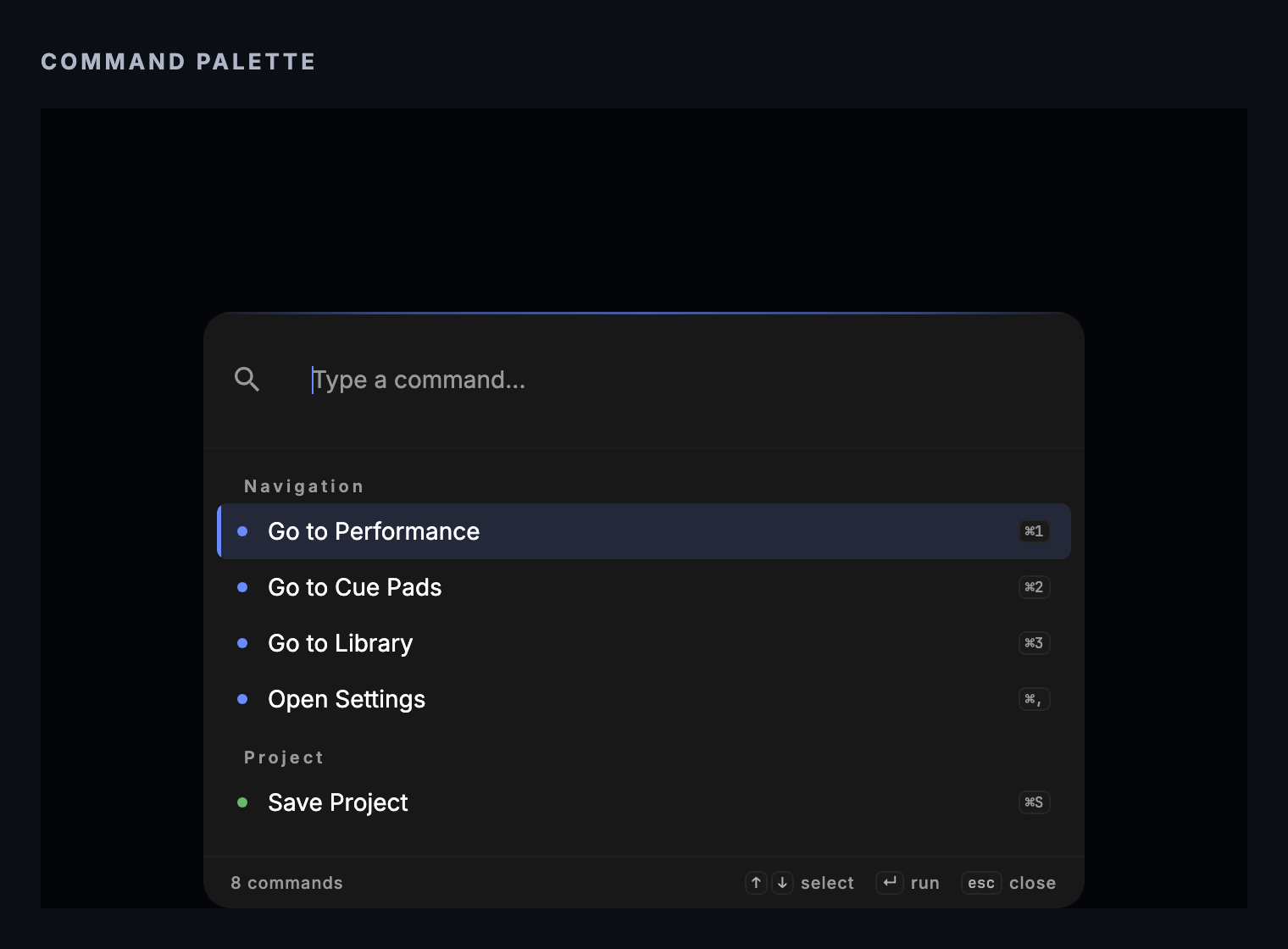
Typing filters commands as you go, and any match that has a keyboard shortcut shows it on the right — so the palette doubles as the fastest way to learn a binding you keep forgetting. Plenty of commands have no shortcut at all; the palette is the only way to reach those.
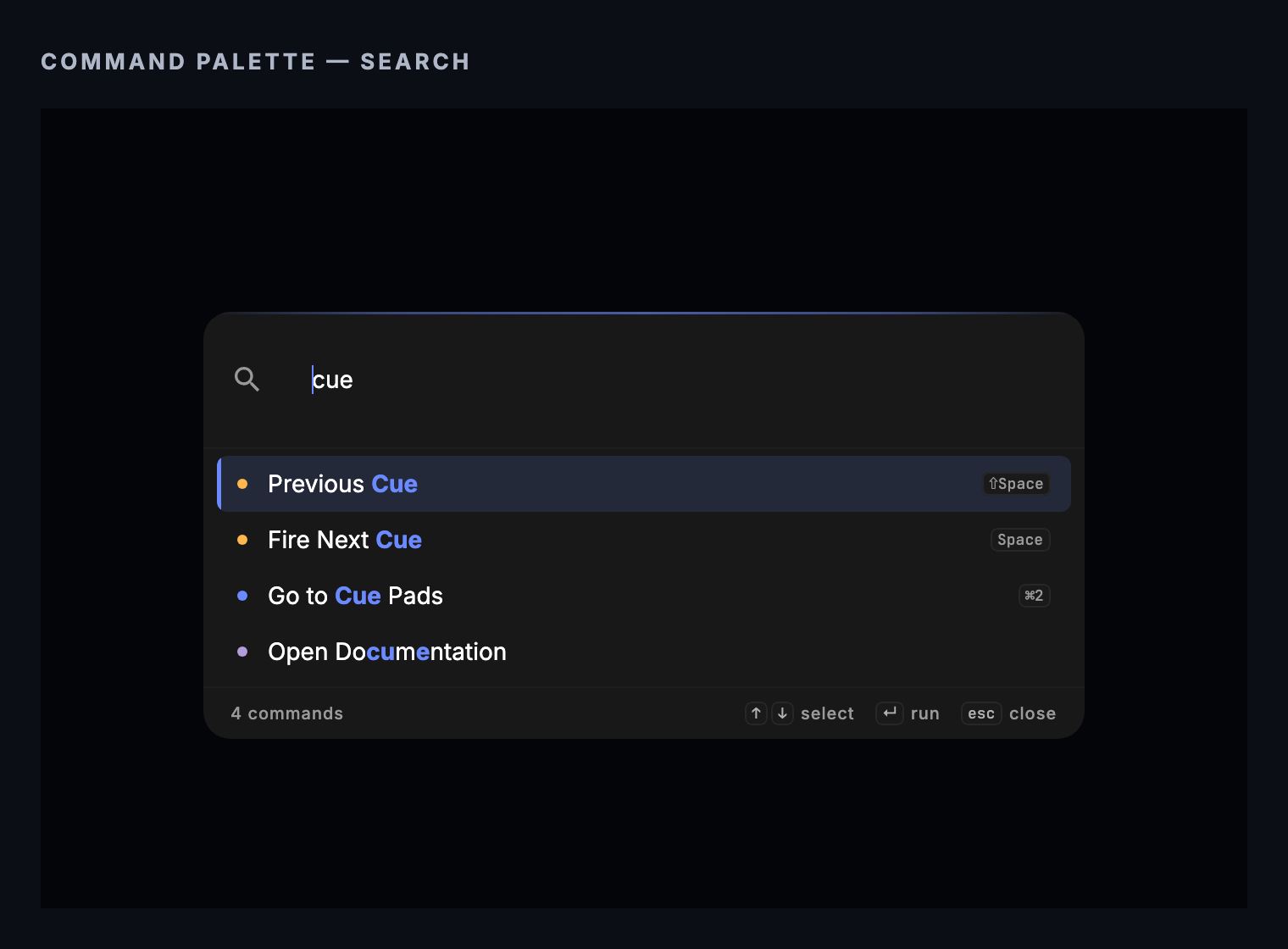
Press Cmd+K from anywhere in the app to open the Command Palette. The exception is Performance mode, where Cmd+K is Skip Cue; open the palette from View ▸ Command Palette… instead. The palette belongs to the main window, so that menu item is off in a pop-out.
Type to fuzzy-search across every action CueSync knows about. Results are grouped by category:
| Category | Examples |
|---|---|
| Recent | Your last-used commands |
| Navigation | Go to Track Prep, open Settings |
| Project | New show, open show, save |
| Cue Control | Fire cue, skip to next, stop all |
| Outputs | Connect output, disconnect output |
| Settings | Open Shortcuts, open License |
| Help | Open user manual |
Keyboard: ↑/↓ to move between results, Enter to run, Esc to dismiss.
Touch / trackpad: swipe down to dismiss.
The Command Palette is the fastest way to trigger any action without remembering a keyboard shortcut.
Panic controls
The EdgeBar only reports panic; it has no panic buttons. While a state is latched, the live readouts show a BLK, FRZ or MAN token, and a full-width strip appears directly above the EdgeBar — BLACKOUT ACTIVE, FREEZE ACTIVE or MANUAL OVERRIDE — with a RECOVER button for a blackout and a RELEASE button for the other two.
You engage a panic state from Transport → Panic (Cmd+Shift+B Blackout, Cmd+Shift+G Freeze, Cmd+Shift+M Manual Override, Cmd+Shift+R Resume All), from the Command Palette (type "panic"), from the panic toolbar on the Performance screen (shown while something is playing or a panic is latched; BLACKOUT, FREEZE and MANUAL are latching switches there, a second press releases that state alone, and RESUME AP gives Auto Pilot back without lifting a standing Blackout or Freeze), from the tray menu's panic item (it reads Blackout All Outputs, and Release Blackout while one is latched), or from the BLACKOUT button at the bottom right of Run Mode, which takes two presses inside the double-press safety window. Reach for these when something goes wrong mid-show.
| Control | What it does | When to use it |
|---|---|---|
| Blackout | Latches. Pauses Auto Pilot, holds the Cues list's automatic triggers, cancels running fades, and sends every connected output its own blackout command in parallel — a level-zero master, a stop, a laser output off or zeroed DMX universes, depending on the protocol. An output that fails or is not connected is named in a warning. ETC Eos and ChamSys MagicQ have no blackout command wired in, so a panic names them too and you black them out at the desk | A light level is wrong and you need everything dark instantly |
| Freeze | Holds the look. Pauses Auto Pilot, holds the Cues list's automatic triggers, cancels running fades and holds the pixel wall's frame. Outputs keep their last levels; a manual GO and console control still work | You need to stop all automation without killing the output levels |
| Manual Override | Stops Auto Pilot firing on its own and nothing else: the Cues list's automatic triggers and the Cue Pads stay live | You want to fire by hand without Auto Pilot firing on top of you |
Releasing. Each state is released on its own. RECOVER (also Release Blackout and Esc) releases the blackout only, and a freeze keeps holding. RELEASE (also Unfreeze Outputs) lifts the freeze alone, and RELEASE on a manual override (also Release Manual Override) lifts that alone; Auto Pilot is given back once nothing else is latched. Resume All clears every latch at once, including a blackout, and re-arms Auto Pilot. Releasing a blackout does not restore the levels you had — apart from a grandMA3's Grand Master, Resolume's composition opacity and Unreal's camera fade — so fire your look again. While any panic state is latched the Cue Pads are locked to Perform mode.
Keyboard shortcuts
CueSync has keyboard shortcuts for most common actions. A few defaults to know:
| Action | Default shortcut |
|---|---|
| Open Command Palette | Cmd+K |
| GO (fire next cue) | Space |
| Step back one level: a latched blackout is released first, and the cue stack is reset last of all (it asks first when the stack has progress, and sends nothing to the rig) | Esc |
| Navigate between screens | Number keys (shown in each nav icon tooltip) |
| Toggle Stage Mode | Shortcut visible in Settings → Shortcuts |
While Performance mode is on screen it owns Cmd+K (Skip Cue) and Cmd+Z (undo the last override), and the menus drop the Command Palette, Undo, Redo and Reset Cue Stack shortcuts; the items still work from the menu. See Keyboard Shortcuts.
All shortcuts are rebindable. Open Settings → Shortcuts to remap any action to any key combination, including chords. There are dozens of rebindable actions covering navigation, cue control, pad modes, undo/redo, and more.
Getting help inside the app
This manual ships inside CueSync. The three rooms this app runs in — a booth, a bio box, a truck — are the three rooms with no reliable internet, and the moment you reach for the manual is usually the moment before doors. So none of the routes below need a network.
| Route | What it opens |
|---|---|
Cmd+Shift+/ | The manual, at the page for the screen you are on |
| Help ▸ User Manual… | The same thing |
Cmd+K → "User Manual" | The same thing, from the Command Palette |
Cmd+/ | The keyboard shortcut reference |
| Help ▸ Run Setup Again… | The first-run setup wizard, from a running session |
The reader has a contents rail and a search box that searches the full text of every page, not just the titles. Pages are filtered to the reading path for your edition; CueSync Production sees all of them. On a narrow window — a pop-out on a second monitor — the reader shows one pane at a time and the contents becomes a Contents button.
Hover any navigation icon and the tooltip tells you what that screen is for. The tooltip is the opening line of that screen's page in this manual. (The manual chord opens the page for the screen you are currently on, not the one under the cursor.)
The View online button in the reader opens the copy on the website. Its only advantage is that it can be newer than your installed build — everything else is better offline.
Tips & gotchas
- The EdgeBar is always present. If you can't find a control, look there first.
- In Read-Only mode, screens that a licence would open show a gate overlay with an explanation, and hovering over a locked nav icon shows a tooltip with the same information. On a paid edition the screens it lacks are not shown, and asking for one gives an "isn't available in your edition" notice with a See editions button.
- The license badge turns amber when a grace period is running (subscription expired, offline window closing). Act before it turns red.
- Keyboard navigation moves focus between screens;
Spaceis GO when focus is inside the cue stack, not in a text field. - GO belongs to the show, not to the window. A pop-out answers
Spacefor the show whenever the main window is on Run Mode; a Show Editor pop-out keepsSpacefor its own transport. - On a wide or 4K window, Network, Settings and Track Prep use the extra width instead of leaving it empty.
Related
- Installation — download, install, and activate
- Settings — license, shortcuts, and all preferences
- Keyboard Shortcuts — complete shortcut reference
Looking for a quick fix?
The Help Center has short task-focused articles and a support team that responds within 24 hours.