Integration · Show control & timecode · Custom OSC
Any OSC device, on cue.
Name a device's OSC addresses once in a schema, then fire them from any cue, pad or look, starting from ready-made schemas for the Behringer X32 and Midas M32, the Hog 4 and Millumin.
Custom OSC spec sheet
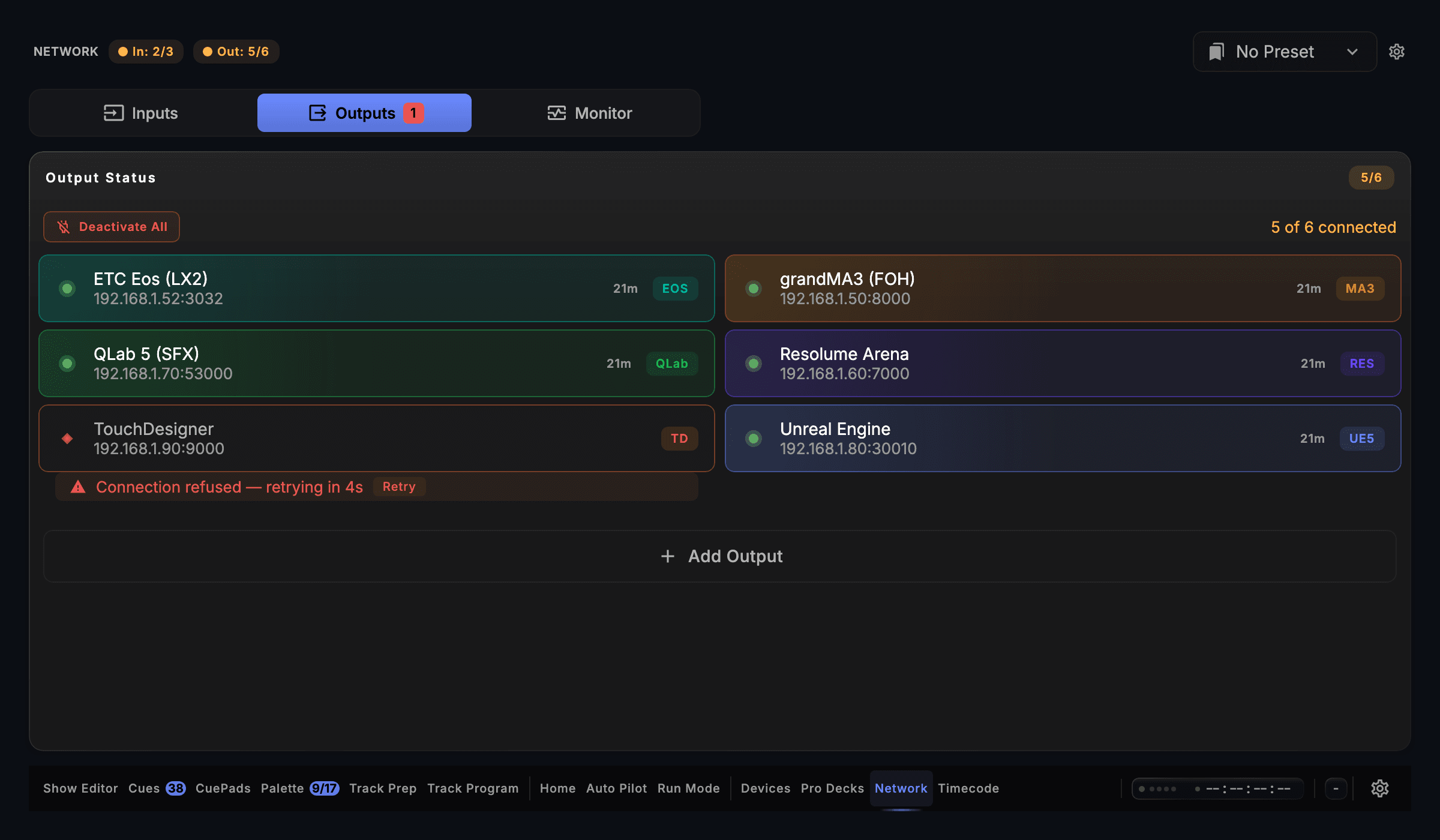
Screen capture · v1.0.35 · Outputs
| Speaks | OSC |
|---|---|
| Built for | Behringer X32 / Midas M32 · High End Systems Hog 4 · Millumin (V4 / V5) · Any device with a documented OSC address listThe three ready-made schemas carry each maker's published OSC addresses for the X32 and M32, the Hog 4 and Millumin. |
| Editions | In DJTheatreProduction |
| Manual | /docs/connect/osc-and-remote-inputs |
The output is in every edition. A capability marked with an edition needs that edition.
What CueSync sends to Custom OSC
| Ready-Made Address Books | The Schema Manager's Library adds the Behringer X32 / Midas M32, High End Systems Hog 4 and Millumin schemas in one click, each transcribed from the maker's own OSC documentation. |
|---|---|
| Playback Verbs Only | The ready-made schemas carry the commands a cue should send, such as scenes, cuelists, columns and levels, and leave out the destructive ones the same products also answer, such as formatting a card or quitting the app. |
| Named, Typed Parameters | Each parameter has a name, an address and a type: float, integer, text, colour, on/off or trigger. A value that does not fit its type fails the cue by name instead of sending a zero. |
| Schemas Travel with the Show | Schemas are saved in the show file, and Import and Export move them between shows and between operators. |
| Fades Too | A Fade action ramps a Custom OSC address over beats or milliseconds. |
| Any Trigger, Every Edition | Fire a parameter from a GO, the show clock, a pad, a look or the music. Custom OSC is in every edition. |
Set it up
Custom OSC with CueSync, in 5 steps.
- 1Choose Output → Quick Add → Show Control → Custom OSC, and enter the device's address and the port it listens on.
- 2In the output's OSC Schema field choose Manage schemas…, then add one from the Library, or press + to build your own: a name, an OSC address and a type for each parameter.
- 3On a cue, Add Action → your Custom OSC output → Custom OSC, then choose the device, the parameter and a value.
- 4Fire it and watch the device's own OSC monitor: a UDP send reads as sent whether or not anything is listening.
- 5Check the wiring before you subscribe: configuration is unrestricted without a licence, and Test Connection confirms the device is reachable and answering. Firing cues is what a licence enables — an unlicensed install never sends one, so the cue path itself is verified after you subscribe, not before.
Integration details
Specifics that hold up in production
What CueSync's Custom OSC integration does and how it behaves — the things you can check before the show.
- 17 output protocols, one application
- CueSync ships 17 output protocols from a single desktop application: grandMA2 (Telnet), grandMA3 (TCP OSC and UDP OSC), Avolites Titan, ETC Eos, ChamSys MagicQ, Art-Net, sACN, Resolume, disguise (d3), VIOSO Player/Show, AV Stumpfl Pixera, TouchDesigner, Unreal Engine 5, QLab (TCP and UDP), MIDI Show Control, Pangolin Beyond, and Custom OSC. Every CueSync edition includes every protocol.
- Beat-aligned timing
- CueSync times cues to the beat phase of the music and is designed for live production. What you see and hear end to end also depends on your network, console or media server, and fixtures, so confirm the whole chain on your own rig before a show.
Custom OSC questions
- X32 / M32: go to a cue, a scene or a snippet, the main LR fader and its on switch, and mute groups 1 to 6. Hog 4: go, halt, resume and release a cuelist; go, halt and release a scene or a macro; and the grand master. Millumin: launch a column by index or by name, stop it, step to the next or previous column, play, pause, go to a time or a timeline segment, and the video, audio and DMX masters.
- Build a schema from its OSC documentation, or import one a colleague exported. Products whose addresses are named by the user inside the app are best shared that way, as an exported schema.
- No. A panic sends nothing to a Custom OSC device, so put a stop or a blackout for it on a pad of its own.
Different question? Ask us directly.
Ready to Automate Your Stage?
Download CueSync free and run the built-in demo show — press Space and its cues fire against simulated outputs, no hardware required. Subscribe when you're ready to drive a real rig.
Behringer, Midas, High End Systems, Hog and Millumin are the property of their respective owners and are used only to describe compatibility. CueSync is an independent product and is not affiliated with or endorsed by any of them.