MIDI and MIDI Show Control
AllWhat it's for — CueSync sends two different kinds of MIDI to gear on a cable, a USB interface, a network session or a virtual bus. A MIDI action sends a note, controller, program change, pitch bend or raw SysEx to whatever MIDI output is connected. A MIDI Show Control (MSC) output sends the standard theatre commands (GO, STOP, RESUME, LOAD and the rest) to a lighting, sound or video desk that listens for them. Both are one-way: neither can read an answer back.
| MIDI action | MIDI Show Control output | |
|---|---|---|
| What it sends | Note On/Off, Control Change, Program Change, Pitch Bend, System Exclusive | MSC SysEx: GO, STOP, RESUME, TIMED GO, LOAD, RESET, GO OFF, ALL OFF and 15 more |
| Where it is set up | Settings → MIDI & Sync, then Add Action → MIDI | Network → Outputs → Add Output, then Add Action under that output |
| Which port it uses | The first connected MIDI output, or every connected output when you tick the broadcast box. There is no port picker | The one port you type into the output, or the first connected output if you leave it blank |
| Panic | Nothing. A MIDI action is not an output and has no panic | ALL OFF to every MSC output |
| Release (a Look ending, a span ending) | Note Off for a Note On | GO OFF for a GO or TIMED GO |
| Checked against | Nothing on a real desk or instrument | Built to MSC 1.1 / RP-002. No desk |
Receiving MIDI (a controller's notes firing a cue or a pad) is a different feature. See section 5, How MIDI controllers fit.
1 · Get a MIDI output to exist
Both features ride the MIDI outputs CueSync can see. Open Settings → MIDI & Sync.
- Read the Status card. It counts the input and output devices available. Refresh rescans after you plug something in.
- In Output Devices, find your interface. Each row has Connect (or Disconnect) and Set Preferred. Click Connect. The row's dot turns green.
- Optionally tick Auto-connect on startup in the Preferences card so preferred devices reconnect when CueSync starts.
Virtual ports. To send MIDI to an app on the same computer you need a virtual port. On macOS that is the IAC Driver: open Audio MIDI Setup, show the MIDI Studio, open the IAC Driver and tick Device is online. Its buses then appear in CueSync as ports such as IAC Driver Bus 1. For a desk or instrument on the network, see Network MIDI (Wireless) in MIDI Grid Controllers; the session shows up as a port like any other.
Two things that decide where a note goes.
- A MIDI action goes to the first output that was connected, not to all of them. CueSync says why: the same open-port list also holds a Launchpad or APC's pad grid and any second desk on the chain, and a note fired at all of them would light the grid and move another console. If a pad controller is connected first, an unaimed note goes to the controller. Connect the port you want first, or disconnect ports you do not want reached.
- Tick Send to every MIDI output on the action to send to every connected output instead. That includes a pad controller.
2 · The MIDI action
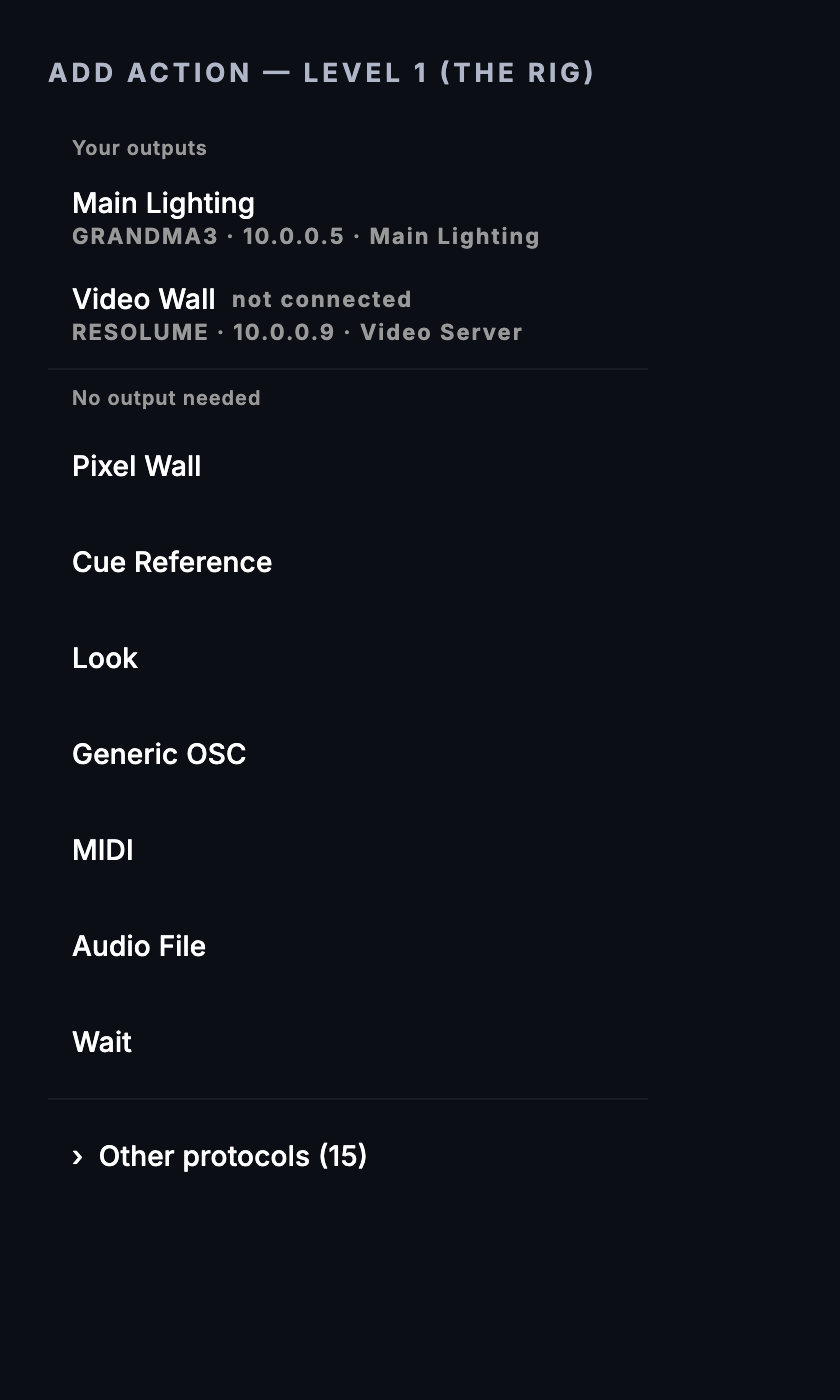
Add Action → MIDI. MIDI needs no output, so it sits under No output needed in the Add Action menu (and under Generic when you search).
The fields
| Control (exact label) | What it does | Wire |
|---|---|---|
| Message Type | Note On, Note Off, Control Change, Program Change, Pitch Bend, System Exclusive | — |
| Channel (0-15) | The MIDI channel, counted from 0 | Channel 0 is MIDI channel 1 |
| Note (0-127) | Note number for Note On and Note Off. Blank sends 60 (middle C) | Note On ch note velocity |
| Controller (0-127) | Controller number for Control Change. Blank sends 1 (mod wheel) | Control Change ch controller value |
| Value (0-127) | Velocity for Note On, the value for Control Change, the program number for Program Change. Defaults to 127 | as above |
| (no Value box for Note Off) | A Note Off always goes out with release velocity 0 | Note Off ch note 0 |
| Pitch Bend Value (0-127) | Promoted to the top seven bits of the 14-bit bend: 64 is centre, 0 is full down, 127 is full up | 14-bit value = Value × 128 |
| SysEx Data | A complete SysEx message as hex bytes, F0 to F7. Spaces, commas and 0x are ignored | The bytes as typed |
⚠ The action's Channel starts at 0. The MIDI trigger's starts at 1. The action editor says Channel (0-15), the raw wire value, and the cue row reads
Ch0. The MIDI trigger editor says Channel (1-16, blank = any), and the Settings MIDI Monitor printsCh1. To send on the channel your gear calls 1, type 0.
SysEx. The field's label turns into a live check: SysEx Data — 6 bytes, or the reason it cannot be sent ("'Z' is not a hex digit", "each byte needs two"). A message that does not start with F0 or end with F7 still sends, and the label warns you. A SysEx action is never fanned out: with the broadcast box ticked it still goes once to each connected output by name, and unticked it goes to the first one only.
Program numbers. The Value box is the raw 0–127 number on the wire. A device whose display counts programs from 1 expects one less than the number it shows.
What is refused, what fails, and what quietly does nothing
| Situation | Result |
|---|---|
| A message type saved by a newer CueSync | Refused: "MIDI message type is not one this build knows — pick a type in the cue editor". The picker hides it |
| SysEx text that is not valid hex | The send fails (logged). The editor label already said so |
| No MIDI output connected | The send fails. The log line No MIDI output devices connected is rate-limited |
| Broadcast ticked, no output connected | "No MIDI outputs connected for broadcast" |
| Some outputs took it and some did not | "MIDI sent to N/M devices. Failed: …", naming the ports |
| A blackout or freeze engaged after the cue started firing | Nothing is sent, and the cue reports success. A note is how many rigs trigger lasers and pyro, so a fire in flight is held at the last instant |
| This machine is the standby machine on your licence | Nothing is sent, and the cue reports success |
Pre-fire and latency compensation do not apply to MIDI actions. They fire on the beat itself.
3 · The MIDI Show Control output
On the receiving desk
MSC is a standard (MIDI Show Control 1.1, RP-002). CueSync only sends it. The desk must be set to receive MSC on the port it is wired to, and to answer to the device ID and command format CueSync sends. Every desk names these settings in its own menu. CueSync cannot know your desk's menu, so use the desk's manual and match three things:
- MSC receive is on, on the right MIDI port.
- The desk's MSC device ID equals the Device ID on the CueSync action, or the action uses 0x7F (all-call).
- The desk's MSC command format (lighting, sound, video and so on) equals the Format on the CueSync action, or the action uses 0x7F (all types).
In CueSync
- Network → Outputs → Add Output. Category: Audio, Protocol: MIDI Show Control.
- In MIDI output port, type the port name exactly as Output Devices lists it (for example
IAC Driver Bus 1). Leave it blank to use the first connected MIDI output. There is no IP address and the Port box is not used. - Add Output.
Pin the port. A blank port rides whatever output is connected first. With a pad controller or a second interface in the mix, that decides whether the GO reaches the desk at all, and the send still reports success because the wrong port took it. CueSync logs a warning at connect when it finds more than one output and none pinned. An MSC command is never copied to every port: who acts on it is decided by the device ID inside the message.
What "connected" means. For MSC it means only that a local MIDI port opened. MSC has no connection check, and Flight Check labels it local socket only. Green does not tell you that a desk is listening. The output shows an error at connect if no MIDI output is available.
On macOS, if SysEx cannot be delivered it is only logged: an MSC or SysEx action gives no on-screen warning (only the timecode output warns). MSC was not measured into a desk.
The MSC action
Add Action → your MSC output → MIDI Show Control. The message is F0 7F <device> 02 <format> <command> <data> F7.
| Control (exact label) | Meaning |
|---|---|
| Command | One of 23 commands, listed by name (table below). GO is the default |
| Device ID (0x00-0x7F, 0x7F=all) | The device ID byte. Type hex (0x01) or decimal. Default 0x7F, all-call |
| Format (0x01-0x7F) | The command-format byte. Type hex. Default 0x7F, all types. Common values: 0x01 lighting, 0x02 moving lights, 0x04 strobes, 0x05 lasers, 0x10 sound, 0x30 video, 0x40 projection, 0x56 fog, 0x60 pyro |
| Cue Number (digits and dots) | The cue, for commands that take one. For FIRE the box is labelled Macro number |
| Cue List (digits and dots) | The cue list |
| Cue Path (digits and dots) | The cue path |
| Hours (0-23), Minutes, Seconds, Frames (0-29) | Only for TIMED_GO |
Only the boxes the chosen command sends are shown. ALL_OFF shows none and the editor says it carries no cue data.
| Command | Byte | Carries |
|---|---|---|
| GO, STOP, RESUME, RESET, GO_OFF, LOAD, RESTORE | 01, 02, 03, 0A, 0B, 05, 09 | cue number, list, path |
| TIMED_GO | 04 | five time bytes, then cue number, list, path |
| FIRE | 07 | a macro number |
| STANDBY_PLUS, STANDBY_MINUS, SEQUENCE_PLUS, SEQUENCE_MINUS | 11, 12, 13, 14 | cue list only |
| START_CLOCK, STOP_CLOCK, ZERO_CLOCK, MTC_CHASE_ON, MTC_CHASE_OFF | 15, 16, 17, 19, 1A | cue list only |
| OPEN_CUE_LIST, CLOSE_CUE_LIST | 1B, 1C | cue list only |
| OPEN_CUE_PATH, CLOSE_CUE_PATH | 1D, 1E | cue path only |
| ALL_OFF | 08 | nothing |
Not offered: SET, SET_CLOCK and GO_JAM_CLOCK. They need payloads the action has no field for.
Rules that keep a cue from dying at showtime.
- Cue number, list and path are ASCII digits and dots only (RP-002). A desk label like
12Acannot be sent. The editor says "MSC carries digits and dots only — a desk label like "12A" cannot be sent" and the cue is refused before it fires. An empty box is refused too. - The whole message may not exceed 128 bytes, which leaves 121 for the data.
- TIMED GO writes its time with the SMPTE type fixed at 30 fps non-drop and sub-frames at 0. The action has no frame-rate field, so frames are counted as 30-per-second.
- A command saved by a newer CueSync shows MSC (unknown command) and will not send until you pick one.
Pyro, flame and CO₂ formats are flagged, never blocked. When the Format is CO2, pyro, fireworks, explosions, flame or smoke pots, the editor shows a warning under Device ID / Format: "This cue can fire pyrotechnic/flame/CO2 equipment. CueSync is not a firing system and must not be your only interlock." When the Device ID is the all-call 0x7F it adds "Address the intended device, not all-call." Flight Check lists a WARNING for an all-call cue and an INFO line for one addressed to a single device, one line for each cue, pad, Look, AutoPilot profile or timeline clip that holds one. Nothing is blocked and what fires does not change (Safety and responsibility). A Back, a Goto, a section jump or a timecode locate does not re-send such a cue: the log and a warning ("Not re-sent after the jump: …") name the cue, and it goes out when the show plays through it, or you fire it by hand. A lighting desk's MSC look is still restored on a jump.
⚠ The panic's ALL OFF is not addressed by your boxes. The panic (
Cmd+Shift+B) calls the MSC output's own ALL OFF. That goes to device 0x7F (all-call) in format 0x01 (lighting), whatever you typed on any action. An ALL_OFF action you author (a pad, a cue) uses the Device ID and Format boxes on it, which default to 0x7F and 0x7F. A filtered Blackout pad that includes MSC builds its own ALL_OFF action with those defaults, not with any boxes of yours. If your desk answers only to its own device ID or to a non-lighting format, test the panic on it before doors.
4 · How MIDI and MSC are reached
| Surface | MIDI action | MSC action |
|---|---|---|
| Look | Not a starter of its own. Use New Look → Advanced → Any action and pick MIDI. Release: Note Off for a Note On with a note number | Same, Any action → MIDI Show Control. Release: GO OFF on the same cue, list and path, for GO and TIMED GO only |
| Cue Pad | Templates Note Toggle, Note Flash, CC. Toggle and Flash pads send a Note Off on release | Templates Go, Go Cue 1, Stop, Resume, All Off, Reset |
| Go Show Cue intent | Not reached | Sends GO with the cue number and the cue list, to every MSC output. A cue label that is not digits and dots resolves to nothing and is reported, not guessed |
| Blackout / Set Intensity intent | Not reached | Not reached. MSC has no blackout verb of that kind |
| Blackout pad (unfiltered) and panic | Not reached | ALL OFF to every connected MSC output |
Panic and blackout are one-way for MSC. Releasing them restores nothing.
5 · How MIDI controllers fit
A pad controller (Launchpad, APC) is the other direction: it is a surface you play, not something you send to. It is covered on MIDI Grid Controllers. CueSync claims the controller as a MIDI device while it is connected, and its LED feedback rides the same port list, which is why it can become the "first connected output" in section 1.
A controller's notes can also fire cues and pads. A pad fires on Note On and releases on Note Off (Cue Pads), and a cue can use a MIDI trigger with message type, channel (1–16), note or controller and value (Trigger Reference). Timecode over MIDI (MTC) and MIDI clock are on Timecode and the MIDI Clock Output card in Settings → MIDI & Sync.
6 · Use cases
A · Note to a lighting or video app on the same computer
You want a cue to trigger a clip in an app that listens for MIDI notes on IAC Driver Bus 1.
- macOS: enable the IAC Driver in Audio MIDI Setup and turn on Device is online. In the other app, set its MIDI input to the IAC bus and learn or map note 36.
- Settings → MIDI & Sync → Output Devices: click Connect on
IAC Driver Bus 1. Make sure it is the first connected output (disconnect other outputs if not). - In the cue: Add Action → MIDI. Message Type: Note On, Channel (0-15): 0, Note (0-127): 36, Value (0-127): 127.
- To end the note, add a second action Note Off with the same channel and note, or use the Note Toggle pad template, which pairs them.
- Fire the cue.
You should see: the other app receive note 36 on channel 1. CueSync cannot see it arrive. Check in the other app's own MIDI monitor.
B · Program change to a preset
- Connect the output as in A.
- Add Action → MIDI, Message Type: Program Change, Channel (0-15): 0, Value (0-127): 7.
You should see: the device switch to the preset it numbers 7 on the wire. A device that counts presets from 1 shows preset 8.
C · Theatre: GO and STOP a cue list on a desk (MSC)
- On the desk, turn MSC receive on for the port you use. Note its device ID and command format.
- In CueSync: Settings → MIDI & Sync, confirm the interface appears under Output Devices.
- Network → Outputs → Add Output, Audio, MIDI Show Control. MIDI output port: the interface name. Add Output.
- In the Show Editor, select the cue that should start the desk's cue 12 on list 1. Add Action → your MSC output → MIDI Show Control. Command: GO, Device ID the desk's, Format the desk's (or leave both at 0x7F), Cue Number
12, Cue List1. - Add a pad from the Stop and Resume templates for the house operator.
- Run the show and GO the cue.
You should see: the row summary MSC GO Q12 List1, and the desk fire its cue 12. CueSync gets no confirmation. Watch the desk, and rehearse first in DRY, which sends nothing.
D · An end-of-act ALL OFF you control
- Add an MSC action with Command: ALL_OFF, and set Device ID and Format to the values the desk answers to.
- Put it on the last cue of the act and on a pad.
- Test it on the desk, then test the panic (
Cmd+Shift+B) separately. They are addressed differently.
You should see: the desk stop every running cue when your action fires. The panic reaches only device 0x7F in the lighting format, so it may or may not do the same on your desk. That is the point of testing both.
Tips & gotchas
- MIDI action channel starts at 0. Type 0 for channel 1.
- First connected output. A pad controller connected before your interface takes the note. Pin the MSC port.
- Green is weak evidence here. MSC green means a local port opened.
- Digits and dots only in MSC cue boxes.
- Panic and blackout hold suppress a MIDI action silently. The cue reports success. Do not rehearse a MIDI-triggered laser cue by relying on the report.
- The panic's ALL OFF is all-call, lighting format. Author your own if the desk needs otherwise.
- macOS SysEx. A SysEx that cannot be delivered is a log line, not an on-screen warning.
- A show from another computer does not hold an MSC output. When such a show opens, its network outputs wait for you to press Connect (Network Outputs), but an MSC output names a MIDI port on this computer and connects as usual, so check the port it names before the first GO.
- Where the MIDI devices live. The MSC error hint says Settings > MIDI; the screen is Settings → MIDI & Sync, and a pinned MSC output opens its own port.
What has been checked
No MIDI or MSC action has been run into a real desk, instrument or app. MSC is built to MIDI Show Control 1.1 / RP-002, and CueSync enforces its 128-byte limit, the 7-bit rule and the five-byte time block. Do a dry run into your own desk. For a checklist to prove your own desk, see Desk Verification.
Related
- MIDI Grid Controllers — Launchpad and APC surfaces, and Network MIDI
- Network Outputs — Adding and testing outputs
- Cue Pads — MIDI and MSC pad templates
- Palette — Looks, including Any action
- Trigger Reference — The MIDI trigger, for receiving
- Timecode — MTC and the show clock
- QLab — The audio-side playbook
- Desk Verification — A checklist for proving your own setup
- What Each Action Can Send — Verb lists
- Theatre show workflow — Building a whole show
Looking for a quick fix?
The Help Center has short task-focused articles and a support team that responds within 24 hours.