DJ Set Workflow
DJWhat it's for — A DJ-driven show runs on one signal, the beat and structure of the music, and two engines that read it: the cue stack (cues you wrote, each with a trigger) and Auto Pilot (a plan of moves CueSync builds for each track from its phrases). This page follows a whole night in order: connect, prep, author, arm, perform, recover, review. It says what CueSync does at each step, including what happens when the beat or an output goes away. The individual screens have their own pages; this page is about how they fit together and about behaviour you only meet when they are combined.
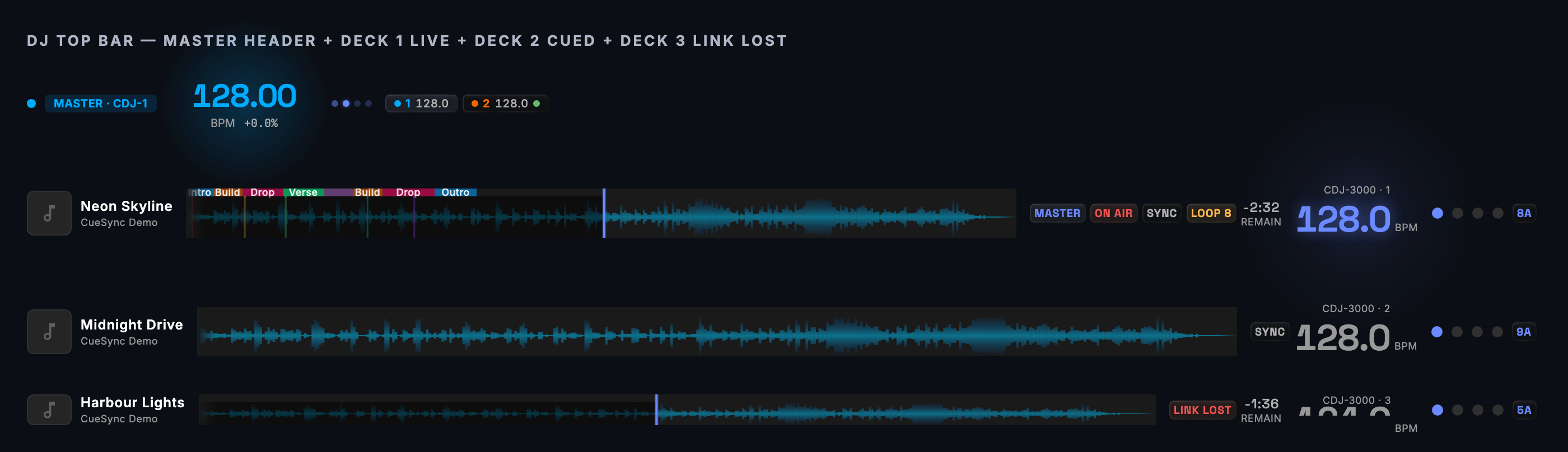
The night in seven phases
| # | Phase | Where | You do | You should see |
|---|---|---|---|---|
| 1 | Connect | Devices Cmd+7, Network Cmd+9, Settings → DJ Hardware | Join PRO DJ LINK, add outputs, activate the venue | A card per deck with title and BPM; every output connected; no output showing a connection warning |
| 2 | Prep | Track Prep Cmd+4 | Analyse, fix grids, place hot cues, generate cues | A PREPPED badge per track; a cue list per track |
| 3 | Author | Cues Cmd+2, Cue Pads Cmd+3, Palette Alt+Cmd+L, Auto Pilot Cmd+5 | One-shot cues, hand-played pads and looks, a profile for the structure | Triggers on cues; a profile name on the Auto Pilot header |
| 4 | Arm | Home, Auto Pilot | Run Flight Check, load the first track | The toast "AutoPilot armed: X of Y moments planned", pill ARMED, then RUNNING on the first beat |
| 5 | Perform | Performance Cmd+F11 | Mix; use the override bar, pads and looks | BPM, current and next cue, a fire-trace line per fire |
| 6 | Recover | Panic controls, Devices, Network | Blackout, freeze, resume, reconnect | A RECOVER or RELEASE strip; outputs back to LIVE |
| 7 | Review | Auto Pilot → Dashboard → RECENT FIRES, Track Program | Read what fired and why; retune rules | A "↳" reason line under each fire |
1. Connect the gear
- PRO DJ LINK. CueSync joins the network as a virtual CDJ. Settings → DJ Hardware → Connection Status has the Connect / Disconnect button, and Network Settings → Virtual Player Number defaults to 5 (range 5–50). Put the CDJs, the mixer and the CueSync machine on one switch. Turn Wi-Fi off and take VPNs down, because discovery uses every network interface and can pick a tunnel over the show LAN. Devices shows one card per player; Pro Decks shows waveforms, the master tempo and sync chips. A Theatre install never joins PRO DJ LINK.
- Outputs. Network → Outputs → Add Output, or the Output menu (Add Output… and Quick Add). One output per console or media server. Do not add two transports for one desk (grandMA3 explains why). Green on a UDP output means the machine answers, not that the software is listening (Protocol Reference).
- Venue. Activate the profile for this room in Settings → Venues (or from the venue chip in the Performance header). It supplies device roles, intent mappings and the output policy, and none of them bind until it is active. CueSync DJ keeps 3 profiles; Production keeps unlimited (Venue Profiles).
- BPM Sync targets. Auto Pilot → Profile Editor → BPM Sync. Only Resolume and grandMA3 speed masters can be targets (see the protocol section).
- Flight Check. Home → Flight Check lists every unresolved issue before you go live (Home).
2. Prep the tracks
Track Prep is where a track becomes something the engines can use.
- Analyse and generate. Analyze all N runs in the background; Generate cues then turns the fresh analysis into suggested cues without overwriting prep you already reviewed. The Library tab finds tracks by BPM and Camelot key.
- Where phrases come from. A USB track carries rekordbox's phrase analysis. A track whose rekordbox analysis is incomplete is analysed by CueSync's own analysis on load unless you turn off Settings → Advanced → Track Analysis → Run local DSP fallback for incomplete rekordbox tracks. It is on by default and adds a few seconds per track. While it runs the deck's arm pill reads ANALYZING (CUESYNC).
- Grid and hot cues. Override (BPM and beat grid) is offered for local tracks only; a USB track keeps rekordbox's grid. Hot cues you place in Track Prep can travel back to rekordbox with rekordbox XML.
- What happens when a prepared track loads. If no cue has fired yet, CueSync clears the stack and loads that track's prepared cues. Once any cue has fired, it queues that track's prepared cues behind the current cue instead, touching nothing already queued, and says what it did (if every cue was already loaded it says so; if the stack is full it says that). Prep that is only a weaker match — mirrored onto this Mac, prepared on another USB, or matched by file — is still an offer, not a load: its Load button stays on screen until you tap it or the next track takes the deck.
- A profile per track. A prepared track can carry an Auto Pilot profile (Track Prep's profile picker recommends one by tempo, key and genre). On load CueSync activates it before arming. It matches the exact rekordbox id only; a mirrored copy of a track gets the cue offer but not a silent profile swap.
- Prep before the set. Auto-analysis is suspended while Auto Pilot is armed, so prep tracks before the doors open.
3. Author what fires
There are three ways to make something happen, and they suit different jobs.
| You want | Use | Why |
|---|---|---|
| A one-shot at a musical moment of one specific track | A cue with a Phrase Change or Track Position trigger (Track Prep generates these scoped to the track and phrase) | It waits for that track's music and cannot fire on the next track |
| The same reaction at every track's drops, builds and outros | An Auto Pilot profile | The plan is rebuilt for each track from its own structure |
| A move you make by hand, in any order | A Cue Pad or a Look on the Palette's Perform board | Pads and looks are not part of the sequential stack |
| A reaction to a specific hot cue press | A cue with a Hot Cue Hit trigger | It is the one trigger that looks ahead in the stack |
| Tempo, energy or drop-countdown follow | A BPM Sync target, or the CueSync Bus | Continuous, not cue-driven |
Cues, pads and looks fire actions; Auto Pilot fires intents that CueSync turns into actions for the rig that is connected (Intents and actions, Cues, pads or scenes).
Where the beat comes from
| Source | Turn it on | What CueSync also gets | What it lacks |
|---|---|---|---|
| PRO DJ LINK (CDJ/XDJ) | Settings → DJ Hardware → Connect | Per-deck beats, tempo master, hot cue presses, on-air state from a mixer, rekordbox phrases and hot cues for tracks analysed in rekordbox | Needs Pioneer gear |
| Local Audio | View → Local Audio; drag files in | CueSync analyses each file (phrases, energy), so Auto Pilot arms | No Hot Cue Hit trigger: hot cue presses come only from a CDJ |
| OS2L | Settings → DJ Hardware → OS2L (DJ software) → Accept beats from DJ software (off by default, port 1806) | A beat grid from VirtualDJ, or from Serato or rekordbox through an OS2L bridge | No track analysis |
| Ableton Link | Settings → MIDI & Sync → Ableton Link → Enable Ableton Link and Follow Link tempo and beat (needs at least one peer) | The session's beat grid | No track analysis |
| Tap tempo | Pro Decks with no deck connected: TAP at least twice, then Start grid | A grid at the tapped tempo | No track analysis. Tapping alone fires nothing; only Start grid does |
The last three drive CueSync's internal clock. It numbers phrases in fixed blocks of bars, which is a counter and not the music's structure. Beat cues and pad quantise follow it. Phrase, Phrase Change, Fill, Energy, Key, Hot Cue and Track Position triggers, and Auto Pilot itself, need a deck or a Local Audio track behind them.
Which source wins. A real Pioneer beat always wins: the moment one arrives CueSync stops the internal clock, and hands a Local Audio session back to PRO DJ LINK. The tap panel says so: "A CDJ appearing on the network takes the tempo back automatically."
When the beat is lost. A few seconds without a Pioneer beat while a deck is playing raises a sticky error, "Pioneer beats silent for Ns — beat-locked cues are not firing. Engage the aux clock to keep tempo." It repeats until a beat returns. CueSync does not start a substitute clock for you; the alert is visibility, not automation. A mixer's own beat packets are ignored, so a DJM cannot mask a dead deck. Meanwhile nothing beat-driven fires. When PRO DJ LINK reconnects, beat-driven triggers start fresh, so the first beat is not judged against stale state. The pixel wall has no beat to follow; the Pixel Wall page says it runs at a placeholder tempo until a deck, a tap or the show transport supplies one, and its HUD says so.
Music-reactive triggers: what is evaluated, and when
Trigger Reference lists all 18 triggers. In a DJ show these rules decide what actually happens.
- One head. Sequential triggers are checked against the next cue only. A cue that cannot fire blocks everything behind it. Disabled cues are skipped, and cues whose trigger your edition does not include are walked past with a notice.
- Each cue fires once, then the stack moves on. Nothing loops. A Beat cue named "every bar" means "on the downbeat of a bar that fits". So an interval of 4 lands on bars 1, 5, 9. For repeating behaviour use Auto Pilot's phrase fallbacks and fills, a BPM Sync target, or the pixel wall.
- Hot Cue Hit looks ahead, forward only. It checks the head cue first, then any enabled Hot Cue Hit cue further down whose hot cue (A–H), deck and track match. It never jumps back. A look-ahead fire moves the head to the cue after the one that fired, and the cues in between are passed over without firing. They do not fire later either, because the head only moves forward. Home STOP resets the stack to the top.
- Band triggers fire on entry. BPM Range and Energy Level fire once when the value enters the band and cannot fire again until it has left and re-entered.
- Track Position fires on reach-or-pass. A forward seek past the target still fires it once. If several position cues are all behind the playhead, only the last fires and a one-time warning names how many were passed over. A position cue you never placed is held, not fired.
- Off-air decks. When a mixer reports which channels are on air, a Beat cue or an unscoped Track Position cue ignores a deck that is off air. With no mixer, or no report, nothing is filtered.
- Held states. Blackout and Freeze hold the automatic triggers. Beat and phrase tracking carry on, so release resumes at the right position. A playing Theatre timecode show holds them too.
- Auto Pilot goes first. On a shared beat it acts before the cue stack does, and can make Beat, BPM Range, Phrase, Phrase Change and Fill triggers stand aside (see below).
A worked example. Take a sampler show of 39 cues: three Manual, six Beat, ten Phrase and Phrase Change, five Hot Cue Hit (A–E), four BPM Range, and manual, MIDI and timecode utilities. Read as a running order it behaves like this. You press GO through the three Manual cues; the six Beat cues then fire one each on successive qualifying bars; cue 10 (Phrase Change → Verse) becomes the head and holds everything behind it until a verse begins. The Hot Cue Hit cues are not held: pressing hot cue A on a CDJ fires cue 20 through look-ahead, moves the head to cue 21, and cues 10–18 will not fire in that pass. A sampler like this shows every trigger type; it is not a night's running order. Use it to see the triggers; use Auto Pilot for the structure. (Its two timecode cues are not in the DJ trigger set and are walked past with a notice.)
Auto Pilot, end to end
Profiles, moments and the fire plan
Auto Pilot follows either a profile or a Show Program. When both are set, the program wins.
- Profiles live in Auto Pilot → Profile Editor → Profiles. Nine are built in and locked: EDM Club Show, Pop/Top 40, Minimal Tech, General Purpose, Hybrid DJ Show, Downtempo / Chill, Ambient / Art Installation, Live Instrumental / Band and Unreal Virtual Stage. Duplicate one to edit it.
- Show Programs are rule sets (Festival, Intimate, Hybrid AV, Reactive, Manual Assist) chosen on the Show Programs card of the same tab.
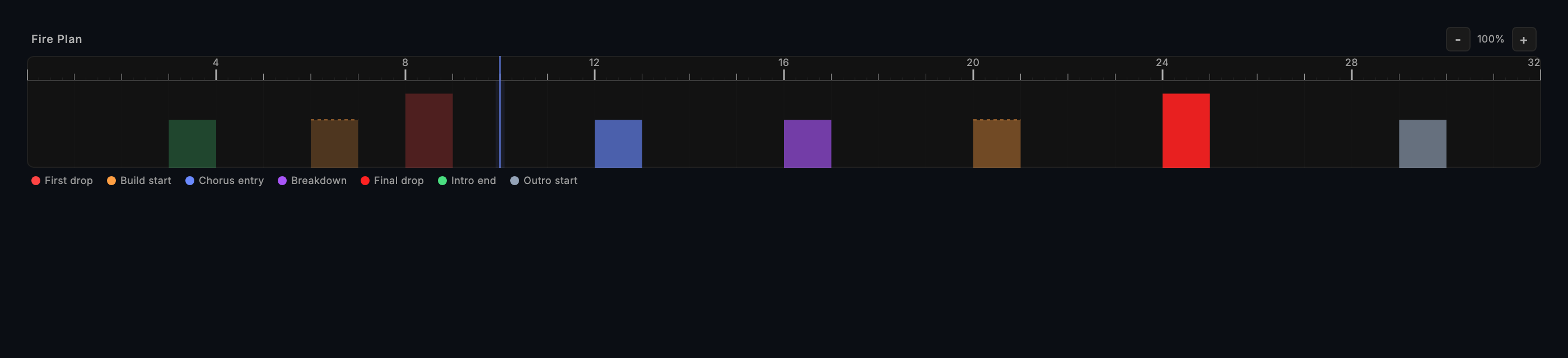
- Moments are nine structural events found in each track's phrases: First drop, Drop, Build start, Chorus entry, Fill section, Breakdown, Final drop, Intro end, Outro start. A profile maps each to a set of intents. A track analysed by rekordbox has no build or drop phrase of its own, so for the profiles that map drops (EDM Club Show and Unreal Virtual Stage) Auto Pilot derives the build and the drop from rekordbox's Up and Chorus phrases, and the profile's drop fires on a CDJ track as it does on a local one. Other profiles and tracks that already have drops are untouched.
- The fire plan is built when the track arms: a beat-keyed map of what fires where. A moment is left out if its significance is below the Significance Threshold, or if its intents resolve to nothing on the connected rig. Pre-roll actions fire N beats before each moment (default 4, 0–64). When two moments land on one beat, the high-impact one wins, then the more significant. A track cue you placed by hand on a beat takes that beat over a planned moment. Beyond moments, Auto Pilot also fires phrase fallbacks for phrases no moment covers, and fills from rekordbox fill data.
- You can read the plan on the Dashboard (fire plan, NEXT UP, LAST FIRED, RECENT FIRES) and in Track Program.
From intent to protocol action
A moment carries intents ("set a look", "blackout"), not commands. CueSync resolves them when the track arms, against the outputs connected and healthy at that moment (connected, enabled, not paused by connection recovery). The default resolution, with no venue mapping in the way:
| Intent (editor label) | grandMA3 and grandMA2 | Resolume | Others |
|---|---|---|---|
| Set Console Look #N | grandMA3: Goto cue N on the default executor (page 1, executor 201 unless you change it; a venue that has its own Set Console Look mapping sends that mapping as stored instead, and the setup wizard seeds one on page 1, executor 1, cue 1); grandMA2: executor 1, page 1 | Layer 1, clip N, at the intensity | Avolites cue N · QLab go cue N · disguise cue N · Eos cue N on list 1 · MagicQ cue N · Art-Net and sACN: channel N set to intensity × 255 |
| Set Intensity | grandMA3: the Grand Master; grandMA2: the fader of executor 1 on page 1 | Composition master opacity | Avolites Grand Master · Art-Net and sACN channel 1 · disguise brightness · a laser only if the venue allows it. The ramp length is ignored: the level snaps |
| Strobe Burst | grandMA2 macro 1. Nothing on grandMA3: it has no effect pool, and the gap is reported once | Layer 5, clip 1 | Unreal BurstFX. Nothing on Art-Net, sACN or other systems: no channel is guessed, and the gap is reported once |
| Blackout ON / OFF | grandMA3 Master "Grand".1 At 0 / At 100 (the restore level); grandMA2 blackout / restore | Disconnect all clips and opacity 0 / opacity 1 (clips stay disconnected) | Per What Each Action Can Send. Art-Net and sACN have no restore |
| Set Visual — Clip #N | — | Layer L, clip N, opacity | disguise cue N · Unreal CutToCamera N · Pixera cue index N on timeline 0 · VIOSO item N |
| Clear Visual | — | Clear the layer. With no layer named, it is the composition blackout (disconnect all clips, opacity 0) | — |
| Go Cue N | grandMA3 Goto Sequence L Cue N; grandMA2 goto cue on an executor | — | QLab go cue · Avolites · Eos · MagicQ · MSC · disguise · Pixera, where the cue can be addressed |
| Effect #N | Nothing on grandMA3 (no effect pool — fire the sequence that runs the phaser instead) | Clip N on the effect layer (default 3); see the Set effect note under Tips | Unreal BurstFX · a laser effect only if the venue allows it |
Consequences worth knowing:
- A moment whose intents resolve to nothing is dropped from the plan and reported once: "AutoPilot: N moment type(s) armed for 'profile' produced no actions (DROP, …) — none of their mapped intents matched a connected output." If nothing at all is left, the arm fails with "produced an empty fire plan".
- The plan follows the rig. Moments are resolved against the connected outputs when the track arms, so when an output connects or drops the plan is rebuilt for the new rig, keeping what already fired, and the toast reads "AutoPilot re-armed". A change that moved nothing reads "routing updated" and rebuilds nothing, and a paused Auto Pilot is left alone. Transport → Auto Pilot → Rearm Current Track (
Cmd+Shift+A) does the same on demand. - Look numbers are addresses. Set Console Look #6 is cue 6 on the default executor of a grandMA3 (or executor 1.1 of a grandMA2), clip 6 on Resolume layer 1, channel 6 on Art-Net. Repoint the numbers in a duplicated profile, or on the desk.
Roles, venue mappings and the rig
- No roles, no filtering. With no venue active, every output receives every intent it has a mapping for. On a grandMA3 plus Resolume rig, Set Console Look #6 also triggers Resolume layer 1 clip 6, and a Set Visual clip 6 then triggers the same clip again.
- Roles filter intents. In an active venue, each output can carry a role: Main Lighting (Set Look, Set Intensity, Strobe Burst, Set Effect, Go Cue), Video Server (Set Visual, Clear Visual, Set Effect), Effects (Strobe Burst, Set Effect), Audio Cues (Go Cue), Custom (everything). Assign them in the venue wizard's Assign Roles step or the output's role dropdown ("No role — receives everything"). Blackout and Raw Action are never filtered.
- Intent mappings in the venue replace default resolution for a whole intent kind, not for one look number. A mapping can be guarded by a capability (moving heads, laser and so on); on a rig without it the mapping is skipped, and if nothing is left CueSync warns that the venue cannot do that intent.
- Lasers are kept off the generic automatic verbs (Blackout, Set Intensity, Set Effect) unless the venue's Let automation drive lasers is on. That switch gates those verbs, the venue's house state (the steps sent when a show stops) and a laser Look that Auto Pilot picks by its affinity: with the switch off, Auto Pilot skips that Look and tells you. Panic and any Look, pad or cue you fire yourself always reach a laser, and so does a laser action you put into an Auto Pilot moment.
Energy, variety and looks
- Energy scaling (Profile Editor → Energy Scaling) dims continuous values such as fader levels and opacity: energy below the Low Threshold fires at the Scale Factor, energy above the High Threshold fires at full, and values in between scale smoothly. Energy Floor goes further: below it the fire is skipped, not dimmed. Smoothing holds the energy reading steady for a number of beats so faders do not jitter. Most built-in profiles ship with scaling on. Force Fire fires at full energy.
- Chance to fire is a slider on each intent in Moment Intents (5% steps; "always" at 100%). A dropped draw fires nothing for that intent. The draw follows the track, the profile and the connected rig — the same track on the same rig under the same profile fires the same subset every time, and a mid-track re-arm keeps it. Probability Seed → Lock Random Seed keeps that draw when the rig changes (what you approved in soundcheck is what fires at the venue); Re-roll draws a new one.
- Looks with affinity. A Palette look with phrase, energy and BPM affinity can be chosen by Auto Pilot. A look with no affinity is manual-only. This includes a laser look, but Auto Pilot fires one only while the venue's laser switch is on; with it off the look is skipped, with a toast and an entry in Recent Fires. The Look editor warns when you turn Auto-fire on for one.
Arming
Auto Pilot arms for one deck, and it chooses:
- the PRO DJ LINK tempo master, unless a mixer reports exactly one other deck as the only one on air, in which case that deck;
- with no master advertised (a solo CDJ with Sync/Master off), the one playing deck with a track loaded, preferring an on-air deck;
- if two decks qualify, or none is playing, it does not arm. Press MASTER, or bring up the fader, on the deck the room is hearing.
It also needs an operating licence, an edition that includes Auto Pilot, Auto Pilot switched on, and a track with complete analysis and at least two phrases. Switching Auto Pilot on, or choosing a profile, while a track is already loaded arms that track from where it is; a profile chosen while it is armed rebuilds the plan and keeps what already fired, and a paused Auto Pilot stays paused. Success is the toast "AutoPilot armed: X of Y moments planned (+ N phrase/fill/track cues) (P phrases)". The refusals say why: "AutoPilot disarmed: track analysis is incomplete (…)", "…cached analysis is stale (USB unmounted) — use Force Re-analyze", "…produced an empty fire plan", or, with no profile selected, "AutoPilot is on but no profile is selected — nothing will fire" (only the cues you placed by hand on that track still arm). When the master rolls to a deck holding the same track (an encore, an A/B preview), Auto Pilot retargets without rebuilding, and moments that already fired stay fired. Loading an un-prepped track (one rekordbox does not know) takes the previous track's plan down at once, so it cannot play over the new music: the deck's arm pill reads Waiting · analyzing while CueSync analyses the file, and Disarmed · no analysis if it cannot, if Discover audio for un-prepped Pioneer tracks is off, or while the track's title has not arrived. The "AutoPilot armed" line is written only when a plan was actually armed.
Auto Pilot and the cue stack on a shared beat
When Auto Pilot fires a moment, the cue stack stands aside for that moment's suppression window on that deck: 2 beats by default, set per moment with the Suppression window slider in Moment Intents (off to 16 beats). Beat, BPM Range, Phrase, Phrase Change and Fill triggers inside the window are skipped, and the cue is not consumed.
Never deferred: Manual, Hot Cue Hit, MIDI, OSC, Timecode, Energy, Key and Track Position, and anything you fire from a pad or the Palette. Auto Pilot does not know about a GO you pressed. An authored Phrase Change cue for the drop and an Auto Pilot drop moment on the same beat therefore do not both fire; the moment does.
Pausing, taking over and resuming
Auto Pilot goes quiet in four different ways, and each has its own way back.
| State | How you get there | How it ends | Pill and banner |
|---|---|---|---|
| Takeover pause | Two manual GOs or hot cue presses within 3 seconds (with Pause on Manual Go on); MANUAL on the panic bar; Freeze; Blackout; Transport → Auto Pilot → Pause; the pause icon on the Dashboard | RESUME AUTOPILOT on the banner, Cmd+Shift+P, Transport → Auto Pilot → Resume, the Dashboard ▶, Panic Resume All (also re-arms), or the next track load (not MANUAL: that survives a track load and ends only on a Resume) | PAUSED (amber); Performance shows "TAKEOVER ACTIVE" |
| Phrase hold | Pause AP (Cmd+P) in the Performance override bar; dragging a cue in the stack | Ends after one phrase boundary (a fixed block of bars when the track has no phrases), or any Resume (Cmd+R, the override bar, the Dashboard ▶) | HOLD · 1 phrase (amber), "Hold · 1" on the override bar |
| Held | Blackout or Freeze is engaged | Release it | HELD |
| Standby | A Theatre timecode show is playing | Stop the show | STANDBY |
What counts as a manual override. GO (Space), MIDI GO, Next, Previous and Fire Cue mappings, and Cue Pads that fire a cue or step the stack all count, and so does a hot cue press on the CDJ Auto Pilot is following (the tempo master, or the deck the mixer reports on air), whether or not any cue listens for it. A hot cue on the other deck, cueing the next track in your headphones, does not, and neither does a pad that sends a protocol action directly. The first event only arms a counter; the second within 3 seconds pauses. Pause on Manual Go (Engine card, also under Settings → Auto Pilot) turns the implicit pause off; the explicit controls above still work.
The override bar (Performance): Skip Cue skips the next cue in the stack without firing it, Skip Moment skips the next Auto Pilot moment, Force Fire (Cmd+F) opens a picker of upcoming Auto Pilot moments and fires the one you choose now, Undo (Cmd+Z) reverses a pause or resume only; after a skip or a fired moment Undo is greyed and Cmd+Z answers Can't undo a skip or Can't undo a fired moment instead of reaching back past it to an earlier pause. Resume ends a phrase hold or a takeover pause alike. A skipped cue and a forced moment cannot be undone. Performance owns Cmd+K (Skip Cue), Cmd+Z and Cmd+R while it is on screen, so the menu drops the Command Palette, Undo, Redo and Reset Cue Stack accelerators there; the items still work from the menu. Force Fire works from a takeover pause or a hold, which is when "skip to the drop now" is wanted, and is refused only while a Blackout or Freeze is engaged.
Live performance
- Performance (
Cmd+F11) is the dashboard to read from two metres: BPM, current and next cue, phrase timeline, the override bar and output health. While something is playing, or a panic is latched, it also carries the panic toolbar (BLACKOUT, FREEZE, MANUAL, RESUME AP — FREEZE and MANUAL release on a second press, and RESUME AP resumes Auto Pilot without releasing a blackout), even if you have no cue stack (Performance). - Pads. The Home pad strip and Cue Pads fire by click, key (1–8, Q–I, A–K) or MIDI note. Fire modes are Activate, Toggle, Flash, Phrase Latch (holds to the next phrase boundary, then hands back to Auto Pilot) and Repeat. A pad group fires several pads at once, for example a DROP! group of strobe, red, full and fast movement.
- Looks. The Palette's Perform mode is the run console for looks: each pad reads LIVE, SENT or SENT…; Release Bank and Release All release them. Release All also holds Auto Pilot's look choices until you press RESUME AUTO.
- Pixel wall. In a DJ set the wall's own choreography follows the beat, the phrase and the energy from its Style (CueSync default, Club Techno, Warm House, Festival EDM, Chill Lounge, Hip-hop Bounce, Theatre Neutral, Photosensitive Safe). It needs no Auto Pilot profile. Tempo, phrase and energy come from whichever beat source is live; a source with no phrase map leaves the wall on the "No structure" row, an energy-reactive wash. Live verbs are Freeze, Release Wall, the house dimmer and Identify. Settings → Pixels ▸ Behaviour → Auto drop payoff chooses the built-in strobe (two flashes a beat), one flash a beat, or none (Pixel Wall).
- The room's limits. A venue's Output policy holds governed DMX channels between a Maximum level and a Floor level, and holds the pixel wall's Strobe look and your Followers to a Strobe cap in flashes per second. Name intensity channels only, and note the floor applies to writes, not to a blackout (Venue Profiles).

Protocol by protocol in a DJ show
Every edition includes every protocol. Status per system is in the Protocol Reference, and Desk Verification has a checklist for your own rig; this section keeps only what a DJ show needs.
- grandMA3 (UDP OSC, port 8000; graded on a physical console and on onPC). Cues, pads and looks send command lines:
Goto Cue N Page p.e(absolute),Go+ Page p.e(relative, acts again each time it is sent),FaderMaster Page p.e At Lfor a fader,Off Page p.e,Macro N. A Look can target a sequence cue or an executor; an executor Look reads LIVE once the desk's OSC feedback reaches CueSync. BPM Sync sendsMaster 3.N At BPM <bpm>(1–240). Auto Pilot's defaults address the default executor in Settings → Advanced → grandMA3 Defaults (page 1, executor 201 out of the box) and effect 1. Blackout isMaster "Grand".1 At 0, and releasing panic puts it back to the restore level (100 unless you change it). See grandMA3. - grandMA2 (Telnet, port 30000). Goto cue, executor on, off and fader, macro,
Blackout On. Use Telnet; the OSC variant is not an MA2 console feature and reports green while the desk does nothing. See grandMA2. - Resolume (UDP OSC, port 7000; driven against a live Arena). A clip by layer and number, a column, layer and master opacity, effect parameters by name, deck select, tempo tap and resync. BPM Sync sets the composition tempo on Resolume's normalised scale. Clip speed cannot be sent (Resolume has no OSC address for it). Blackout disconnects every clip and zeroes the composition; clips stay disconnected until a column is triggered. See Resolume.
- QLab (TCP or UDP, port 53000; QLab 5).
/go,/cue/N/go, start a cue, select, panic. Set Look and Go Cue both become a go on cue N; panic is QLab's own. See QLab. - disguise (UDP OSC, port 3031; not run against a d3, vx or gx). Only
/d3/showcontrol: cue recall by number, play, stop, sections, master volume and brightness, fade up and down. No layer control. Set Look and Set Visual recall a cue by number; blackout is fade down; panic is stop. See disguise. - Pixera (JSON-RPC over TCP, no default port; not run against a Pixera server). Timeline transport and cue by index; Set Visual is cue index N on timeline 0; panic stops every timeline. See Pixera.
- TouchDesigner (UDP OSC, port 9000). Set a parameter, several values, or pulse one. Beat, tempo, energy and structure travel on the CueSync Bus, not here. Panic sends
/cuesync/panic 1, which does nothing until you bind it. See TouchDesigner. - Unreal Engine 5 (UDP OSC, port 8001; graded in-engine). The bus streams beat, energy, key hue and phrase with no cues. Set Visual is CutToCamera(N); Strobe Burst and Set Effect are BurstFX; blackout latches the plugin's fade until you recover. See Unreal Engine.
- Art-Net, sACN and the pixel wall (UDP; experimental, nobody has confirmed fixtures move). Set Console Look #N writes channel N at intensity × 255, so a look number is a channel number. Blackout zeroes the output's default universe only (a cue or pad Blackout names one universe), with no restore; Panic is the rig-wide blackout. An authored Blackout with All universes ticked, or a venue that maps the Blackout intent to one, is rig-wide for that output. The wall has its own output and choreography, outside the intent system (Art-Net and sACN, Pixel Wall).
- MIDI. Cues and pads send notes, control changes, program changes and SysEx. Settings → MIDI & Sync → MIDI Clock Output → Enable MIDI Clock sends the deck tempo to a clock-slaved unit. Incoming MIDI can drive GO, Next, Previous, a pad, a cue or a fader (for example notes 36–39 for GO, STOP, NEXT and PREV, and CC 7 for the master fader). See MIDI and MSC.
Failure playbooks
A deck drops off PRO DJ LINK
CueSync shows LINK LOST on that deck's strip, and when it gives the player up CueSync resets that deck's beat and phrase counters. If it was the tempo master, Auto Pilot follows the new master: it re-arms when that deck holds a different track, and retargets when it holds the same one. If no deck is still playing, the beat-silence alert appears.
- Check the cable and switch. Settings → DJ Hardware → Connection Status shows the local IP address and the cable it is on.
- Fire what you need by hand from pads or the Palette's Perform board; the cue stack and Auto Pilot have nothing to follow.
- If every deck is gone, Pro Decks offers TAP, then Start grid, for a beat grid to run Beat cues against.
- When a deck returns, its beats take the clock back from any tapped grid.
Wrong tempo on the outputs or on the beat
- A Pioneer deck shows a tempo you do not hear. On a local track fix it with Override in Track Prep. On a USB track the grid is rekordbox's; fix it in rekordbox.
- Resolume or the desk runs at its own tempo. Check that Auto Pilot → Profile Editor → BPM Sync has a target and the output is connected. Very small tempo changes are not re-sent, and a target that connects late is re-pushed the current tempo. With no connected target CueSync says "BPM sync has N configured target(s) but none are connected — tempo X was not delivered." BPM Sync follows a Pioneer deck or Local Audio, not the tap, Link or OS2L clock.
- Cues land off the beat. Watch the phase dots on Pro Decks (green in phase, amber slight drift, red out of sync). Set Pre-fire (ms) or Latency comp (ms) on the slow output (0–500 each), or a Beat cue's own offset (up to ±500 ms).
An output is down
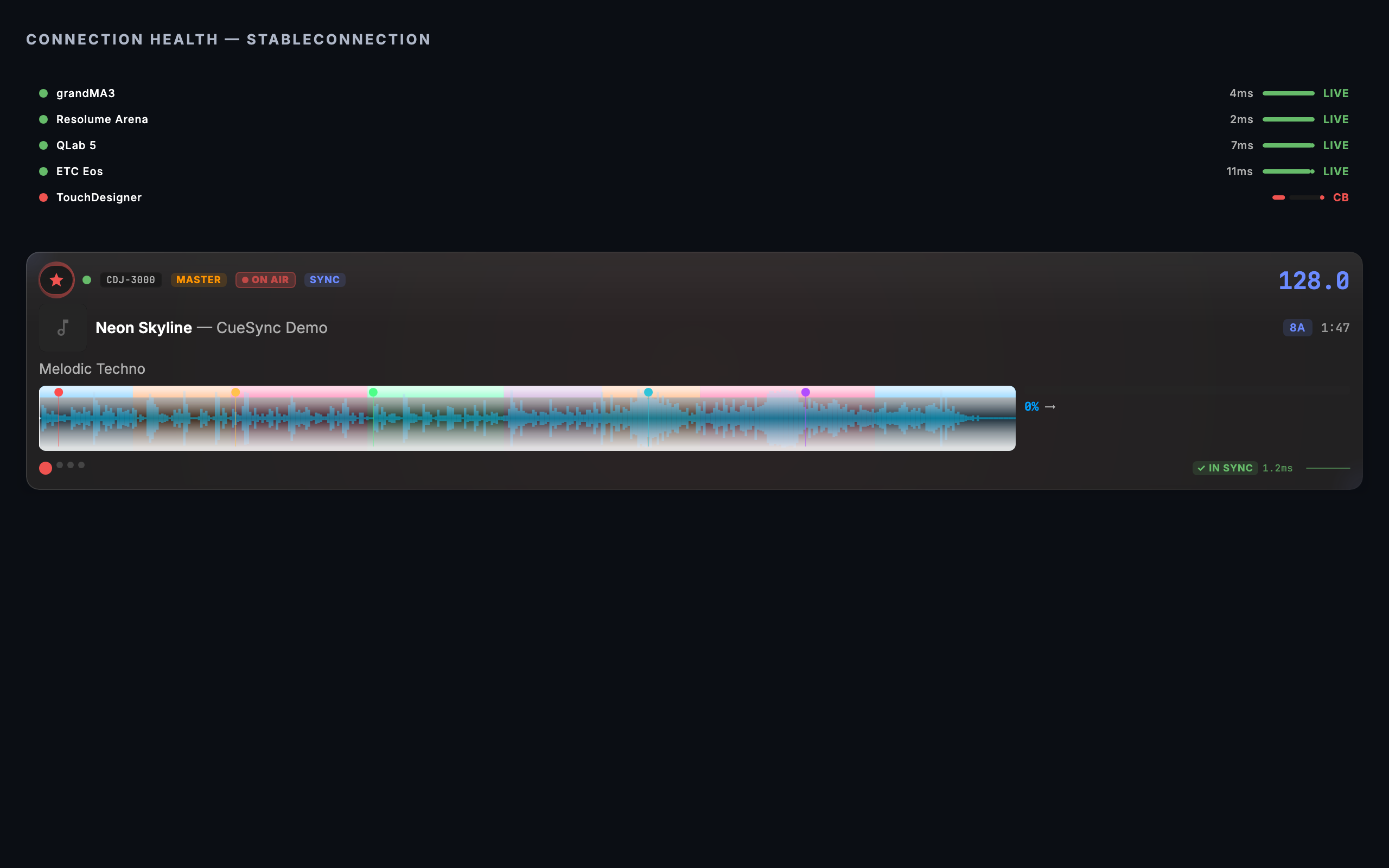
Repeated failures pause that output (an EdgeBar chip and a "Go to Network" badge on Devices), and CueSync keeps trying to reconnect. Nothing is queued: a command for a device that is unreachable fails and is reported, and is not sent late when the device returns.
- Keep mixing; the other outputs keep firing.
- Network → Outputs: check the address, then retry the output.
- When it is back, fire the look you need from a pad or GO a cue. Auto Pilot does not replay moments that already fired, and Rearm Current Track keeps them fired.
Auto Pilot is not firing
Read the pill on the Dashboard. IDLE: nothing is armed (read the toast, and the deck's arm pill on Pro Decks). ARMED: no beat yet. PAUSED: a takeover pause (resume it). HELD: a blackout or freeze is latched. STANDBY: a timecode show is playing. HOLD · N phrases: a phrase hold (resume it, or wait). If NEXT UP reads "—" the plan is empty or finished, and the profile does not match this track's structure.
Auto Pilot fired something you did not want
- Fix the rig first. Fire the look you want from a pad; Auto Pilot carries on.
- Stop it changing the rig again. MANUAL on the panic bar pauses Auto Pilot only, and the cue stack and pads stay live. Pause AP (
Cmd+P) pauses for one phrase. - Find out why. Auto Pilot → Dashboard → RECENT FIRES gives each fire with its reason (the "↳" line). A moment that did not fire is there too, marked SKIPPED, with why: the energy and the floor it was under, Auto Pilot paused or held when it passed, or no connected output to take it.
- Fix it for the rest of the set. In Track Program the Rules panel switches a rule off for the whole show. In the Profile Editor lower Chance to fire, raise the Significance Threshold, or set an Energy Floor.
Panic and recovery
Blackout (Transport → Panic → Blackout All Outputs, Cmd+Shift+B, the panic toolbar, or a Blackout All pad) latches and sends each system its own kill directly, to all outputs in parallel. It names any output it could not reach ("not attempted") in a sticky banner. It also pauses Auto Pilot, holds the cue stack's automatic triggers, cancels running fades and holds the pixel wall dark. Freeze (Cmd+Shift+G) holds the look instead: Auto Pilot, automatic triggers, pads and the wall stop changing, outputs keep their last state, and your manual GO and console control stay live. Hot-cue presses on the decks do not fire cues while Blackout or Freeze is on, and a press made during one is not fired later. Manual Override (Cmd+Shift+M) pauses Auto Pilot only.
To come back:
- RECOVER (green, on the strip above the EdgeBar) or Release Blackout ends the blackout. It restores the grandMA3 Grand Master (to 100), Resolume's composition opacity (to 1.0) and lifts Unreal's fade. Nothing else is restored: Resolume clips stay disconnected (re-trigger a column), Art-Net and sACN universes stay zeroed until a cue writes them, and a laser stays off (release does not re-enable it).
- RELEASE, Unfreeze Outputs and Release Manual Override each lift only their own state (the blackout, the freeze, the manual override). Resume All (
Cmd+Shift+R) clears all three at once, and resumes and re-arms Auto Pilot. - After RECOVER alone, Auto Pilot is still paused. Resume it with RESUME AUTOPILOT,
Cmd+Shift+Por Transport → Auto Pilot → Resume. - Re-fire the looks you want: a pad, a Palette look, or a GO.
Two systems cannot be blacked out by CueSync at all: ETC Eos and ChamSys MagicQ have no panic arm, and the banner says so. TouchDesigner receives a notification and goes dark only if you wired it.
Use cases
Each case names the controls to press and what you should see.
1. A club night: grandMA3 and Resolume, two CDJs and a DJM
Build these cues. For the grandMA3: Phrase Change cues for the drop and the chorus, a Phrase Change cue for the final drop with a 4-beat pre-roll, an Outro cue, and Track Position cues for the fills, each firing a Goto Cue on the executor your desk operator gives you. For Resolume: a pad bank with background clips 1–4 on layer 1, effect clips 1–2 on layer 2, a flash on layer 4, a logo toggle on layer 3, and clear pads for background, effects and everything. Track Prep generates most of the phrase cues for you in step 5.
- Cable the CDJs, DJM and Mac to one switch, Wi-Fi off. Settings → DJ Hardware → Connect. In Devices (
Cmd+7) you should see a card per deck, with MASTER on the tempo master. - On the desk, Menu → In & Out → OSC: Enable Input and Receive Command on, Prefix empty, Port 8000. In CueSync, Network → Outputs → Add Output → GrandMA3 (UDP), the desk's IP, port 8000. Add a second output, Resolume Arena, port 7000 (turn on OSC input and the web server in Arena; see Resolume).
- Settings → Venues → New Venue, and in the wizard Assign Roles: the desk is Main Lighting, Resolume is Video Server. Test & Save, then Activate. You should see the venue name in the Performance header.
- Auto Pilot (
Cmd+5) → Profile Editor → BPM Sync → Add Sync Target: choose Resolume and Add; again choose GrandMA3, Speed Master ID 1, Add. Play a track; Resolume's composition tempo should follow, andMaster 3.1 At BPMlines should arrive in the desk's Command Line History. The desk applies them, and its speed master follows the tempo (see Desk Verification for how to check your own desk). - Track Prep (
Cmd+4) → Analyze all N → Generate cues. Open the tracks you care about and place hot cues. - In Profiles, pick Hybrid DJ Show, duplicate it, and in Moment Intents change the Set Console Look and Set Visual numbers to your desk cues and Resolume clips. Save Changes.
- Home → Flight Check, then load the first track. You should see "AutoPilot armed: X of Y moments planned" and the pill go ARMED, then RUNNING.
- At the first drop the desk's history shows
Goto Cue, the Dashboard's LAST FIRED shows the moment, and RECENT FIRES shows its "↳" reason. Switch to Performance (Cmd+F11) for the set.
2. A festival stage on a shared rig, with venue profiles
The house operator owns the desk; you own the music. Build a hands-on layer: a 16-pad bank with a strobe flash, a blackout toggle and the pad groups DROP! and CHILL, plus MIDI notes for GO, STOP, NEXT and PREV.
- Before the festival, prep each act's tracks and save a show file per act. Home → Open Show (
Cmd+O) loads one at changeover; the active venue is saved in the show. - On site, Settings → Venues → Import File or Paste the profile the production team sent, or New Venue. CueSync DJ holds 3 profiles. If CueSync recognises the room it offers "Recognized venue" with Activate, which is a suggestion only.
- In the venue's Output policy set Governed channels (
1: 1-4, 21), Maximum level (0–255) for the curfew, Floor level (0–255) if a route may not go dark, and Strobe cap (3). Name intensity channels only. Activate the venue: an inactive venue's policy binds nothing. The card then reads "N channels held between F and M". - Leave Let automation drive lasers off unless the production, and whoever is responsible for the lasers, says otherwise. With it off, Auto Pilot skips a laser Look that has an affinity and tells you; with it on, Auto Pilot can fire that Look with no operator cue.
- Ask the house operator which executors are yours. Auto Pilot's looks go to the default executor (page 1, executor 201 unless you change it in Settings → Advanced → grandMA3 Defaults, or the venue has its own Set Console Look mapping, which is sent as stored; the setup wizard seeds one on page 1, executor 1, cue 1), which may be theirs; repoint your profile's looks before you arm.
- Put strobe, blackout, build and drop on pads. Right-click the bank → Lock Bank (Read-Only) and switch Cue Pads to Perform (
Cmd+L). - Arm each act's first track and read the toast: "AutoPilot is on but no profile is selected" means pick one; "analysis is incomplete" means re-analyse that track in Track Prep.
You should see the desk obey Goto Cue lines on your executors, no governed channel above the ceiling, and the strobe held at the cap.
3. A small bar with only the pixel wall
Auto Pilot's intents have no pixel-wall form, and the wall is not an output that intents can target. The wall follows the music by itself.
- Settings → Pixels: choose the Protocol (Art-Net or sACN), Scan for nodes for Art-Net, and patch the wall (Pixels, start universe, start channel, pixel type). Turn output on. Identify (in the Verify card) draws a rainbow comet with no music playing. The status chip should read "Streaming — node responding" (or the DIY-node note; see the Pixel Wall chip table).
- Pick a beat source: Pioneer decks (Settings → DJ Hardware), View → Local Audio, OS2L, Link, or Pro Decks → TAP for a vinyl or controller set.
- View ▸ Pixel Wall → Choreography: pick a Style (for example Warm House). With a track loaded, Rehearse plays its plan faster than real time on a separate preview; the node is never touched.
- In the venue's Output policy, set Strobe cap to
3, or pick Photosensitive Safe, which never exceeds three flashes a second. In Settings → Pixels ▸ Behaviour, set Auto drop payoff to one flash a beat or none. - In the Palette's Perform mode, fire pixel looks from the pads (keys 1–8). The WALL group shows the live look, Freeze, Release Wall and the house dimmer.
- When a track goes somewhere unplanned, press Freeze. The wall holds its frame, the node keeps receiving frames, and the owner chip reads FROZEN.
You should see the wall move to the tempo, change on phrase and drop, and stay under the strobe cap. With no beat it free-runs at a placeholder tempo and its HUD says so.
4. A DJ and a VJ: the VJ owns Resolume
CueSync sends the VJ's machine the tempo and, at moments you choose, a column or clip change. Nothing else.
- Network → Outputs → Add Output → Resolume Arena, host = the VJ machine's IP, port 7000. The VJ turns on OSC input and the web server in Arena.
- Auto Pilot → Profile Editor → BPM Sync → Add Sync Target → Resolume → Add. Tempo changes go out as
/composition/tempocontroller/tempo, and the tempo is re-sent when the output reconnects. - Stop Auto Pilot's intents reaching Resolume. In the venue, give the Resolume output the role Audio Cues (the venue's Resolume output must match the live output's host and port). That role accepts only Go Cue, which Resolume has no verb for, so Set Console Look, Set Visual and the rest never arrive. Blackout and Raw Action are never filtered, so a Blackout intent still reaches it.
- For the changes you do want, edit the cues Track Prep generated (Generate cues makes one Phrase Change cue per moment, scoped to its phrase). On each Drop cue, replace the actions with one Resolume action, kind Master, Column
2. It sends/composition/columns/2/connect. A cue fires once, so you need one per drop you want to cover. - To give the VJ energy and the drop countdown without giving them control, turn on Settings → MIDI & Sync → CueSync Bus → Enable CueSync Bus, point it at the VJ machine (default port 9002), and let them map
/cuesync/bus/Energyand/cuesync/bus/DropInin Arena's OSC shortcuts. - Tell the VJ about panic: it sends Resolume a disconnect-all and sets composition opacity to 0, and clips stay disconnected until they trigger a column.
You should see the VJ's composition tempo follow the deck, a column change at each prepared drop, and none of your lighting looks appear on their layers.
5. A CDJ driving an Unreal virtual stage
Build these cues for an Unreal virtual stage.
- In Unreal, open
Lvl_CueSync_Showand press Play (PIE or Standalone; never Simulate, which has no player controller, so camera cuts warn and do nothing). - Network → Outputs → Add Output → Unreal Engine 5, host
127.0.0.1(or the Unreal machine), port 8001. The pill checks the plugin on port 8090, so green means the plugin answered. - The bus (beat, bar, energy, energy trend, key hue, BPM) streams by itself; none of it is authored as cues.
- Make phrase cues that direct the camera: Intro → Wide (
CutToCamera0), Verse → Side (2), Build →PlayCameraMoveCranePush and Drop →TriggerDrop, both with a 4-beat pre-roll, Chorus → Crowd (4). Add Hot Cue Hit cues so hot cues A, B and C fireBurstFX4, 8 and 12. Camera indices follow the label sort of your CueSyncCam actors, for example 0 Wide, 1 Close, 2 Side, 3 Top, 4 Crowd, 5 Beams. - Put manual cuts, camera moves and level loads on a "UE Stage" pad bank, with a PANIC · Blackout cue and a Release blackout cue beside them.
- Mind the order. Phrase cues are one pass in stack order and each fires once. If the hot cue cues sit after them, an early hot cue press fires its burst by look-ahead and moves the head past any phrase cue that has not yet fired. To play hot cues freely, put the burst cues above the phrase cues, or let the Unreal Virtual Stage profile direct the camera instead.
- Load a track with rekordbox analysis. You should see cuts on the phrase changes, bursts on your hot cues, and the world fade to black on Blackout All Outputs, returning on RECOVER.
Tips & gotchas
- Two GOs in three seconds pause Auto Pilot, and so does a second hot cue press on the deck Auto Pilot is following, even when no cue listens for it. If you play hot cues heavily, turn off Pause on Manual Go; the explicit pause controls still work.
- Prepared cues load for every track. An exact match clears the stack for the first track and queues behind the live cue for the rest. A weaker match (mirrored, another USB, file-matched) is an offer whose Load button stays until you act on it or the next track takes the deck.
- Auto Pilot may not arm with two decks playing. With no advertised master and no on-air report, it declines to guess.
- A show built on another computer opens with its network outputs held. A notice lists them with the address each would dial; press Connect (or switch each on from Outputs) at soundcheck. MIDI outputs are not held, and a show saved on this computer opens connected.
- Without roles, lighting intents reach the video server. Assign roles in the venue.
- A "fade" in a built-in profile is a snap. Set Intensity ignores its ramp length, so "OUTRO→fade" in a profile description lands as an instant level. Use a Fade action in a cue for a real ramp.
- Set effect on Resolume sends the clip and the level, not the speed. Arena has no OSC address for clip speed. If a fill does nothing, use Set Visual, or a Resolume Clip or Column action.
- A Beat cue named "every bar" fires once.
- Skip Cue and
Cmd+Kskip a cue in the stack, not an Auto Pilot moment. Use Skip Moment for that. - Add only the Telnet output for a grandMA2. A grandMA2 action goes to every grandMA2 output, and the OSC variant is ignored by a real console while reporting green.
- BPM Sync is Resolume and grandMA3 speed masters only, and follows a Pioneer deck or Local Audio.
Before the doors open
Protocol status follows the Protocol Reference: four integrations have been run against the real program or hardware, the rest are built to the manufacturer's published interface and have not, and Art-Net and sACN are experimental. Phrase analysis is most reliable for tracks analysed in rekordbox, so prepare your tracks there before the set. Do a full rehearsal with your own USB and confirm the "AutoPilot armed" toast on your first track before the doors open.
Related
- How CueSync Works — the mental model and capability map
- Hybrid Night Workflow — a night that mixes DJ and theatre cues
- Auto Pilot, Performance, Home, Local Audio
- Track Prep, Library, Track Program, rekordbox XML
- Cues, Cue Pads, Palette, Intents and actions
- Devices, Pro Decks, Network Outputs, Venue Profiles, Pixel Wall
- Trigger Reference, Protocol Reference, Keyboard Shortcuts, Troubleshooting
Looking for a quick fix?
The Help Center has short task-focused articles and a support team that responds within 24 hours.