Integration · Show control & timecode · MIDI Show Control
MIDI Show Control, on cue.
CueSync sends the standard theatre commands to any desk that receives MSC, addressed by device ID and command format, on the same cue as everything else.
MIDI Show Control spec sheet
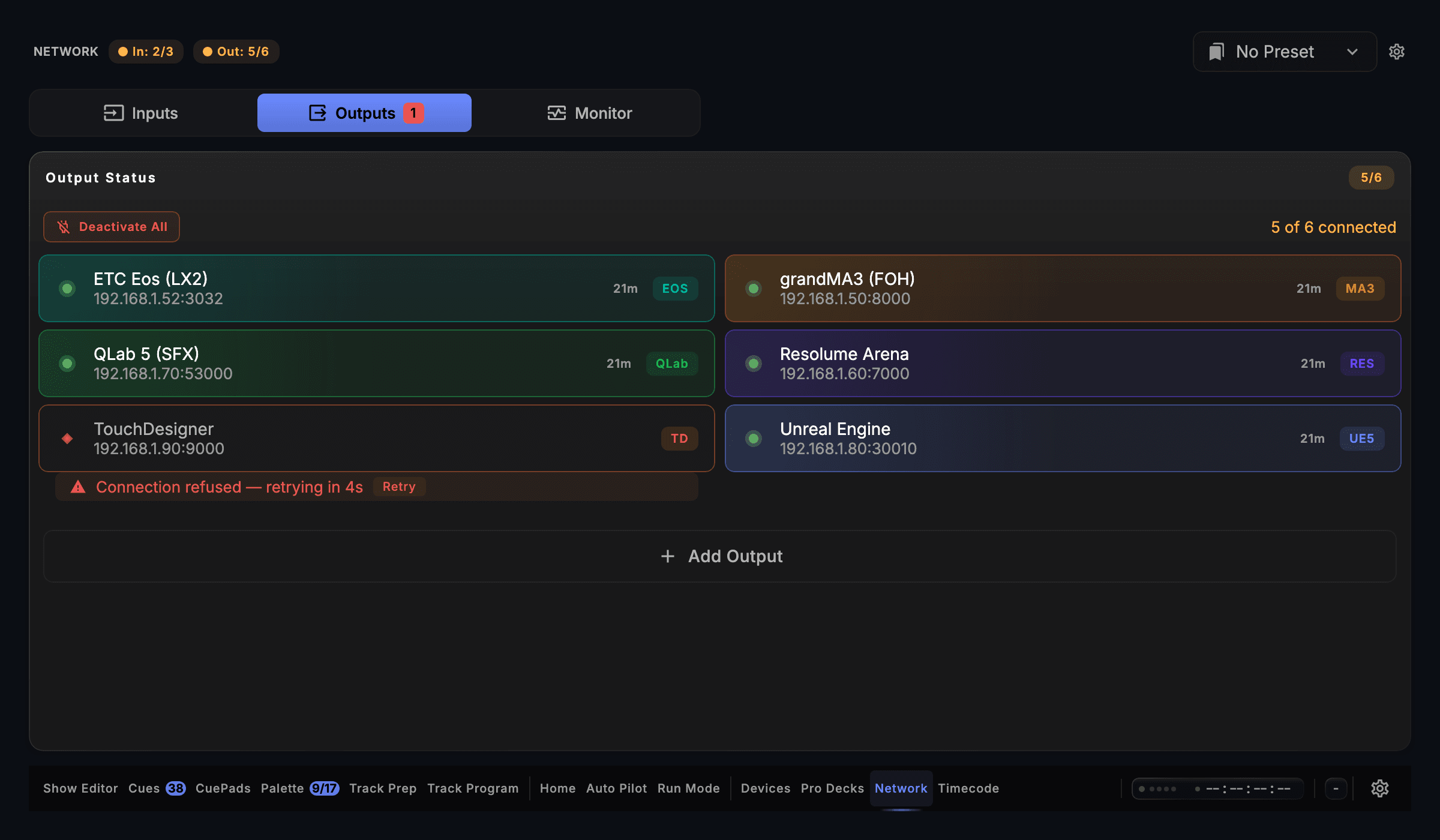
Screen capture · v1.0.35 · Outputs
| Speaks | MIDI Show Control |
|---|---|
| Built for | Lighting desks that receive MSC · Sound and video playback that receive MSC · QLab · Any MIDI interface macOS listsSends MIDI Show Control 1.1 (RP-002) commands to any desk or playback system that receives MSC. |
| Editions | In DJTheatreProduction |
| Manual | /docs/connect/midi-and-msc |
The output is in every edition. A capability marked with an edition needs that edition.
What CueSync sends to MIDI Show Control
| The Theatre Commands | GO, STOP, RESUME, TIMED GO, LOAD, RESTORE, RESET and GO OFF on a cue, a list or a path; FIRE for a macro; ALL OFF; STANDBY and SEQUENCE steps; and a list's clock started, stopped or zeroed. |
|---|---|
| Addressed to One Desk | Each action carries a device ID and a command format (lighting, sound, video, projection and the rest) or all-call, so a GO reaches the desk it was meant for. |
| Refused Before Showtime | Cue numbers are digits and dots, as the standard requires. A desk label like 12A is refused in the editor, not at the GO. |
| Any Trigger, Every Edition | Fire MSC from a GO, the show clock, a follow, a pad or the music. MSC is in every edition. |
| Pinned to the Right Port | Name the MIDI output the desk is wired to, so a pad controller plugged in first never takes the GO. |
| Rehearse Without Sending | DRY steps through every MSC cue and sends nothing, so a rehearsal walks the show without a desk moving. |
Set it up
MIDI Show Control with CueSync, in 5 steps.
- 1On the desk, turn MSC receive on for the MIDI port it is wired to, and note its device ID and command format.
- 2In CueSync, check that the interface appears under Settings → MIDI & Sync → Output Devices.
- 3Choose Network → Outputs → Add Output, Category Audio, Protocol MIDI Show Control, and type the MIDI output port's name as Output Devices lists it.
- 4On a cue, Add Action → your MSC output → MIDI Show Control. Pick the command, then set the device ID, format, cue and list the desk expects.
- 5Rehearse in DRY first, then fire one cue in REHEARSE+ and watch the desk. MSC sends no answer back, so the desk is where you confirm it.
Integration details
Specifics that hold up in production
What CueSync's MIDI Show Control integration does and how it behaves — the things you can check before the show.
- 17 output protocols, one application
- CueSync ships 17 output protocols from a single desktop application: grandMA2 (Telnet), grandMA3 (TCP OSC and UDP OSC), Avolites Titan, ETC Eos, ChamSys MagicQ, Art-Net, sACN, Resolume, disguise (d3), VIOSO Player/Show, AV Stumpfl Pixera, TouchDesigner, Unreal Engine 5, QLab (TCP and UDP), MIDI Show Control, Pangolin Beyond, and Custom OSC. Every CueSync edition includes every protocol.
- Beat-aligned timing
- CueSync times cues to the beat phase of the music and is designed for live production. What you see and hear end to end also depends on your network, console or media server, and fixtures, so confirm the whole chain on your own rig before a show.
MIDI Show Control questions
- Every edition. MSC is one of CueSync's 17 output protocols, and every edition includes all of them.
- No. CueSync sends MSC. A desk or a footswitch starts CueSync's cues over MIDI notes, OSC or DMX instead.
- Watch the desk. MSC has no reply, so a green MSC output means the MIDI port is open, not that a desk is listening. Rehearse in DRY first, which sends nothing.
- An ALL OFF to all-call in the lighting format. If your desk answers only to its own device ID or to another format, put your own ALL OFF on a pad, and test both before doors.
Different question? Ask us directly.
Ready to Automate Your Stage?
Download CueSync free and run the built-in demo show — press Space and its cues fire against simulated outputs, no hardware required. Subscribe when you're ready to drive a real rig.
QLab® is a trademark of Figure 53, LLC. Other product names on this page are the property of their respective owners and are used only to describe compatibility. CueSync is an independent product and is not affiliated with or endorsed by any of them.