ETC Eos, ChamSys MagicQ and Avolites Titan
AllWhat it's for — CueSync fires cues, playbacks, submasters and faders on an ETC Eos family console, a ChamSys MagicQ console or an Avolites Titan console, from cues, Cue Pads and Looks. This page is the playbook for all three: the desk's settings, the output, every action CueSync can send, how each one is reached from Looks and pads, and what none of them can do. It is the counterpart of the GrandMA3 page for the other three consoles.
What has been checked, and on what. None of these three has been run against a real console or its software. Each is built to the manufacturer's published interface (Eos OSC, MagicQ OSC, the Titan Web API). That shows CueSync follows the interface as published. It does not prove a desk accepts it, so questions such as how an Eos desk treats a cue id written
5.0are open. Do a dry run on your own desk and software version, and read each console's section under What has been checked.
| ETC Eos | ChamSys MagicQ | Avolites Titan | |
|---|---|---|---|
| Transport | OSC over TCP (OSC 1.1, SLIP framing) | OSC over UDP | HTTP GET (the Titan Web API) |
| Default port | 3032 | 6171 | 4430 |
| Desk setting (CueSync's own hint) | Setup > System Settings > Show Control > OSC | Setup > View Settings > Network | Enable Web API in Titan under System > User Settings > Key Profiles |
| Green means | The TCP session is open and CueSync's keep-alive goes out on it (Flight Check: console responded) | The desk's computer answers a network reachability check (host ping only) | Titan's /titan/system/info answers HTTP 200-299 (app alive) |
| Desk answers back | Yes: active cue and show name | No | No |
| Blackout verb in CueSync | None | None | Yes: Blackout and Blackout Off |
| Panic reaches it | No (the panic reports it as not covered) | No (same) | Yes, as a blackout |
Menu paths are the ones CueSync itself shows when a connection fails. They move between software versions. If a path does not match your build, the requirement is what matters: the interface must be switched on and reachable on the port above.
1 · Connect a console
- Network → Outputs → Add Output. Category: Lighting, then Protocol: ETC Eos, ChamSys MagicQ or Avolites Titan.
- Name it. Enter the console's IP in Host / IP Address. The port fills in (3032, 6171 or 4430).
- Optional: Pre-fire (ms) and Latency comp (ms), 0–500 each, for beat-driven cues.
- Test Connection, then Add Output. On an install in read-only mode, Test Connection only pings the host: no connection is opened and nothing is sent, and the text says a silent host is not necessarily off.
Shared rules.
- One output per console. An action with no output chosen goes to the first connected output of its protocol. Pick the output in Add Action to pin it, or tick Send to every ETC Eos / ChamSys MagicQ / Avolites output to send to all. A main and a backup console are two outputs.
- A failed send is never queued. If the console is down, the action fails and nothing is replayed when it comes back.
- A UDP output cannot say anything about the far end. MagicQ's green is a ping. See What has been checked.
- An output CueSync has taken offline after repeated failures stops receiving cues until it recovers. Other outputs keep firing.
2 · ETC Eos
On the desk
Enable OSC in Setup > System Settings > Show Control > OSC and note the TCP port (CueSync defaults to 3032). CueSync speaks OSC 1.1 (SLIP framing) over TCP, so set the desk's OSC TCP format to OSC 1.1: with OSC 1.0 the connection opens, but the console cannot read what CueSync sends. The software must be running with a show loaded.
CueSync subscribes to the console's output on every connect and again after every reconnect, so you do not have to point the desk's OSC output at CueSync. If Active cue stays empty in Diagnostics, check that the desk's OSC output is switched on in Setup. Turning it off entirely kills the subscription's replies too.
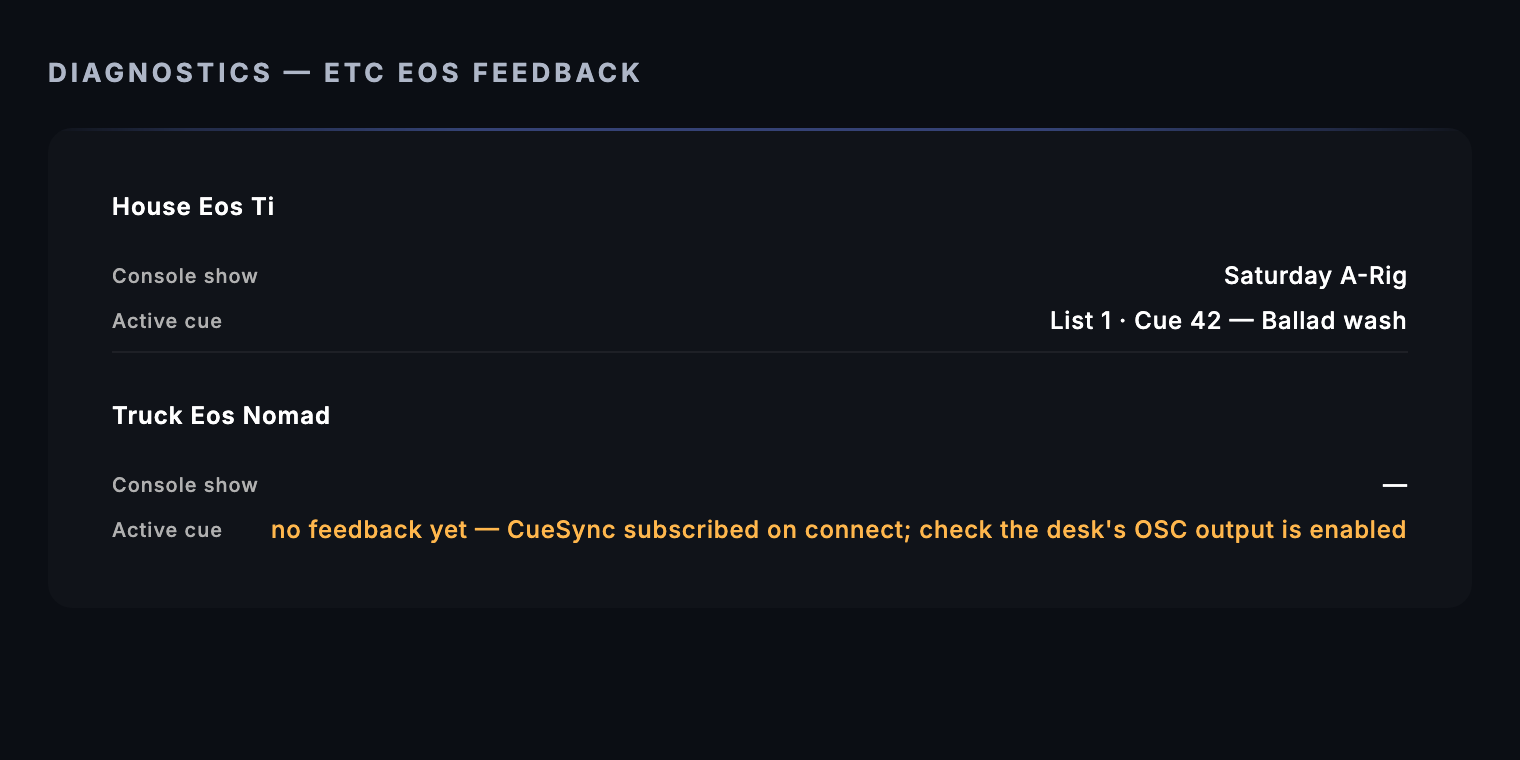
Turn the Diagnostics screen on in Settings → Advanced. The ETC Eos Feedback card appears once an Eos output is connected.
The action
Add Action → your Eos output → ETC Eos. A new Eos action starts with Go ticked.
| Control (exact label) | The console receives |
|---|---|
| Go, no cue | /eos/key/go_0 (the GO key) |
| Go with Cue (e.g. 1.5) | /eos/cue/<list>/<cue>/fire. Cue List blank means list 1 |
| Cue alone (Go unticked) | The same /eos/cue/<list>/<cue>/fire |
| Stop | /eos/key/stop |
| Pause | /eos/key/stop (the same key: it halts a running fade) |
| Resume | /eos/key/resume |
| Macro | /eos/macro/<n>/fire (1–999) |
| Fader and Fader % | /eos/sub/<n> with 0.0–1.0. This is a submaster |
| OSC fader bank (1-99, optional) with Fader and Fader % | /eos/fader/<bank>/<fader> with 0.0–1.0 instead of the submaster |
| Bank size (declare, 1-100) | /eos/fader/<bank>/config/<size>, sent first. Eos answers no bank fader until its bank is declared. Alone (bank + size, no level) it only declares |
| Select Channel | /eos/cmd with Chan <n> Enter (1–9999) |
| Key (e.g. "Go", "Stop", "Shift+Esc") | /eos/key/<text>, the text appended as typed |
| Raw Eos command (overrides above) | /eos/cmd with your text. CueSync adds # unless it already ends in # or Enter, because an unterminated line just sits on the desk's command line |
Which verb wins. One action does one thing: raw command, macro, fader pair, bank declare, stop, pause, resume, select channel, key, go, cue, then a bare GO. The first that is set fires. Both cue arms send the same address, so Go plus a cue number is one cue jump.
Cue ids. The Cue box takes decimals. A whole number is sent without the fraction: 12 goes out as /eos/cue/1/12/fire, though the cue row reads Go Cue 12.0. Whether an Eos desk would also accept 12.0 is not established.
Refused before sending. A fader with no level, or a level with no fader, names what is missing: "Eos action needs a fader number — nothing sent". A bank on its own needs a size, or a fader and level. Out-of-range values are refused by name: cue list 1–999, macro 1–999, fader 1–999, bank 1–99, bank size 1–100, channel 1–9999, and a key name may not be blank.
The Key text is not translated. The editor's example Shift+Esc looks like a keyboard chord, but what goes on the wire is /eos/key/Shift+Esc. go_0, stop, sneak, blackout and live are examples of Eos key names, and none of them has been checked against a desk. Use the key names from Eos's OSC documentation.
From Looks, pads, intents and panic (Eos)
| Surface | What happens |
|---|---|
| Look (Palette → New Look → Lighting consoles → ETC Eos cue) | Fields Cue Number and Cue List # (blank = default). Fires the cue as above. NO RELEASE: an Eos cue Look has no honest inverse |
| Look tile state | LIVE while the desk reports that cue active, SENT otherwise. With no feedback attached at all it stays SENT |
| Cue Pad | Templates Go, Stop / Back, Pause, Resume, Macro, Fader 100% (toggle: 100% on, 0% on release) |
| A submaster raised by a Look or span | Released by taking that submaster back to zero. That is the only release Eos has |
| Go Show Cue intent | Sends a GO to that cue, list from the intent (or 1), to every Eos output. A cue label that is not a number resolves to nothing and is reported |
| Blackout / Set Intensity intent, Blackout pad, panic | Nothing. CueSync has no established Eos blackout or master verb |
Eos has no blackout in CueSync. The Stop key halts a fade and blacks nothing out, so CueSync does not send it for a panic. If an Eos output is connected, the panic ends with a sticky Blackout incomplete banner naming it and telling you to black out the hardware manually. A Blackout pad filtered to include Eos reports no blackout the app can send. Keep a hand on the desk's own blackout.
3 · ChamSys MagicQ
On the desk
Enable OSC input in Setup > View Settings > Network and use the UDP port CueSync has (default 6171). Two limits are worth knowing before you build: MagicQ PC is understood to expose only playbacks 1–10 and execute grids 1–10 over OSC, and full consoles address all 202 playbacks. MagicQ's OSC input has no macro address and no command line. Anything beyond playbacks and the execute grid needs an OSC route you create on the desk.
The action
Add Action → your MagicQ output → ChamSys MagicQ. A new MagicQ action starts with Go ticked.
| Control (exact label) | The console receives (argument in brackets) |
|---|---|
| Go with Playback (1-202) | /pb/<n>/go [1] |
| Pause with Playback | /pb/<n>/pause [1] |
| Release with Playback | /pb/<n>/release [1] |
| Level % with Playback | /pb/<n> [0–100]: the level is the argument |
| Cue (decimals allowed) | /pb/<pb>/<cue> [1], where <pb> is Playback, or Page if Playback is blank, or 1. A whole number goes as 5, never 5.0 |
| Execute Btn (with Page, default 1) | /exec/<page>/<item> [1] |
| Raw OSC address, mapped on the console (overrides above) | Your address as typed, argument 1 |
| Macro (not addressable) | Nothing. The box is kept red so an old show can see and clear its value |
Which verb wins. Raw address, then release, pause, go, level (each needs a Playback), then cue, then execute button, then a bare GO on the Playback (or on playback 1).
⚠ Go is ticked on a new MagicQ action, and it outranks a cue jump. Set Playback 3 and Cue 5 and leave Go ticked: CueSync sends
/pb/3/go. The cue is dropped. Untick Go to jump. The same holds for a Level % with a Playback.
Refused. Release, Pause, Go or Level with no Playback: "MagicQ action needs a playback number — nothing sent". A raw address that does not start with /: "An OSC address starts with '/' — e.g. /pb/1/go. MagicQ has no command line over OSC." A macro with no raw address to replace it: "MagicQ has no OSC address for a macro — map macro N to an OSC route on the console and address that route in Raw OSC address".
From Looks, pads, intents and panic (MagicQ)
| Surface | What happens |
|---|---|
| Look (Palette → New Look → Lighting consoles → MagicQ playback) | Fields Playback (1-202) and Cue (blank = GO the playback). Blank cue: /pb/<n>/go. With a cue: the jump. On release: /pb/<n>/release, for a playback the Look raised (a GO or a cue jump). A bare level trim, an execute-grid press or a raw address has no release |
| Look tile state | SENT only. MagicQ cannot confirm |
| Cue Pad | Templates Go, Pause, Release, Fader 100%, Execute, Execute 1.1 (a raw /exec/1/1 route) |
| Go Show Cue intent | A cue jump. The intent's cue list is read as the playback number, and blank means playback 1 |
| Blackout / Set Intensity intent, Blackout pad, panic | Nothing. No global blackout address is exposed |
MagicQ has the same gap as Eos: a panic with a MagicQ output connected ends in a sticky Blackout incomplete banner naming it. Use the desk's own DBO.
4 · Avolites Titan
On the desk
Titan's Web API must be switched on and reachable on HTTP port 4430. CueSync's hint places the switch at System > User Settings > Key Profiles. CueSync connects by requesting /titan/system/info and treats any HTTP 200–299 as connected. The same request in a browser on the CueSync machine (http://<console>:4430/titan/system/info) tells you whether the API is reachable before you blame a cue. CueSync sends plain HTTP with no login. Titan software must be running with a show loaded.
Playback names and Titan IDs. Every Titan playback verb is addressed by a Titan ID. On connect CueSync reads Titan's playback list (/titan/handles/Playbacks) and remembers each entry two ways: Playback 1, Playback 2 and so on by its position in that list, and by the entry's legend. Typing a Playback Name uses that memory. Position N in Titan's list is not guaranteed to be the playback you call N on the desk, so the safest names are the legend text or a Titan ID. CueSync has no screen that lists Titan IDs; they come from the handle list the API returns.
The action
Add Action → your Avolites output → Avolites.
| Control (exact label) | The console receives (all GET, under /titan/script/2/) |
|---|---|
| Blackout | Masters/SetBlackout?enabled=true |
| Blackout Off | Masters/SetBlackout?enabled=false |
| Grand Master % | Masters/SetGrandMaster?level_level=<0..1> |
| Macro ID | Macros/RunMacro?handle_titanId=<id> |
| Kill | Playbacks/KillPlayback?handle_titanId=<id> |
| Go Next | Playbacks/GoCue?handle_titanId=<id>&cueId=next |
| Previous Cue | Playbacks/GoCue?handle_titanId=<id>&cueId=prev |
| Cue Number | Playbacks/GoCue?handle_titanId=<id>&cueId=<number>. A whole number is written 5.0 |
| Fixture TitanId with Fixture Level 0-1 | Fixtures/SetIntensity?handle_titanId=<id>&level_level=<0..1> |
| Property Path (Power Mode) with Property Value | GET /titan/set/<path, slashes as %2F>?value=<value, URL-encoded> |
| Level % with a Titan ID or Playback Name | Playbacks/FirePlaybackAtLevel?handle_titanId=<id>&level_level=<0..1>&alwaysRefire=false |
| Titan ID or Playback Name alone | The same call at level 1.0: fire the playback |
The playback verbs (Kill, Go Next, Previous Cue, Cue Number) take the Titan ID if there is one, otherwise resolve the Playback Name through the remembered list.
Which verb wins. Blackout, Blackout Off, Grand Master, Macro, Kill, Go Next, Previous Cue, Cue Number, fixture level, raw property, Level %, Titan ID (fire), Playback Name (fire). A Grand Master value therefore beats a Kill in the same action.
Refused, with the reason on screen. "Avolites playback needs a Titan ID or a playback handle name" (shown under the boxes as Won't send — …). "playback '<name>' is not in the desk's handle cache — check the name on the console, or reconnect the output to refresh it": the name has not been seen, usually because the list was not read yet or the playback was renamed. "playback level needs a Titan ID or a handle name". "action has no operation set".
From Looks, pads, intents and panic (Avolites)
| Surface | What happens |
|---|---|
| Look (Palette → New Look → Lighting consoles → Avolites playback) | Fields Handle id (releasable), Playback name and Cue (blank = fire the playback). The cue box is disabled until there is a handle id, because Titan's cue jump is id-addressed. Release: a Kill on the same id or name. The starter comes with Titan ID 1 as a placeholder, so change it |
| Cue Pad | Templates Go Next, Go Prev, Kill Playback (all with the placeholder Titan ID 1, so change it), Grand Master (toggle), Blackout (toggle: on, then Blackout Off on release) |
| Blackout intent | Blackout on. Its off half (for example a CUT transition gap closing) sends Blackout Off |
| Blackout All pad, panic | Blackout on, with no automatic restore |
| The Blackout pad template | Press: Blackout. Release: Blackout Off |
| Set Intensity intent | Grand Master at the level |
| Go Show Cue intent, venue-profile Look lane | ⚠ Build an Avolites action with a cue number and no Titan ID and no playback name. It is refused with "needs a Titan ID (or a playback handle name)". Author the cue or pad yourself with an ID or a name |
| Look tile state | SENT only |
Panic is a blackout, and releasing the panic does not lift it. The panic sends SetBlackout enabled=true. The panic's release restores only Unreal, the grandMA3 Grand Master and Resolume's composition opacity. On Titan, put the rig back with a Blackout Off action or the desk's own control. The Avolites Blackout pad template's release does send Blackout Off; the panic's release does not.
5 · Use cases
A · Eos: fire cue 12 from a Theatre cue
- On the desk: OSC enabled under Setup > System Settings > Show Control > OSC, show loaded, cue 12 recorded on list 1.
- Network → Outputs → Add Output → Lighting → ETC Eos, host = the desk, port 3032, Test Connection, Add Output.
- In the Show Editor, give the lighting lane an Output Routing… to the Eos output. Set the cue's trigger to Manual.
- Add Action → your Eos output → ETC Eos. Go ticked, Cue (e.g. 1.5)
12, Cue List1. The row readsGo Cue 12.0. - Run Mode: press
P, thenSpace.
You should see: the desk run cue 12, and, if the desk's OSC output is on, Diagnostics → ETC Eos Feedback show Active cue: List 1 · Cue 12. A Look for the same cue turns LIVE on that report.
B · Eos: bring a submaster up and take it back
- Add a Cue Pad from the Fader 100% template. Right-click → Edit and set Fader to the submaster number you use.
- Set the pad's mode to Toggle.
- Press the pad:
/eos/sub/<n>goes to 1.0. Press it again: 0.0.
You should see: the submaster fader on the desk follow. This is the one thing on an Eos that CueSync can also release on its own, for example when a Look holding it is released.
C · MagicQ: jump playback 3 to cue 5, then take a level
- Add Output → Lighting → ChamSys MagicQ, host = the desk, port 6171. Its green means the desk's computer answers a ping.
- Add Action → ChamSys MagicQ. Playback (1-202)
3, Cue5, and untick Go. The row readsCue 5.0 on PB3. - Add a second action: Playback
3, Level %60, Go unticked.
You should see: /pb/3/5 then /pb/3 with 60. Nothing comes back, so watch the desk. On MagicQ PC, stay within playbacks 1–10.
D · Avolites: fire a playback by name, and a blackout pad you can reverse
- On Titan, enable the Web API. Open
http://<console>:4430/titan/system/infoin a browser on the CueSync machine and confirm it answers. - Add Output → Lighting → Avolites Titan, host = the console, port 4430, Test Connection, Add Output. Wait a moment for CueSync to read the playback list.
- Add Action → Avolites. Playback Name: a playback's legend as Titan lists it. Leave the rest blank. The row reads
Fire <name>. - Add a Cue Pad from the Blackout template. Its press sends Blackout, its release sends Blackout Off.
You should see: the playback fire, and the rig go dark and come back with the pad. If the name is unknown the cue fails naming it. Reconnect the output to refresh the list.
Tips & gotchas
- Go is ticked on new Eos and MagicQ actions. On MagicQ it beats a cue jump. Untick it.
- The panic does not reach Eos or MagicQ. It says so, with a sticky banner. Plan a manual blackout.
- Titan ID or name, always. A Titan playback verb with neither is refused. The Go Show Cue intent and the venue Look lane build exactly that.
- Positions are not playback numbers.
Playback 5is the fifth entry in Titan's list. - Eos Stop and Pause are the same key.
- MagicQ raw addresses carry the argument 1 and nothing else.
- UDP is silent. A wrong port or a firewall on MagicQ still reads green while the desk's computer answers pings.
- A whole cue goes as
5.0on Titan,5on Eos and MagicQ. Whether each desk cares is not established. - Rehearse in DRY. It sends nothing to hardware.
Files the desks import
Firing over the network is one route. The other is a file the desk imports, so its own cue list holds the show before tech.
- ETC Eos: USITT ASCII. File → Sync, Import & Export → Export Cue Sheet…, layout Lighting, format USITT ASCII. Cue numbers, labels, the cue's fade as
Up/Downand a Follow or Auto link asFollowon. On the desk: Browser → File → Import → USITT ASCII, which loads the cues into cue list 1. Timecode does not travel in this format. See Export Cue Sheet. - ChamSys MagicQ, Hog 4, Avolites Titan: Export Desk Timecode CSV. File → Sync, Import & Export → Export Desk Timecode CSV (MagicQ, Hog 4, Titan)… writes one Part as a REAPER marker file with the ruler in hours:minutes:seconds:frames. All three desks document importing that file. The export needs a working licence: a read-only install is told "Subscribe to export the desk timecode CSV — you're in read-only mode" with a Subscribe button, and nothing is written. Every cue CueSync fires from the clock becomes a marker at the time CueSync fires it, on the house clock (venue origin and trigger offsets included). GO, standby and follow cues are left out, and the confirmation counts them, because a desk fires timecode whatever is happening on stage. Spans are written as plain markers, not regions. Hog 4 turns a region into a cuelist and refuses one with no marker inside. A cue that looks like pyro, a laser, flame or CO₂ is left out too — a cue that sends MIDI Show Control to one of those formats, or any cue on a lane named for one — and the confirmation names it, because this file puts a cue on the desk's own clock. A lane's grandMA desk setting in its Output Routing decides it: On sends the lane, Off keeps it out (grandMA3 Session Sync).
- MagicQ: Cue Stack → View TC → IMPORT TC TIMINGS, then Make Cues, Make TC Track or Load Markers. MagicQ reads REAPER's first column as the cue's name, so the cues arrive named
M1,M2… with CueSync's cue name and number in the comment field. - Hog 4: List → Open → Cuelist Import. With no regions in the file, every marker becomes a cue in one new cuelist. Hog numbers them by position, so the name keeps CueSync's number:
Chorus (12). - Titan: a Timeline's context menu → Tools → Import Markers. These are markers for placing triggers, not cues.
- MagicQ: Cue Stack → View TC → IMPORT TC TIMINGS, then Make Cues, Make TC Track or Load Markers. MagicQ reads REAPER's first column as the cue's name, so the cues arrive named
Both files were built to each manufacturer's published import documentation (ETC's Eos Family USITT ASCII Import, MagicQ's Importing Timecode Timings, Hog 4 manual §4.12, Avolites' Importing markers). None has been imported on a desk yet. Check the first import on your desk and software version. The existing Export Reaper Markers… file is not the desk file: it writes M:SS.mmm times rather than frames, includes GO cues, and writes spans as regions.
What has been checked
Eos: the addresses are the ones in ETC's OSC documentation. No console has answered. MagicQ: built to its published OSC input. MagicQ's OSC input has no macro address, so macros and the raw route are your job on the desk. Never run against MagicQ. Titan: built to the published script-call URL shape and argument names. Never run against Titan. For a checklist to settle each open question in one session at your own desk, see Desk Verification.
Related
- GrandMA3 — The console playbook this page follows
- Network Outputs — Adding, testing and monitoring outputs
- Palette — Looks for Eos cues and Avolites and MagicQ playbacks
- Cues — Adding actions to cues
- Cue Pads — The console pad templates
- Show Editor — Lane and Part Output Routing
- Diagnostics — The Eos feedback card and Flight Check depth labels
- Venue Profiles — Intents and capability guards
- Desk Verification — A checklist for proving your own setup
- What Each Action Can Send — Verb lists
- QLab · MIDI and MIDI Show Control · Pangolin Beyond
Looking for a quick fix?
The Help Center has short task-focused articles and a support team that responds within 24 hours.