VIOSO
AllWhat it's for — CueSync controls a VIOSO Player or Show server over its TCP remote-control interface. It plays, pauses and stops the playlist, selects a playlist item, sets the volume and mute, and switches the server into and out of show mode. VIOSO support follows VIOSO's published remote-control reference and has not been proven on a live server. This page also lists two traps that do not announce themselves: an action that carries two operations sends only one of them, and CueSync never reads VIOSO's reply.
1 · Connect VIOSO
In VIOSO — Options → Settings → Remote Control
VIOSO offers a TCP interface, a UDP interface and HTTP requests from a browser. CueSync uses the TCP one. (VIOSO answers on TCP and sends no answer on UDP.)
- In VIOSO Player or Show, open Options → Settings → Remote Control.
- Enable the TCP interface, choose the network adapter CueSync can reach, and set a port.
- Restart the VIOSO application. VIOSO's reference says to restart after changing these settings.
VIOSO's reference gives no default port. CueSync's own default is 9091, so use that number in VIOSO, or type your number into CueSync. Allow inbound TCP on that port on the VIOSO machine's firewall.
VIOSO reads a command as a text line ended by \r, \n or \r\n. CueSync ends every line with \r\n.
In CueSync
- Network → Outputs → Add Output. Under Category, pick Video, then VIOSO Player (TCP cue/playlist control).
- Give it a Name. Enter the VIOSO machine's Host / IP Address.
- Set Port to the number you set in VIOSO. It starts at 9091.
- Click Add Output, then open the output and click Test Connection.
What "connected" means for VIOSO. The output is green once VIOSO's remote-control interface accepts a TCP connection. Green therefore proves that something in VIOSO accepts connections on that port. It does not prove that a show is loaded or running, and a machine that vanishes may take a while to show as down.
CueSync never reads VIOSO's reply. On TCP, VIOSO answers each command with a short response string. CueSync throws those answers away. A cue reports success once the line has been written to the socket. A command VIOSO does not understand, or cannot run, therefore still reads green. Confirm on the projectors, not on the cue.
Timing. The output's Pre-fire (ms) and Latency comp (ms) (0–500) work as on any output. OSC timetags do not apply: VIOSO is not OSC.
More than one VIOSO. An action with no output chosen goes to the first connected VIOSO output. Tick Send to every VIOSO output on the action to reach all of them.
2 · What a VIOSO action can do
Add an action to a cue or a Cue Pad. From Add Action, pick the VIOSO output, then VIOSO.
| Editor field | What VIOSO receives |
|---|---|
| tick Play | player.htm?state=play |
| tick Pause | player.htm?state=pause |
| tick Stop | player.htm?state=stop |
| tick Next | player.htm?select=next |
| tick Prev | player.htm?select=prev |
| Item # (1 or more) | player.htm?select=<n> |
| Volume (0-100) | player.htm?audio=<n> |
| tick Set mute, then the box beside it reads Muted (ticked) or Unmuted | player.htm?mute=1 or player.htm?mute=0 |
| tick Set show mode, then the box beside it reads Show (ticked) or Desktop | control.htm?present=1 or control.htm?present=0 |
| Raw VIOSO command (overrides above) | your text, as typed, with \r\n added |
The collapsed action row shows a summary such as Play, Item 3, Vol 30%, Mute or Show Mode.
One action, one operation, and the rest is dropped
CueSync sends the first match in this order and ignores everything below it:
raw command, Stop, Pause, Play, Item #, Next, Prev, Volume, mute, show mode
Unlike Pixera, VIOSO does not refuse an action that names two operations. It sends the first, drops the rest, and reports success. The editor shows no warning. So an action with Item # 3 and Play ticked sends only player.htm?state=play: the item you chose is discarded. For "select, then play" use two actions; the built-in VIOSO Play template is the play half.
Order across actions. On a Theatre cue the actions go out one after another, in list order. On the Cues screen they go out together, and only a Wait action (Wait time (seconds)) makes the next one wait. For select-then-play on the Cues screen, put a Wait of a fraction of a second between the two.
What is refused up front, and what fails visibly
| You set | What happens |
|---|---|
| Item # below 1 | Refused before sending, with a message that starts VIOSO validation failed: (the editor also raises a 0 to 1) |
| Volume outside 0–100 | Refused the same way (the editor also clamps it) |
| Nothing at all | Fails with VIOSO action has no operation set |
| A command VIOSO rejects | Nothing. CueSync does not read the reply (§1). |
The raw box reaches everything, including the dangerous commands
Raw VIOSO command sends any line you type. VIOSO's reference lists commands beyond the editor's, and some of them are not for a cue:
control.htm?exitcloses the VIOSO application.control.htm?shutdown=1shuts down the operating system, andcontrol.htm?shutdown=2shuts it down and reboots.control.htm?calibrate=M0starts a recalibration.player.htm?statusandplayer.htm?listask for information. CueSync will not show you the answer.
Keep a raw command off any pad you press without looking. Read a raw field back twice before you save it.
Other raw examples from VIOSO's reference: player.htm?select=99999 selects the last item of the playlist.
3 · Looks, pads, intents
Looks
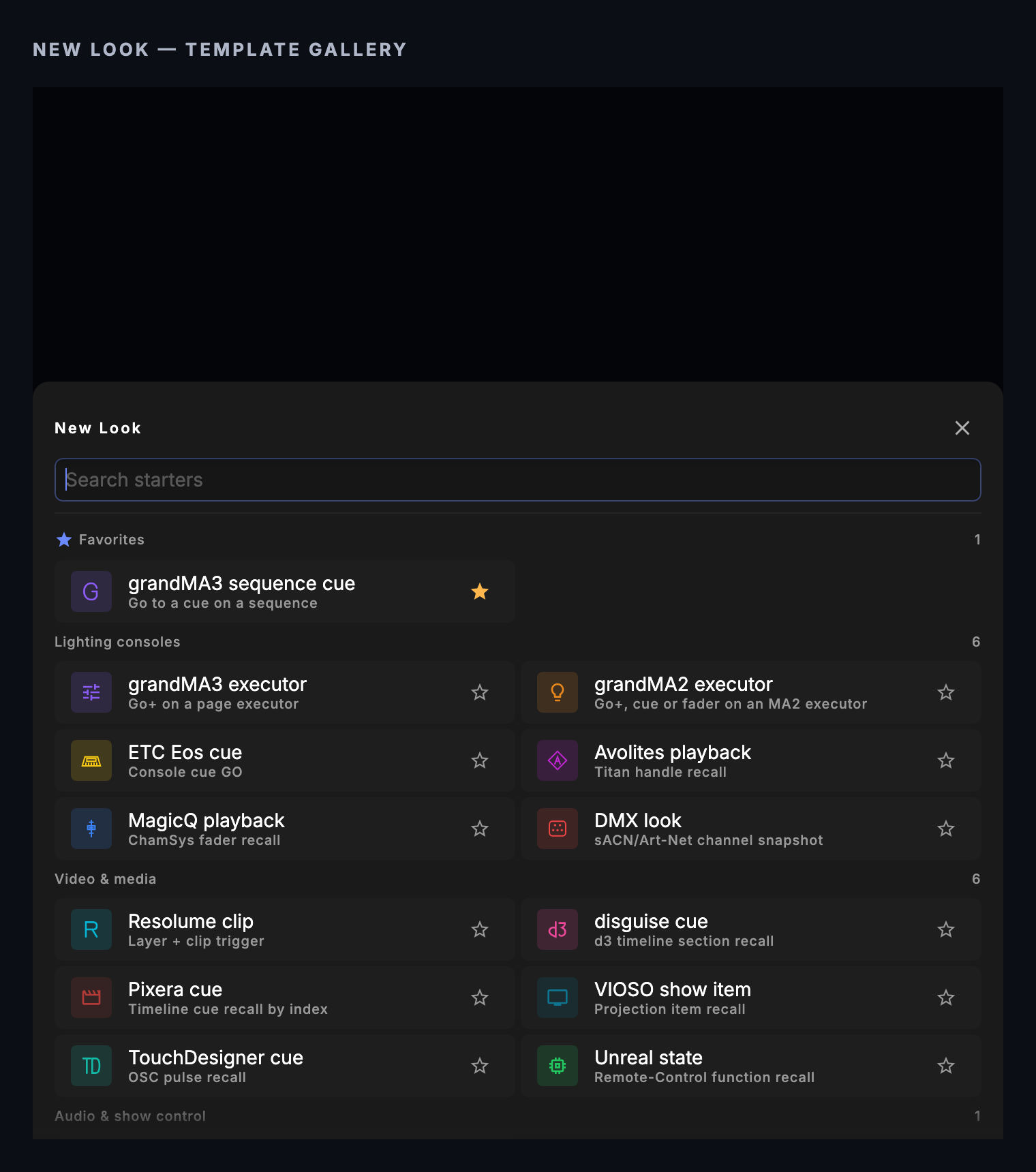
In the Palette, + New Look → Video & media → VIOSO show item (Projection item recall). The single field is Show item (1-based). The Look sends a select on its own, with no play: whether your server rolls on a select is a setting on the server, and CueSync cannot add a play to the same action. There is no honest inverse of "select item 3", so the tile says NO RELEASE and reads SENT.
An Any action Look holding a VIOSO action has no release either.
Cue Pads
Templates (on the bank tab bar) has a VIOSO section: Play, Pause, Stop, Next Item, Previous Item, Mute and Show Mode. Mute mutes while the pad is active and unmutes on release. Show Mode enters show mode while active and leaves it on release.
Intents
Intent cues (Theatre Show Editor) and Auto Pilot moments reach an output according to its role in the venue profile. No role, or Custom, takes every intent. Video Server takes Set Visual, Clear Visual and Set Effect.
| Intent | What VIOSO receives |
|---|---|
| Set Visual (Clip #) | player.htm?select=<Clip #> when Clip # is 1 or more. The layer and opacity are dropped. |
| Blackout, Set Intensity, Go Show Cue, Clear Visual, Strobe Burst, Set Effect | nothing: VIOSO has no blackout, level or cue verb for them |
Auto Pilot below full energy, and a soft velocity pad, scale the Volume field.
Fades, timecode and feedback
There is no fade target for VIOSO, no timecode leg, and no feedback: the tile reads SENT.
4 · Panic
Blackout on the EdgeBar (or the blackout shortcut) and the Blackout All pad send player.htm?state=stop to every connected VIOSO output. VIOSO has no blackout verb, so the panic is a stop. It halts the player (CueSync's reading is that it also returns to the start of the current item). What the projectors show once stopped is your project's business.
Releasing panic does nothing for VIOSO. Play again from a cue or a pad.
When VIOSO drops out. An action aimed at an output that is not connected fails and is not queued. Nothing is replayed on reconnect.
Use cases
1. Select a playlist item, then play it
- On the Cues screen, click
+. Name the cue Intro film. - Add a VIOSO action with Item #
3. The row readsItem 3. - Add a Wait action of
0.2seconds. - Add a second VIOSO action and tick Play. The row reads
Play. - Test-fire the cue.
VIOSO should get player.htm?select=3 and then player.htm?state=play. If you put Item # and Play in one action, only the play goes out. On a Theatre cue you can skip the Wait, since the actions go out in list order.
2. Duck the volume for a speech and bring it back
- Add a cue Speech duck with a VIOSO action, Volume (0-100)
30. The row readsVol 30%. - Add a cue Speech end with Volume (0-100)
100. - Test-fire them in turn.
VIOSO's global audio level should drop to 30 % and return. Each is player.htm?audio=<n>. A Mute pad from the templates does the same job with a switch.
3. Switch show mode from a pad
- In Cue Pads, click Templates, open VIOSO and drop Show Mode into a slot.
- Right-click the pad → Test Fire, and again to release.
VIOSO should enter show presentation mode (control.htm?present=1) while the pad is active and return to its desktop on release (control.htm?present=0). Check first what Desktop puts on your projectors: it is the VIOSO interface.
4. Check the panic before doors
- With a playlist item playing, click Blackout on the EdgeBar.
- Watch the player.
It should stop. Release the blackout and start it again from a cue.
Tips & gotchas
- Green means the socket took the bytes. VIOSO's reply is discarded, so a rejected command still reads green.
- Restart VIOSO after changing Remote Control. Its reference says to.
- Extra fields are dropped, not refused. Check the row summary: it shows only the operation that will fire.
- There is no Select & Play template, because one action sends one operation. Add Select Item and Play as two actions.
- Items count from 1. (Pixera counts from 0.) Item # 0 is refused.
- A select may not roll. Whether VIOSO plays after a select is a server setting.
- Show mode has two faces. Show is the projection, Desktop is the VIOSO interface. Do not fire Desktop while the audience is looking.
- Some VIOSO commands need show mode. Some VIOSO player commands only work in show mode; check on your own server.
- Raw can shut the machine down. See §2.
- Panic stops the player. It does not blank the screens, and the item's position afterwards is VIOSO's.
- The port is yours. CueSync's 9091 is a default, not a value VIOSO documents.
What has been checked
VIOSO support follows VIOSO's published remote-control reference and has not been proven on a live server. Every command is a plain text line. The connection check proves only that the interface accepts a connection. Do a dry run against your own server before a show.
Related
- Network Outputs — Adding, testing and monitoring outputs
- Looks — Building Looks, VIOSO show items included
- Cues — Adding actions and Waits to cues
- Cue Pads — The VIOSO pad templates
- Intents and Actions — How intents reach each rig
- Venue Profiles — Output roles
- What Each Action Can Send — The verb list per action
- Protocol Reference — Ports and connection behaviour
- Resolume, Pixera and disguise — The other video servers
Looking for a quick fix?
The Help Center has short task-focused articles and a support team that responds within 24 hours.